
Google Business Profile Photo Size Guidelines (+ Image Tips)
Google Business Profile (GBP) images are the photos that appear when people find your business on Google Search or Maps.
If your images aren’t the correct size, they may appear blurry or cropped. Or fail to load.
Here are the recommended image sizes for different photo types in your GBP listing:
Let’s look at each in detail.
GBP Cover Photo
The cover photo is the main image displayed at the top of your GBP listing on Search.
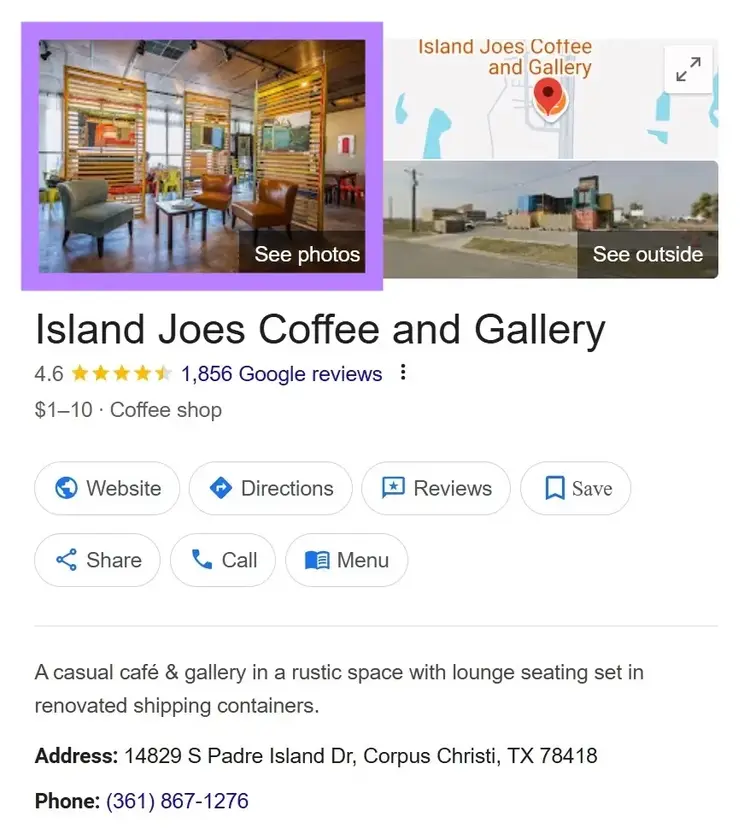
It also appears on Maps.
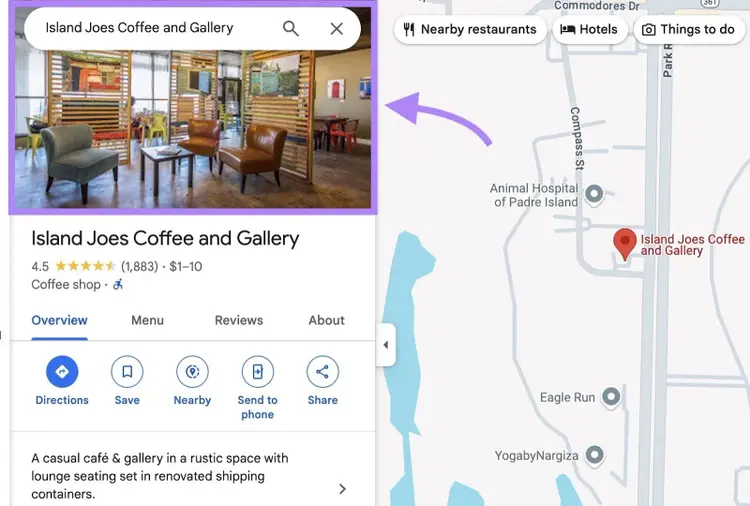
A strong cover photo attracts attention and encourages more people to click through.
The ideal Google Business Profile cover photo size is 1024 x 576 pixels in JPG or PNG format.
But Google may crop it depending on the browser or where your listing appears.
Best practices include:
- Use a clear photo of your storefront, interior, or team—not a logo or stock image
- Take the photo in natural daylight for better visibility
- Avoid text; Google may crop it out on some screens
- Use a wide shot that shows the full space
- Center the main subject so it still looks good if cropped
In this coffee shop example, the cover photo is well-lit, shows the interior clearly, and captures the actual customer space:
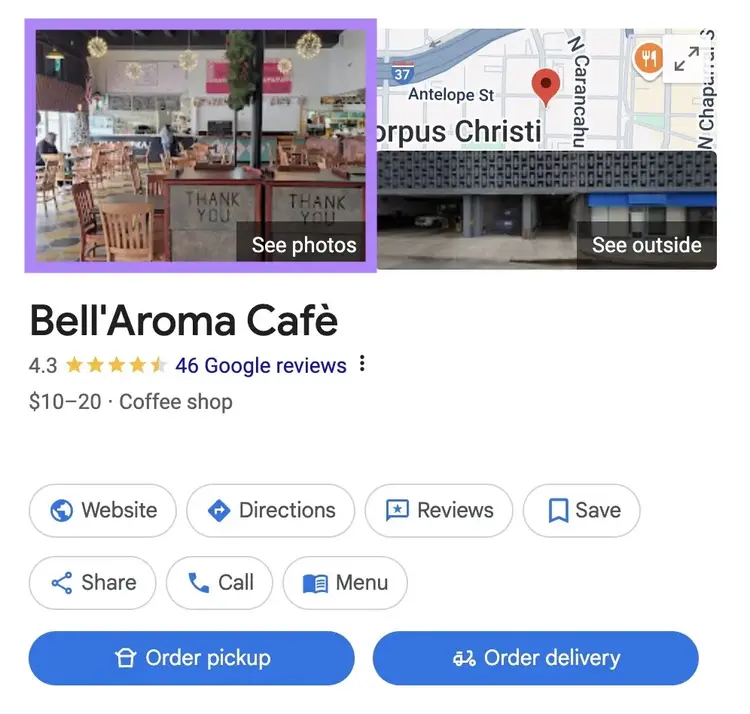
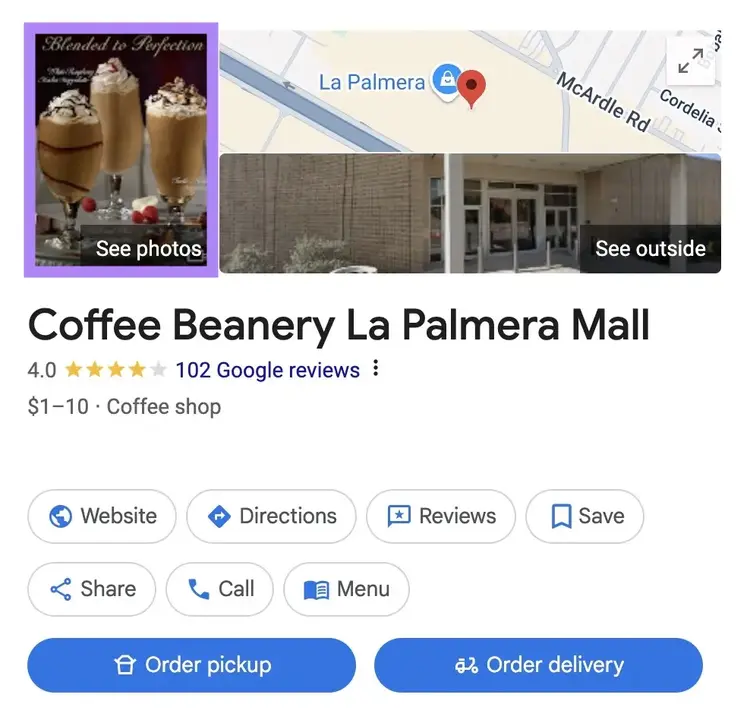
Compare it to a shop with a poor cover photo that doesn’t show the space, staff, or anything unique to the location. So it’s harder for the user to get a feel for the business.
GBP Profile Logo
Your logo is a crucial part of your brand identity and appears in sections like Google Posts and review replies.
The logo no longer appears consistently in the main panel on Search. And Google hasn’t shared an official update on the change, but it still plays a vital role.
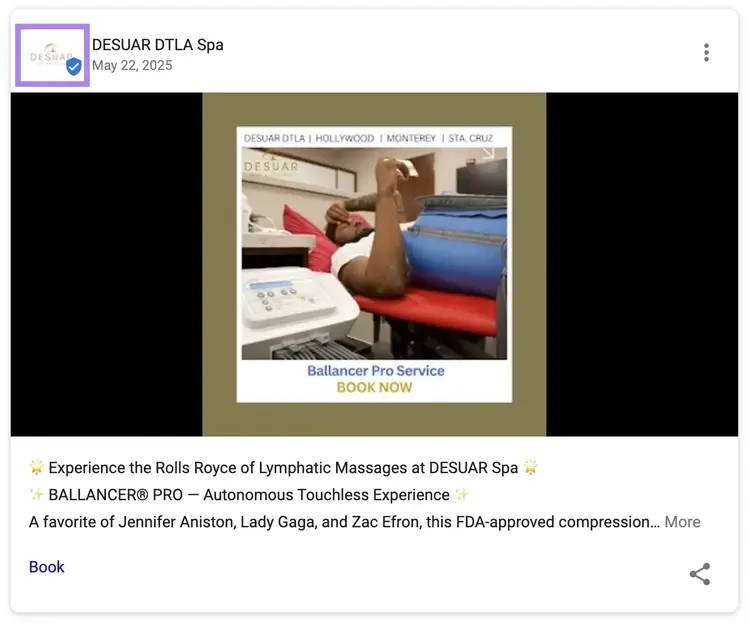
Your logo helps reinforce your brand identity and makes your profile look more complete.
The ideal Google Business Profile image size for logos is 720 x 720 pixels in JPG or PNG format.
The minimum size is 250 × 250 pixels.
For best results:
- Use only your core logo—avoid extra text, taglines, or graphics
- Center the design to avoid awkward cropping across layouts
- Skip shadows, borders, or padding
- Pick a version that stays sharp and readable on small screens
- Ensure a clean or transparent background
GBP Business Photos
Business photos are additional photos that help showcase your space, products, team, and services, beyond your logo and cover photo.
They appear when someone clicks your cover photo on Search.
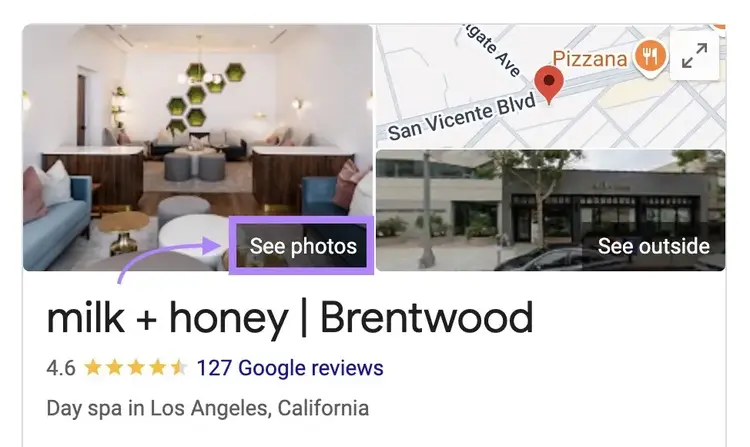
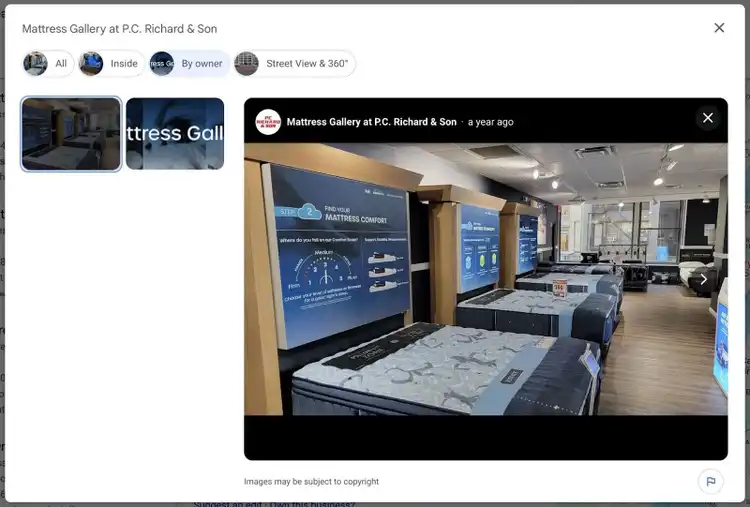
They also show up in the “Photos & videos” section of your listing on Maps under the “By owner” tab.
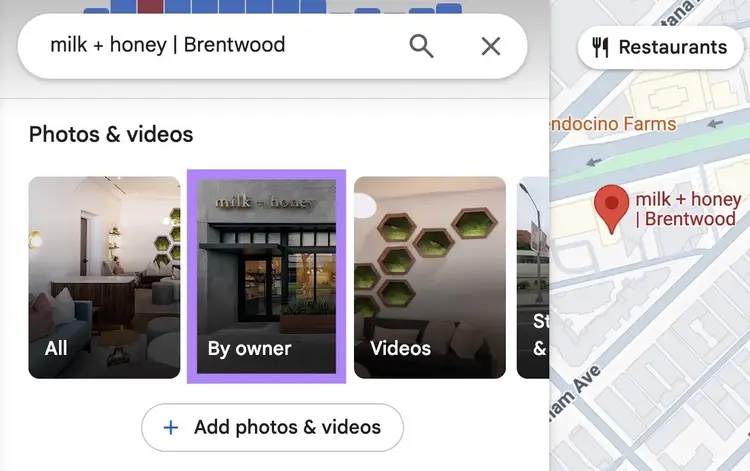
These images give potential customers a sense of what to expect when they visit your business.
Use a 1:1 aspect ratio. The ideal Google Business Profile photo dimensions are 720 x 720 pixels.
You can also upload larger variants like 1200 x 900 px. But they may be cropped in some placements.
Stick with JPG or PNG format.
Follow these best practices:
- Upload at least three interior and three exterior shots
- Include photos of your most popular products or services
- Include at least three photos of your team at work
- Avoid blurry or dark images; use natural or soft lighting indoors
- Keep backgrounds clean and uncluttered so the subject stands out
- Don’t add text, borders, or filters. Use realistic, accurate visuals of your actual space or products.
This mattress store example uses business photos well, showing the team, products, and both the interior and exterior of the store.
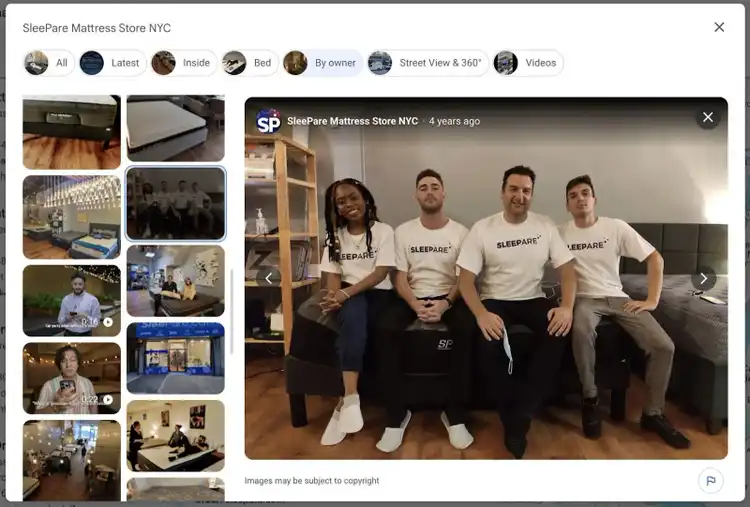
Now compare that to a store with just two photos—one of the facility and one with text.
They’re missing key visuals that show the space and people behind the business.
GBP Product Photos
Product images appear in the “Products” section of your GBP listing on Search and Maps, helping customers quickly see what you sell.
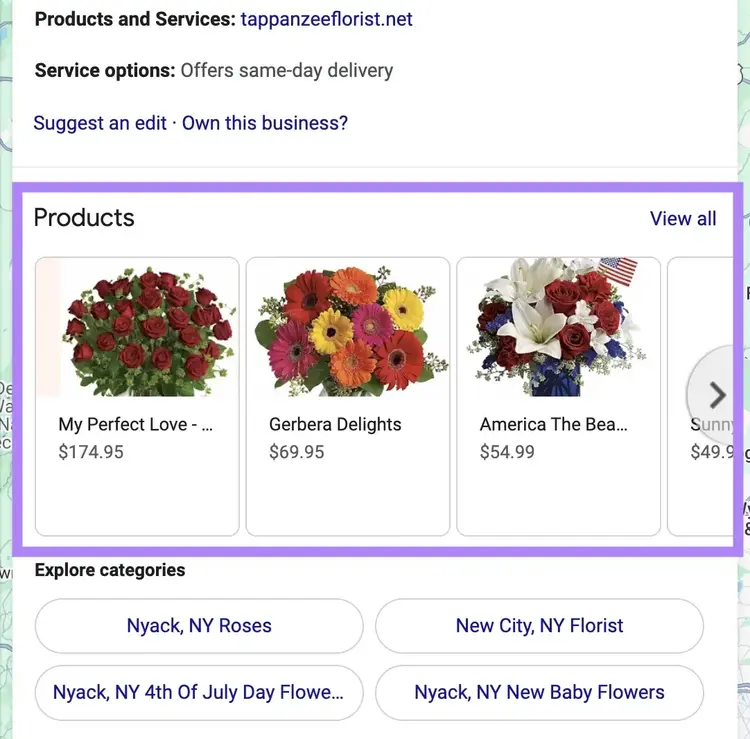
You can add photos when listing individual products.
The product image size recommendation for GBP is 1200 x 900 pixels in JPG or PNG format.
Avoid placing key details near the edges, as Google may crop them in some views.
When adding product photos:
- Use high-resolution photos of your actual products
- Take photos in natural or soft, even lighting
- Keep the background simple
- Avoid mockups, logos, or images pulled from catalogs
- Show the product from an angle that gives full context (not zoomed-in or cut off)
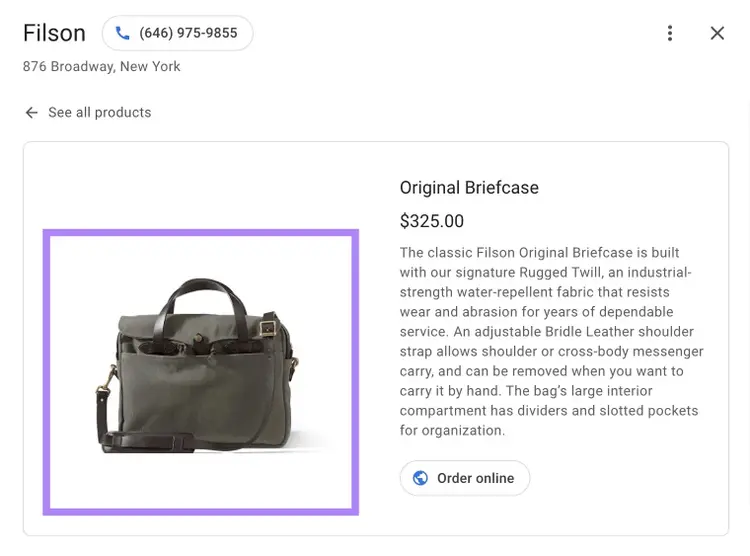
The below example photo is well-lit, centered, and clearly focused, with the product clearly visible against a plain background. There are no distractions, so the briefcase stands out immediately.
GBP Post Photos
Adding images to your posts on Google can make them more engaging. These posts appear in your business profile on Search.
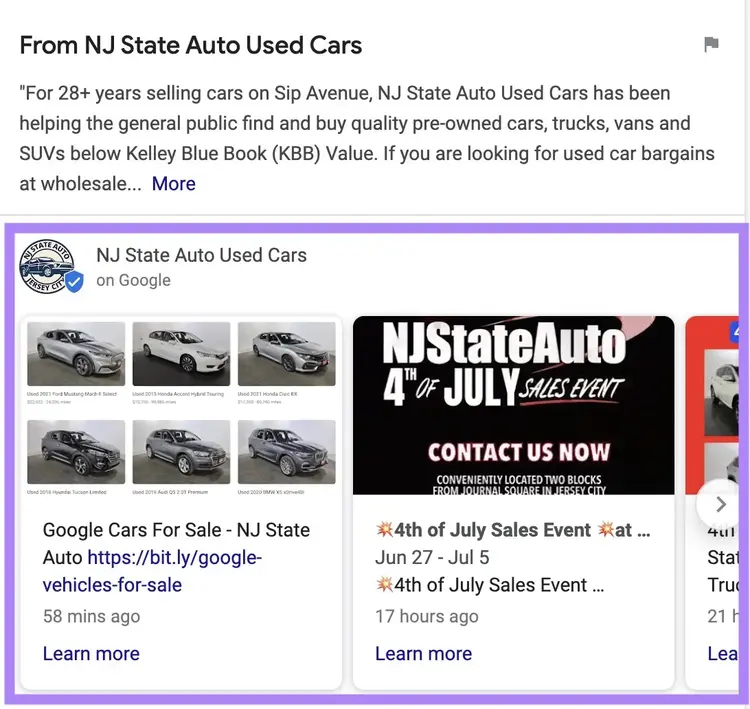
They also show up in your listing on Maps under the “From the owner” section.
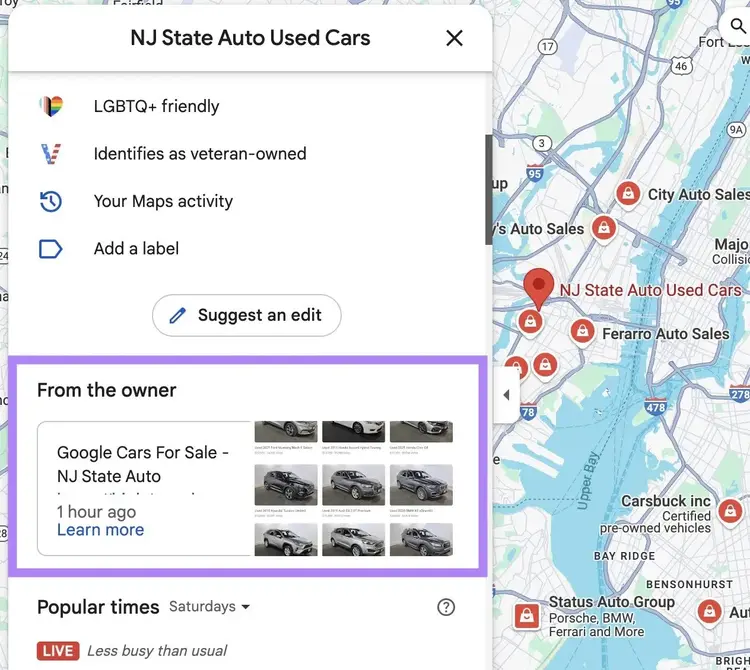
Photos can make your updates stand out. And add context to your message.
Use a 4:3 aspect ratio. The ideal Google Business Profile post image size is 1200 x 900 pixels in JPG or PNG format.
Other GBP cover photo sizes work, too. But parts of the image may be cropped depending on the screen or layout.
When adding post photos:
- Use an image that clearly supports the message of your post
- Keep text minimal; small fonts may be hard to read
- Make sure the image is bright, sharp, and easy to understand at a glance
- Frame the subject at the center so it stays visible across devices
- Use a photo that makes people want to click. This is the first thing they’ll see before opening the post.
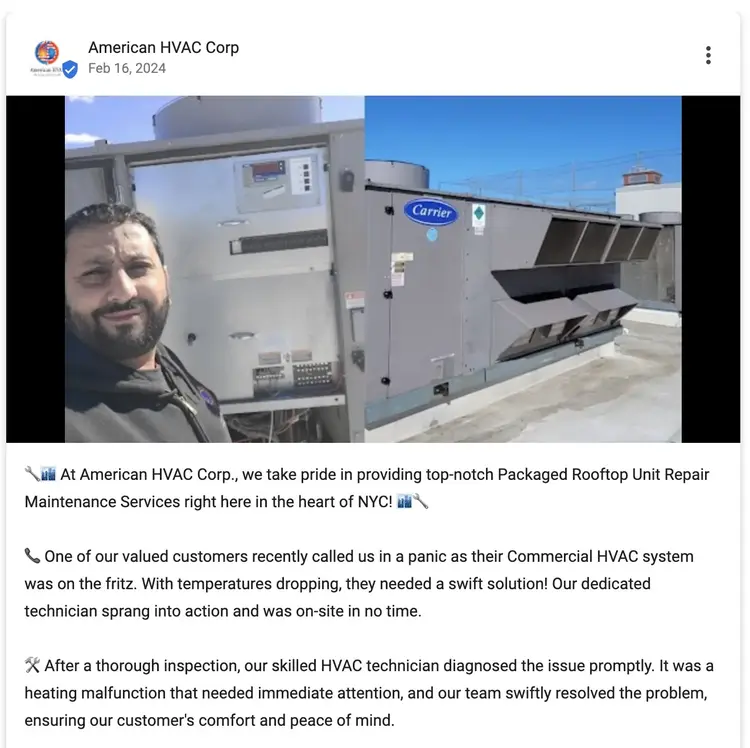
This post photo shows a real technician at work, with clear context and relevant detail.
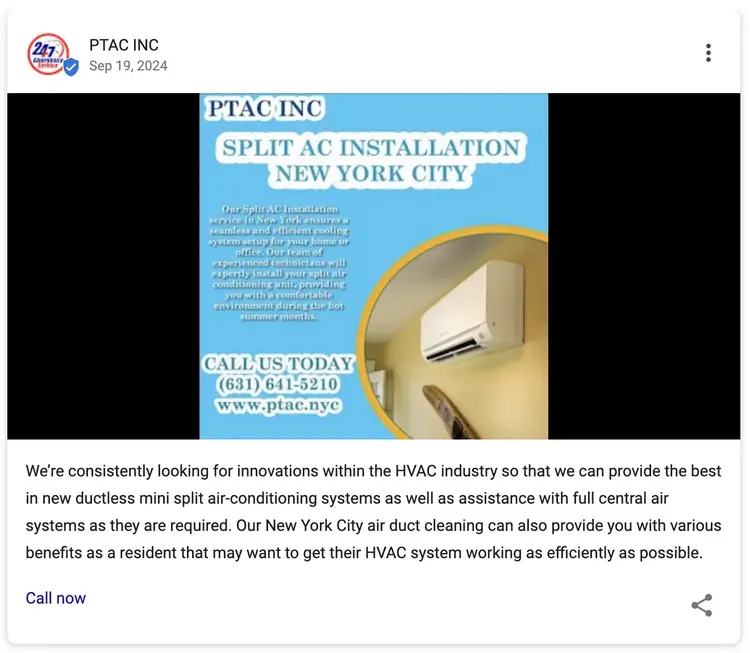
Now compare that to this text-heavy graphic with no real visual context. It’s harder to read and doesn’t show the service or team in action.
How to Add, Update, or Remove GBP Images
You can add, update, or remove images directly from your Google Business Profile dashboard.
Log in to your GBP account and click “Photos” from the dashboard.
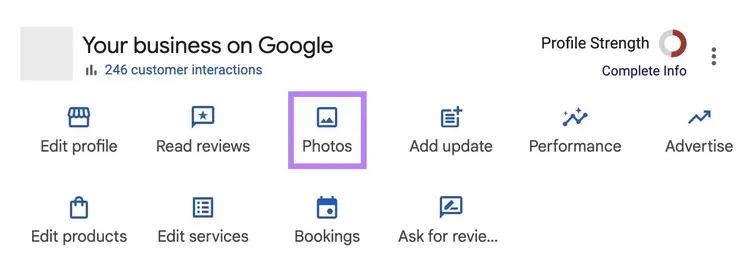
From here, you can upload additional business photos, a cover photo, and a logo.
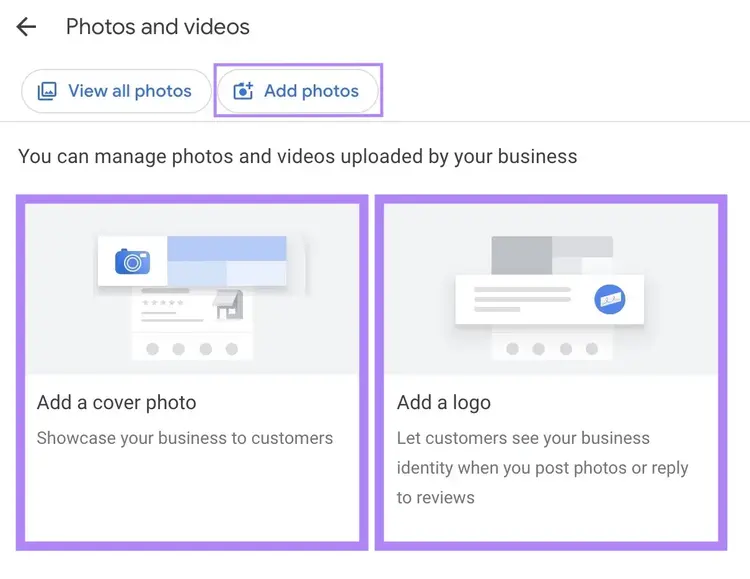
If you've previously uploaded these images, you can change or remove them as needed.
Depending on your business category, you might see options to add other types of images.
For instance, restaurants can upload menu images.
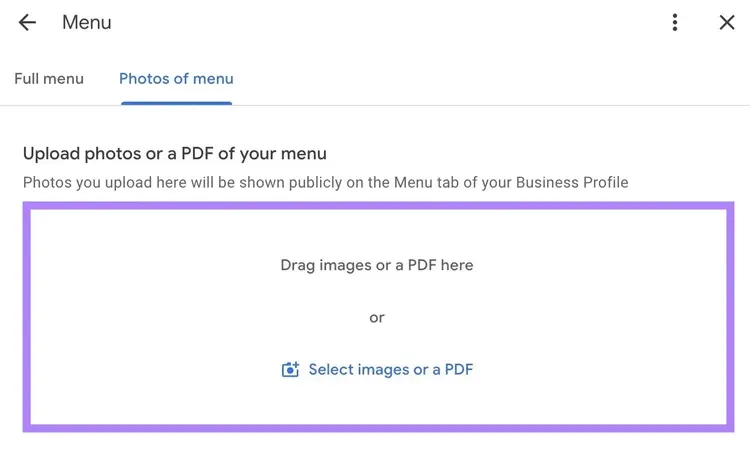
Photos added to posts are managed separately and do not appear in the main “Photos” section of your profile.
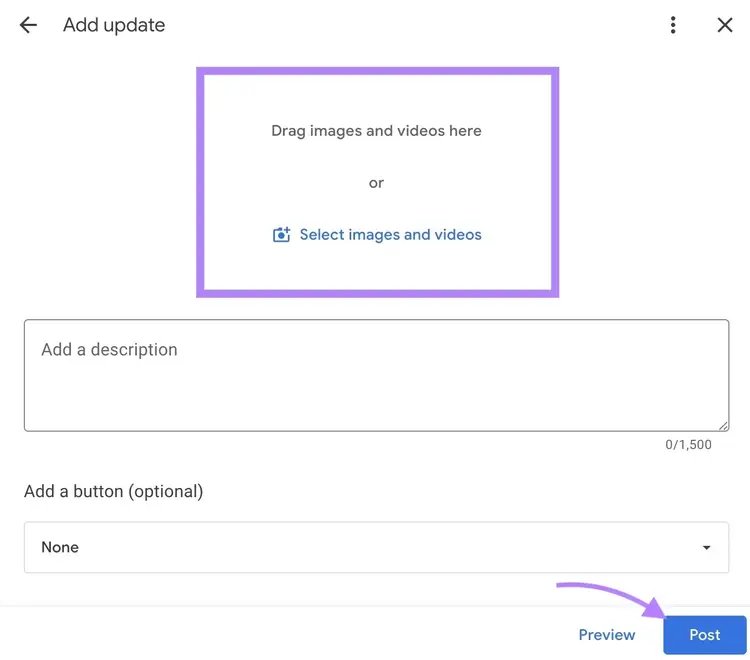
To add images to your posts, go to your dashboard and click “Add update.”
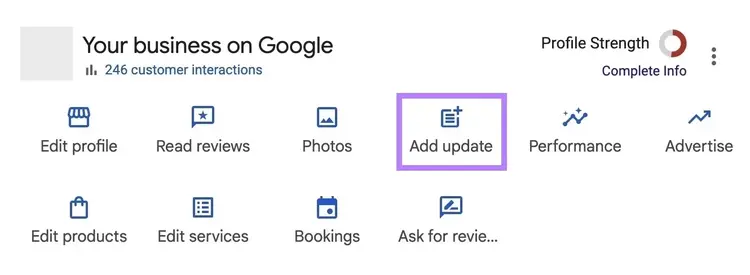
Click “Add update” again to post an update.
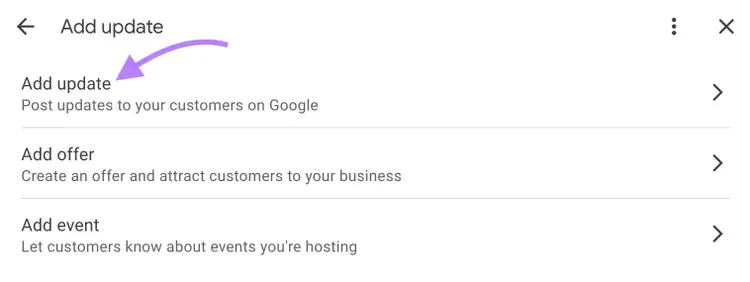
Add your photo, description, and button. Click “Post.”
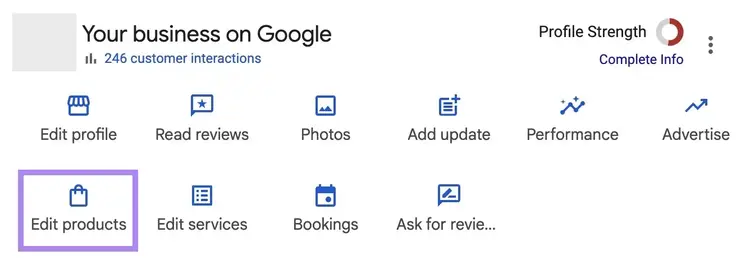
To add product photos, go to your dashboard and click “Edit products.”
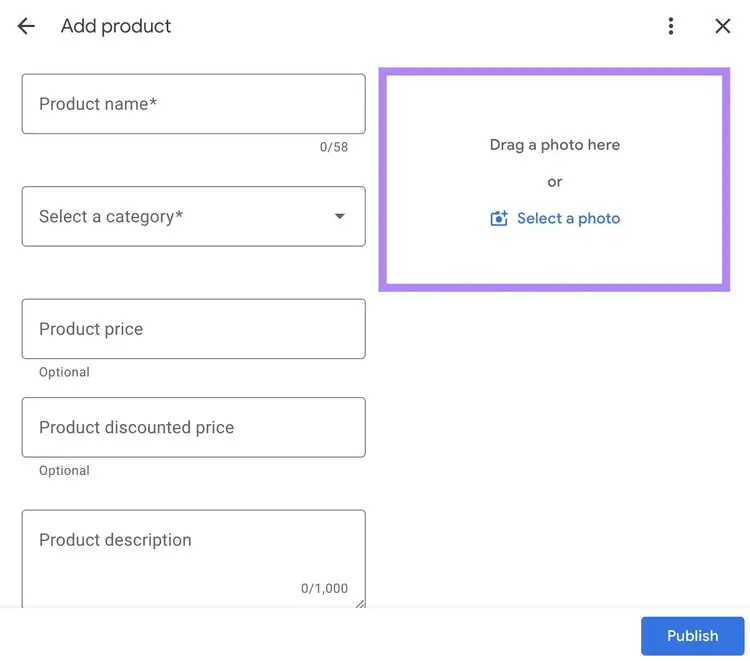
Add the images, along with other product details like name, category, price, and description.
Fixing Common Google Business Profile Image Issues
Sometimes your GBP images may not display as expected.
Here are some common issues and how to resolve them:
Cover Photo Not Displayed as Chosen
Google may choose another image over your selected cover photo.
If this happens, replace it with a new one that meets the Google Business Profile cover image size requirements.
Use a high-quality, well-lit photo that's visually clear.
Review the image Google is showing instead and upload something similar to improve your chances of it being selected.
Image Rejected or Marked as ‘Not Approved’
Google may reject your image for several reasons, such as using watermarks, excessive text, or promotional graphics.
To reduce the chances of rejection:
- Wait at least 14 days after verifying your profile
- Use high-quality, original photos that show your space or products
- Avoid logos, overlays, or heavy text
- Don’t reuse the same image across multiple listings
- Stick to JPG or PNG files under 5 MB
Image Looks Cropped or Off-Center
Even if an image meets technical requirements, it may still appear awkward—cropped in the wrong place, cut off on mobile, or unbalanced.
This usually happens when the subject isn’t centered or the image isn’t framed with different screen layouts in mind.
To fix it:
- Center the most important part of the image
- Leave space around the subject—avoid tight framing
- Preview how the image looks on desktop and mobile
- Test and adjust your Google Business Profile photo size. For instance, use wider dimensions for cover photos and square formats for logos or business images.
Optimize Your GBP Listing for Better Visibility
Getting your image sizes right is essential for a strong Google Business Profile.
But there's more to optimizing your listing and increasing your visibility in local search.
Semrush’s GBP Optimization tool helps you manage and improve your profile.
You can schedule posts, track performance, reply to reviews, and protect your listing from unwanted changes—all from one dashboard.
Try it today.
Boost Your Local Search Rankings
with the GBP Optimization Tool

Cecilia is a senior editor and strategist with more than 12 years of experience shaping editorial strategies, refining brand messaging, and leading high-impact teams. She began her career in print and digital editorial leadership roles before transitioning to SEO and digital marketing, focusing on data-driven strategies. She‘s passionate about ensuring operational efficiency, upholding editorial standards, and mentoring writers to deliver top-quality, brand-aligned content.
Cecilia Meis
Cecilia is a senior editor and strategist with 12+ years of experience spanning print, digital, and SEO. She’s passionate about optimizing editorial processes, upholding quality standards, and mentoring writers to deliver brand-aligned content.

Tells Google to show you more from Semrush in AI, Search, and Discover.