
How to Search for File Types on Google
When you search for something on Google, the results are usually HTML pages—the normal webpages you see every day.
However, Google can also display non-HTML files, such as PDFs, spreadsheets, presentations, and Adobe files.
How to Search Google by File Type
Use the “filetype:” search operator to narrow your search to a specific file type.
For example, a search for “filetype:pdf health” will show PDF files containing the word “health.”

A search for “filetype:ppt travel” will show presentations related to travel.
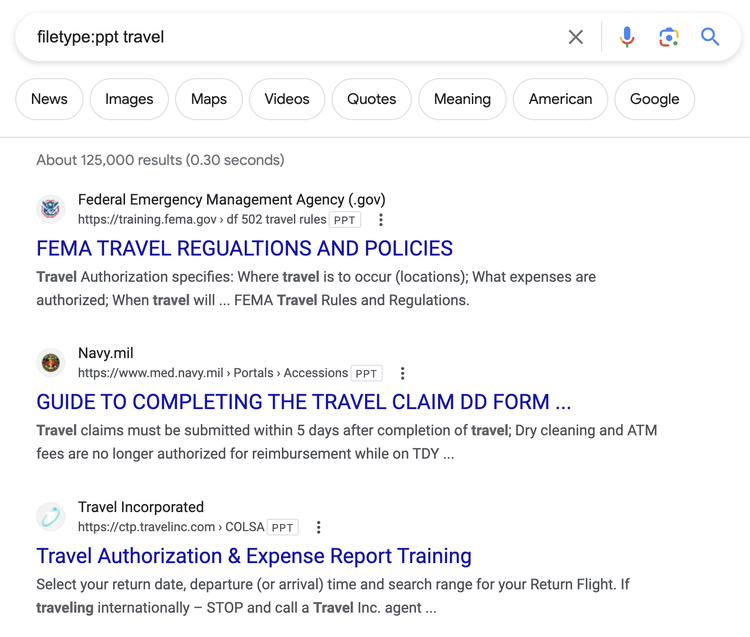
Google can show these results because it can crawl and index many types of files.
Files Types Available on Google
The following table shows the file types you can find on Google:
Google supports various search operators to locate these file types.
What Are Search Operators?
Search operators are special commands that help you refine Google searches.
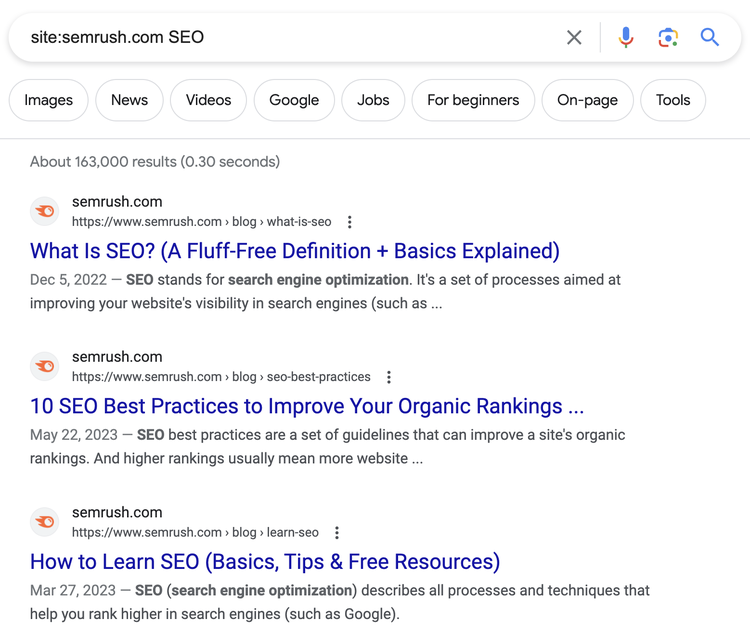
For instance, “site:” limits results to a specific website. A query like “site:semrush.com SEO” shows only SEO-related pages from semrush.com.
Ensure Your Files Get Indexed in Google
If you have content in different file types (e.g., xls, pdf, ppt, etc.) that you want to appear in Google search results, you need to ensure Google can crawl and index them.
Google cannot index files blocked by the X-robots-tag noindex directive. If you publish PDF, XLS, PPT, or other file types, check that Google can crawl and index them.
For a quick technical scan of your site, run our free website seo checker. To get a full sweep of all your pages and see if any important files are mistakenly noindexed, use Semrush Site Audit.
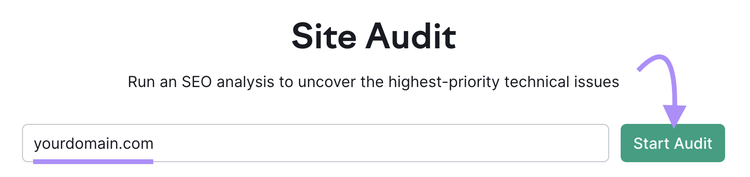
1. Open Site Audit, enter your domain, and click “Start Audit.”
2. After the audit completes, go to the “Issues” tab and search for “X-robots-tag.”
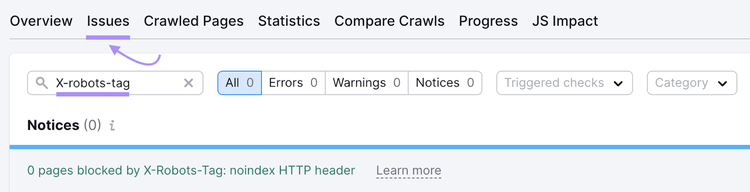
3. If certain files are noindexed by mistake, remove the “noindex” directive so Google can index them.
Make Sure Your Files Are Indexed by Google
with the Site Audit Tool
Key Takeaways
- Google can find more than just HTML pages. Use the “filetype:” operator to locate PDFs, spreadsheets, presentations, and more.
- Google can crawl and index file types such as XLS, PPT, PDF, and TXT.
- Confirm that Google can index your non-HTML files by removing unnecessary noindex directives. The Site Audit tool can help you detect these issues.
Access All the SEO Tools You Need
in One Platform with Semrush

The Semrush Team brings together AI visibility experts, SEO specialists, data analysts, and product practitioners to help businesses grow and manage their online visibility. We publish research, experiments, and practical guidance grounded in real data from the Semrush platform, covering search, content marketing, and the broader digital marketing landscape.

Tells Google to show you more from Semrush in AI, Search, and Discover.