
The 10 Best Spreadsheet Software of 2025
Choosing the right spreadsheet software can be overwhelming. Given the wide range of available tools and platforms, you may feel as if you need a separate spreadsheet just to keep track of them all.
But before you get lost in rows and columns, let us help. We know how important it is to track and manage data, so we’ve compiled a list of the 10 best spreadsheet software applications on the market.
We’ll get to those in a moment. First, let’s review the basic elements of spreadsheet software and what to look for when comparing tools.
What Is Spreadsheet Software?
Spreadsheet software is any digital tool that lets you make, edit, analyze, and share spreadsheets like the one above.
So, if you’ve ever used Microsoft Excel or some other computer program to build a spreadsheet, you’ve used spreadsheet software.
All spreadsheet software applications revolve around the core concept of organizing, analyzing, and manipulating data. But each comes with its own suite of features and formulas designed to make it easier to parse the data you input.
For example, here’s a screenshot of a Microsoft Excel spreadsheet used to track employee contact details:

Each cell contains a specific piece of data, and Excel offers some easy ways to extract new insights from this data.
For example, you can calculate the total salary of all employees using the SUM function, which adds up the values of individual cells, cell values, or cell references. To calculate the total salary amount of the four listed employees, you could click into a new cell and type =SUM(G2:G4), which adds the values in cells G2 to G4.
Some spreadsheet applications even let you automate these types of calculations. This reduces the chance of human error and saves valuable time.
What to Look for When Comparing Spreadsheet Software
Modern spreadsheet software comes with a range of basic and advanced functionalities.
Almost every option you’ll encounter should have the same basic functionalities, which include:
- Data input (entering data into cells)
- Cell formatting (adjusting font, color, size, and other features of individual cells or cell groupings)
- Basic formulas (addition, subtraction, multiplication, and division)
- Sorting (in ascending or descending order)
- Filtering (narrowing down data based on specified criteria)
But the best spreadsheet software should go beyond those basic functionalities. At a minimum, look for the following advanced features that make it easier to sort, parse, and understand datasets:
- Pivot tables (summarizing, analyzing, and presenting data interactively)
- Advanced formulas and functions (performing complex calculations)
- Data visualization (converting data into charts, graphs, and other infographics)
- Collaboration tools (real-time collaborative editing, comments, and shared access)
The 10 Best Spreadsheet Software to Manage Your Data
It’s difficult to capture the sheer number of use cases for spreadsheet software in a single list. Everyone from software engineers to content marketers to family budgeters uses spreadsheet software, and the best tools tend to accommodate a wide range of use cases.
In the below list, we’ve called out areas where certain apps or platforms particularly excel. But personal preferences and use cases also play a role, so keep that in mind as you compare options.
With that said, here’s our list of the top 10 spreadsheet software tools and platforms:
1. Microsoft Excel
Microsoft Excel is the most popular spreadsheet software, with hundreds of millions of active users worldwide.
Excel is part of the Microsoft 365 suite of software, which used to be marketed under the name Microsoft Office. You can purchase it on its own or with other Microsoft 365 apps for Windows, macOS, Android, iOS, and iPadOS.
With Excel, you can create, import, edit, analyze, and share spreadsheet files. Its ubiquity is a strength, as professionals often use Excel as the de facto standard spreadsheet software when collaborating across departments.
For example, marketers can export data from other software applications into an Excel spreadsheet, where they can then analyze and manipulate it to extract key business insights.
Say you want to play around with your keyword research data from our keyword generator tool.
You can export your raw data directly from the tool into an Excel-supported file format like XLSX, CSV, or ODT.
Once exported, your data will appear like this:
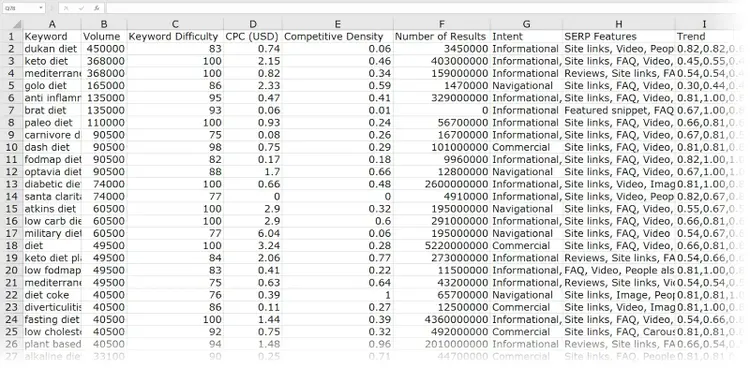
From here, you can use Excel’s functionality to further analyze or manipulate this raw data depending on the insights you want to extract.
You can add conditional formatting rules to better visualize the data in a table, use data validation to create a new “Category” column with restricted inputs, or set up a pivot table to quickly analyze your data. These are just a few ways organic markets use Excel to create a keyword strategy.
Get Keyword Suggestions
with the Keyword Generator, the Biggest Keyword Database on the Market
Excel is especially known for its advanced formulas, which can help you perform complex calculations on the fly.
Another standout feature is macros. These are actions or sets of actions that allow users to automate repetitive tasks and processes. For instance, you can use a macro to apply the same formatting across multiple sheets. Just record or code the steps once, and then run the macro whenever you need the same actions performed.
You can collaborate with others by sharing your Excel workbook via OneDrive or SharePoint. Excel also offers a wide range of integrations with marketing and productivity tools, including HubSpot, Jira, and Monday.com.
Although powerful, Excel does have some limitations:
- The maximum row limit is 1,048,576 (though this is probably only an issue with massive datasets)
- Large spreadsheet files can cause Excel to freeze or crash (depending on your device’s hardware specifications)
- The platform has a steep learning curve
Microsoft Excel Pros and Cons
2. Google Sheets
Google Sheets is a cloud-based spreadsheet software application.
It’s available as a web application, a desktop app for Google’s ChromeOS, and a mobile app for Android and iOS.
Google Sheets is included in the Google Docs Editors suite (free for users with personal accounts) and Google Workspace (for business users).
Just like Excel, Google Sheets is hugely popular among professionals of all stripes. And, though it is entirely web-based, Google Sheets also supports popular file formats like XLSX, ODS, and CSV.
The platform offers basic and advanced spreadsheet functionalities, including cell formatting, data filtering and sorting, data visualization, and pivot tables. However, when compared with Excel’s robust functionality, Google Sheets can feel a bit underwhelming.
With that said, collaboration is a strong point here. Google Sheets is renowned for its real-time sharing and collaboration features, which include:
- Editing simultaneously with multiple users
- Commenting on specific cells, cell ranges, or entire documents
- Tracking changes and reverting to past versions
Google Sheets offers seamless integration with Google Docs, Google Forms, and Google Slides. You can also use Google’s App Script (or third-party connectors like Zapier) to integrate with platforms like Mailchimp, Trello, Shopify, and Facebook.
For example, you can fetch real-time data from Semrush’s database through the Semrush API integration in Google Sheets.
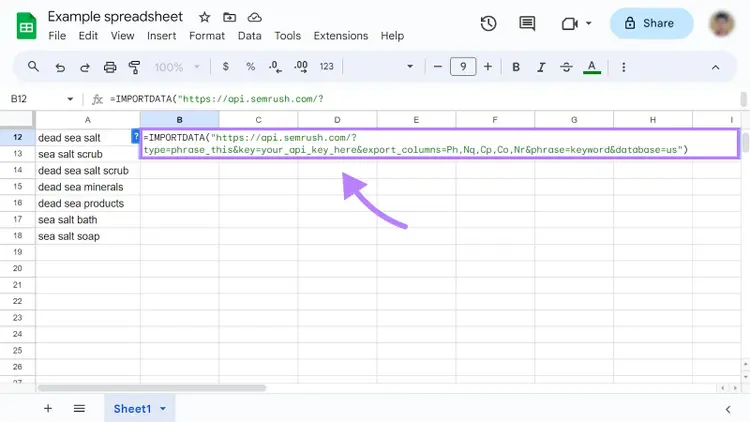
Google Workspace users can also extend the capabilities of Google Sheets with third-party add-ons from the Google Workspace Marketplace.
Google Sheets may be your best bet if you primarily work within Google’s suite of tools and apps. With that said, it has some limitations:
- Google Sheets has a maximum cell limit of 10 million cells
- Google Sheets offers fewer advanced features than Excel
- Large spreadsheet files can cause Google Sheets or the browser to freeze or crash
- Google Sheets offers very basic data visualization capabilities
Google Sheets Pros and Cons
Create the Ultimate SEO Report
with My Reports
3. Zoho Sheet
Zoho Sheet is another cloud-based spreadsheet platform that lets you create, import, edit, analyze, and share spreadsheet files.
It’s available as a web application, a browser extension, a mobile app for Android and iOS, and a desktop app for Google’s ChromeOS.
Since it’s a Zoho product, you can easily integrate Zoho Sheet with other Zoho applications, like Zoho CRM and Zoho Projects.
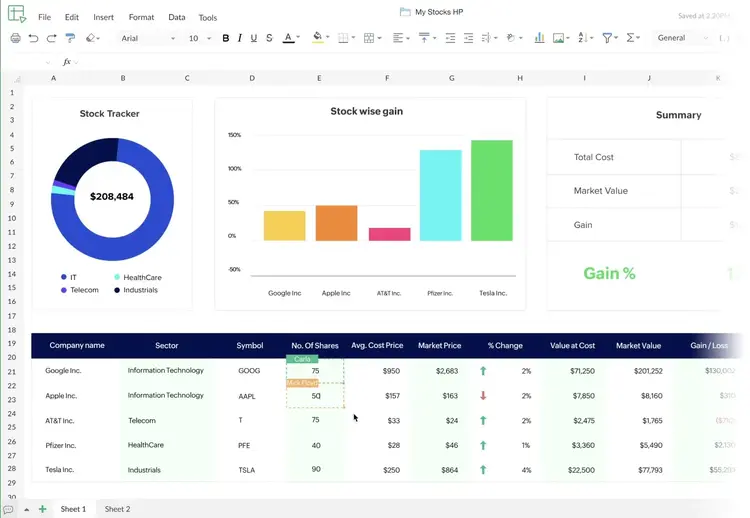
You can also integrate Zoho Sheet with third-party applications like Trello, ClickFunnels, Gmail, and others.
Zoho Sheet has a proprietary file format called ZSheet.
But it also supports popular file formats including XLS, XLSX, ODS, CSV, and TSV.
Zoho Sheet’s impressive collaboration features include:
- Editing spreadsheets in real-time
- Tracking changes for future reference
- Commenting on specific cells, cell ranges, or the entire sheet
- Chatting between collaborators
The platform is packed with over 350 pre-defined functions, plus advanced features such as pivot tables, data validation, data cleaning, and conditional formatting.
A more unique feature is Zoho’s AI-powered data analyst Zia, which can help you visualize your data by recommending and adding drag-and-drop charts. You can also ask Zia questions to help you parse your data.
Zoho Sheet also comes with its own set of limitations:
- Zoho Sheet doesn’t support spreadsheet files with more than 65,536 rows
- The maximum number of cells per workbook is one million
- Data visualization capabilities are fairly basic
- You need an active internet connection to access Zoho Sheet. This may be a deal-breaker for those who need to work offline. The company has been promising this functionality for some time.
Zoho Sheet Pros and Cons
4. Apple Numbers
Apple Numbers is a spreadsheet application included in Apple’s iWork suite.
The platform is exclusively available on Apple devices, which may limit its appeal to those who work across digital ecosystems.
Numbers is free and comes pre-installed with the latest Apple devices. If you’ve deleted it from your device or can’t locate it, you can download it from Apple’s App Store.
With Numbers, you can create, import, edit, analyze, and share spreadsheet files.
The platform offers a wide range of templates suited for different use cases, and it supports popular spreadsheet file formats like CSV and XLSX.
While Numbers may not be on the same level as Excel in terms of functionality, it boasts an exceptionally clean and intuitive interface.
Unlike many other spreadsheet applications, Numbers doesn’t intimidate users with an endless grid of cells. For some, this can make it easier to focus on data.
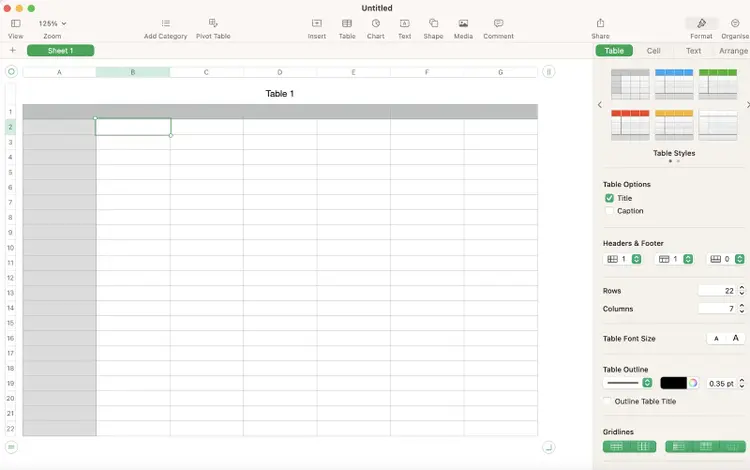
Apple Numbers comes with more than 250 functions. It generally lacks hyper-advanced functionality but does include data sorting and filtering, data visualization, pivot tables, and cell formatting.
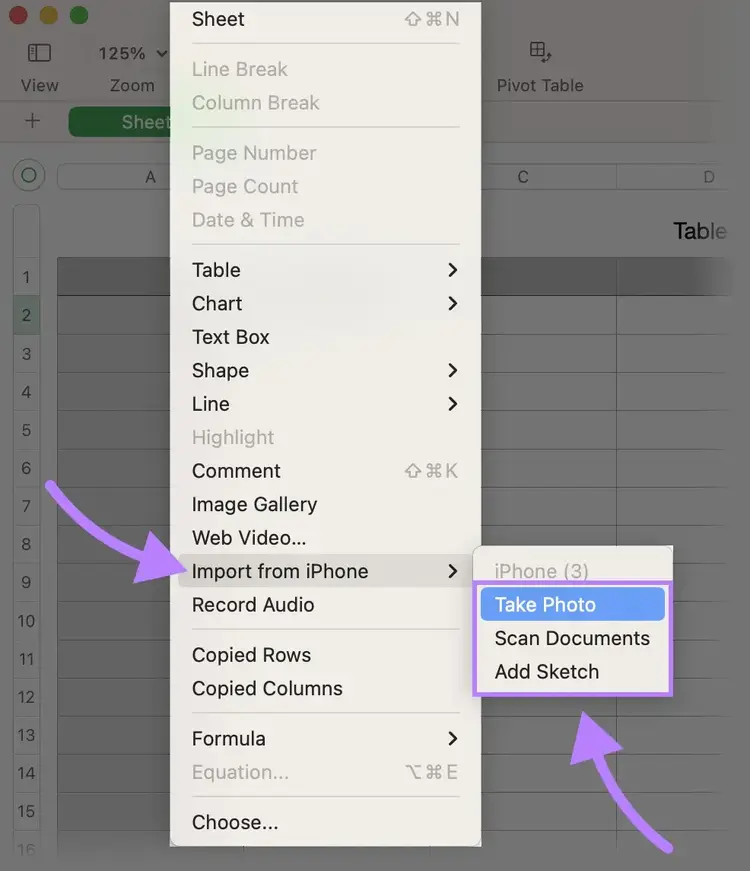
A standout feature of Numbers is the ability to import data from an iPhone. Import options include taking a photo, scanning documents, or adding a sketch from your iPhone:
Importing data from the web to Numbers is a bit more complicated. Additionally, Numbers doesn’t offer integrations to third-party platforms. So, if you’re looking to pull data from external sources, you’re out of luck.
Using iCloud, you can collaborate with others on your Numbers spreadsheet. Just don’t expect the same robust and feature-rich interface you’ll find with Google Sheets or Microsoft Excel.
Here are some other potential downsides of Apple Numbers:
- The maximum row limit of a single sheet in Apple Numbers is 1 million
- Apple Numbers is only supported on Apple devices
- The platform lacks advanced data analytics and visualization tools compared to its competitors
Apple Numbers Pros and Cons
5. Rows
Rows is a cloud-based spreadsheet platform. Its main draw is a cleaner and more intuitive interface than what you’ll find in many other spreadsheet applications.
While Rows does let you import, edit, analyze, and share spreadsheets, it’s way more than a place to input numbers.
What sets Rows apart is its ability to seamlessly import data from different tools and platforms like Google Analytics, YouTube, and Salesforce, among many others.
Rows even connects to data sources like Google Maps (to retrieve data about places and locations) and VAT-Search (to retrieve any company’s VAT info).
Rows is available only as a web application and comes with several predefined templates for different use cases.
Similar to Numbers, Rows doesn’t intimidate users with an endless grid of cells. For some, this can make it easier to focus on data.
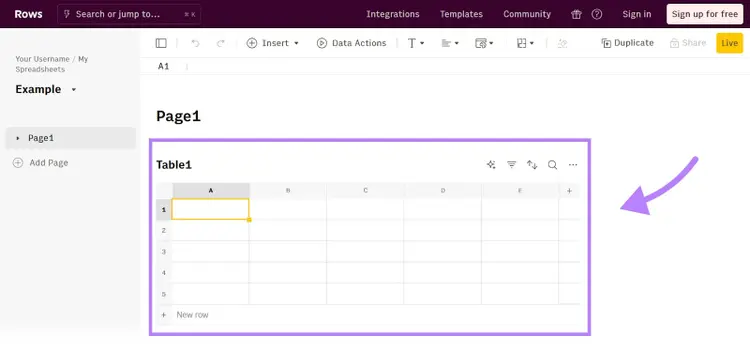
Like other popular options in this list, Rows supports basic spreadsheet functionalities like data filtering and sorting, pivot tables, and conditional formatting. But it falls short when compared with other platforms.
So, where does Rows stand out from the pack?
Two words: data visualization.
Rows seamlessly imports data from external sources and transforms this data into gorgeous charts and graphs with just a few clicks.
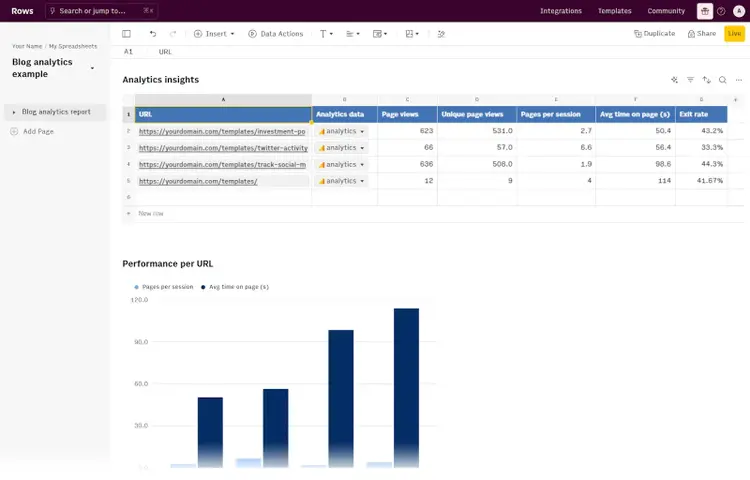
Rows also lets you make your spreadsheets interactive with input fields, buttons, and pickers.
Another standout feature is the Live View, which transforms data into a dynamic, interactive experience.
You can also collaborate with others using the platform’s Edit view.
Overall, Rows makes playing with spreadsheets a delight. But it does have a few limitations:
- Rows supports Chrome, Safari, and Firefox browsers. Using Rows on other browsers can lead to UI issues.
- The maximum limit of Rows stands at 100,000 rows x 404 columns, which is pretty limited compared to other options
- The maximum cell limit is one million per table
- Rows only supports CSV and XLSX file formats
Rows Pros and Cons
6. Gigasheet
Gigasheet is a cloud-based spreadsheet software application best suited for handling large datasets.
The platform is available only as a web application on desktop.
Gigasheet supports spreadsheet files with up to 1 billion rows in a single sheet. This makes it one of the best options for the kind of big, unwieldy datasets that other software simply can’t handle.
Gigasheet supports all of the most popular spreadsheet file formats, including XLSX, CSV, and TXT files. You can also import data from complex file formats like JSON, XML, PCAP, and SQLite at the click of a button.
Another draw? Gigasheet’s clean and intuitive interface, which makes it a breeze to organize multiple spreadsheets.
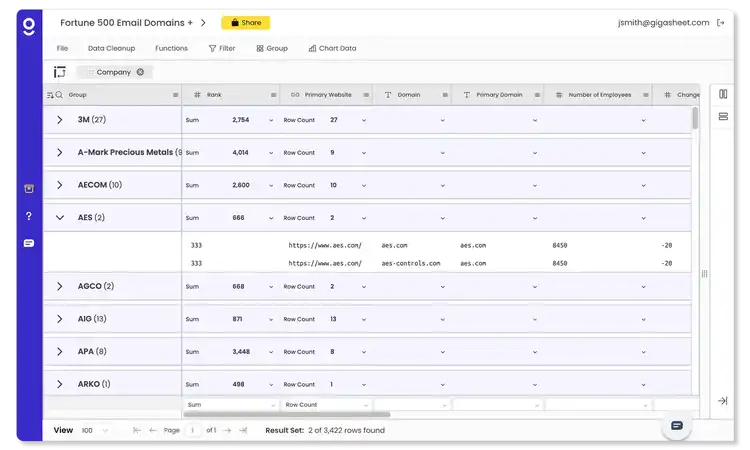
Image Source: Gigasheet
While the platform does offer editing capabilities, they’re fairly basic.
For instance, you can’t delete data from multiple cells at once. You need to do it one by one, which may prove too tedious for some.
Moreover, Gigasheet doesn’t offer as many features and functionalities as many other software options in this list.
For example, it’s not possible to add images or to color your cells. It’s also not possible to attach documents inside cells.
Instead, one of Gigasheet’s core strengths lies in its ability to make big data analysis easy. Few platforms are better at sorting, filtering, and organizing complex spreadsheet data.
And it’s not as if Gigasheet is totally bereft of advanced functionalities. Here you’ll find data enrichment, cross-file VLOOKUP, data cleanup, and other key capabilities—which is all (or more than) many users need more.
So, even if you’re a beginner, you’ll probably find a lot to like in Gigasheet. We’re especially fond of the user experience, which enables users of all skill levels to manipulate large datasets without the steep learning curve of Excel.
Some of Gigasheet’s limitations are:
- Gigasheet offers fairly basic editing capabilities
- Data visualization capabilities are fairly basic
Gigasheet Pros and Cons
7. Apache OpenOffice Calc
Apache OpenOffice Calc is a free and open-source spreadsheet application available on Linux, macOS, Solaris, and Windows. It’s part of the Apache OpenOffice work suite, so it seamlessly integrates with other Apache OpenOffice tools.
The platform supports popular file formats like XLS, TXT, CSV, and ODS.
Calc has a simple and intuitive interface that should look somewhat familiar if you’ve ever used Excel.
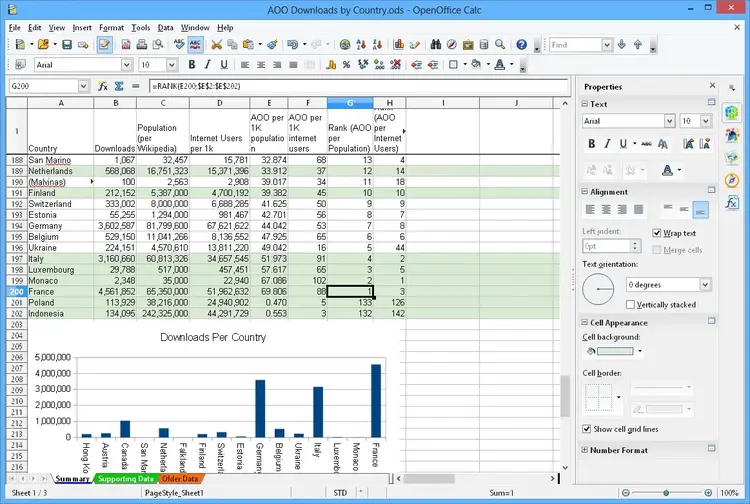
Image Source: Apache OpenOffice Calc
Cell editing is particularly easy, with different formatting options that allow you to tweak cell borders, background colors, font sizes, and more.
In terms of manipulating the actual data, Calc’s formula editor includes a wide range of functions for both basic and complex calculations.
Calc also offers advanced spreadsheet software functionalities like pivot tables (called DataPilot) and data visualization.
However, these features are not as polished as in other platforms like Google Sheets or Excel.
Some other notable features include:
- Natural language formulas (to translate your thoughts directly into formulas)
- Scenario manager (to analyze multiple data possibilities in a snap)
- Intelligent sum button (to automatically calculate a sum in a single click)
Some of Apache OpenOffice Calc’s limitations are:
- The platform doesn’t offer real-time collaboration features
- The maximum row limit is 1,048,576, just like Excel
- Calc doesn’t offer any integration options
- For large datasets, Calc might not be as efficient as other spreadsheet applications
- The interface of Calc feels outdated when compared with other spreadsheet applications
- Users that are accustomed to Excel features like Power Query or macros may be disappointed
- Calc doesn’t have a dedicated mobile application
Apache OpenOffice Calc Pros and Cons
8. LibreOffice Calc
LibreOffice Calc is a free and open-source spreadsheet application. It’s available as part of the LibreOffice software suite on Windows, macOS, Linux, and FreeBSD.
Both LibreOffice Calc and Apache OpenOffice Calc share a common ancestry. But the development pace and feature set of LibreOffice Calc has been more rapid and extensive, whereas Apache OpenOffice Calc has seen a more conservative evolution.
That’s not to say one is better than the other, and your choice may come down to personal preference.
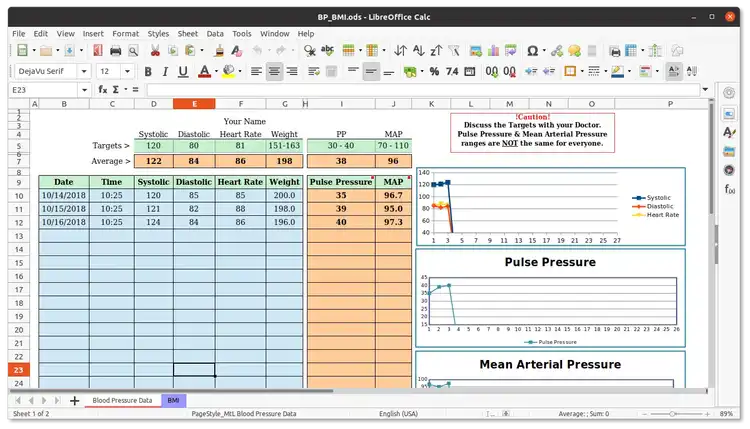
Image Source: LibreOffice Design Team
LibreOffice Calc supports several popular spreadsheet file formats, including ODT, TXT, XLSX, XML, and CSV.
The platform offers several basic and advanced functionalities like data filtering and sorting, formulas and functions, data visualization, and pivot tables.
Just like Apache OpenOffice Calc, LibreOffice Calc also offers standout features like natural language formulas, scenario manager, and the intelligent sum button.
You can access LibreOffice Calc online, but be warned that official support for LibreOffice Online is limited. The Document Foundation (TDF) does not directly provide end-user support for any of the projects it hosts.
Some of LibreOffice Calc’s limitations include:
- LibreOffice Calc isn’t an ideal option for working with large spreadsheet files.
- LibreOffice Calc doesn’t offer advanced functionalities like Power Query or macros.
- LibreOffice Calc lacks direct integrations with many popular third-party apps and services.
- Real-time collaboration isn’t as polished in LibreOffice Calc as in Google Sheets or the online version of Excel.
Despite these limitations, LibreOffice Calc remains a strong choice for users looking for a reliable open-source spreadsheet platform.
LibreOffice Calc Pros and Cons
9. Smartsheet
Smartsheet is a cloud-based application best suited for project management and team collaboration. It’s available as a desktop app and mobile app for Android and iOS.
Though it’s more of a hybrid work-management and collaboration software than a strict spreadsheet application, don’t overlook Smartsheet for certain applications. This tool makes planning, automating, tracking, and reporting your work feel like a breeze.
Smartsheet offers a wide range of customizable templates for different categories and use cases.
And even if you choose to start from scratch, some basic formatting like task name, due date, assignee, and status is already in place.
Smartsheet supports imports from Microsoft Excel, Microsoft Project, Google Sheets, and Atlassian Trello. And with Smartsheet’s Enterprise Data Shuttle, you can import data from enterprise software systems like Salesforce and Tableau.
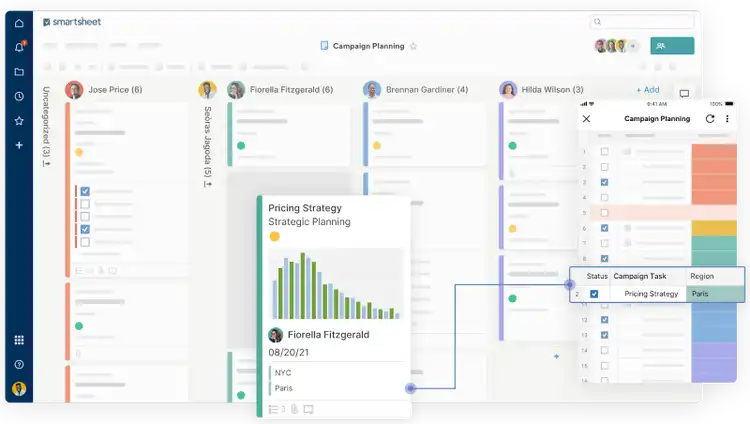
Image Source: Smartsheet
Just like other spreadsheet applications, Smartsheet offers basic spreadsheet features like data filtering and sorting, cell formatting, formulas, and functions.
But Smartsheet really shines when it comes to project management. Its most advanced features swing in this direction and include:
- Role assignment (to streamline user responsibilities and manage permissions)
- Gantt charts (to visualize project timelines and manage dependencies)
- Automation (to minimize manual tasks and enhance efficiency)
- Collaboration tools (to centralize communication and attach relevant discussions to tasks)
- Integrations (to seamlessly integrate with platforms like Google Workspace, Dropbox, and Slack)
On the other hand, here are a few of Smartsheet’s limitations:
- The platform has a steep learning curve
- Users who have never used spreadsheets for project management may find the interface complex and difficult to understand
- Some users have reported poor customer support and lagging performance
- The free plan limits the number of editors and sheets. To unlock additional features and functionalities, you may have to opt for a paid plan
- The maximum cell limit is 500,000; the maximum row limit is 20,000
- You can’t import spreadsheet files that are larger than 50MB
Smartsheet Pros and Cons
10. ClickUp
ClickUp is a cloud-based software application designed primarily for project-management use cases.
Like Smartsheet, it isn’t a “pure” spreadsheet app. But it does contain enough spreadsheet-like elements to warrant inclusion in this list.
The platform seamlessly integrates spreadsheet functionalities with traditional project management capabilities. ClickUp’s advanced Table View feature lets you create clean, collaborative spreadsheets and databases.ClickUp is available across mobile and desktop. It even works with a voice assistant and as an email add-on.
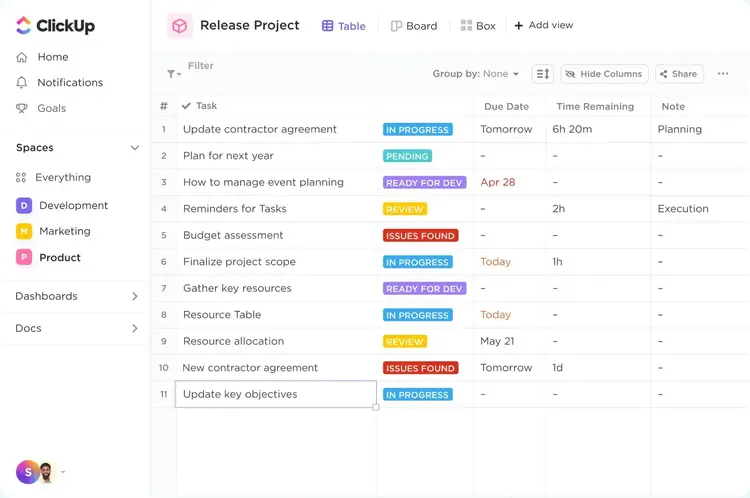
Image Source: ClickUp
With Table View, you can break down any project into easily digestible components. You can use this feature to list tasks, set priorities, track progress, and assign responsibilities.
It’s also possible to attach documents and links directly to rows inside the table. This makes it easier to share information and foster real-time discussions.
To get you started, ClickUp offers more than 1,000 templates for different purposes. And while the platform offers basic spreadsheet features like sorting, filtering, and data calculation, don’t expect advanced spreadsheet software functionalities like pivot tables.
Collaboration is the name of the game here, and one standout feature is the ability to create relationships between tasks (like connecting customers to orders and team members to bug reports). This allows for a holistic view of operations, helping teams understand how different components of a project interact.
Some of ClickUp’s limitations include:
- The platform has a steep learning curve
- Some users have reported slight lagging
- The Android application can be glitchy
ClickUp Pros and Cons
How to Pick the Best Spreadsheet Software for You
Different types of spreadsheet software offer different features and functionalities.
It may be tempting to go with one of the more popular options—specifically Microsoft Excel and Google Sheets. And those platforms have a ton to recommend, not least of which is a dedicated user base numbering in the hundreds of millions.
But specific use cases and preferences may lead you elsewhere. Platforms like Smartsheet and ClickUp are best suited for project management, while Rows is a great option for advanced data visualization.
If team collaboration is a priority, consider Zoho Sheet or Google Sheets.
To find the right fit, it’s important to assess your specific needs and preferences.

Ankit is a B2B SaaS writer (WordPress, HubSpot, Buffer, Zapier & more) with over seven years of SEO and content marketing experience. He’s a gamer during the day and a writer at night (because opposite time zones are a thing.)

Tells Google to show you more from Semrush in AI, Search, and Discover.