
What Is a 400 Error?
A 400 bad request error is when a browser sends a request to a web server, and the server can’t understand or process it correctly.
It’s a type of HTTP response status code. And codes starting with 4xx usually indicate an error on the client side—meaning the issue is coming from what’s making the request (browser, app, etc.).
There are many different messages servers use to indicate a 400 status code, including:
- 400 Bad Request
- HTTP 400 Bad Request
- HTTP Status 400—Bad Request
- 400 Bad Request Error
- HTTP Error 400
- Bad Request: Error 400
- HTTP Error 400—Bad Request
The error looks something like this, depending on your browser:
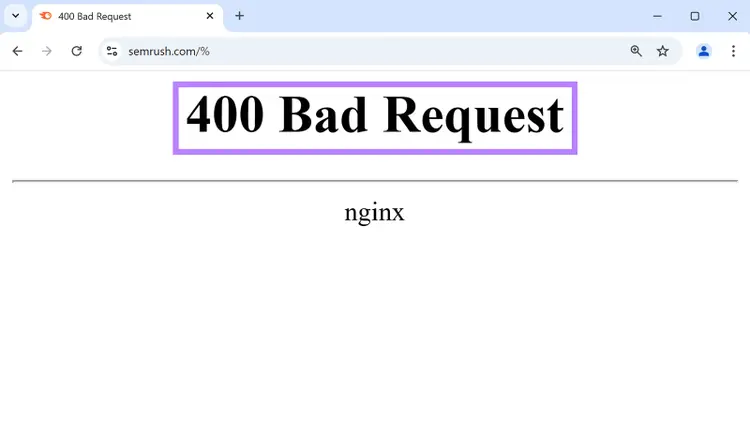
Let’s dive into the common causes of 400 bad requests and how to fix them.
HTTP 400 Error Causes & How to Fix Them
Here are the most common causes of 404 bad request errors—and their solutions:
1. URL String Errors or Other Invalid Syntax
One of the most common causes of a 400 Bad Request error is a problem in the URL—like extra spaces or special characters such as“&,” “%”, and “#.”
Sometimes, the URL is too long and complex. Browsers have character limits (e.g., up to ~2,000 characters on Chrome), and exceeding these limits can trigger 400 errors.
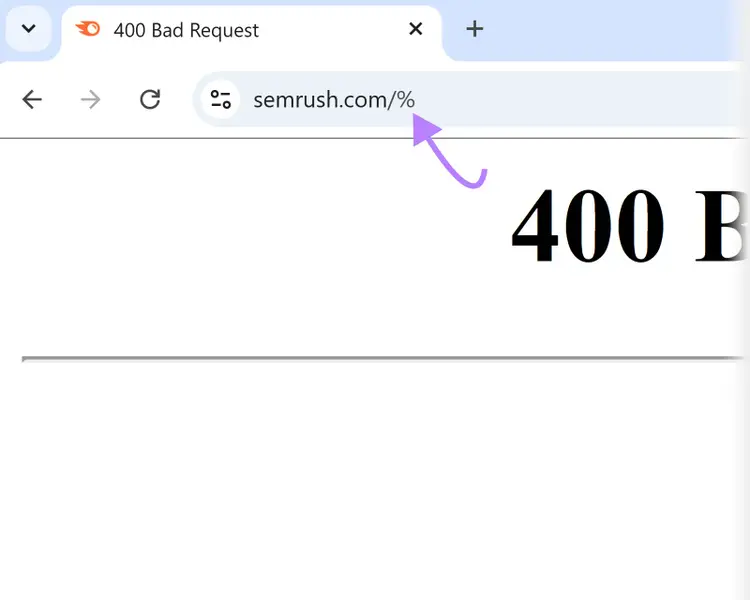
Errors can also be due to invalid syntax outside of the URL that breaks standard rules.
This often happens when there's a missing or incorrect HTTP header in the request, which prevents the server from interpreting or processing it.
For example, the below GET request (which asks for data from the specified resource) has an improperly formatted header:
GET / HTTP/1.1Host example.comUser-Agent: Mozilla/5.0Accept: text/html
In this case, the Host header is missing a colon.
How to Fix It
If you’re a regular site visitor:
- Double-check the URL: Review the URL and remove any extra spaces, typos, or invalid characters
For website owners and developers:
- Use a URL encoder: If the URL contains special characters (e.g., when accessing files with spaces in their names or including symbols like "&" in search queries like "search?term=salt&pepper"), use a URL Encoder to convert those characters into a format that servers can properly interpret
- Debug dynamically generated URLs: If you used an API or script to automatically generate the URL, it might be creating links with incorrect parameter formatting, improper character encoding, or exceeded length limits. Use a tool like Postman’s Link Checker to identify exactly what about your URL is causing the problem.
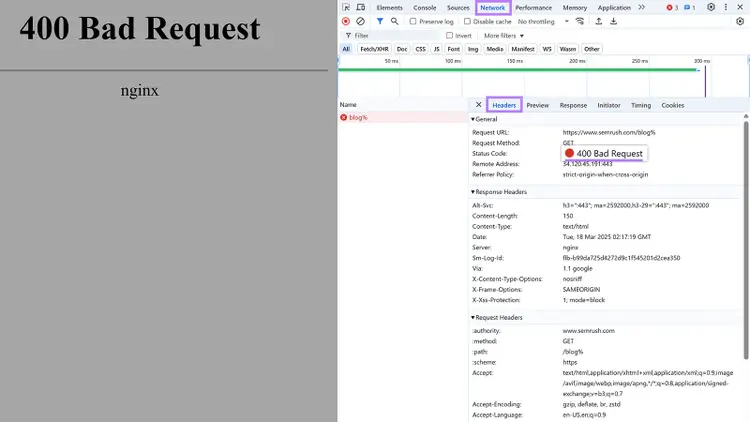
- Use developer tools to identify the error: If you’re not sure what’s causing the error, open your browser's developer console (Crtl + Shift + I in Chrome), go to the "Network" tab, attempt the request, and look for the red 400 error. Click on it to see what’s causing issues.
2. Corrupt or Invalid Cookies
When cookies (small data files websites store on your device) expire or get damaged, they can cause 400 errors.
How to Fix It
If you’re a regular site visitor:
- Clear cookies or go incognito: Clear your browser cache or launch a private session to remove existing cookies
- Disable extensions: Temporarily turn off extensions that might interfere with cookies
- Check for browser updates: Make sure you’re using the latest version because outdated browsers may handle cookies differently
For website owners and developers:
- Verify website code: If you’re a developer or site owner, check that your cookie implementation follows current standards and security practices. Meaning cookies need to use proper syntax, security settings, and domain settings (rules that determine which websites can use the cookie), and stay under the 4KB size limit.
3. Browser Extensions
Browser extensions can interfere with how your browser communicates with website servers in ways that lead to 400 bad requests.
For example, ad blockers might prevent necessary scripts that a website requires to function properly from loading. Or, privacy extensions might modify or block cookies that the site needs for processing a request correctly.
How to Fix It
- Disable and check extensions: Turn off all extensions, then enable them one by one to identify the culprit, and check the extension’s settings
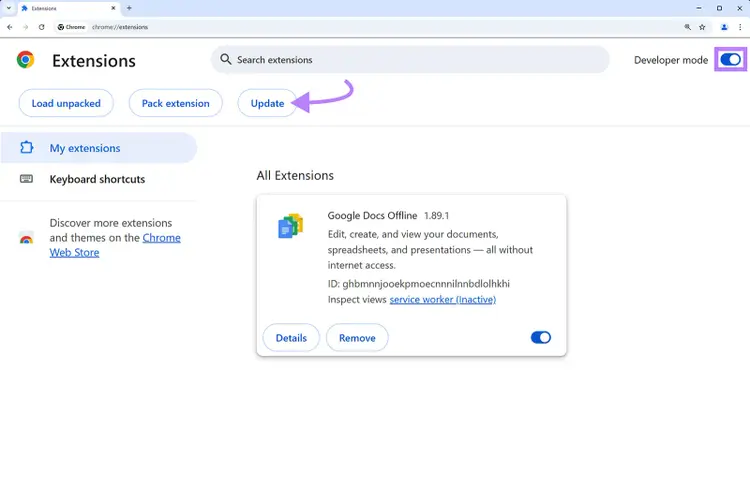
- Update extensions: Click the extensions icon in your browser toolbar. Then, look for update options to get the latest version. In Chrome, you’ll need to toggle on "Developer mode" and click the “Update” button.
4. Outdated DNS Cache
The domain name system (DNS) translates domain names (such as “www.yoursite.com”) into IP addresses (e.g., 192.168.1.1).
Your device stores these records in its DNS cache. But these records can become outdated if a site’s IP address changes.
When this occurs and you visit that same site, your computer sends the request to the old IP address that no longer exists instead of the new IP address.
How to Fix It
To remove outdated records that could be causing 400 errors, flush your DNS cache.
Here’s how to do it on Windows:
Open the “Start” menu and type “cmd” in the search bar.
With “Command Prompt” selected, click “Run as Administrator.”
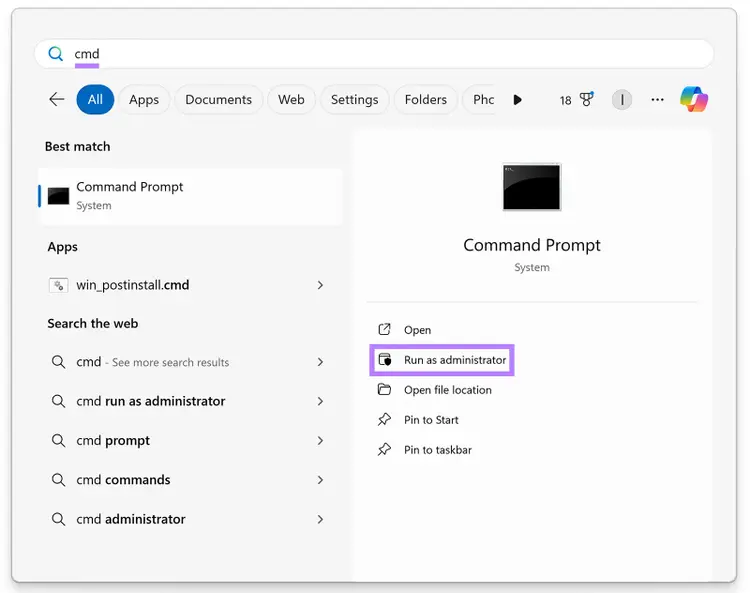
You may be prompted to allow access. If so, select “Yes.”
In the Command Prompt window that opens, enter the command “ipconfig /flushdns” and press the “Enter” key.
You’ll then see a message confirming the DNS Resolver Cache has been successfully flushed:
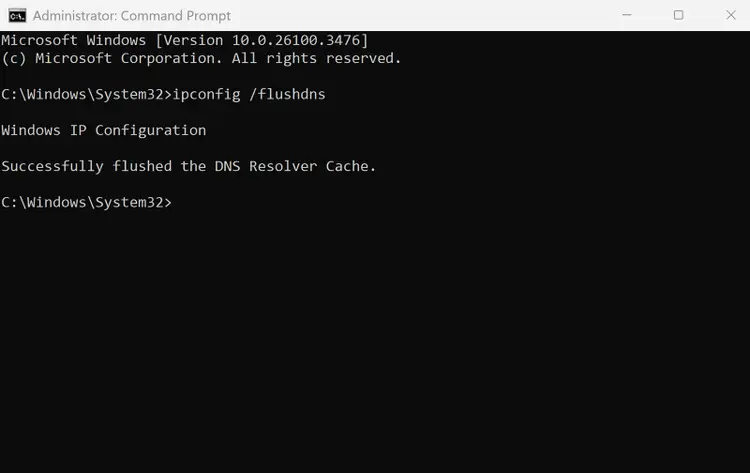
Now, try accessing the page again to see if the problem has been resolved.
5. Server Issues
Sometimes, 400 errors can actually be caused by the server. This happens when the server is configured incorrectly and interprets valid requests as invalid.
For example, a server might be set up to reject requests containing certain words that it wrongly identifies as security threats. Or, it might have outdated rules that don't work with modern browsers.
How to Fix It
If you’re a regular site visitor:
- Contact the website owner or support team to report the issue
- Try accessing the site later, as temporary server problems often resolve on their own
For website owners and developers:
- Server error logs: Review web server logs for specific details about what's triggering the 400 errors
- Configuration files: Examine server configuration files (like .htaccess for Apache or nginx.conf for Nginx) for mistakes or rules that might be too restrictive
- Adjust security settings: Temporarily disable or modify web application firewall rules to see if they're blocking legitimate traffic
- Check server resources: Make sure your server isn't running out of memory or processing power, which can cause it to reject requests it would normally accept
- Update server software: Ensure you're running the latest version of your web server software to avoid known bugs that might cause 400 errors
6. File Size Limits
A common reason for getting a 400 error is if you try to upload a file that’s too large to your website.
For example, uploading an image, video, or document file over the size limit to a WordPress site can lead to a 400 error.
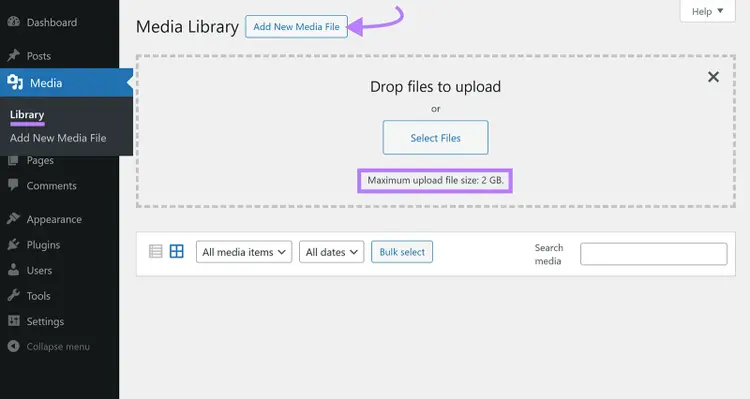
In WordPress, you can check your file size limit by clicking on “Media” > “Library,” and then “Add New Media File” in the left-hand column.
You should then see something like this:
How to Fix It
Reduce the file size to below your limits to ensure the server can complete your request.
Host your videos on YouTube or Vimeo, upload your audio files to SoundCloud, or compress your images using a tool like Compress Image to stay within your limits more easily.
Find & Fix 4xx Errors on Your Site
Ideally, you’ll want to audit your site to find errors like 400 bad requests beforethey affect performance and annoy site visitors.
Semrush’s Site Audit tool can help.
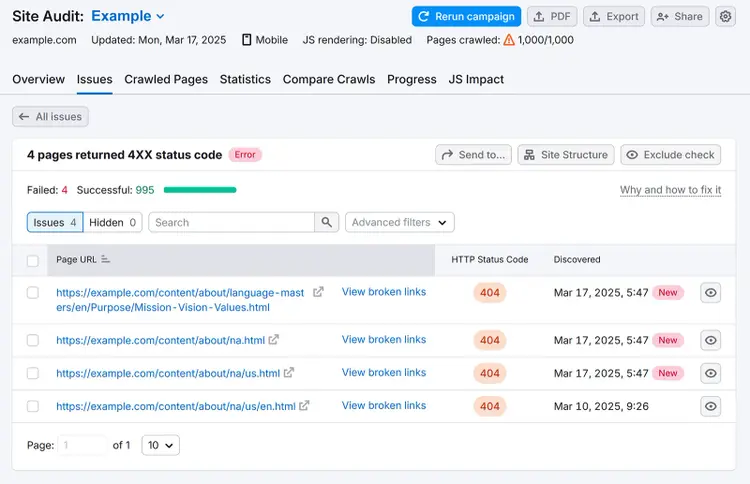
Open the tool, follow the configuration settings, and go to the “Issues” tab. Type “4xx” into the search bar to find a list of 4XX errors, then click on the pages.
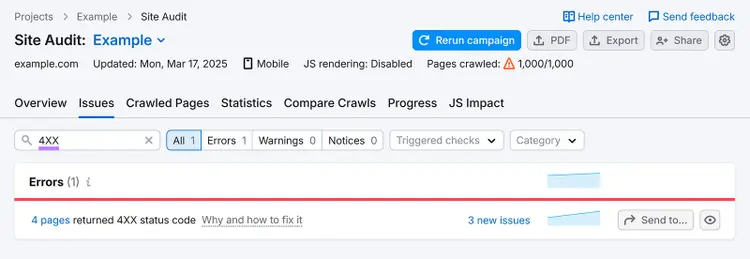
You’ll find a list of the pages affected and their error codes (the tool shows more than just 400 errors):
Then, apply what you learned in this article to fix the errors.
Find and Fix 400 Errors
with the Site Audit Tool

Vlado is a content marketer with 10+ years of experience in SEO, content strategy, and building websites for both clients and personal projects. As Content Operations Lead at Semrush, he streamlines workflows and optimizes processes. He also played a key role in scaling content production and shaping the blog Style Guide. Previously, as Head of Content at Mangools, he led initiatives that made the blog a major driver of organic traffic. He enjoys making complex SEO topics accessible to others.
Vlado Pavlik
Vlado is a content marketer with 10+ years of experience in SEO, content strategy, and website building. As Content Operations Lead at Semrush, he focuses on improving content workflows, optimizing processes, and helping scale content production.

Tells Google to show you more from Semrush in AI, Search, and Discover.