Our subject matter experts have reviewed this article to ensure it meets the highest standard for accurate information and guidance. Learn more about our editorial standards and process.
Search engine optimization (SEO) is a valuable marketing tactic for driving organic traffic—potentially clients or customers—to your site.
But don’t stress if you’re a small business owner and don’t have the budget to hire SEO experts. There are plenty of do-it-yourself (DIY) SEO tips and tricks you can implement to get results.
Here are six ways to use DIY SEO for your small business.
How visible is your site on the search engine results pages (SERPs) now?
Knowing this baseline will guide your SEO efforts. After all, SEO is all about improving your site’s search rankings. Here’s how to learn and set your baseline.
Set Up Search Analytics for Your Site
Google and Bing provide marketers with tools for benchmarking their organic search performance.
Check out three of these tools and how to set them up.
Google Search Console
Google Search Console (GSC) is a free SEO DIY tool for measuring the organic traffic your site gets from Google.
Set it up like this:
Go to https://search.google.com/search-console/about and log in to your Google account. Create an account if you don’t have one.
Add your site as a new property in GSC
Verify you own the site using one of the tool’s provided methods
Submit your sitemap to GSC. This step is optional but may help Google discover your site quicker.
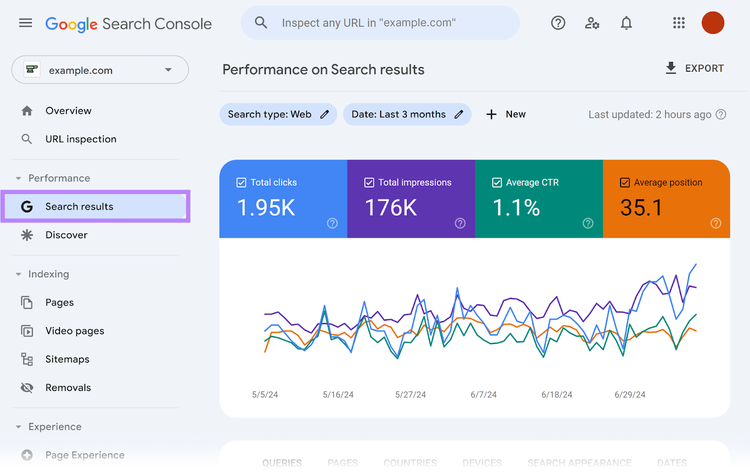
GSC will start collecting search performance data for your site. Click “Search results” in the left sidebar to view the number of times people see your site on the Google SERPs (also known as “impressions”) and click through to visit it. And much more.
Google Analytics
Google Analytics 4 (GA4) helps you track user visits and interactions on your site.
Go to https://analytics.google.com/ and log in to your Google account. Create an account if you don’t have one.
Click “Admin” in the left sidebar
Click “+ Create” > “Account” to create a new GA4 account. In the process, you’ll create a property for your site and select your default reports.
Create a data stream to send your site data to GA4
Connect GA4 to your site using one of the provided methods
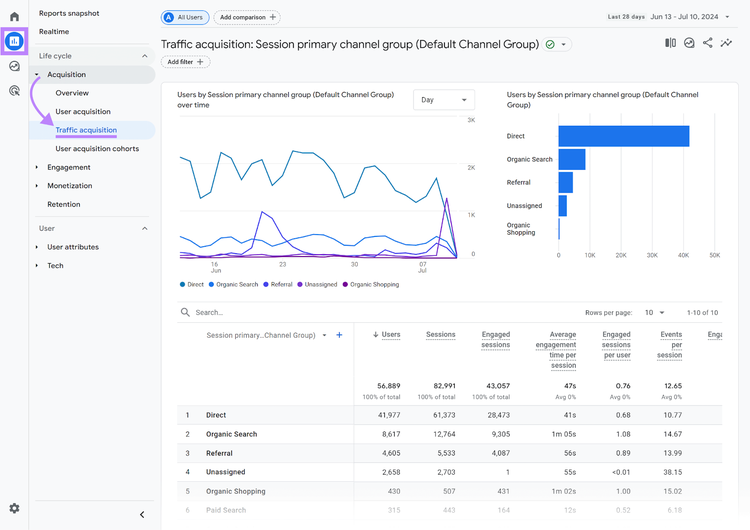
Check out GA4’s reports (click on the chart icon) once the tool has gathered some data.
For example, go to “Life cycle” > “Acquisition” > “Traffic acquisition” on the left to view the number of users visiting your site from various sources. Like organic search, referral, and organic shopping.
Bing Webmaster Tools
Bing Webmaster Tools is the Bing search engine’s version of GSC.
Set it up like this:
Go to https://www.bing.com/webmasters/about and sign up for a Bing Webmaster Tools account using a Microsoft, Google, or Facebook account
Add your site to your Bing Webmaster Tools account
Verify you own the site using one of the tool’s provided methods
Submit your sitemap to Bing. This step is optional but may help Bing discover your site quicker.
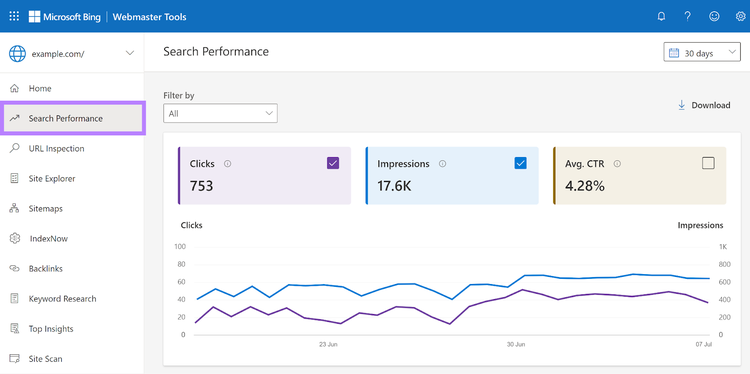
Click “Search Performance” in the left sidebar to view your pages’ impressions, clicks, average click-through rate (CTR), and more on the Bing SERPs.
A baseline SEO audit shouldn't include just your website. Use a DIY SEO software tool like Domain Overview to check your competitors' sites, too.
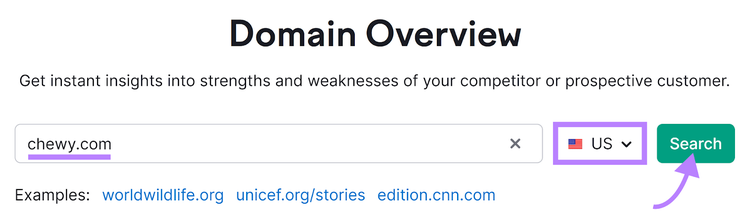
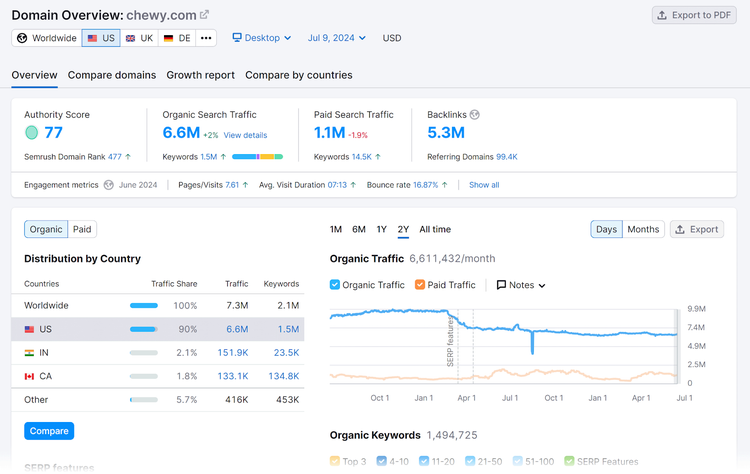
Go to the tool by logging in to your Semrush account and clicking “SEO” > “Domain Overview” in the left sidebar. Enter a competitor’s domain. Select the country you want to see organic performance results for. Then hit “Search.”
The tool will tell you your competitor’s performance in areas like:
Top organic keywords you may also want to target
Organic search traffic volume you could aspire to
Repeat this process to research other competitors.
Discover more competitors by using the Organic Rankings tool. Run a search with your domain in the tool. Then click the “Competitors” tab.
2. Research Keywords and Relevant Search Queries
Keywords are words or phrases searchers plug into search engines to find information or products. Identifying keywords that align with your content and match your target audience’s needs is critical for driving more relevant organic traffic to your site.
Start by using a DIY SEO marketing tool like our keyword tool.
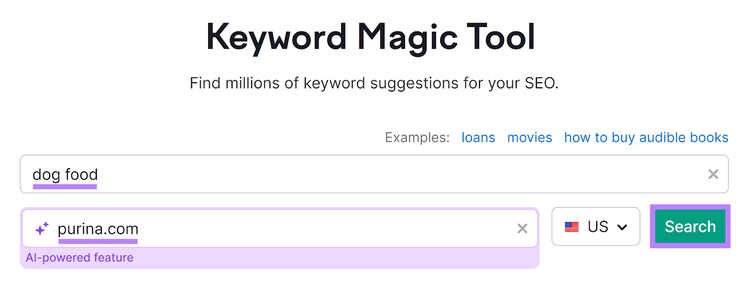
Enter one of your main keywords, your domain, and the country you want keyword research data for. Then click “Search.”
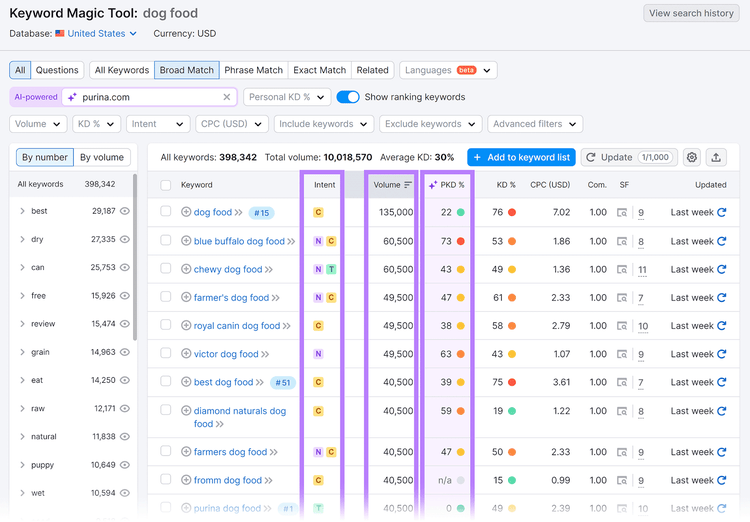
The tool will return dozens of keyword ideas, along with details like:
Intent: The user’s search intent, or purpose for searching this keyword. Knowing this helps you create content that meets their goals.
Volume: The keyword’s average number of monthly searches. Keywords with higher search volumes are attractive because they may get your site more traffic. But ranking well for them may be difficult if many others are also trying to do this.
Personal keyword difficulty (PKD%): An artificial intelligence (AI)-powered score of how easy it may be for your site to rank in Google’s top 10 results for that keyword. Keywords with lower PKD% scores are generally easier to rank for.
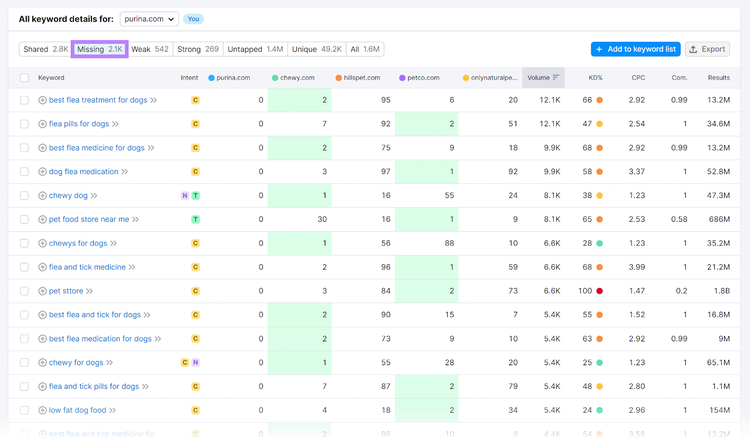
Separately, use Keyword Gap to find keywords your competitors are organically ranking for but you aren’t.
Go to the tool by clicking “SEO” > “Keyword Gap” in your Semrush account’s left sidebar.
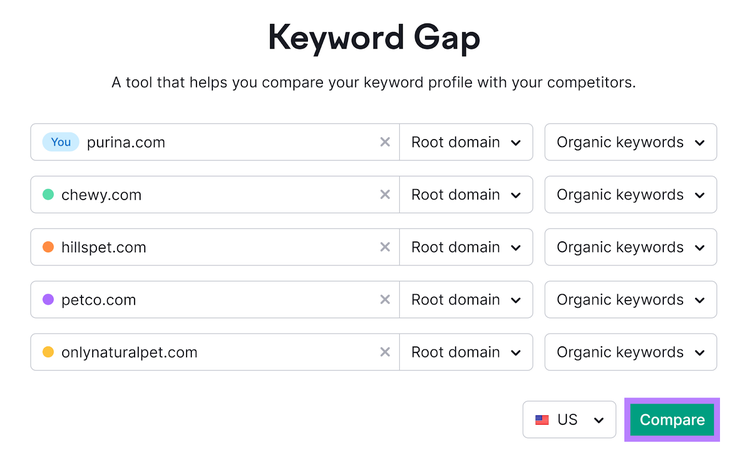
Add your domain and a competitor’s. Click “+ Add up to 3 competitors” to add up to three more competing domains.
Leave the domain and keyword settings as “Root domain” and “Organic keywords,” respectively. Select the country for which you want to see keyword data, then click “Compare.”
Scroll down to the keyword details table and click the “Missing” tab.
These are the keywords your competitors are ranking for but you aren’t. You can also see data on their search volume, keyword difficulty, and more.
Use these insights to decide whether you want to try ranking for them as well.
Once you’ve identified valuable keywords, you can start crafting high-quality content that’ll contribute to your content marketing strategy.
Follow these basic rules when optimizing your content for search engines:
Include the primary keyword you’re targeting naturally in the text. Don’t practice “keyword stuffing.” Search engine algorithms view keyword overuse negatively.
Include the primary keyword in the title tag and H1 tag. These are the titles that appear on the SERP and your page, respectively. Putting the primary keyword in your content’s tags helps search engines serve it when people use the same keyword in their searches.
Create content for secondary keywords that logically complement the primary keyword. Secondary keywords often cover the primary keyword’s subtopics. So, if you’re creating a dental site, a primary keyword might be “root canal.” And a logical secondary keyword might be “root canal cost.” You could then build content pages for your secondary keywords and link your primary keyword pages to them.
If you’re updating your content, make your changes to existing pages instead of creating new ones. This is to avoid producing duplicate content, which can result in search engines choosing to rank one page and ignoring another with highly similar content.
Use Semrush’s SEO Writing Assistant to analyze your drafts for SEO improvements that may help them rank higher after publication.
Go to SEO Writing Assistant by clicking “Content Marketing” > “SEO Writing Assistant” in your Semrush account’s left sidebar.
Click “Analyze my text” to open the editor.
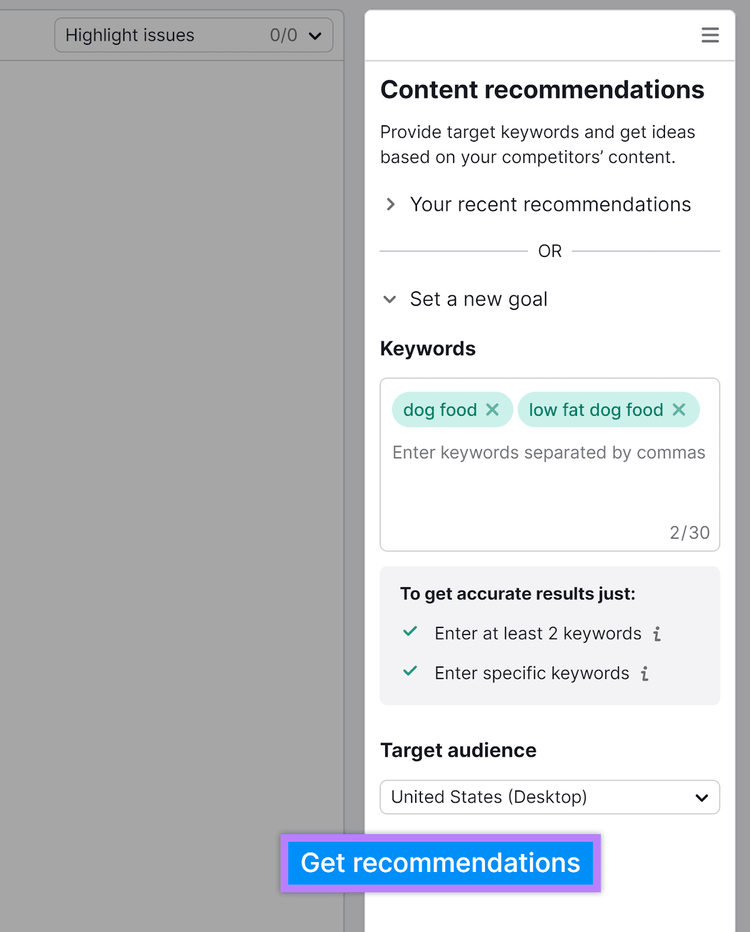
In the “Content recommendations” box on the right, provide your keywords and target audience. Then click “Get recommendations.”
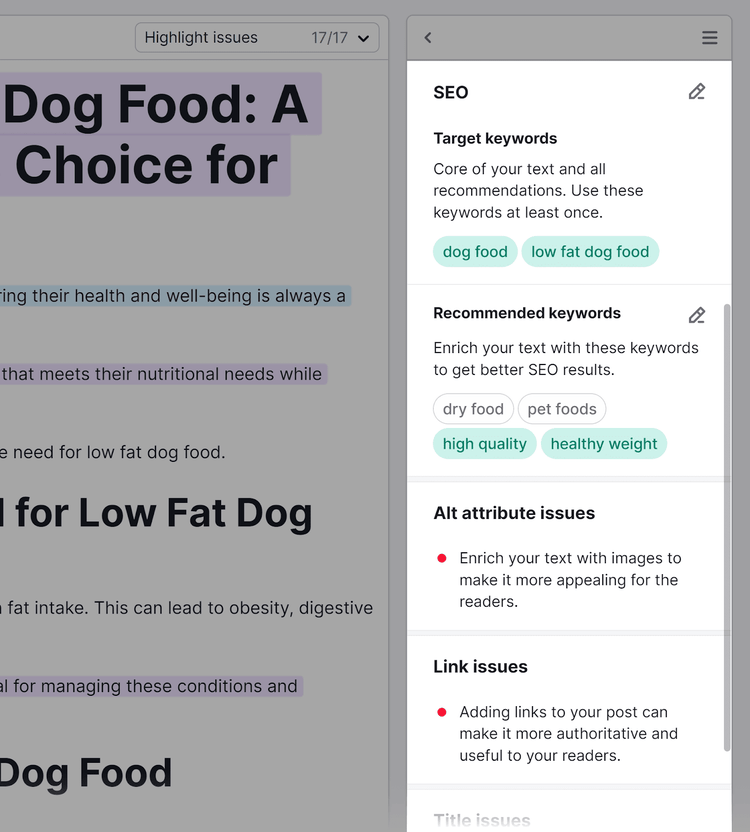
Next, type or paste your draft into the tool. It then displays SEO suggestions on the right. For example, SEO Writing Assistant may suggest you insert certain recommended keywords. Or add image alternative (alt) text.
Edit your draft to match these suggestions as you see fit.
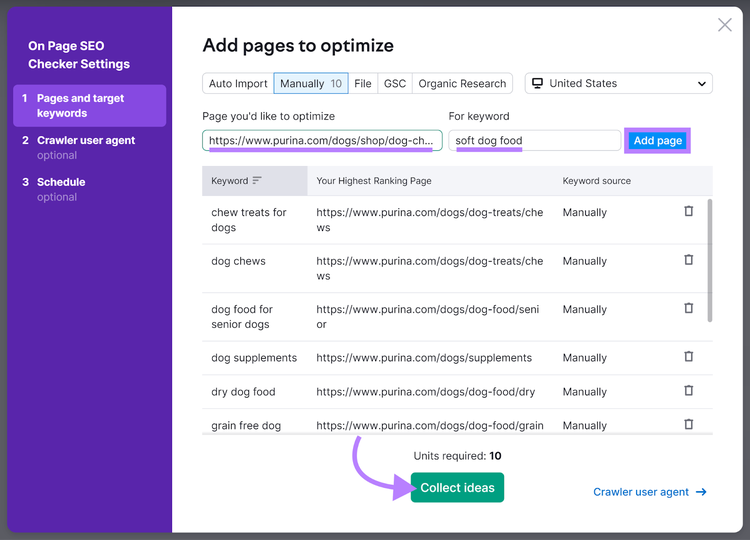
Navigate to “SEO” > “On Page SEO Checker” on the left of your Semrush account.
Enter your site’s domain, then click “Get ideas.”
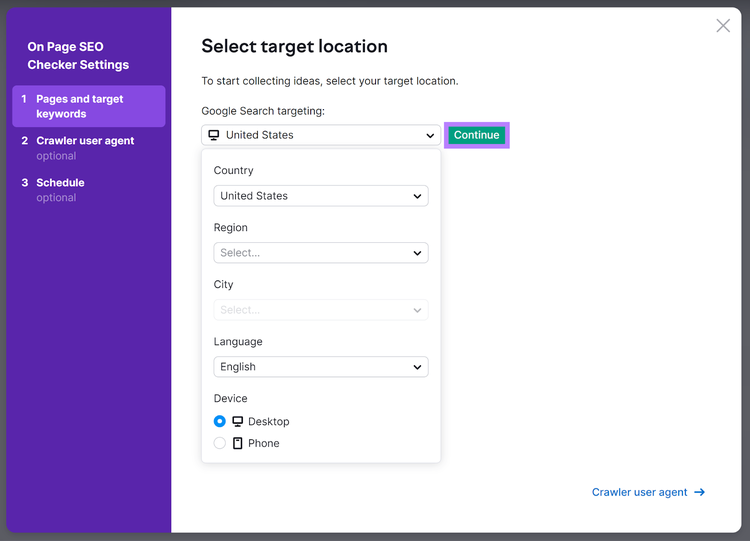
Configure your target location using the “Google Search targeting” drop-down settings. Then click “Continue.”
Select the pages you want to get optimization ideas for.
If you’d like, use the optional tabs on the left to set up the crawler user agent the tool should scan your pages with. And a regular optimization schedule.
Click “Collect ideas” when done.
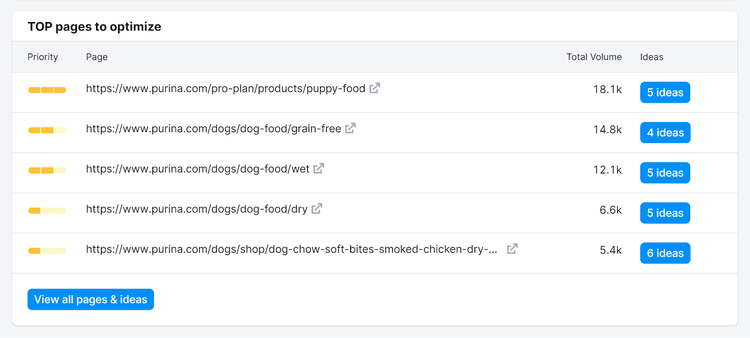
After that, scroll down the “Overview” page to view a list of top pages worth optimizing.
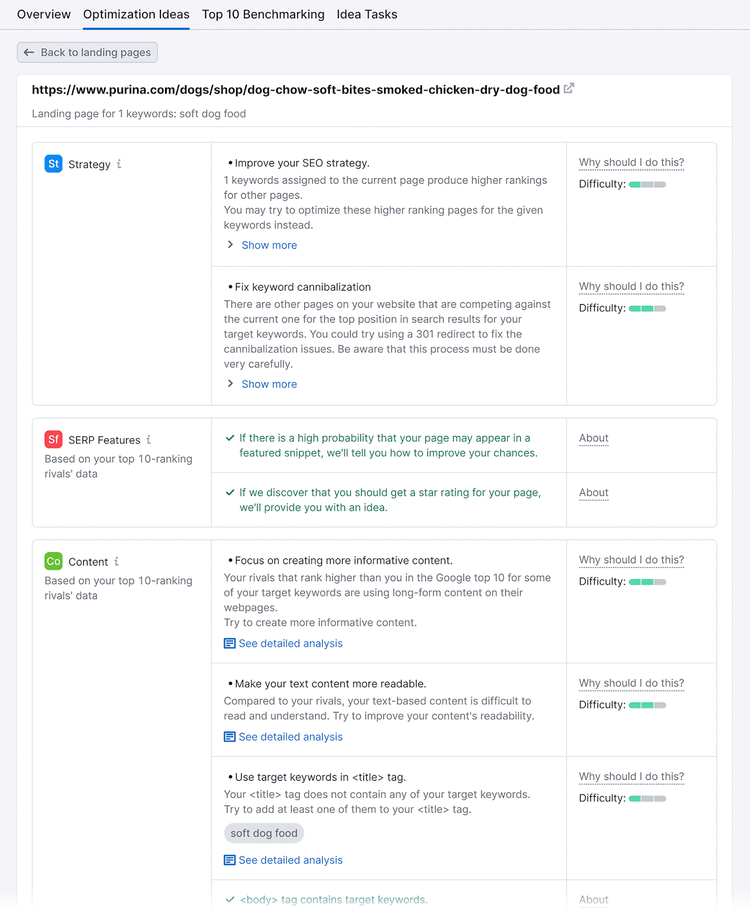
Click the “# ideas” button next to any page to view the tool’s recommendations for optimizing it. Then, implement these recommendations accordingly.
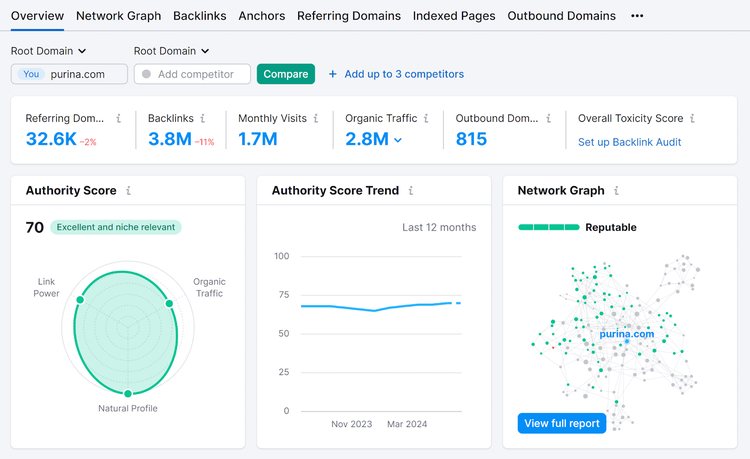
Referring Domains—the websites pointing to your site
Backlinks—the number of links pointing to your site
And more.
Links from high-authority, high-traffic domains are the most valuable and worth pursuing.
If you see those in your backlink profile, that’s a good sign. Work to attract more backlinks like that through link building.
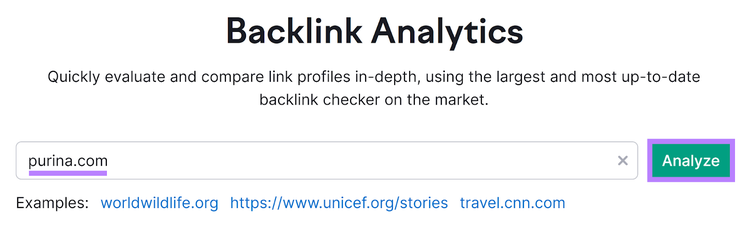
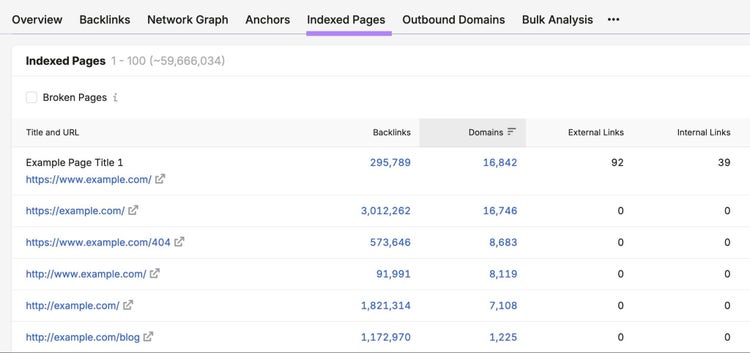
You can also use the Backlinks tool to find backlinks. Head back to the tool’s start page and enter the competitor's domain to analyze. Then head into the “Indexed Pages” report.
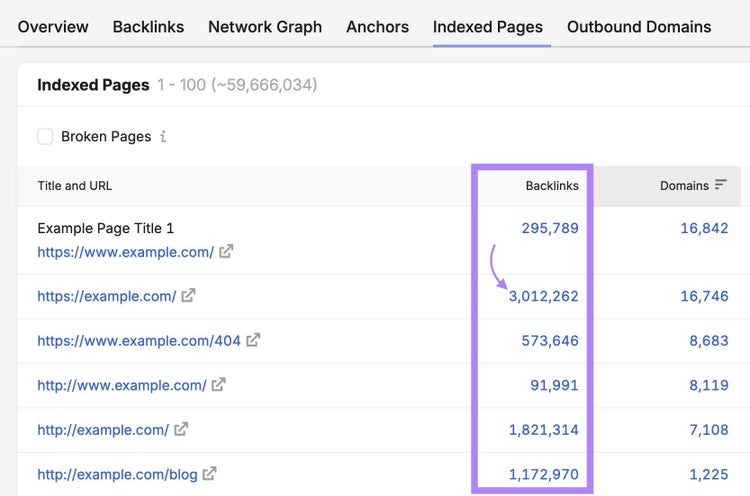
Review the list for pages that have a high number of backlinks and are similar to content you already have (or something you could easily create).
Then click the “#” in the “Backlinks” column.
You’ll get a list of referring pages. These pages are more likely to link to your page since they already link to a similar one, especially if your page offers a fresh perspective or information your rival’s page lacks.
Next, go through the referring pages and find high-quality domains that are relevant to your site.
Finally, pitch the site asking for a backlink to your content. Here’s an example of a pitch:
Hi [Name],
I was reading your article on [topic] and noticed you linked out to [competitor's page] as a resource on [specific subtopic].
We have a similar guide on [your topic] that goes into [specific angle/what makes it different — e.g., "more recent data" or "a step-by-step framework"]. Thought it might be a useful addition (or alternative) for your readers.
Here's the link if you want to take a look: [your URL]
Either way, keep up the great work — I really enjoyed the piece.
[Your name]
Tip
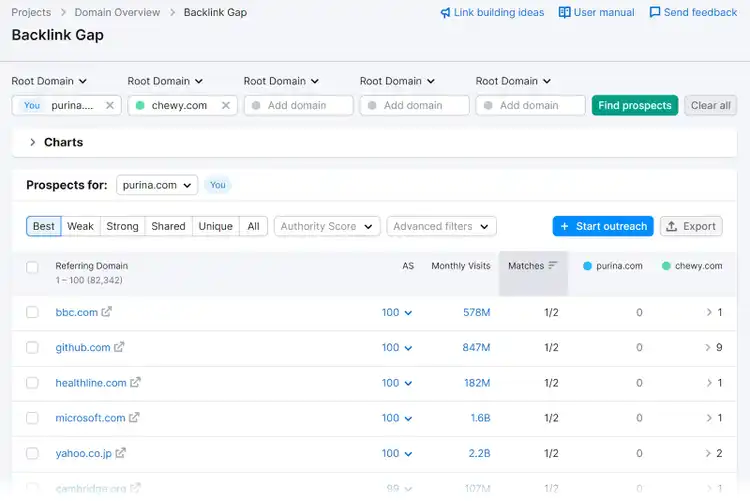
Want to know the sites your competitors have backlinks from but you don’t? Use Backlink Gap to find out.
Your DIY SEO optimization strategy also needs to involve checking for technical SEO issues. These are issues with your site’s infrastructure that could prevent search engines from discovering, crawling, and indexing your pages. Which could harm your site’s rankings.
A great way to start is with our free website SEO checker. For deeper monitoring, the Semrush Site Audit tool tracks your site's technical health across 140+ issues.
Access Site Audit from your Semrush account by clicking “SEO” > “Site Audit” on the left.
Enter your domain. Then click “Start Audit.”
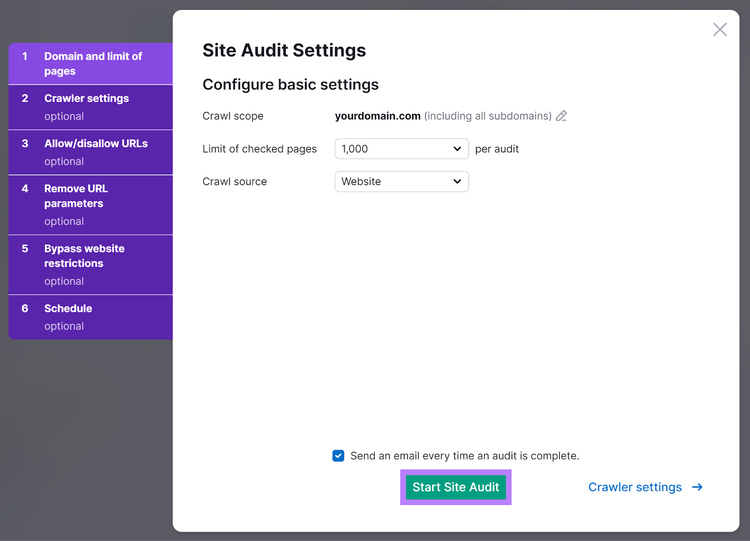
On the “Site Audit Settings” page, you can configure basic settings like:
Crawl scope: Whether the tool should also check your subdomains
Limit of checked pages: The number of pages the tool should check each time
Crawl source: Leave this setting as “Website” if you want the tool to crawl your site like Google does
Use the tabs on the left to configure optional settings like the URLs the tool should ignore. Then, hit “Start Site Audit” to start the scan.
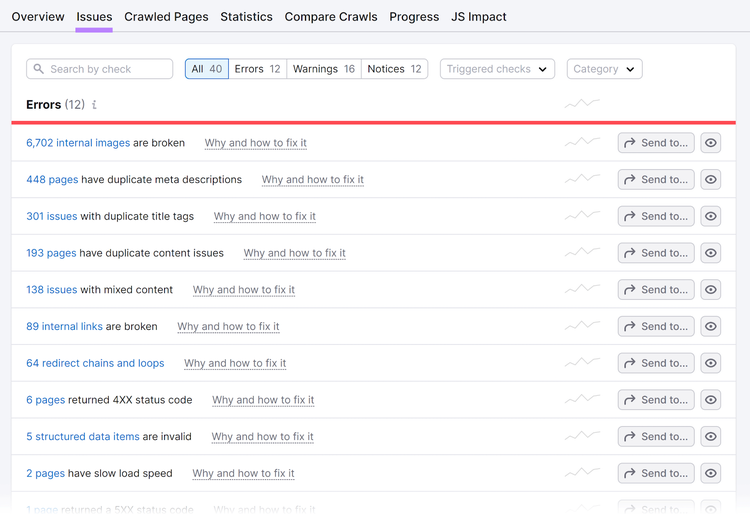
Once the scan is complete, you’ll get an overview of the technical issues holding your site back. Click the “Issues” tab for the full list of errors, warnings, and notices.
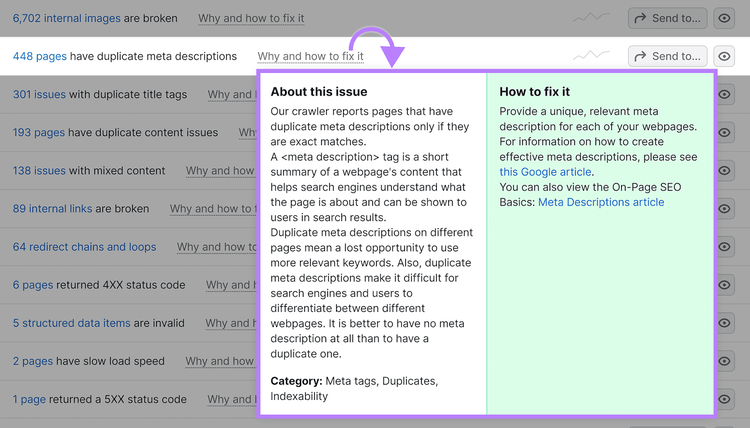
Click the “Why and how to fix it” link next to each issue to get more information about it, how to fix it, and links to helpful tools and resources.
Work through fixing the issues in the “Errors” list first. These problems are the most urgent. Then go on to the issues in the “Warnings” and “Notices” lists, in this order.
Search engines frequently update their algorithms. This can affect how they rank your site and serve its pages in the SERPs.
Use Position Tracking to stay on top of your site’s rankings. Go to your Semrush account and select “SEO” > “Position Tracking” on the left.
Enter your domain and then hit “Set up tracking.”
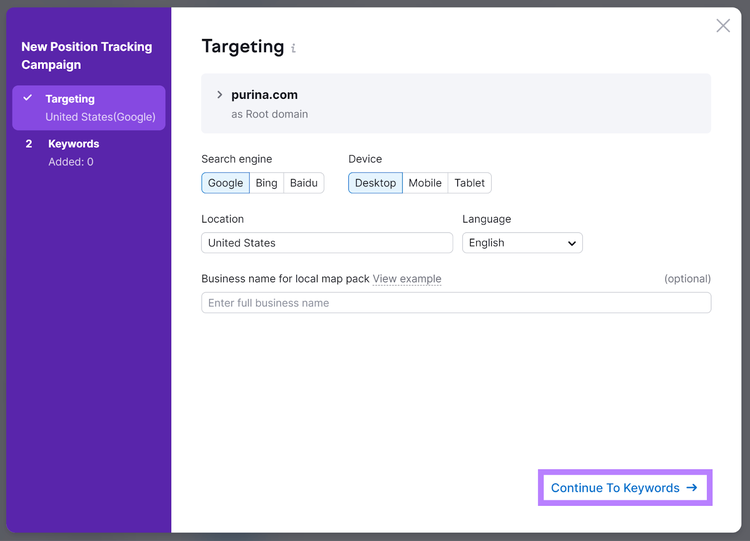
On the “Targeting” screen, select whether the tool should track the rankings for your root domain, subdomain, subfolder, or a specific URL. Then, set up your preferred search engine and device settings. Finally, enter the location you want to track your rankings for.
Click “Continue To Keywords” after that.
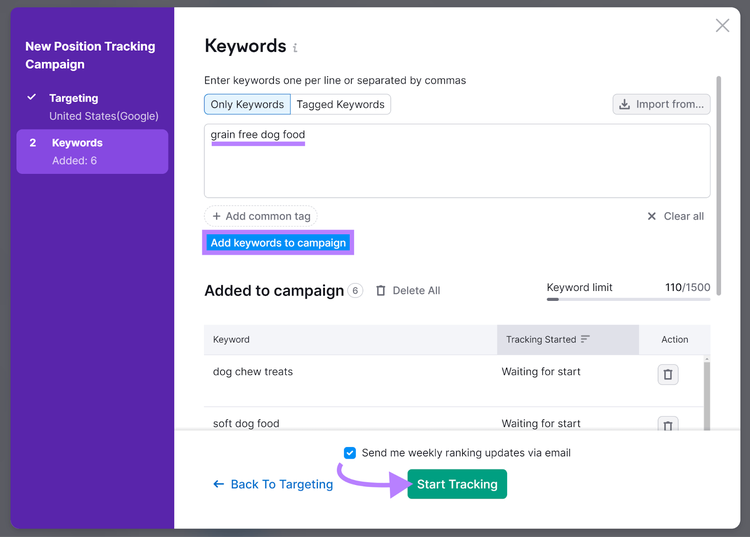
On the “Keywords” screen, provide the keywords for which you want to track your rankings. Click “Add keywords to campaign,” followed by “Start Tracking.”
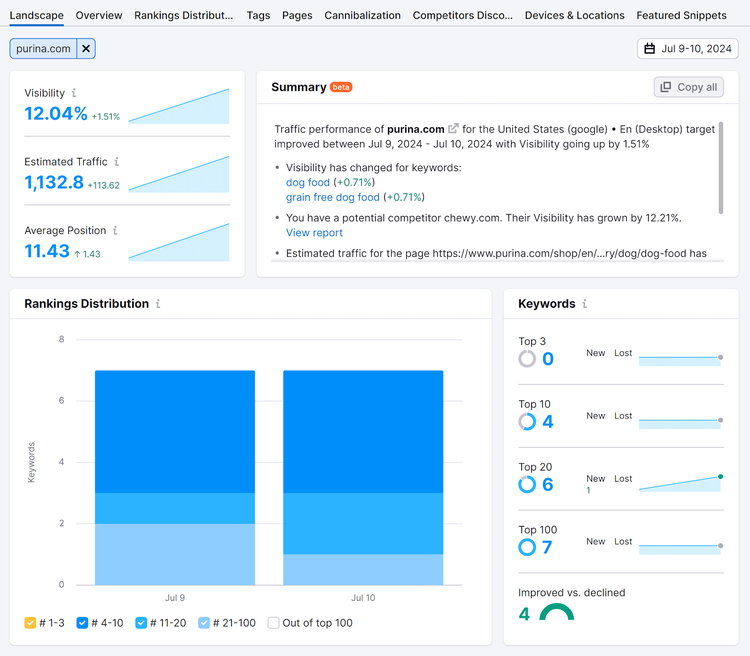
The tool will start tracking your site’s ranking performance. For example, it’ll tell you:
Your site’s rankings distribution
The number of keywords your site is ranking for in the top three or 10 search results
Which pages are ranking for your tracked keywords
Use this data to track if your efforts to rank higher for certain keywords have succeeded. Or if your pages’ rankings have dropped after a search algorithm update.
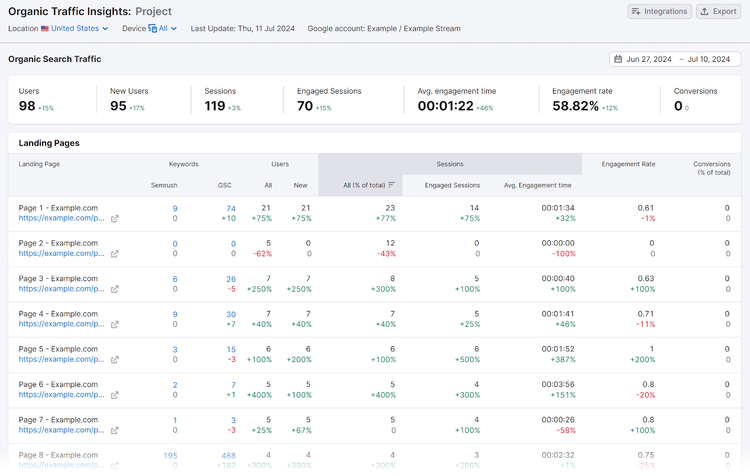
Apart from watching your rankings, keep an eye on your site’s organic traffic with Semrush’s Organic Traffic Insights. It combines data from GA4 and GSC with Semrush’s keyword data to provide a holistic view of your organic traffic in one place.
Go to the tool by navigating to “SEO” > “Organic Traffic Insights” from your Semrush account. Enter your domain and click, “Get Insights.”
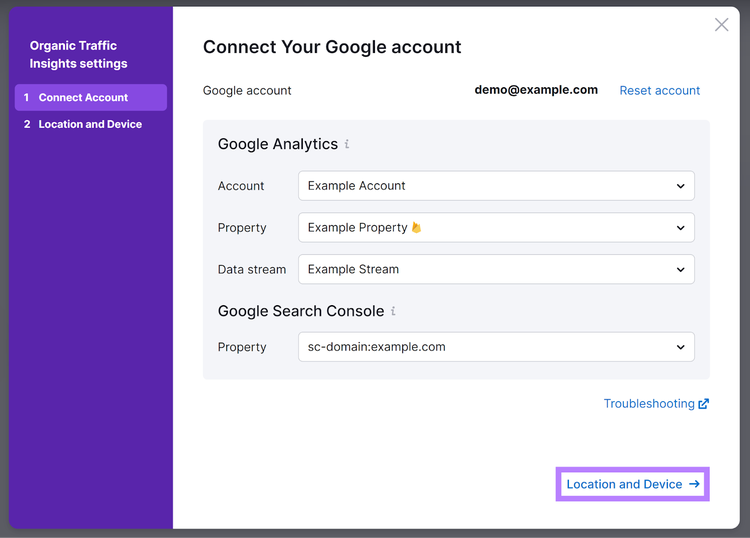
Click “Connect Google Account” to connect your GA4 and GSC accounts to the tool. Authenticate your Google connection, select the GA4 and GSC properties associated with your site, and then select “Location and Device.”
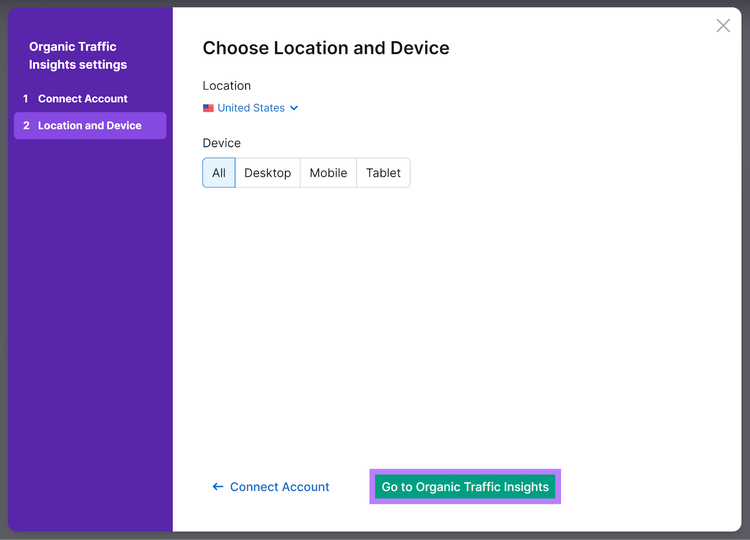
On the “Choose Location and Device” screen, select the location and device type for which you want to track your site’s organic traffic. Then, click “Go to Organic Traffic Insights.”
For any period, you can get reports on organic traffic metrics like:
The number of users who visited your site
The number of site visits, or “sessions”
The number of conversions that happened on your site—meaning the number of times users take an action you want them to take. Like placing an order.
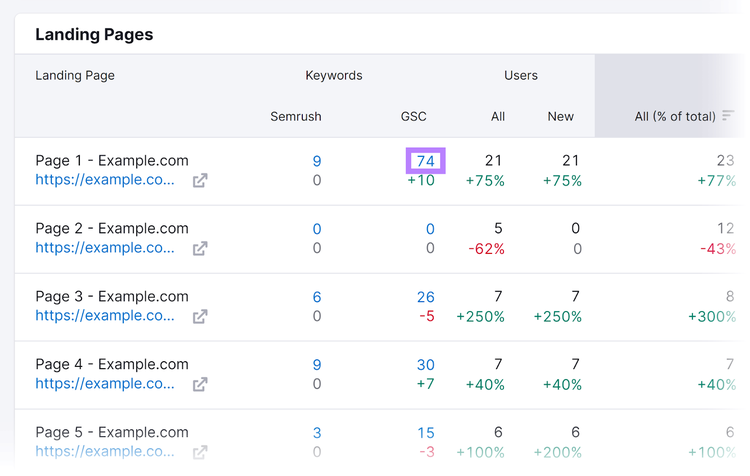
You’ll also see breakdowns of these numbers for individual pages.
To learn the keywords a page is ranking for, click its blue number in the “Keywords” column.
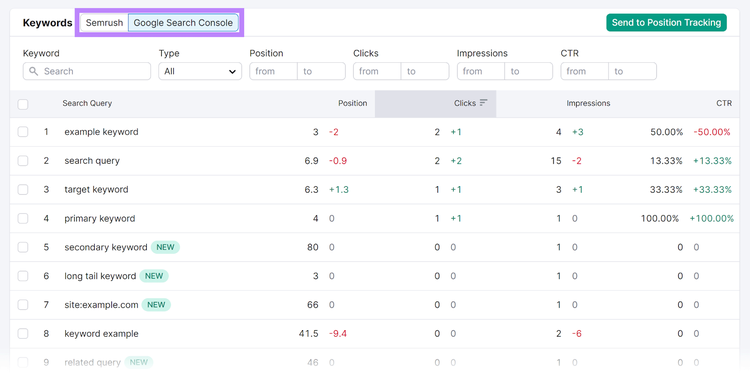
You’ll see the page’s ranking positions for various keywords. Toggle between the “Semrush” and “Google Search Console” tabs to view rankings data from the respective tools.
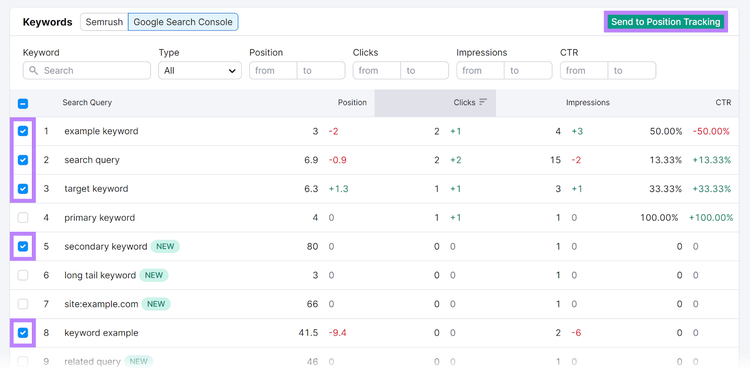
After that, add keywords to your Position Tracking watch list to monitor your rankings for them more closely. Select your keywords, and then click “Send to Position Tracking.”
Siew Ann draws on her five years of SEO and email marketing experience to write creative, well-researched content for B2B SaaS businesses. Her articles have ranked on the first page of Google and as high as #1.
Subscribe to learn more about General SEO
Subscribe
By clicking “Subscribe” you agree to Semrush Privacy Policy and consent to Semrush using your contact data for newsletter purposes
Share
Tells Google to show you more from Semrush in AI, Search, and Discover.