
This guide explores six free Google SEO tools and explains how you can use them to increase visibility in Google Search.
Here's a quick look at each tool we’re going to cover:
1. Google Search Console
Google Search Console (GSC) is a free Google SEO tool that shows how your website performs on Google Search.
It also highlights potential issues and ways to improve.
By solving these issues, you can increase your site’s visibility in search results and reach more customers.
Key Features of Google Search Console
- Performance report: Shows how many people see and click on your site in Google Search, which pages they visit, and which keywords bring them to your site
- Page indexing report: Checks if Google can index your webpages and highlights any indexing issues
- Sitemaps report: Lets you submit a list of pages on your site to Google. So it can easily find all of your pages.
- Core Web Vitals report: Measures performance factors like loading speed, interactivity, and visual stability. And suggests ways to improve.
- URL Inspection tool: Gives details on how Google views a specific page on your site
- Rich Results Test tool: Checks if your site can display rich results (extra information like reviews or product details) in search
- Manual actions and Security issues reports: Alert you to Google penalties or security threats (like hacking or malware)
- Links report: Shows which external websites link to your site and how your internal pages link to each other
How to Use Google Search Console
Use GSC reports and tools to monitor and optimize your site's performance in Google Search.
To set up GSC, sign in to Search Console with your Google account.
Then, add a property (website) when prompted.
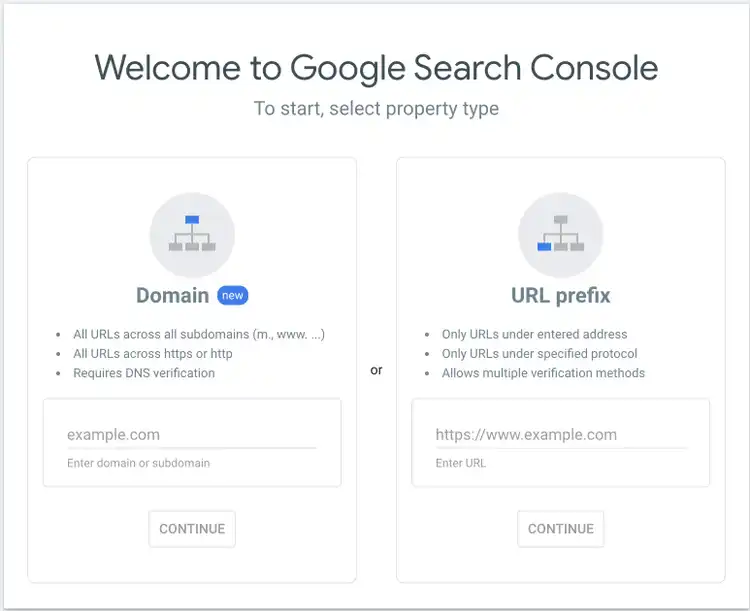
Select the domain option to view data from all URLs under the domain name. Or choose the URL prefix option to get data for only a specific section (for example, your blog or knowledge base).
Check out our detailed guide to GSC to learn more about each option and complete the setup.
You can then do the following:
Monitor Site Performance
Check how your site is performing on Google by going to “Performance” > “Search Results” in GSC.
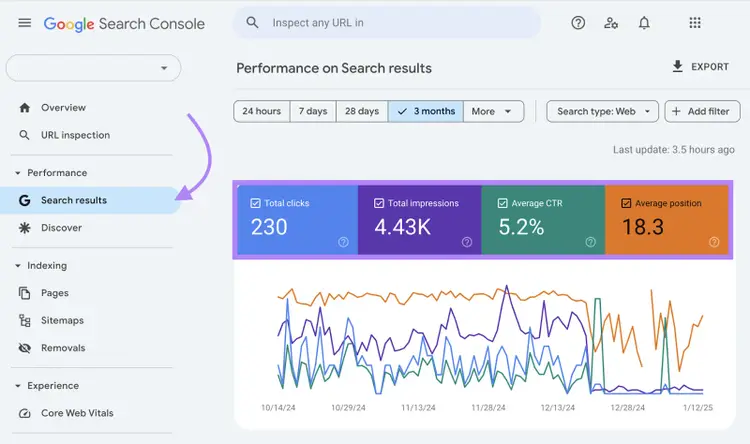
You’ll see four key search metrics:
- Clicks: The number of clicks on your website links in search results
- Impressions: The number of times your site was shown to users in search results
- Average position: Your site's average ranking position for various keywords
- Click-through rate (CTR): The percentage of impressions that turned into clicks
Also, track your performance across these metrics over time. This helps you understand trends and the impact of SEO efforts for a given period.
Scroll down to view the table showing search queries that drive traffic to your site.
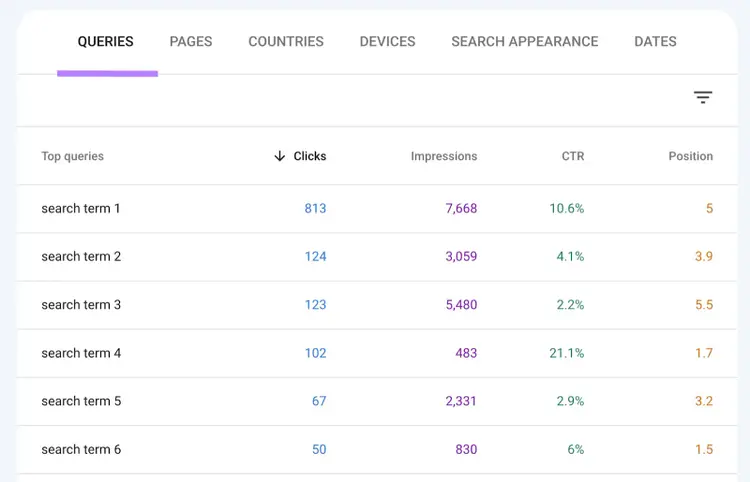
You can also identify gaps in your content quality and strategy with this report.
For example, if you’re not ranking for important keywords, audit those pages. And check the quality and usefulness of the content.
Find and Fix Indexing Issues
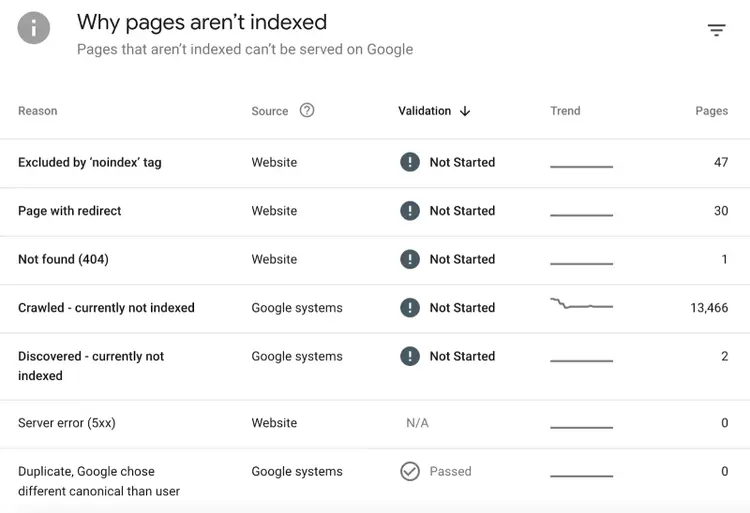
It’s critical to identify the pages with indexing issues and resolve them because Google won’t be able to show them in search results.
Check which pages Google can index and the ones with indexing errors by clicking “Indexing” > “Pages” in the Search Console sidebar.
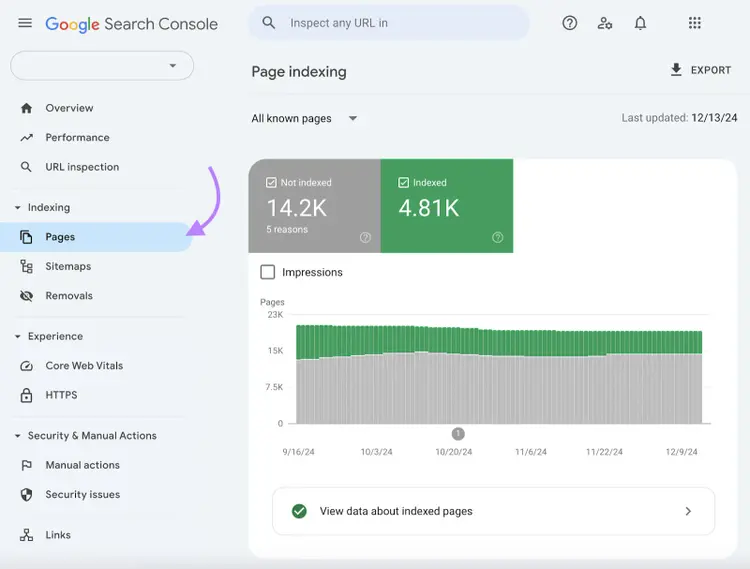
Scroll down to learn about the issues that cause indexing errors on your site.
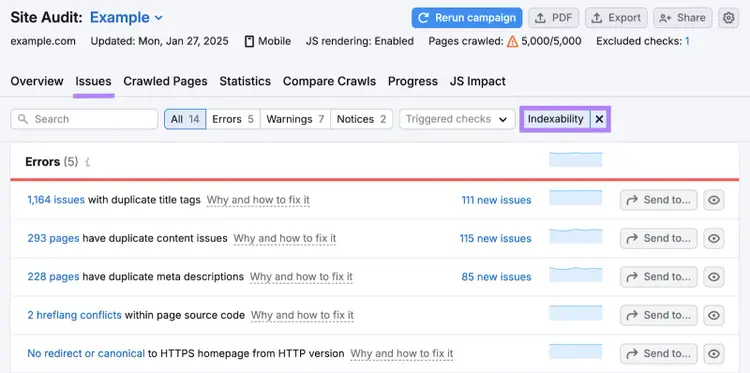
For a free technical read that goes beyond indexing, try our SEO checker tool. To find an even wider array of issues across your full site, use Semrush Site Audit.
Submit and Manage Sitemaps
Sitemaps help Google discover and crawl your pages more efficiently, so make sure to submit yours via Search Console.
Go to “Indexing” > “Sitemaps.”
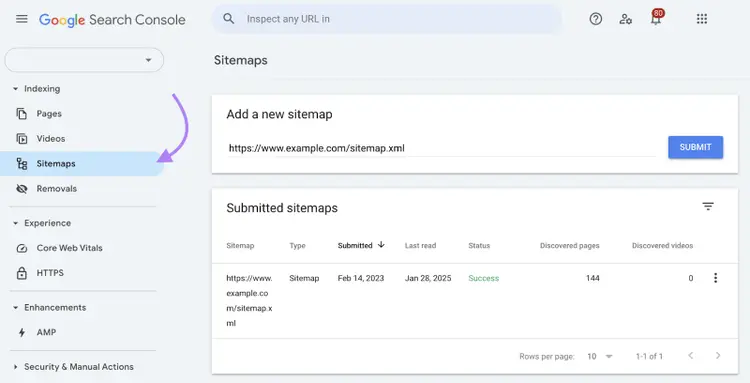
Submit yours if you haven’t yet.
Afterward, the “Status” column should read “Success.” That means your sitemap is successfully submitted to Google.
Further reading: XML Sitemap: What It Is & How to Generate One
2. Google Analytics
Google Analytics 4 (GA4) is a free analytics platform that helps you understand how users interact with your website or app.
Use these insights to understand what visitors find most engaging. And uncover ways to refine your targeting and messaging to better attract your target audience.
Key Features of GA4
- Realtime reports: See what's happening on your site in real time. For example, the number of active users, views, and key events (conversions).
- Acquisition reports: Monitor where your site’s visitors come from (e.g., organic search, social media, referrals, etc.)
- Engagement reports: Analyze how users interact with your pages. And measure engagement metrics like average engagement time per session and session key event rate.
- Monetization reports: Track revenue, purchases, and other monetization metrics
- Retention report: Understand how well you retain users over time
- User attributes: Study visitor demographics, locations, and behaviors to understand whether the right people are coming to your site
How to Use Google Analytics
Follow the steps shown in our guide to set up GA4, to start using your Google Analytics account.
Once you’re ready, here are some specific actions you can take with GA4:
View and Compare Traffic Sources
The “Traffic acquisition” report in Google Analytics lets you analyze the traffic sources for your site.
Log in to your GA4 account. Click “Reports” > “Acquisition” > “Traffic acquisition” on the sidebar.
You’ll see traffic data for different channels. Such as direct visits, organic search, email, social, and so on.
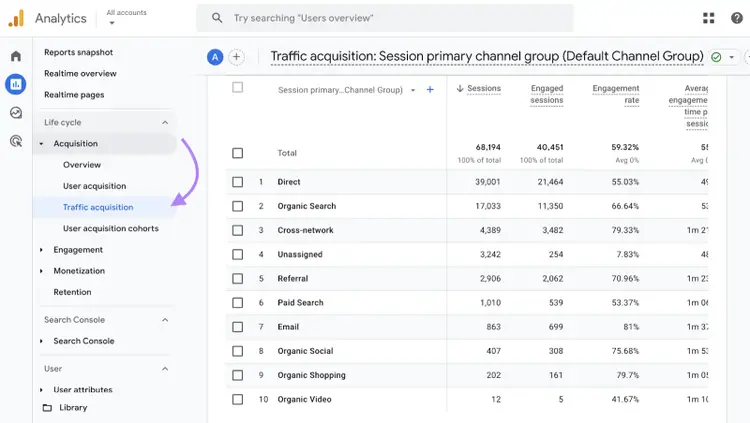
Sessions from organic search (organic traffic) is a key indicator of the success of your SEO efforts.
Compare organic search visits to visits from other traffic sources to understand the impact of your SEO efforts.
Track Conversions
Monitoring conversions (desired actions like filling out a form or purchasing a product) is a good way to measure the tangible business impact your SEO strategy has.
In GA4, conversions are called key events.
To accurately track conversions:
- Set up GA4 events for important actions on your website (e.g., button clicks or downloads)
- Mark these events as key events
Learn how to set up GA4 conversion tracking.
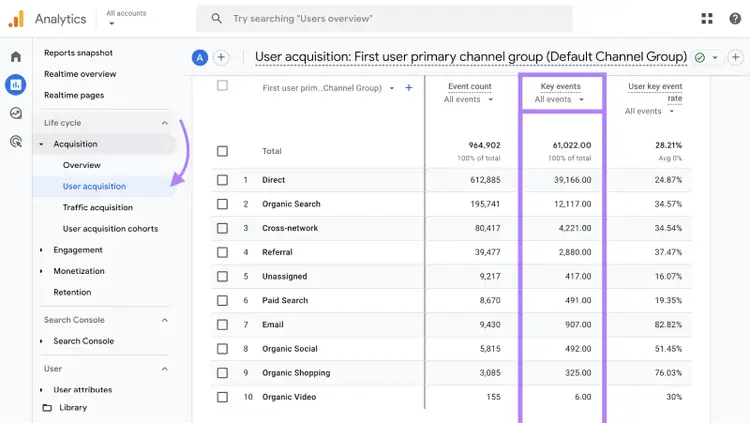
Once set up, navigate to "Reports" > "Acquisition" > “User acquisition.”
You can then see pages that are driving the most conversions. And ones that need to be optimized.
Monitor Engagement
Understanding how visitors interact with your site provides insights for improving your user experience (UX) and SEO results.
GA4 provides several metrics to track engagement, including:
- Engaged sessions: Sessions where users stay on your site for more than 10 seconds, complete a conversion action, or view at least two pages
- Engagement rate: The percentage of engaged sessions
- Average engagement time per active user: The average time users engaged with your site
Click “Reports” > “Engagement” > “Overview” to find these metrics.
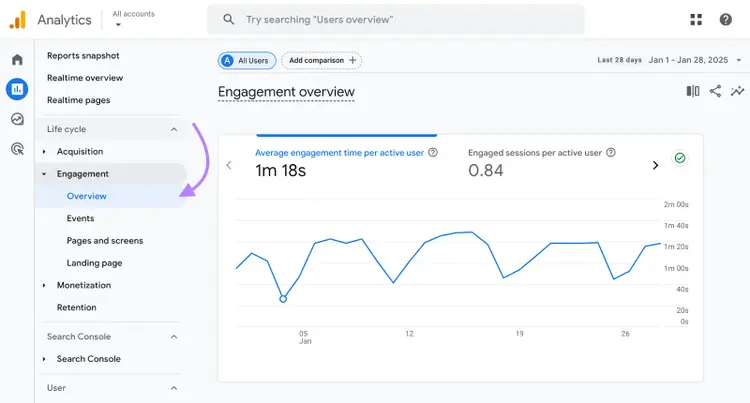
Find pages with low engagement, then work to improve the user experience and content quality.
3. PageSpeed Insights
Google’s PageSpeed Insights (PSI) tool tests the speed and usability of your webpages and provides a performance score and recommendations to improve it.
This helps you optimize your site’s UX and boost search rankings. Which can ultimately translate to more visitors, leads, and sales.
Key Features of PSI
- Performance score: A score between 0 and 100, representing your selected page’s speed and UX
- Core Web Vitals assessment: Measures key metrics like loading speed, interactivity, and visual stability to rate the page’s user experience
- Diagnostics: Offers specific suggestions to improve your website’s performance, such as reducing image sizes and minifying JavaScript
How to Use PageSpeed Insights
Use PageSpeed Insights to identify and resolve performance issues on high-priority pages.
Here’s how:
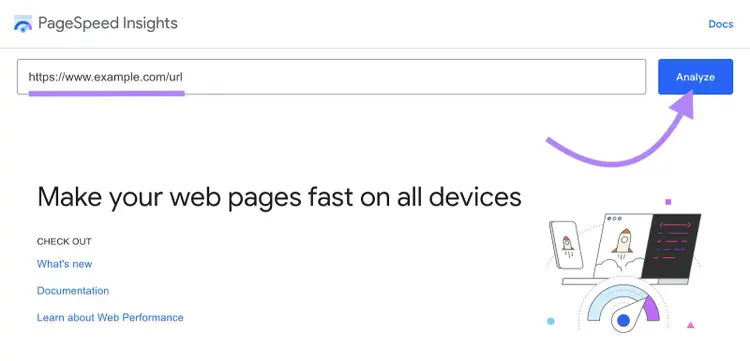
Open the PSI tool and enter the URL of the page you want to analyze. Click “Analyze.”
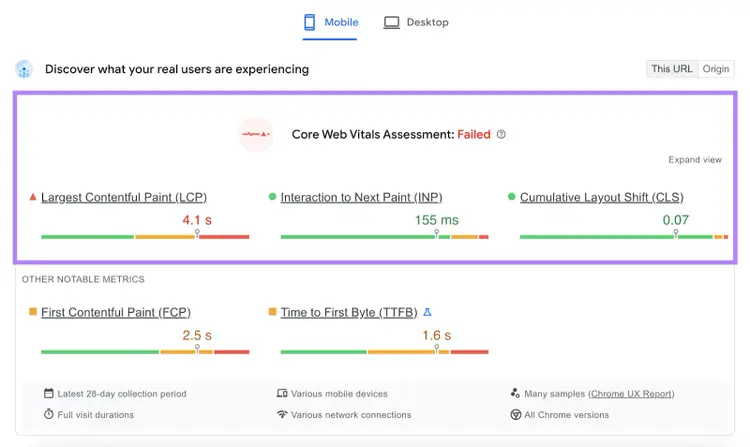
Within a few seconds, you’ll see the Core Web Vitals assessment report—for both the mobile and desktop versions of the webpage.
At the top of the report, you can find out if you passed the assessment.
Scroll down to the “Diagnose performance issues” section to check your overall performance score. And other scores like “Accessibility,” “Best Practices,” and “SEO.”

Below that, you’ll see the “Diagnostics” report showing the list of performance issues and recommendations.
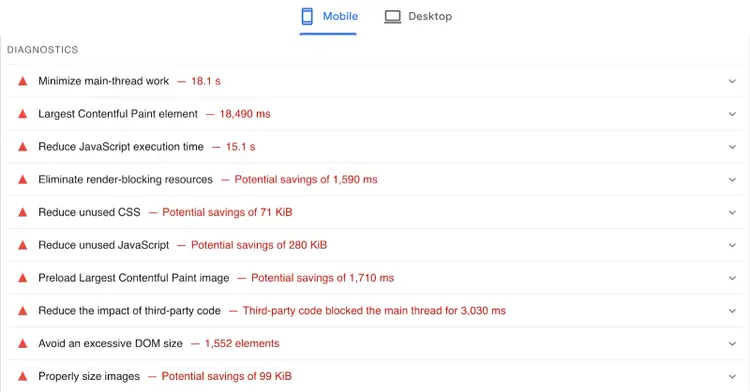
Click on the individual items to learn more about the issues. And how to fix them.
Some common suggestions include compressing images, reducing unused JavaScript, and using browser caching.
Implement some of the recommendations and run the test again to see how it impacts the performance score.
Further reading:
- Google PageSpeed Insights: What It Is & How to Boost Your Score
- Core Web Vitals: What They Are & How to Improve Them
4. Google Business Profile
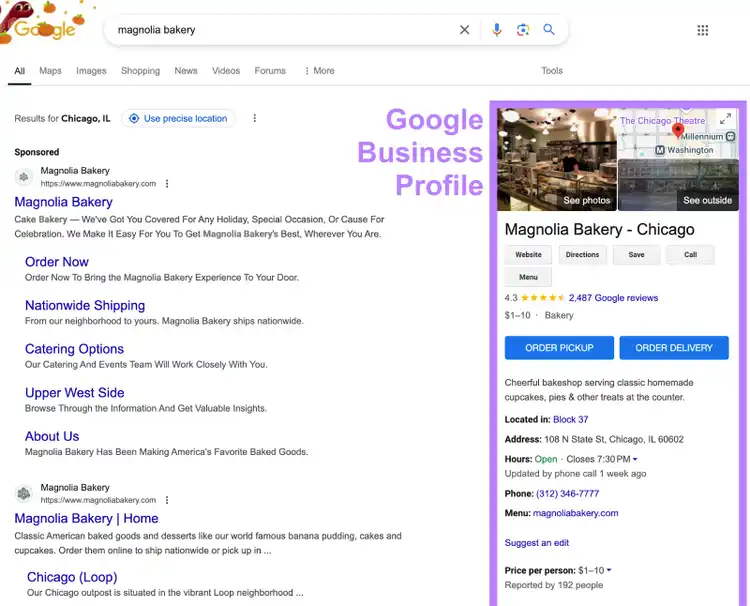
Google Business Profile (GBP) is a tool that allows you to manage how your local business appears on Google Search and Maps.
It helps customers find your business, learn about your products or services, and connect with you.
Here’s what a GBP can look like:
Key Features of GBP
- Business information: Keep your important business details (name, address, phone number, etc.) updated
- Photos and videos: Showcase your products, services, or business events
- Google posts: Share updates, offers, and events on your business profile
- Customer reviews: Collect, manage, and respond to customer reviews
- Messaging: Communicate directly with customers through Google
- Analytics: Track how customers find and interact with your Business Profile
How to Use Google Business Profile
Use our comprehensive guide to easily create your Business Profile on Google.
Then, you can start performing some key tasks.
Improve Local Search Visibility
A well-optimized Google Business Profile helps your business rank higher in local search results and Google Maps.
Like so:
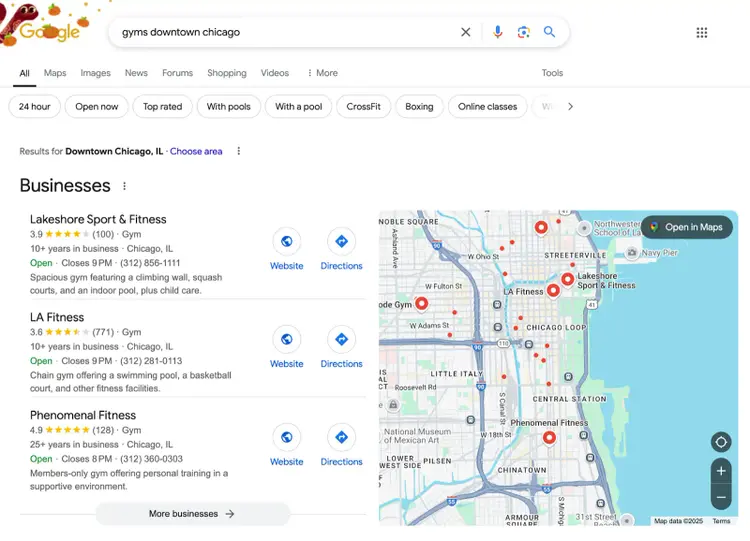
Follow these tips to improve your local search rankings:
- Add relevant keywords (terms people use to search for businesses like yours) to your business description
- Encourage customers to share reviews on your profile. Positive reviews can boost your ranking and build trust with potential customers.
- Regularly post updates, offers, and events to your profile. This keeps your profile fresh and engaging.
Manage Your Presence on Google
With GBP, you can ensure your customers get accurate information about your business on Google.
Make sure to add all the relevant business details, such as:
- Business name, category, and description
- Address, phone number, and website link
- Hours of operation (including special holiday hours)
Also, ensure these details are always accurate.
Update your Google Business Profile if you change your operating hours, phone number, business address, or other important details.
Connect with Customers
Google Business Profile lets you connect with your customers, and responding to their queries helps to build relationships.
Use these tips to effectively engage with your audience using GBP:
- Promptly respond to customer reviews—both positive and negative. This shows that you care about your customers’ feedback.
- Use the messaging feature to communicate directly with customers who have questions about your products, services, or availability
- Use posts to share updates, offers, and events with customers
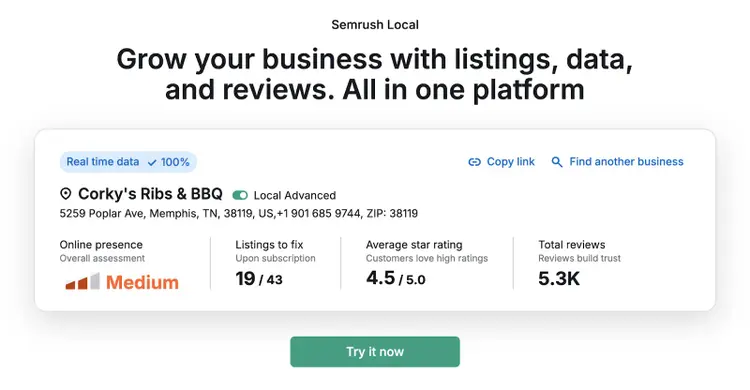
Managing reviews is easy with Semrush Local. Plus, it also lets you manage your GBP and distribute your information across other directories.
5. Keyword Planner
Keyword Planner is a free tool within Google Ads that helps you research keywords for your search campaigns.
This tool is primarily meant for researching keywords for search ads. But you can also use it for performing SEO keyword research—finding keywords for organic (unpaid) search.
Key Features of Keyword Planner
- Keyword ideas: Find relevant keywords related to your business, products, and services
- Keyword metrics: See how often people search queries, how much competition different terms have, view cost per click (CPC) information, and more
- Organize keywords: Group keywords into ad groups or campaigns
How to Use Keyword Planner
Getting started with Google’s Keyword Planner is as simple as creating or logging in to your Google Ads account.
(If you don't have an account, follow our guide to set one up.)
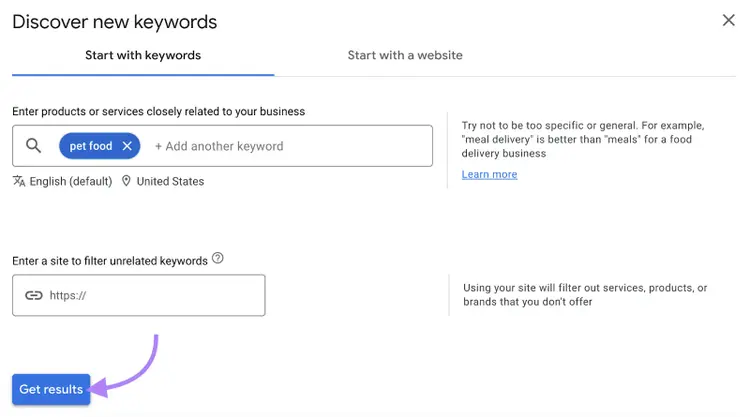
Once you sign in, choose “Discover new keywords” and enter terms related to your business, products, or services.
Click “Get results.”
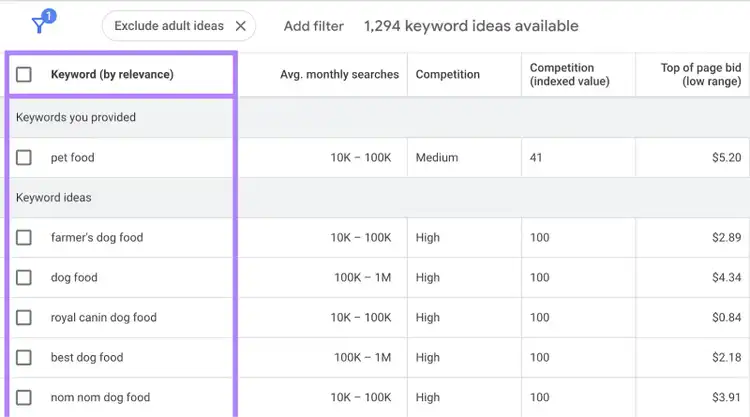
The tool will display keyword ideas alongside a variety of metrics.
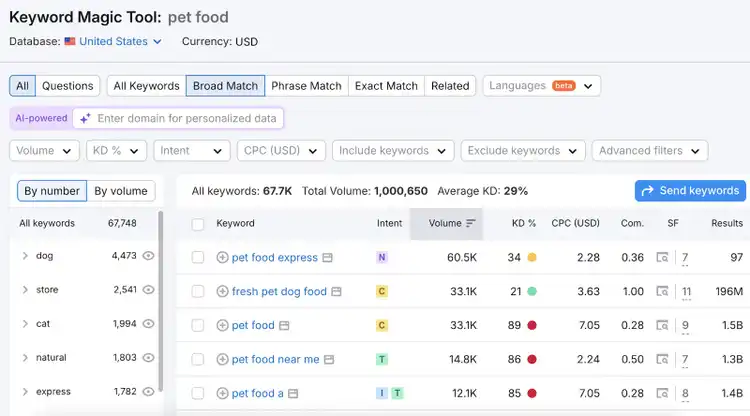
For in-depth keyword research, use Keyword Planner in combination with Semrush’s Keyword Magic Tool.
While Keyword Planner provides foundational data, the Keyword Magic Tool lets you:
- Filter and organize keywords based on things like search volume, keyword difficulty, and keyword type
- Enter your domain to get highly personalized metrics
Perform Keyword Research
with the Keyword Magic Tool
6. Google Trends
Google Trends shows how frequently specific terms are searched on Google over time to help you spot emerging topics.
Use it to identify popular topics you can create content around. To attract more visitors to your site.
Key Features of Google Trends
- Trending now: See what’s trending globally or in specific regions
- Search term comparisons: Compare interest in multiple search terms to see which ones are more popular
- Interest over time: Analyze search volume for a term over a selected time period
- Regional insights: See where a term is most popular geographically
- Related topics and queries: Find related search terms and topics that users are also exploring
How to Use Google Trends
Go to the Google Trends website and click on the “Trending now” tab.
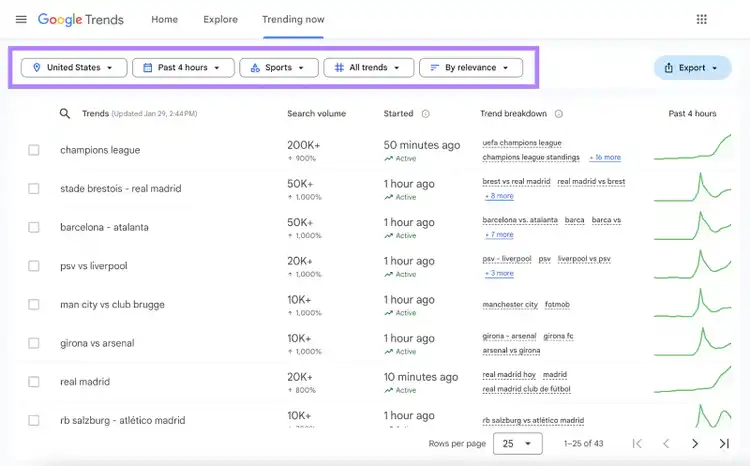
You’ll see a list of trending topics in your chosen location along with details like:
- How many searches the topic is getting
- When the trend started and whether it’s still active
- Related topics or variants of the same search queries
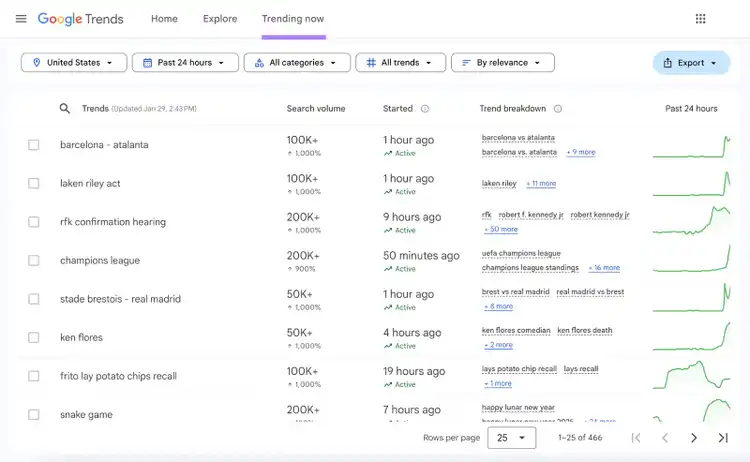
Use these insights to create timely and relevant content around hot topics. And attract a larger audience.
Let’s say you have a sports news website.
You can apply “Sports” and “Past four hours” filters to find the real-time trends in your niche.
Further reading: Google Trends: What It Is & How to Use the Data for SEO
Gain Deeper SEO Insights with Professional Tools
The free Google SEO tools we covered offer a great starting point to build your site’s SEO foundation.
But to go further, you need professional tools.
Semrush’s SEO toolkit provides deeper insights and more advanced features for keyword research, site audits, rank tracking, and backlink analyses.
Take your SEO strategy to the next level. Start with a free plan.
Access 55+ Tools
with a Free Semrush Account

Zach Paruch is a data-driven SEO strategist with 10+ years of experience driving organic growth through smart, scalable search strategies. His expertise includes on-page and technical SEO, AI search optimization, and content strategy—with a special focus on ideating and implementing AI-driven processes. By leveraging in-depth search intent analysis, refined information architecture, and user-centered design, Zach consistently delivers high-impact content that drives business outcomes.
Zach Paruch
Zach Paruch is a data-driven SEO strategist with 10+ years of experience driving organic growth through scalable search strategies. He specializes in on-page and technical SEO, content strategy, AI search optimization, and AI-driven processes.

Tells Google to show you more from Semrush in AI, Search, and Discover.