
Duplicate Google Business Profile listings can lead to visibility issues, lost reviews, user confusion, and other problems.
You can merge two Google Business Profiles if they represent the same business and meet Google’s criteria. To merge listings, you’ll need to contact Google Support.
However, merging two profiles isn’t always the best option.
Incorrectly merging your Google business listings could result in data loss and even harm your ranking in search results.
For example, if the listings represent different locations or services, merging them could confuse customers and violate Google’s guidelines.
And merging isn’t always possible or recommended. But don’t worry:
This guide will show you exactly how to merge two Google Business Profiles without losing your rankings or data—and when you may not want to.
How to Merge Two Google Business Listings
There is no one-click “merge” button inside your Google Business Profile dashboard.
To merge listings, you need to go through Google Support—and the exact steps depend on your specific situation.
Below are the most common scenarios and how to handle them:
Note
Before merging two listings, double-check that the addresses are exactly identical. Even small differences (like “St” versus “Street”) can interfere with the merge.
Same Business, Same Address, Same Owner
This is the most straightforward scenario. It often happens when:
- You accidentally created or claimed two listings for the same location
- A listing was auto-generated and later claimed
- A rebrand or system glitch led to duplication
Tip
If your rebrand also included a location change—even within the same city—Google may treat it as a new business. In that case, merging isn’t usually recommended. You’ll likely need to update the original listing or create a new one and consult Google Support for the best course of action.
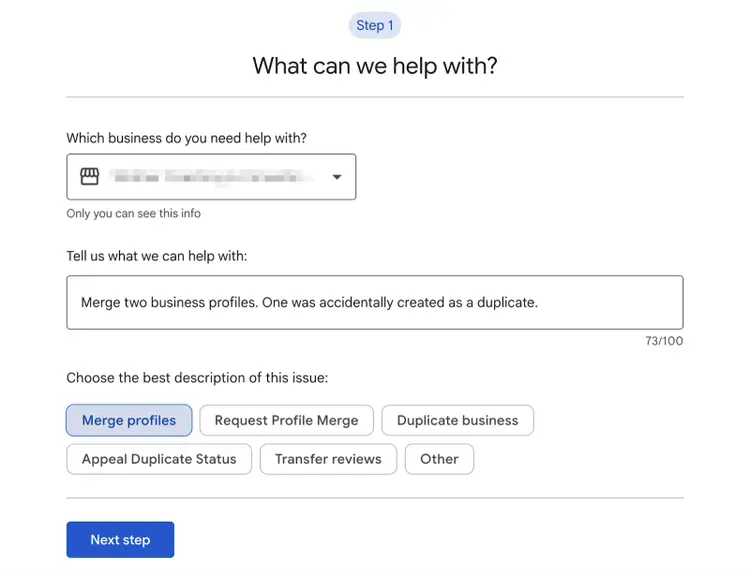
If both profiles are verified, Google requires you to unverify one before merging. To do this, you need to remove the profile from your account, which effectively unverifies it.
Once that’s done, you can request a merge via the Help Center.
Same Business, Same Address, Different Owners
This happens when two people—often past and present business owners, managers, or marketers—have claimed or created separate listings for the same business.
Before merging, you’ll need to request ownership of the other listing:
- Search for your business in the Google Business Directory.
- Once you’ve found it, click “Request Access.”
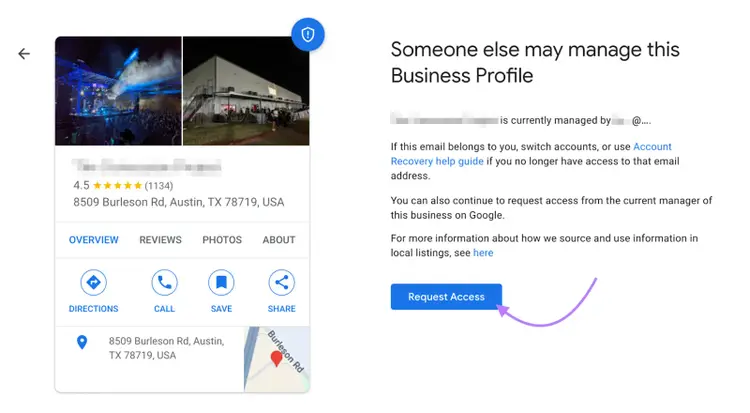
- Complete the verification request by filling out the information and clicking “Submit.”
If approved, the listing will be transferred to your account. Once you have access to both listings, request the merge via the Help Center (unverifying one first, if necessary).
If the other party declines or doesn’t respond, you can still:
- Submit a merge request through Google Support
- Provide documentation proving business ownership
- Ask Google to remove the duplicate if it’s not accurate
Note that Google won’t merge listings without sufficient proof that they represent the same business and that you have rightful control.
Same Franchise Location Listed More Than Once
Franchise businesses (e.g., restaurants, gyms, salons) may accidentally end up with multiple listings for the same physical location, especially if:
- The franchisor and franchisee both create profiles
- An auto-generated listing appears in addition to a claimed one
- Someone rebrands or updates the listing incorrectly
If the listings are true duplicates—same business, same location, same services—you can request a merge via the Help Center.
However, if each profile reflects a different function (e.g., dine-in vs. drive-thru, or sales vs. service department), they may be eligible to remain separate per Google’s business guidelines.
Storefront vs. Service-Area Business (SAB) Mismatch
Merging isn’t possible if one listing is set up as a storefront (with a visible address) and the other as a service-area business (with a hidden address).
Even if they serve the same customers and location, Google treats these as different listing types.
What you can do instead:
- Decide which listing best represents your business model
- Close or remove the incorrect listing (via “Suggest an Edit” or Google Support)
- Update the remaining listing with the correct service area and visibility settings
Note
If your business has recently shifted from storefront to SAB (or vice versa), update your existing listing—don’t create a new one.
Can and Should You Merge Two Google Business Profiles?
Yes, you can merge two Google Business Profiles—but only under specific conditions.
Here is a visual decision tree to help you understand if you can merge your Google Business Profiles:
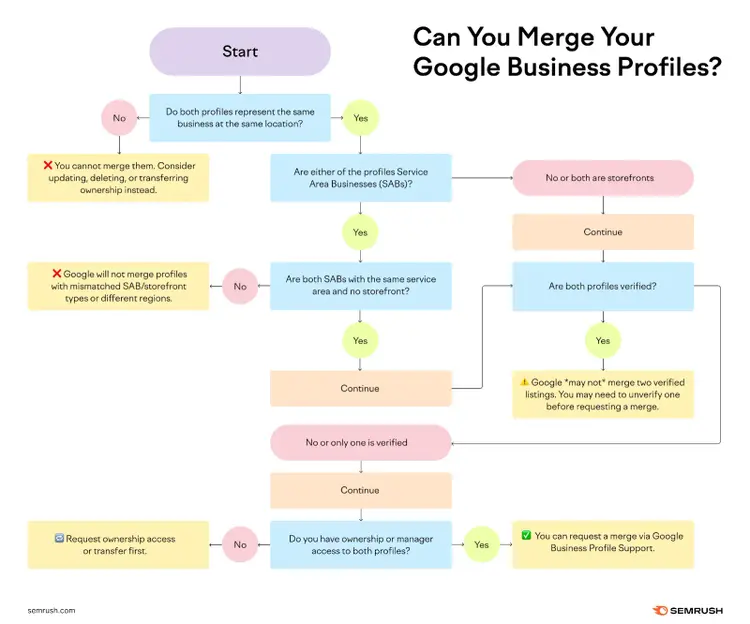
If you still need help, here is a specific comparison table of when you can and can’t merge Google Business Profiles:
Note
Even if the profiles meet Google’s criteria, merging is not automatic. You’ll need to submit a request to Google Business Profile Support. More on this below.
But not every duplicate Google Business Profile needs to be merged.
Merging at the wrong time—or for the wrong reasons—can hurt your local visibility or cause data loss.
Here’s a quick table overview of when to merge and when to avoid, based on various common scenarios:
So, how do you know if merging is the right option?
Let’s break it down.
Want to ensure you’re getting rid of the right listing?
Use Semrush’s GBP Optimization tool to compare your local SEO performance across both listings and make a data-backed decision about which listing to keep.
Add both your listings to the tool and check each of their views to see which is getting more traffic:
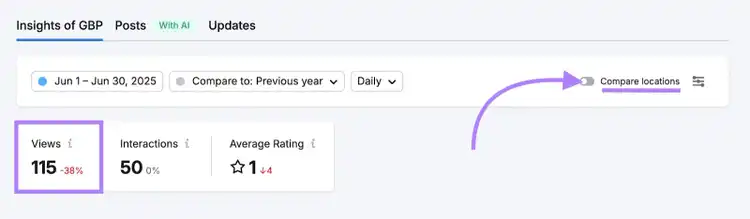
Consider keeping the listing with the higher traffic and merging the other.
Alternatives to Merging Your Google Business Profiles
If merging isn’t the right move, you have a few options:
- Claim and update both listings with correct details to avoid confusion
- Mark one listing as “Permanently Closed” if it’s no longer active or in use
- Request the removal of the duplicate through Google Support
- Redirect customers by updating website URLs, business descriptions, and signage to point them to the correct profile
The simplest way to get rid of a duplicate listing?
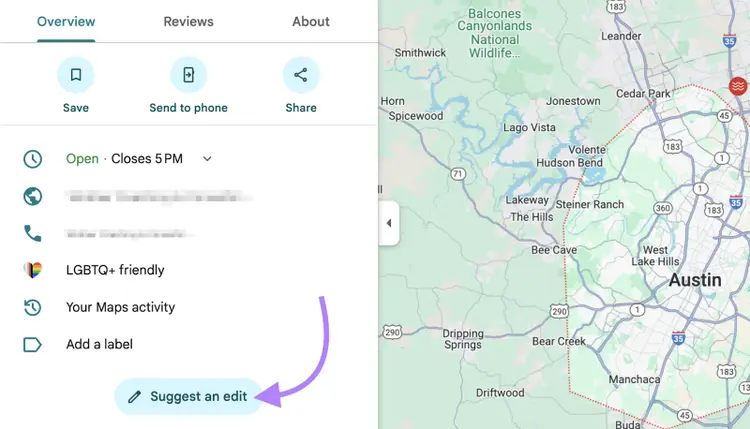
If you’re not worried about merging them, then search for your business on Google Maps. Click on the duplicate listing and click “Suggest an edit.”
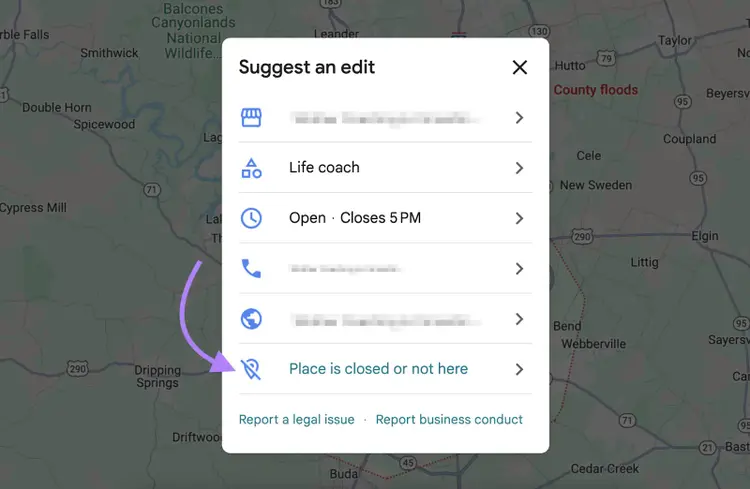
From your Google Maps business listing, click “Place is closed or not here”.
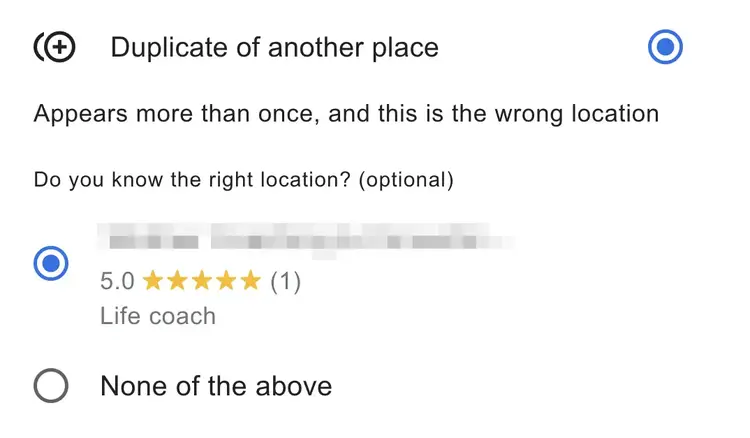
Finally, click “Duplicate of another place” and select the primary listing from the drop-down menu.
What Happens When You Merge Profiles?
Merging two Google Business Profiles combines key data from both listings into one—but it’s not a perfect copy-paste.
Some information will carry over, but other details may be lost during the process.
Here’s what gets retained:
- Reviews: In most cases, reviews from both profiles will be combined into the merged listing
- Business Information: Core details like hours, phone number, business name, and categories typically remain intact
- Verification: The merged listing retains the verification status of the surviving profile
What might be lost:
- Review Replies: While reviews themselves usually carry over, replies to those reviews may be lost
- Photos: Some uploaded photos—especially from the profile being removed—might not transfer
- Custom Short Names & URLs: If both profiles had custom short names or URLs, only one may remain
Note
Merges aren’t instant. After submitting a merge request to Google Support, it may take a few days to a couple of weeks to process. Google may reach out to confirm business details or require additional verification. You’ll typically be notified via email when the merge is complete.
What to Check After Merging
Merges typically take 3-10 business days. But they may take longer depending on complexity or verification issues. You should get an email notification when the merge is complete.
If the merge was rejected, you should receive a rejection notice with reasons and next steps. Here are some common rejection reasons and how to handle them:
Once the merge is confirmed, inspect the merged profile carefully:
- Name: Check your business name is still accurate and properly capitalized
- Address: Check for typos or formatting issues
- Phone Number: Ensure it's correct and clickable on mobile
- Categories: Make sure the primary and secondary categories reflect your services
- Hours: Confirm that business hours are up to date
- Photos & Posts: Re-upload missing images and restore any important updates
If anything is missing or incorrect, you can edit your Google Business Profile directly or contact support again.
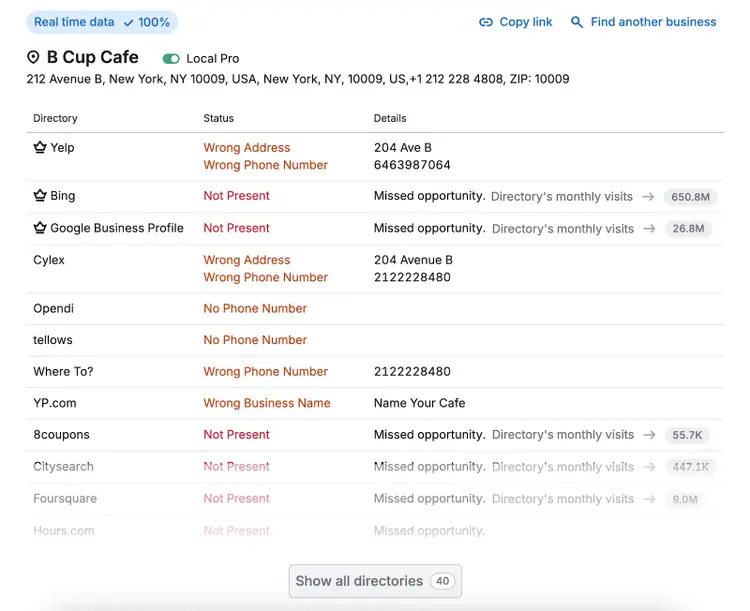
Want to make sure your listing is consistent across Google and 70+ other directories?
Use Semrush’s Listing Management tool to scan for inconsistencies and ensure your data is synced everywhere customers might find you.
Simply connect Semrush to your Google Business Profile, and it will automatically scan for your business listings in various directories.
Optimize Your Google Business Profile for Better Visibility
Merging listings is only the first step. If you want to rank higher in local search, your profile needs to be complete, consistent, and continuously updated.
Use Semrush’s GBP Optimization tool to:
- Identify missing info and SEO gaps
- Benchmark your profile against top competitors
- Get actionable steps to improve your visibility in search
Optimize Your Google Business Profile
with the GBP Optimization Tool

Alex is a managing editor with 10+ years of experience leading content and SEO teams across SaaS, tech, ecommerce, and digital publishing. He specializes in building editorial systems that balance human judgment with AI-assisted workflows, helping teams produce original, high-impact content as search and discovery evolve. His work spans SEO strategy, content quality frameworks, and adapting content operations for AI-driven search.
Alex Lindley
Alex is a managing editor with 10+ years of experience leading content and SEO teams. He focuses on building AI-aware editorial systems that help teams produce original, high-impact content as search evolves.

Tells Google to show you more from Semrush in AI, Search, and Discover.