
What Are Rich Snippets?
Rich snippets (also called “rich results”) are Google search results that show with extra details, such as ratings, images, and prices. These details can help your webpage attract more attention and traffic.
Google usually collects this information from special code (structured data markup) in your page’s HTML.
Here’s an example of a rich snippet:
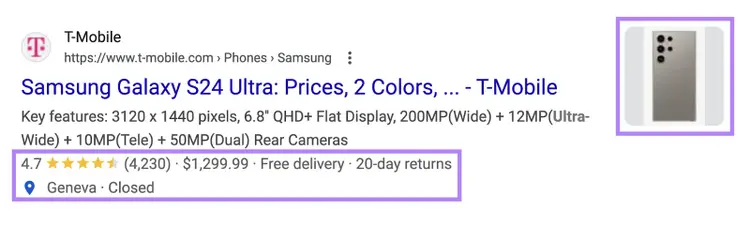
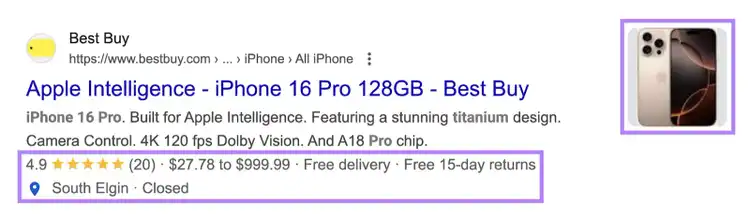
In the rich snippet example above, Google adds an image, rating, review count, price, and delivery information to the search result.
These elements make your webpage more attractive and informative to potential visitors.
In this guide, you’ll learn how to get rich snippets for your webpages.
But before we dive in, let’s go over some basics.
Rich Results vs. Rich Snippets vs. SERP Features: What’s the Difference?
“Rich snippets” and “rich results” refer to the same thing: enhanced Google search results that show extra information. “SERP features” is a broader category that includes rich snippets and other non-standard search results, like knowledge panels and image packs.
Let's break down each term:
- Rich snippets: Search results that include extra data, such as star ratings, review counts, product prices, or images.
- Rich results: Another term for "rich snippets." and "rich results." Google uses both names interchangeably.
- SERP features: Any non-standard search result. This includes rich snippets, knowledge panels, video carousels, and image packs.
How Rich Snippets Help with SEO
Rich snippets don’t directly affect a site's ranking, but they can indirectly improve SEO. These enhanced listings stand out in search results. They encourage more clicks, which can increase your organic click-through rate (CTR). High CTR often signals to Google that users find your result relevant, which may improve your ranking over time.
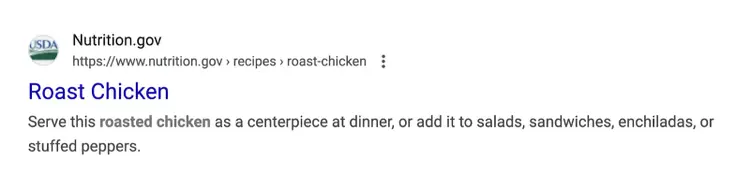
Let’s review two types of search results.
Your typical search listing:
And a Google rich snippet:
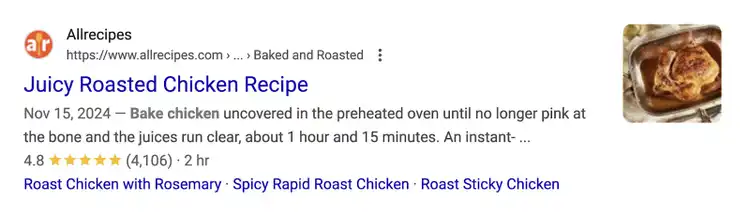
The rich snippet is more visually appealing to a user looking for a trusted roasted chicken recipe.
Plus, there is strong evidence suggesting that Google looks at click data to determine rankings. If your pages attract more clicks, they may gradually earn better positions in search results.
Structured data makeup also helps Google better understand your page content. When Google understands your content more clearly, your page can rank better for relevant queries.
Tip
If you already use structured data, scan your website with the Site Audit tool to identify issues.
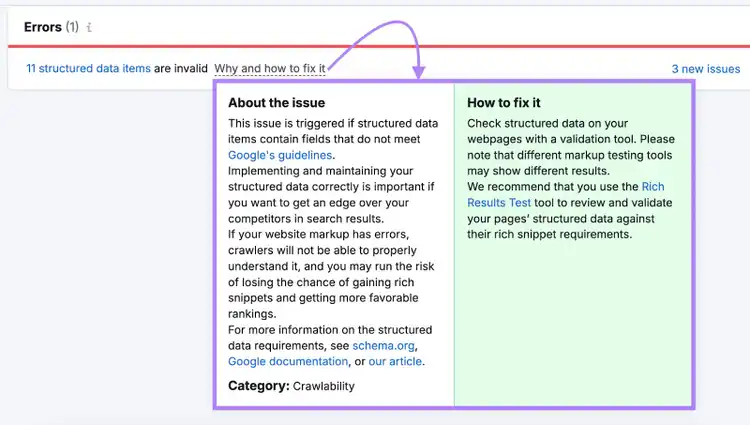
Pages with invalid structured data won’t appear as rich snippets. So it’s important to find and fix these issues.
Open the tool and set up a full audit of your website.
Once complete, go to the “Issues” tab and search for “structured.”
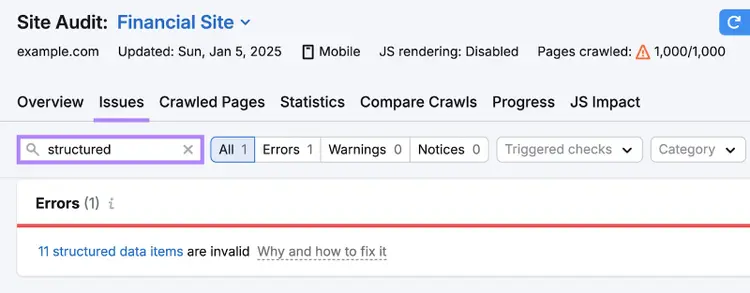
Click the “Why and how to fix it” link for guidance.
How to Get Rich Snippets
Follow these steps to get rich snippets:
- Choose an appropriate rich snippet type
- Create and add structured data to your pages
- Validate your structured data
1. Choose an Appropriate Rich Snippet Type
Google supports many rich snippet types. Pick the ones that match your content.
Common types include:
Product Markup Snippet
Displays key product information like price, availability, and ratings. Ideal for e-commerce sites or any webpage that features products for sale.
Review Snippet
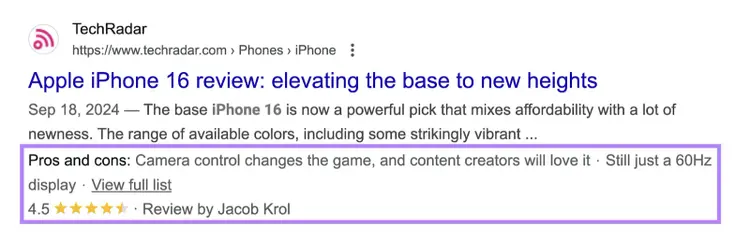
Review snippet displays star ratings in search results. This snippet is ideal for any page that contains reviews for products, recipes, courses, or even businesses.
Here's what the review snippet looks like in search results:
Recipe Snippet
The recipe snippet showcases key recipe details like cooking time, reviews, and ratings directly in search results.
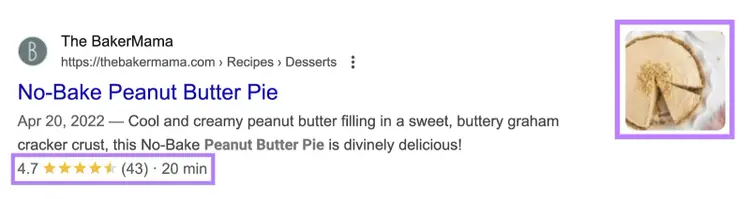
The recipe markup is perfect for food blogs and recipe websites.
Organization Snippet
Organization snippet displays key information like your business’s logo, description, contact details, social profiles.
Like this:
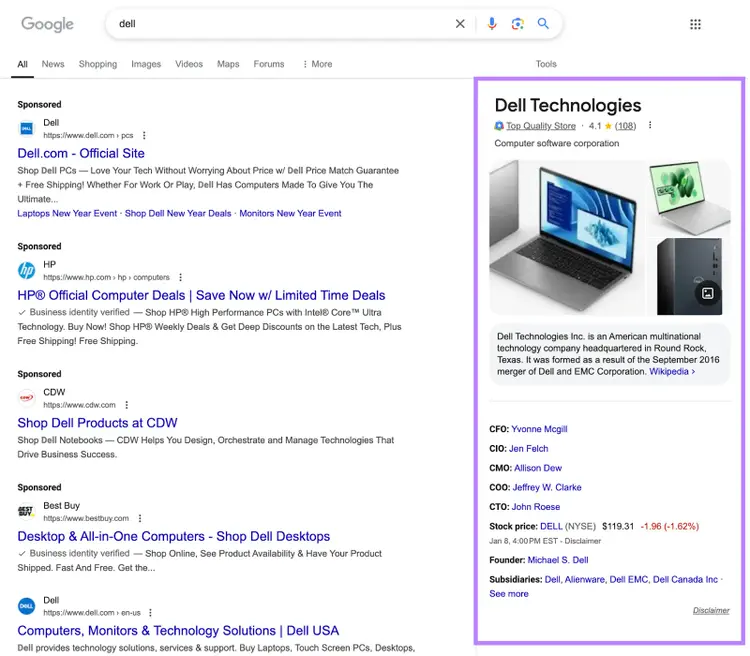
For businesses and nonprofits, having an organization snippet can make a strong first impression on potential customers or stakeholders who find you through search.
Video Snippet
Video snippets are enhanced search results that display a video thumbnail, title, duration, and timestamps directly in Google’s search results.
Like this:
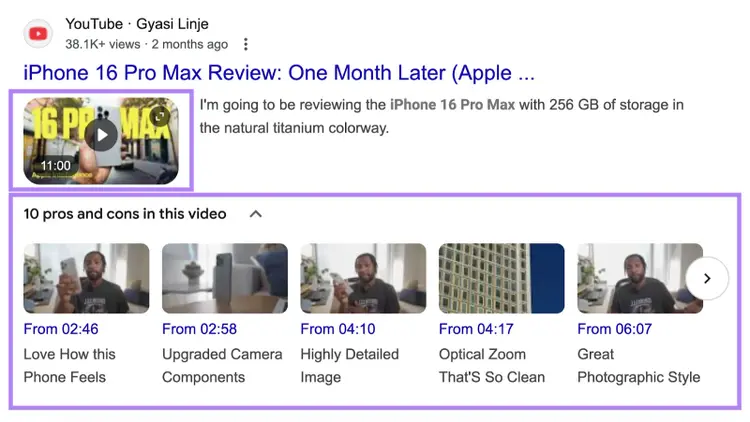
These snippets encourage higher click-through rates because they show users a visual preview of the content, helping them decide whether your video is relevant before they click.
This type of snippet is relevant if you cover video content on your website.
Article Snippet
Article snippet displays key information about your article, such as the publisher, title, and thumbnail image, directly in search results.
Like this:
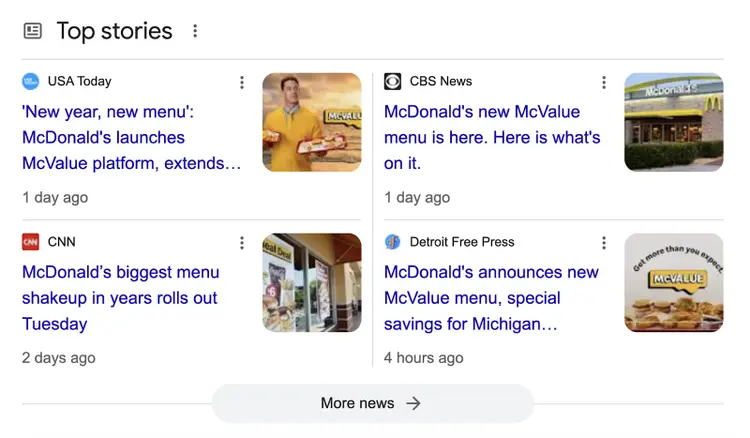
If you publish news articles, blog posts, or sports coverage on your website, article markup is a smart choice.
2. Create & Add Structured Data Markup to Your Pages
After choosing your rich snippet type, create and add structured data markup to your pages.
Try Google’s Structured Data Markup Helper:
1. Open the tool. Select your desired snippet type, and enter your page URL. Then click “Start Tagging.”
For this example, we’ll create product structured data markup.
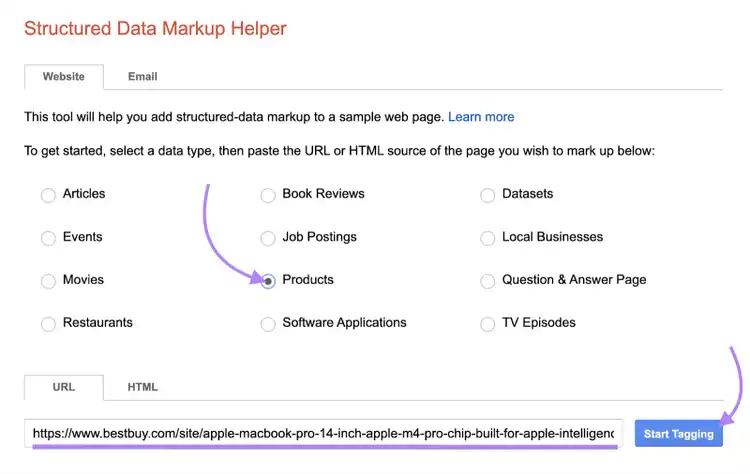
The tool will pull the webpage’s URL into the “Tag Data” view:
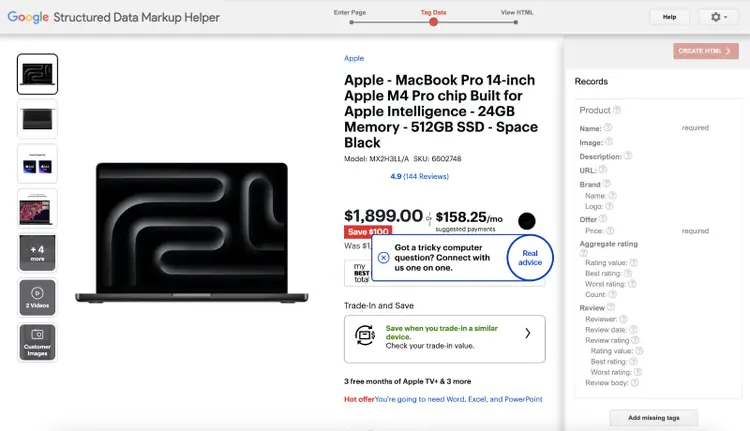
In this example, this will be a product snippet for MacBook Pro. So we’ll include elements like the product’s name, price, image, brand, logo, etc.
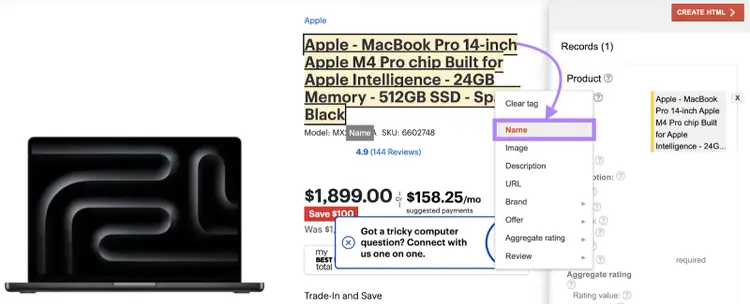
2. Select or highlight different elements on the page. The tool will prompt you to assign tags to those elements.
For example, to add the product’s name, highlight the name of the product and select the “Name” tag:
To add the price, highlight the price and select the “Price” tag:
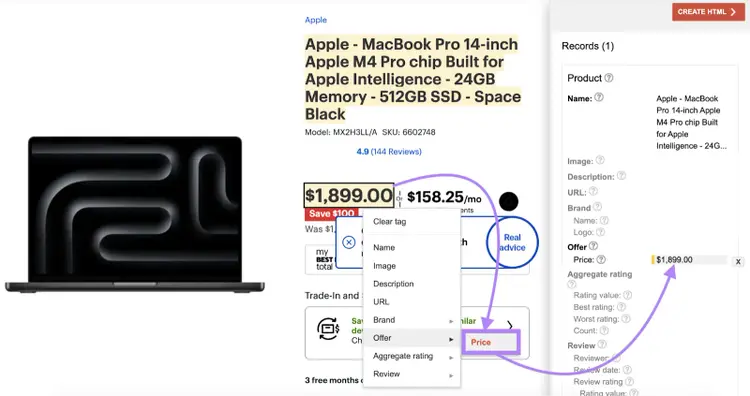
The tool adds all the information to the right panel as you work.
Tag as many elements as possible.
3. Once you’re done, click “Create HTML.”
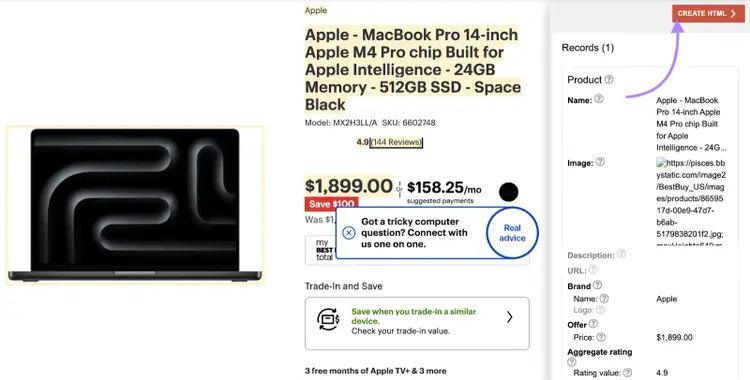
The tool will generate a structured data markup code on the side panel.
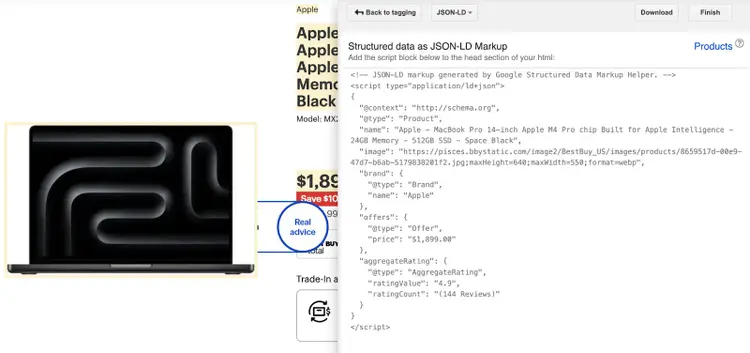
4. Copy or download the code. Then paste it in the <head> section of your page.
Don't want to deal with your website code? If you're using WordPress, plugins like Yoast SEO or Rank Math make adding structured data simple.
We suggest Rank Math. It's free, user-friendly, and handles most common structured data types.
Here’s how to add structured data using Rank Math:
In the WordPress dashboard, go to the post you want to add structured data to.
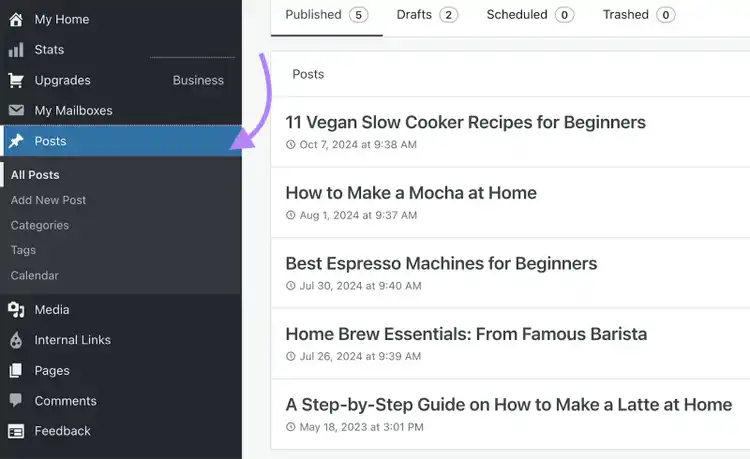
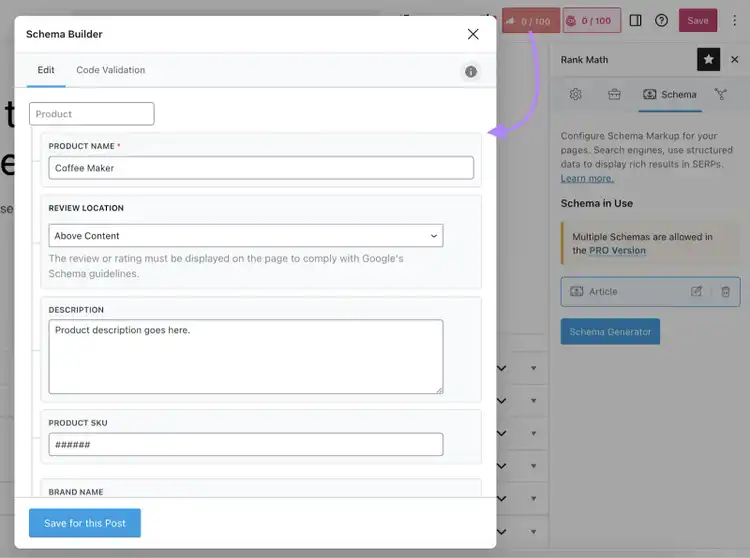
Scroll down to the Rank Math section below the content editor. And click the "Schema" tab.
Select your structured data type (Product, Article, Recipe, etc.). And fill in all required fields.
Update or publish your content.
3. Validate Your Structured Data
Use Google’s Rich Results Test to check if your structured data is correct:
Enter your URL into the tool and click “Test URL.”
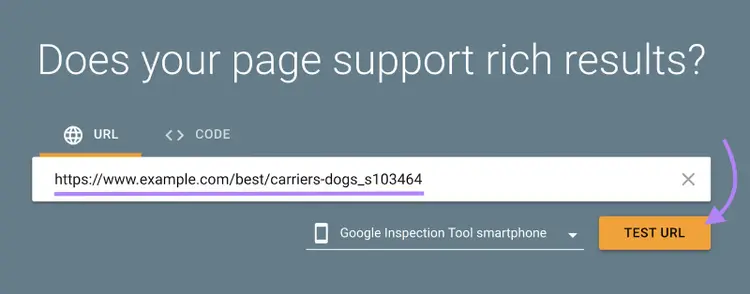
The tool will display the structured data it found in the “Detected items” section of the results page.
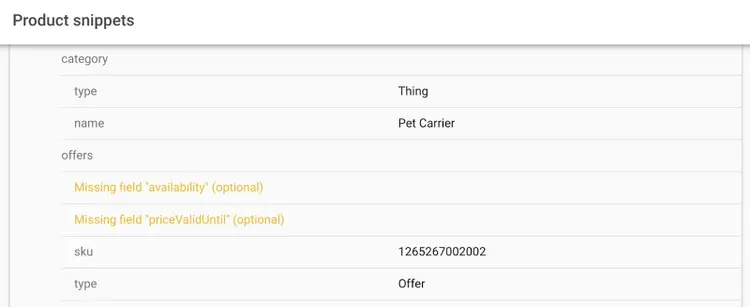
If your markup receives a warning or has invalid items, select the rich snippet type for more details:
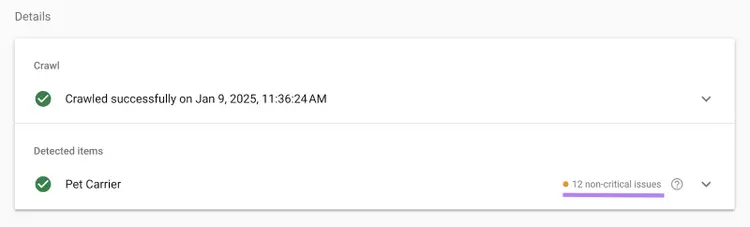
The tool highlights any invalid items to fix. As well as missing fields that are optional.
Note
If Google still doesn’t show your pages as rich snippets, remember that final decisions are up to Google’s algorithms.
Monitor Your Rich Snippets with Semrush
Run a quick schema validation with our free website audit.
For ongoing monitoring across your whole site, Semrush Site Audit also tracks structured data — set up a project and run a full crawl of your website.
Once the crawl is complete, navigate to “Markup” and click “View details.”
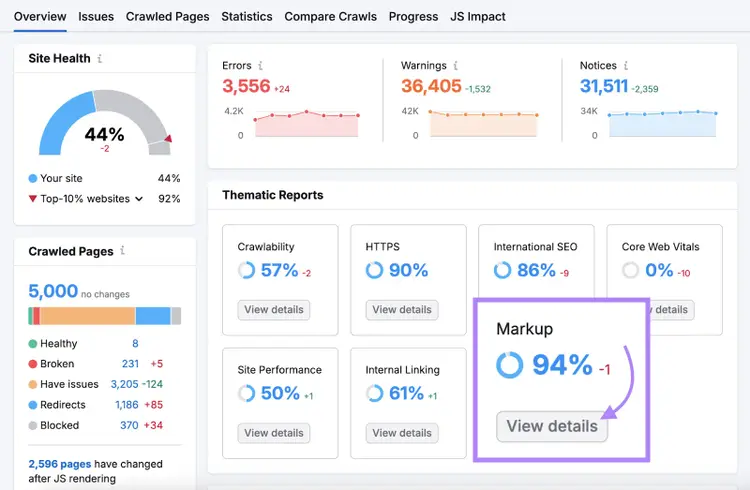
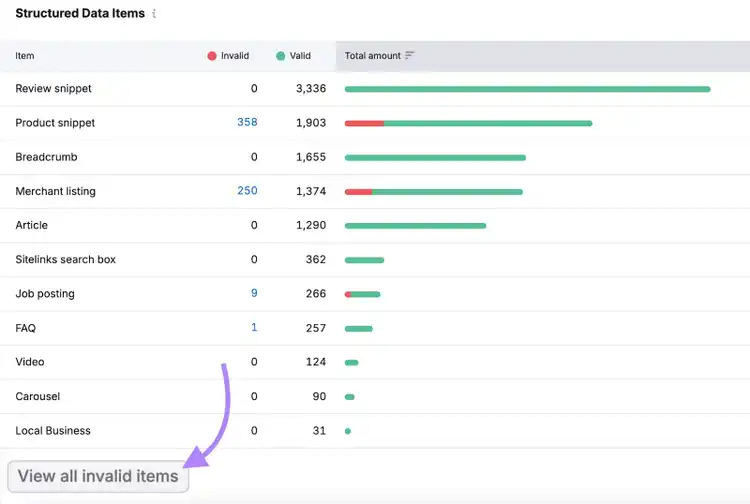
You’ll see pages with markup and the number of pages with invalid structured data:
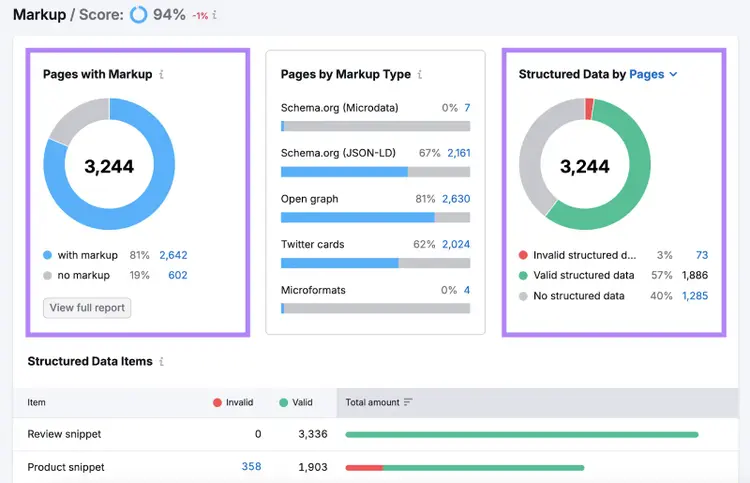
In the “Structured data items” widget, select “View all invalid items.”
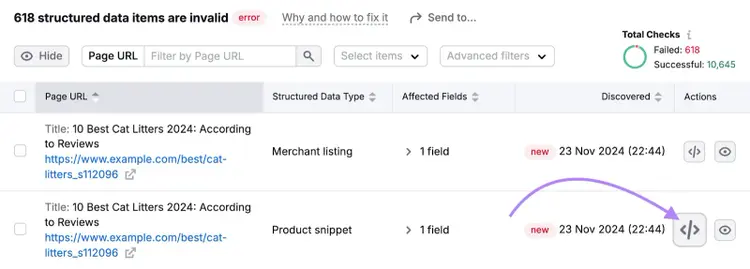
Next, select the tag button to test your page in the Rich Results tool.
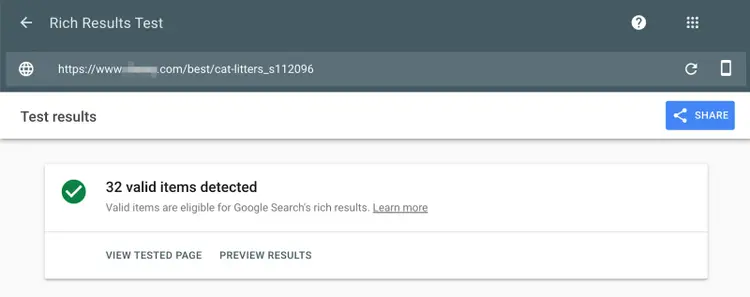
This will open Google’s Rich Results Test and automatically start to test your page for structured data issues.
And return the results.
Following these steps can improve your chances of earning rich snippets. And bring more traffic and better SEO performance.
Find and Fix Rich Snippet Issues
with the Website Audit Tool

Shelley is a content strategist and blog editor at Semrush and Assistant Editor at Search Engine Journal. Shelley has been a contributor to the industry for 10 years and has spoken at many online and offline events.

Tells Google to show you more from Semrush in AI, Search, and Discover.