
What Are Crawl Errors & How Do They Affect SEO?
If you want your site to rank, you need to ensure search engines can crawl your pages. But what if they can’t?
This article explains what crawl errors are, why they matter for SEO, and how to find and fix them.
What Are Crawl Errors?
Crawl errors occur when website crawlers (like Googlebot) encounter problems accessing and indexing a site’s content, which can impact your ability to rank in the search results—decreasing your organic traffic and overall SEO performance.
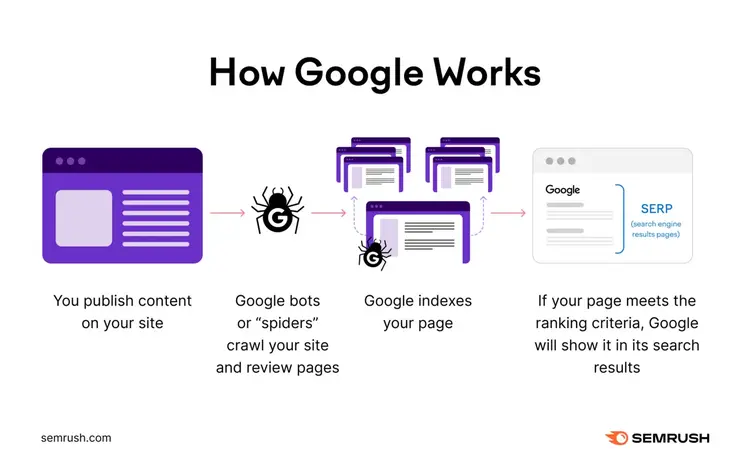
Check for crawl errors by reviewing reports in Google Search Console (GSC) or running Semrush Site Audit for technical site audits.
Types of Crawl Errors
Google organizes crawlability errors into two main categories:
- Site Errors: Problems that affect your entire website
- URL Errors: Problems that affect specific webpages
Site Errors
Site errors, such as “502 Bad Gateway,” prevent search engines from accessing your website. This blockage can keep bots from reaching any pages, which can harm your rankings.
Server Errors
Server errors occur when your web server fails to process a request from a crawler or browser and can be caused by hosting issues, faulty plugins, or server misconfigurations.
Common server errors include:
500 Internal Server Error:
- Indicates something is broken on the server, such as a faulty plugin or insufficient memory. This can make your site temporarily inaccessible.
- To fix: Check your server’s error logs, deactivate problematic plugins, or increase server resources if needed
502 Bad Gateway:
- Occurs when a server depends on another server that fails to respond (often due to high traffic or technical glitches). This can slow load times or cause site outages.
- To fix: Verify your upstream server or hosting service is functioning, and adjust configurations to handle traffic spikes
503 Service Unavailable:
- Appears when the server cannot handle a request, usually because of temporary overload or maintenance. Visitors see a “try again later” message.
- To fix: Reduce server load by optimizing resources or scheduling maintenance during off-peak hours
504 Gateway Timeout:
- Happens when a server response takes too long, often due to network issues or heavy traffic, which can cause slow loading or no page load at all
- To fix: Check server performance and network connections, and optimize scripts or database queries
DNS Errors
DNS (Domain Name System)—the system that translates domain names into IP addresses so browsers can locate websites—errors occur when search engines can't resolve your domain, often due to incorrect DNS settings or issues with your DNS provider.
Common DNS errors include:
DNS Timeout:
- The DNS server took too long to respond, often due to hosting or server-side issues, preventing your site from loading
- To fix: Confirm DNS settings with your hosting provider, and ensure the DNS server can handle requests quickly
DNS Lookup:
- The DNS server can’t find your domain. This often results from misconfigurations, expired domain registrations, or network issues.
- To fix: Verify domain registration status and ensure DNS records are up to date
Robots.txt Errors
A robots.txt error can occur when bots cannot access your robots.txt file due to incorrect syntax, missing files, or permission settings, which can lead to crawlers missing key pages or crawling off-limit areas.
Troubleshoot this issue using these steps:
- Place the robots.txt file in your site's root directory (the main folder at the top level of your website, typically accessed at yourdomain.com/robots.txt)
- Check file permissions to ensure bots can read the robots.txt file
- Confirm the file uses valid syntax and formatting
URL Errors
URL errors, like “404 Not Found,” affect specific pages rather than the entire site, meaning if one page has a crawl issue, bots might still be able to crawl other pages normally.
URL error can hurt your site’s overall SEO performance. Because search engines may interpret these errors as a sign of poor site maintenance. And can deem your site untrustworthy, which can hurt your rankings.
404 Not Found
A 404 Not Found error means the requested page doesn’t exist at the specified URL, often due to deleted content or URL typos.
To fix: Update links or set up a 301 redirect if a page has moved or been removed. Ensure internal and external links use the correct URL.
Soft 404
A soft 404 occurs when a webpage appears missing but doesn’t return an official 404 status code, often due to thin content (content with little or no value) or empty placeholder pages. Soft 404s waste crawl budget and can lower site quality.
To fix: Add meaningful content or return an actual 404/410 error if the page is truly missing.
Redirect Errors
Redirect errors, such as loops or chains, happen when a URL points to another URL repeatedly without reaching a final page. This often involves incorrect redirect rules or plugin conflicts, leading to poor user experience and sometimes preventing search engines from indexing content.
To fix: Simplify redirects. Ensure each redirect points to the final destination without going through unnecessary chains.
403 Forbidden
A 403 Forbidden error occurs when the server understands a request but refuses access, often due to misconfigured file permissions, incorrect IP restrictions, or security settings. If search engines encounter too many, they may assume essential content is blocked, which can harm your rankings.
To fix: Update server or file permissions. Confirm that correct IP addresses and user roles have access.
Access Denied
Access Denied errors happen when a server or security plugin explicitly blocks a bot’s request, sometimes due to firewall rules, bot-blocking plugins, or IP access restrictions. If bots can’t crawl key content, your pages may not appear in relevant search results.
To fix: Adjust firewall or security plugin setting to allow known search engine bots. Whitelist relevant IP ranges if needed.
How to Find Crawl Errors on Your Site
Use server logs or tools like Google Search Console and Semrush Site Audit to locate crawl errors.
Below are two common methods.
Google Search Console
Google Search Console (GSC) is a free tool that shows how Google crawls, indexes, and interprets your site.
Open GSC and click “Pages” under “Indexing.” Look for pages listed under “Not Indexed,” or with specific error messages (like 404, soft 404, or server errors).
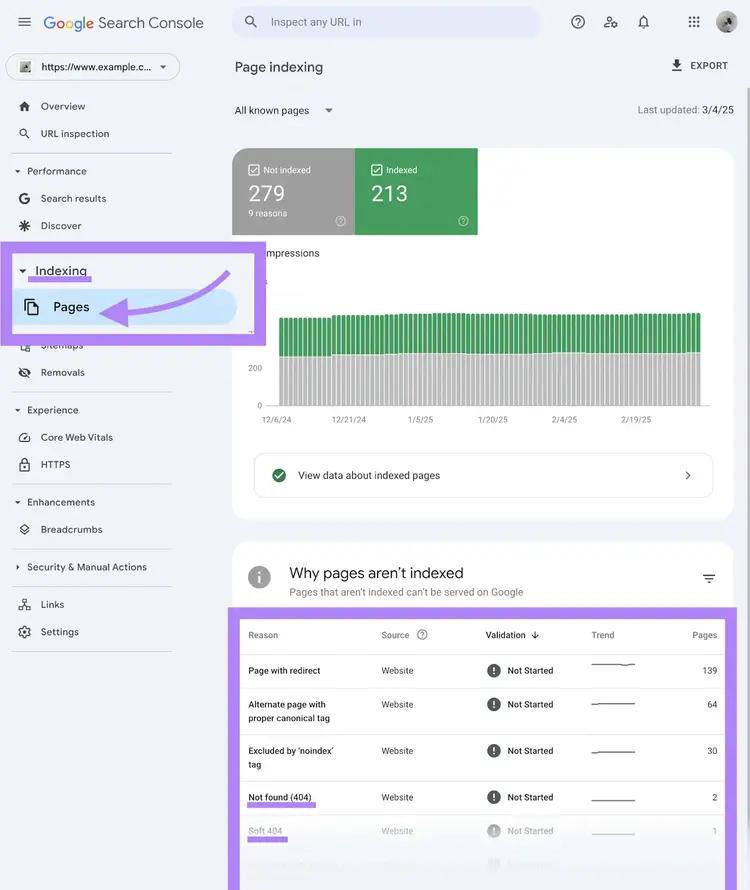
Click an error to see a list of affected pages.
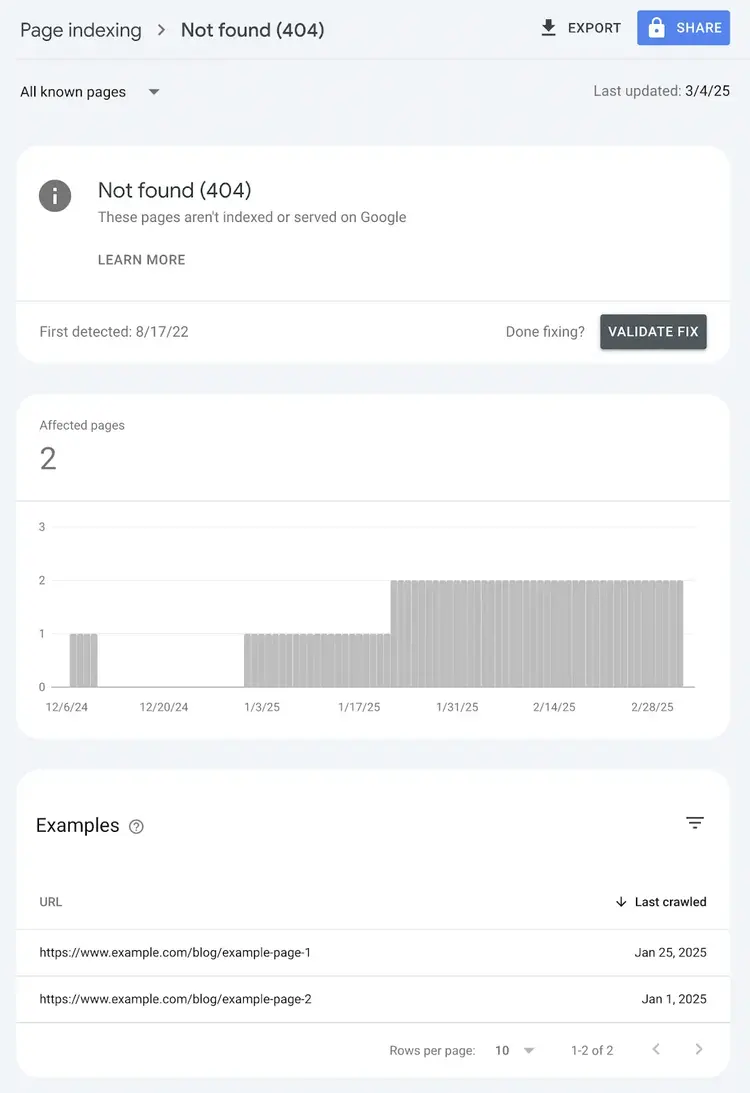
Semrush Site Audit
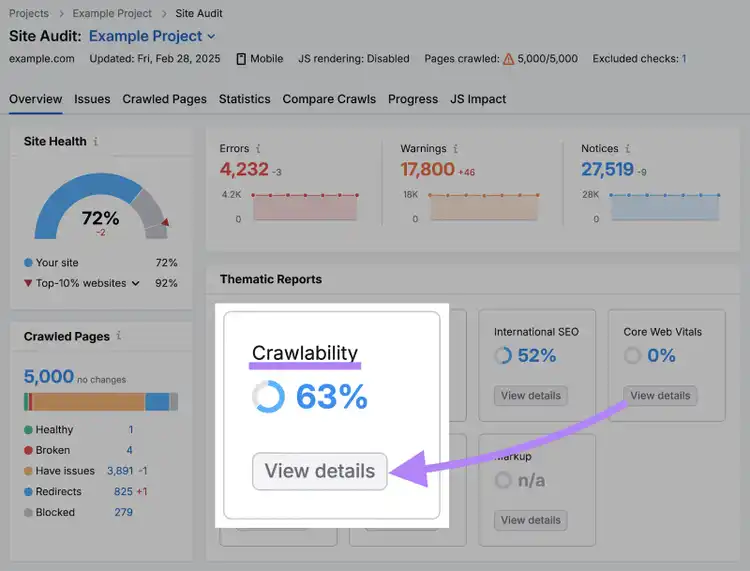
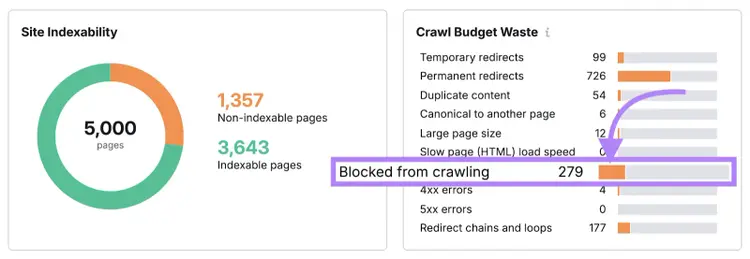
To find crawl errors using Semrush’s Site Audit, create a project, configure the audit, and let Semrush crawl your site. Errors will be listed under the “Crawlability” report, and you can view errors by clicking “View details.”
Review the “Crawl Budget Waste” widget. And click the bar graph to open a page for more details.
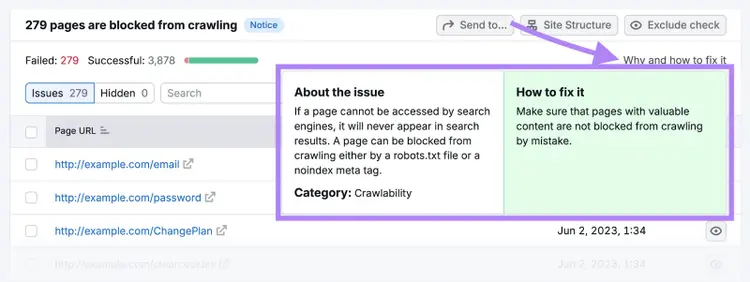
Then Click “Why and how to fix it” to learn more about each error.
Fix Site Errors and Improve Your SEO
Fixing crawl errors, broken links, and other technical issues helps search engines access, understand, and index your site’s content. So your site can appear in relevant search results.
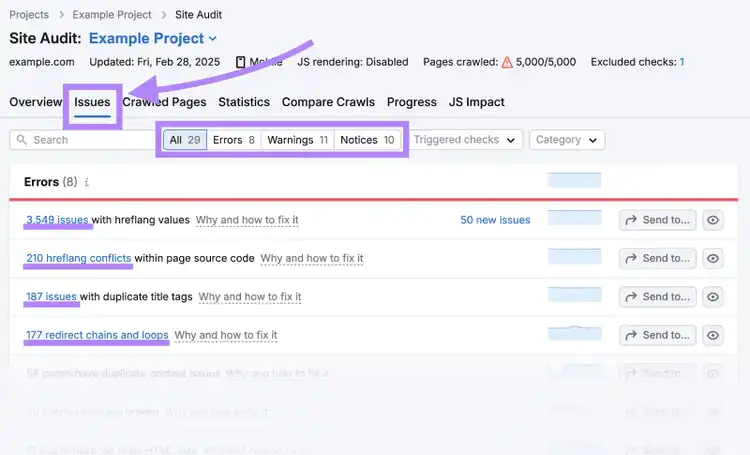
Site Audit also flags other issues, such as missing title tags (a webpage’s title), so you can address all technical SEO elements and maintain strong SEO performance.
Simply open Site Audit and click “Issues.” Site Audit groups errors by severity (errors, warnings, and notices), so you can prioritize which ones need immediate attention. Clicking the error gives you a full list of affected pages. To help you resolve each issue.
Ready to fix and find errors on your site? Try Site Audit today.
Find and Fix Website Issues
with the Site Audit Tool

Cecilia is a senior editor and strategist with more than 12 years of experience shaping editorial strategies, refining brand messaging, and leading high-impact teams. She began her career in print and digital editorial leadership roles before transitioning to SEO and digital marketing, focusing on data-driven strategies. She‘s passionate about ensuring operational efficiency, upholding editorial standards, and mentoring writers to deliver top-quality, brand-aligned content.
Cecilia Meis
Cecilia is a senior editor and strategist with 12+ years of experience spanning print, digital, and SEO. She’s passionate about optimizing editorial processes, upholding quality standards, and mentoring writers to deliver brand-aligned content.

Tells Google to show you more from Semrush in AI, Search, and Discover.