
How to get your website indexed by Google
Expert reviewed
Our subject matter experts have reviewed this article to ensure it meets the highest standard for accurate information and guidance. Learn more about our editorial standards and process.
Getting your website indexed by Google is necessary if you want to appear in Google’s organic or AI search results.
Today, we’ll show you different ways to confirm if Google has indexed your website. We’ll also cover common indexing issues like:
- Mistakes with your robots.txt file
- Accidental use of noindex tags
- Improper canonical tags
- Internal link problems
- URLs returning 404 errors
- Duplicate content
- Poor site quality
After reading, you’ll know how to find and fix indexing issues and confirm whether Google has indexed your most important pages.
What is the Google index?
The Google index is a massive database of webpages that Google has crawled.
The index is a structured database that allows Google to instantly match search queries with relevant results. This means if your webpages aren’t in Google's index, they won’t appear in organic search results, AI Overviews, AI Mode, or Gemini.
Being absent from Google’s index could even impact your visibility in AI tools like ChatGPT. We know that those AI systems rely on Google at least some of the time.
The indexing process follows this sequence when no issues occur:
- Crawling: Googlebot discovers new or updated pages across the web
- Indexing: Google analyzes pages and stores them in its database
- Selecting: Google's algorithm chooses the most relevant pages from its index for search results
While Google’s own algorithms control indexing, website owners can take steps to influence the process.
How do you check if Google has indexed your site?
Check if Google has indexed your site with the "site:search" operator or using Google Search Console.
Use "site:search" operator
The "site:search" operator displays indexed pages from a particular website in search results.
Here’s how to use to to see if your own pages are indexed:
- Go to Google
- Type "site:[yourdomain.com]" in the search bar
After searching, you'll see indexed pages as search results. To see the total number, click the “Tools” drop-down to see an approximate number of results. Zero results indicate no indexed pages.
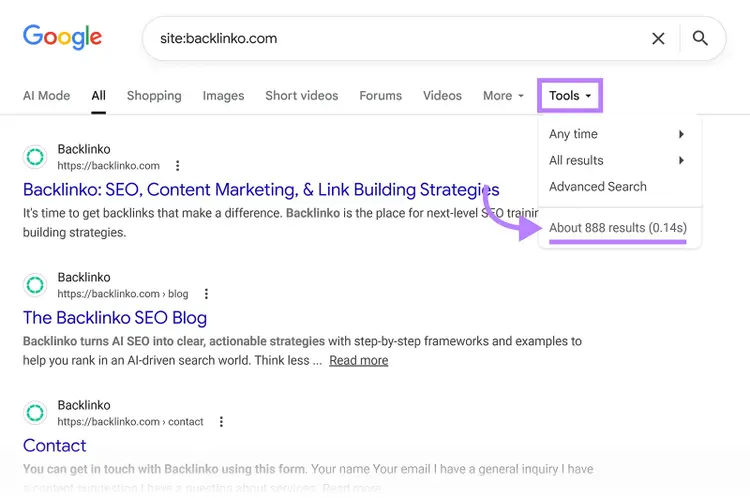
While the "site:search" operator works for identifying whether your pages are indexed, it doesn’t allow you to identify pages that haven’t been indexed. You’ll need to identify those pages using Google Search Console (GSC).
Use Google Search Console
Google Search Console’s "Page indexing" report shows you which pages on your site are indexed and which ones aren’t.
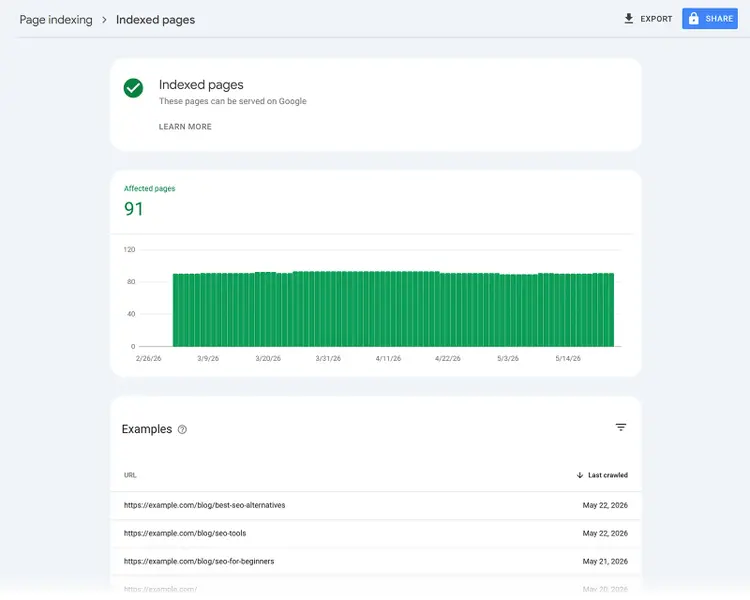
Open your GSC account and head to "Pages" (under "Indexing"). Click "View data about indexed pages" for a sample list of indexed pages.
Tip
Consult the Google Search Console setup guide for detailed guidance.
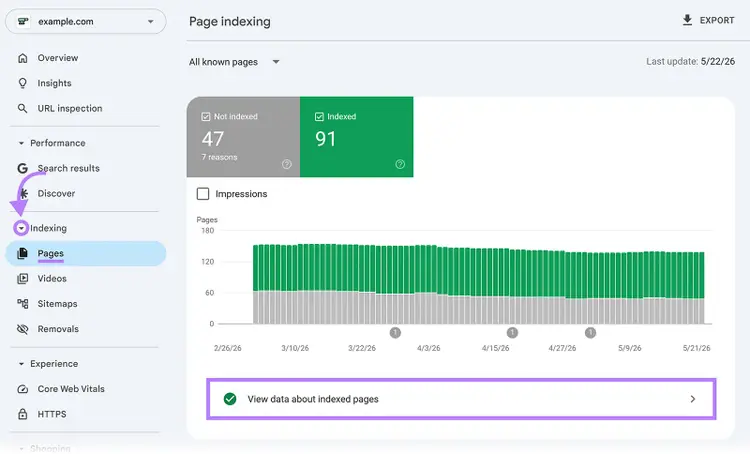
The "Indexed pages" report may not show all indexed pages if you exceed the limit of 1,000 items. Or if something was added after the most recent crawl.
Go back to the "Page indexing" report to view pages that aren’t indexed by scrolling down. In that table, GSC lists reasons why your pages aren’t indexed. Click a reason to see a list of affected pages.
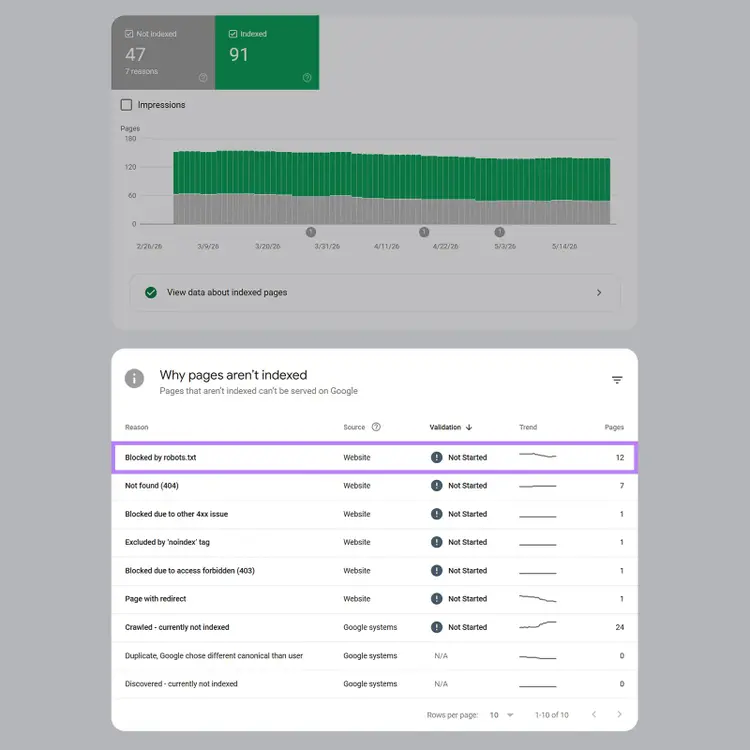
Each status corresponds to a specific problem. The table below explains some common Google Search Console errors related to indexation and what to do about each one.
How do you get Google to index your site?
You don’t need to do anything aside from wait for Google to index your site, but you can speed up the process by creating and submitting a sitemap or by using the URL inspection tool in Google Search Console.
Create and submit a sitemap
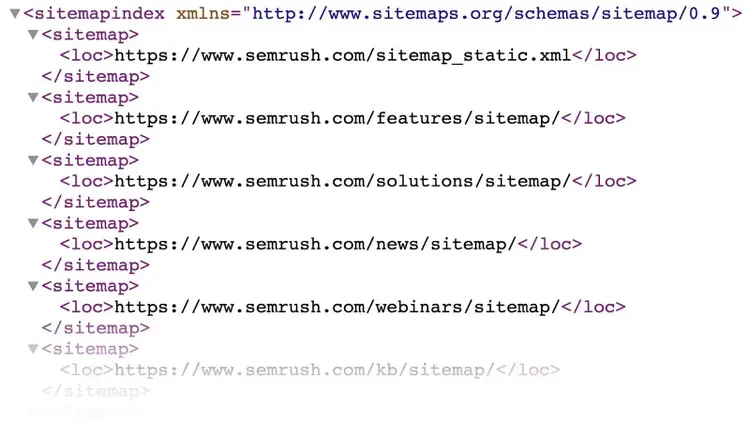
Creating and submitting a sitemap — a file that includes all your important URLs and indicates how they relate to each other — helps crawlers find your priority pages more quickly.
A sitemap looks something like this:
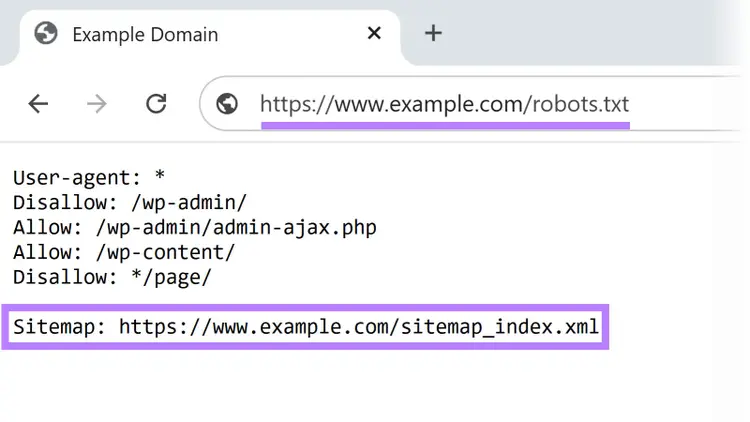
If you don’t know your sitemap URL, find it by reviewing your robots.txt file. Enter your "https://[yourdomain.com]/robots.txt" and look for your sitemap URL (you might have to scroll down).
If you lack a sitemap, consult our guide for creating an XML sitemap.
To submit your sitemap in GSC:
- Navigate to "Sitemaps" under the "Indexing" section in GSC's menu
- Enter your sitemap URL under "Add a new sitemap"
- Click "Submit"
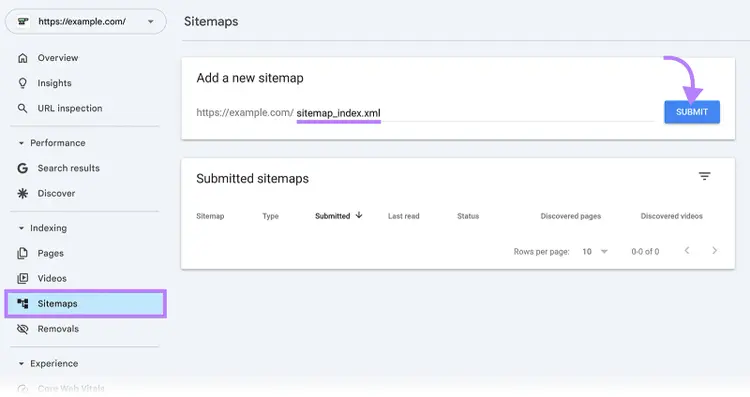
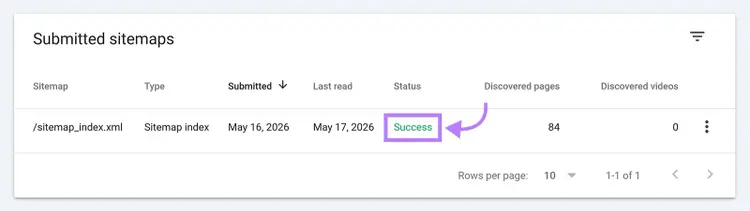
Processing typically takes a couple of days. Upon completion, you'll see your sitemap link with a green "Success" status.
Use the URL inspection tool
The URL inspection tool in GSC allows you to request indexation for a specific page.
Enter the URL in the top search bar in GSC and press enter. If you see “URL is on Google” near the top, it means the specified page has been indexed already. You can also see information about when Google last crawled the page, whether the page is Google’s selected canonical, and whether the page is your specified canonical.
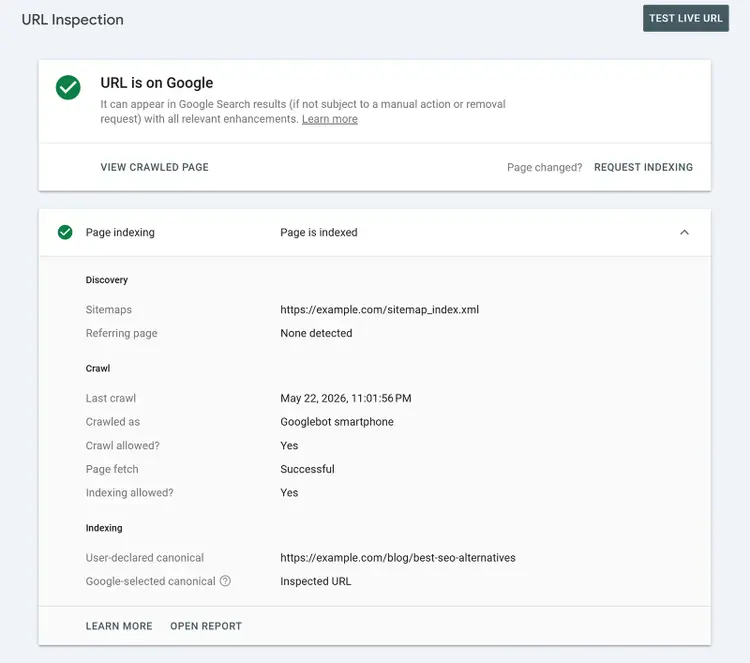
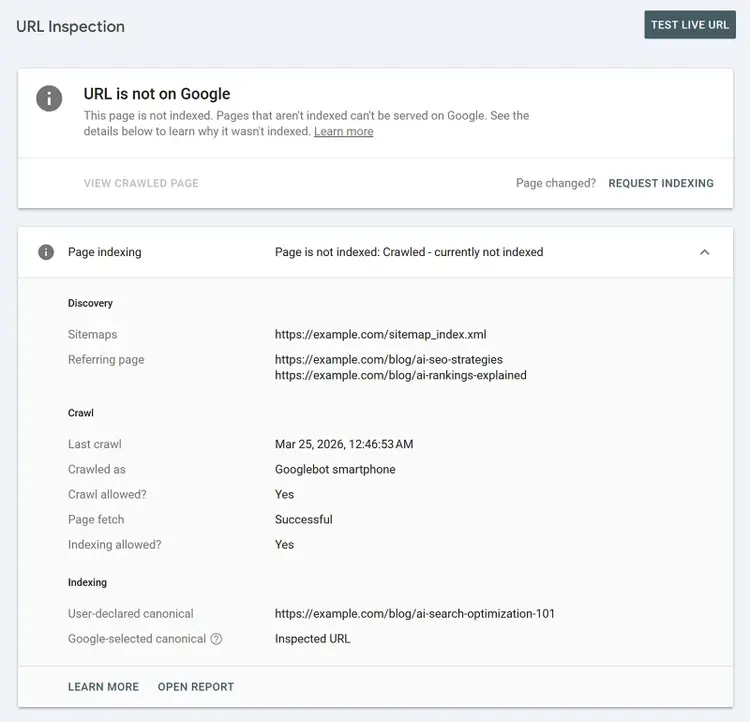
A "URL is not on Google" status means the URL isn't indexed and won't appear in search results. Review the provided reason and address the issue.
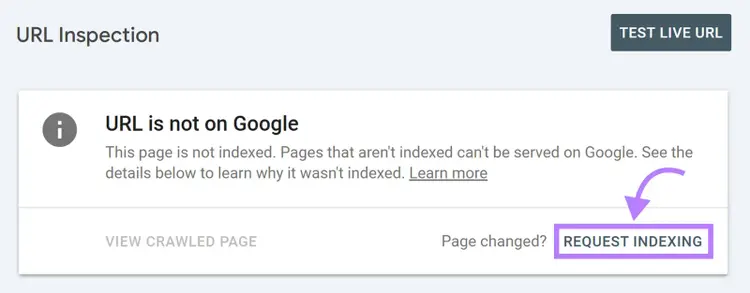
After addressing the issue listed, click the "Request Indexing" link to ask Google to prioritize crawling it. This doesn’t guarantee immediate indexing, but Google typically processes these requests within a few weeks. Periodically check the page with the URL inspection tool to confirm Google has indexed the page.
Common indexing issues to find and fix
Common indexing issues to find and fix include errors in your robots.txt file, lack of mobile usability, slow loading speeds, and redirect issues.
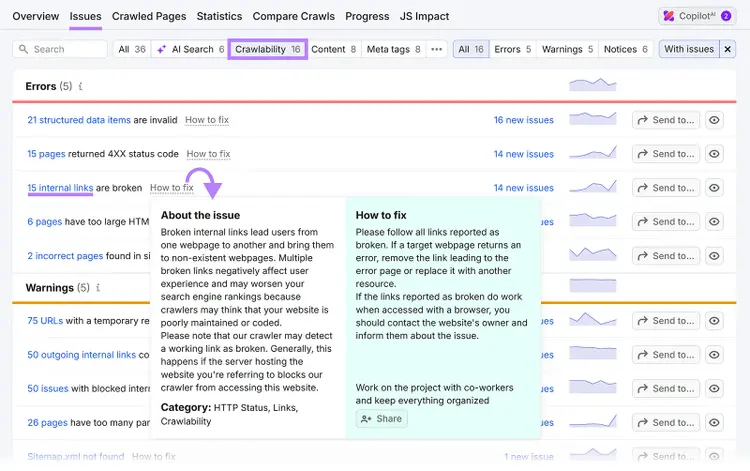
Find indexing issues specific to your site with Semrush Site Audit tool. After configuring Site Audit, click "Issues" and filter the issues by "Crawlability" to see issues that prevent search engines from crawling your site.
Click a specific error to see the affected pages, and "How to fix" for tips on resolving each error.
Let’s go over some of the most common indexing issues in greater detail:
Mistakes with your robots.txt file
Mistakes with your robots.txt file can tell Google to avoid crawling certain pages or even your entire site.
The robots.txt file below tells one bot to avoid crawling the entire site. If that directive targeted Googlebot instead, Google would avoid crawling the site.
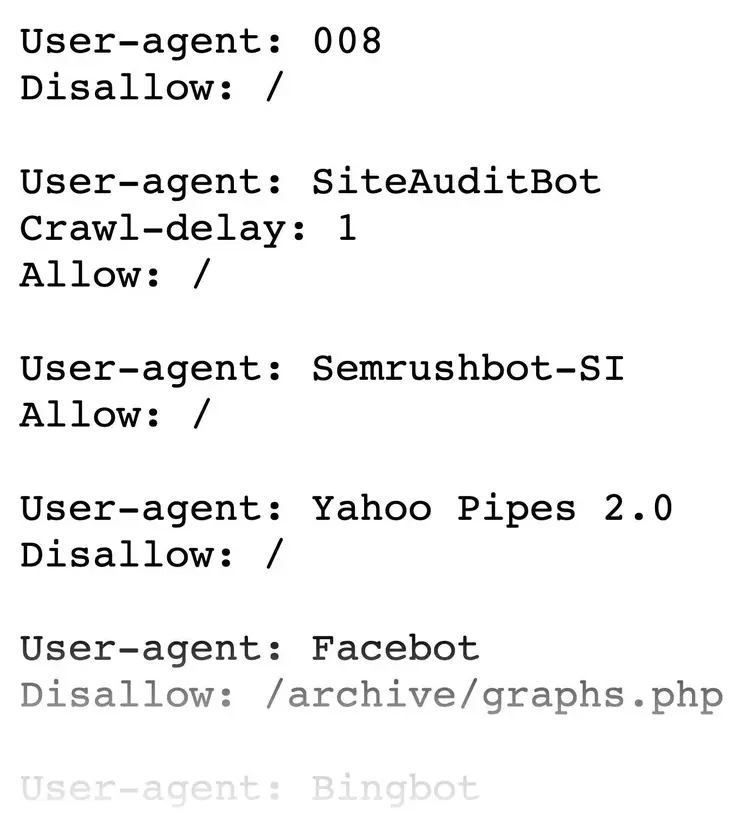
Find your robots.txt at “https://[yourdomain.com]/robots.txt.” Consult our robots.txt guide if you lack one and need directions on how to create one.
You can use directives to tell crawlers to avoid duplicate pages, private content, or resource files. However, if your robots.txt tells bots to avoid crawling completely, indexing is highly unlikely.
Here’s an example that tells all bots to avoid crawling the entire website:
User-agent: *Disallow: /
So, review your robots.txt to ensure no directive prevents Google from crawling pages you want indexed.
Accidental use of noindex tags
Accidentally using the "noindex" robots meta tag (an HTML tag within a page) tells crawlers not to index a page.
A noindex tag looks like this:
<meta name="robots" content="noindex">
Check which pages have noindex tags in GSC:
- Click "Pages" under "Indexing" in the left menu
- Scroll to "Why pages aren't indexed"
- Click "Excluded by 'noindex' tag" if present
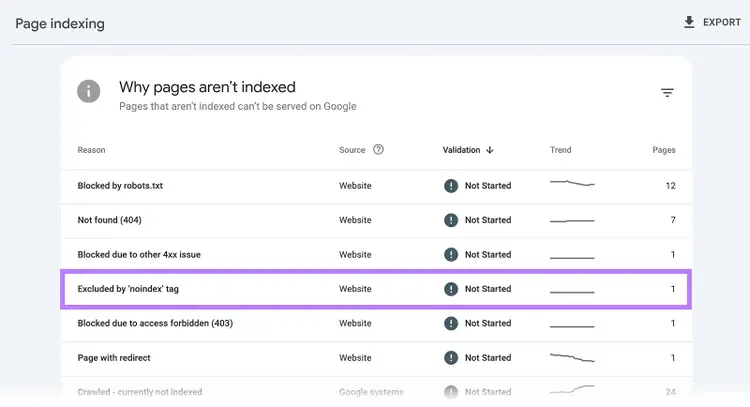
Remove the noindex tag from any pages in the list that you want to appear in Google’s index.
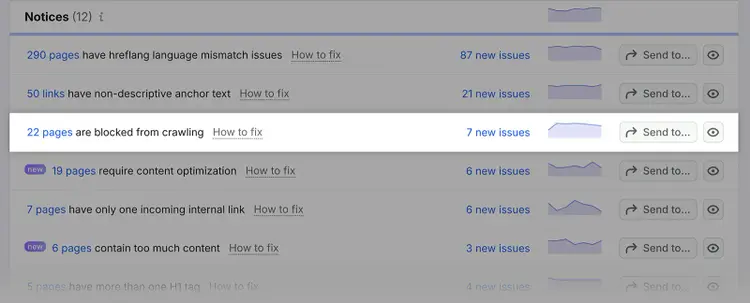
Site Audit warns about pages blocked via robots.txt or noindex.
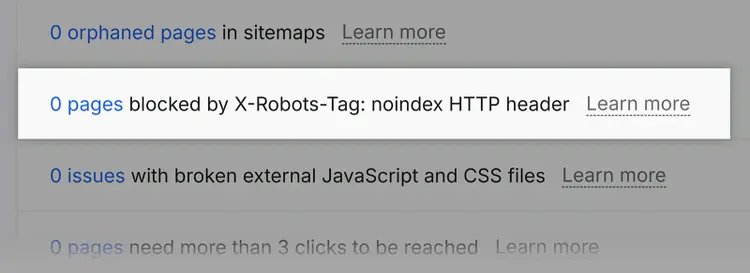
Site Audit also notifies you about resources that are blocked by x-robots-tag, which is typically used for non-HTML documents like PDFs.
Improper canonical tags
Improper canonical tags that point Google to the wrong URL can prevent your intended page from appearing in search results.
Find improper canonical tags within GSC's "Page indexing" report:
- Scroll to "Why pages aren't indexed"
- Click "Alternate page with proper canonical tag"
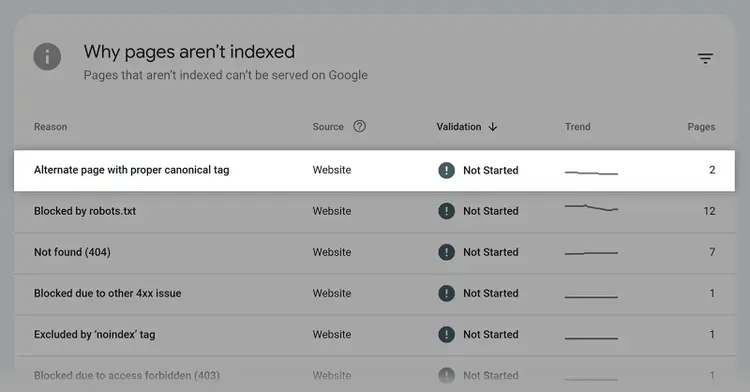
Review the affected pages list. If there’s a page you want to have indexed (meaning the canonical is used incorrectly), adjust the canonical tags on all versions of the page to point to your preferred version.
Internal link problems
Internal link problems prevent crawlers from discovering pages, which can keep those pages out of Google's index.
Find internal linking issues in Site Audit’s “Internal Linking” thematic report. You’ll see a list of internal linking issues. Click any issue count link to see affected pages.
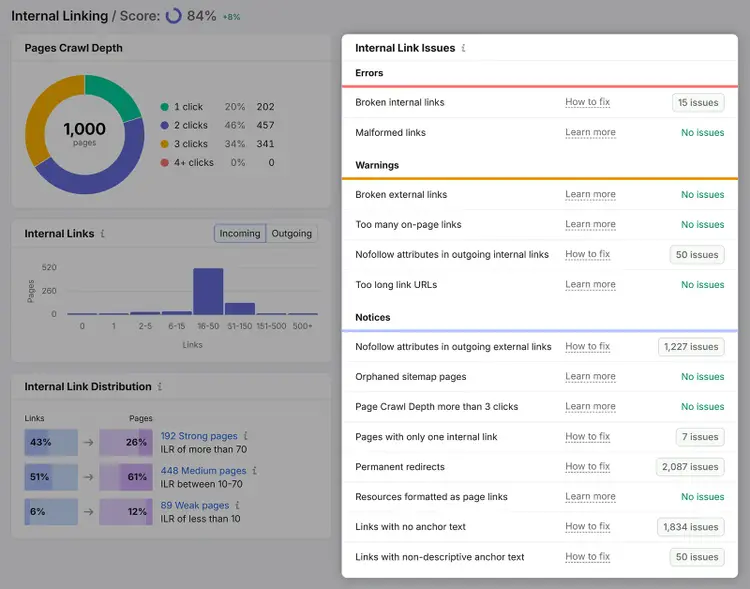
These are some of the most important issues to address when it comes to crawling and indexing:
- Nofollow attributes in outgoing internal links: Nofollow links generally tell Google not to follow a link or pass authority to it, so Google might ignore pages on your site if you’ve used nofollow links to them internally
- Page Crawl Depth more than 3 clicks: If pages need more than three clicks to be reached from the homepage, there's a chance they won't be crawled and indexed. Add more internal links to these pages (and review your website architecture).
- Orphaned sitemap pages: Pages that have no internal links pointing to them are known as "orphaned pages." They’re rarely indexed as Google may struggle to find them. Fix this issue by linking to any orphaned pages.
When building internal links, prioritize linking to your most important pages. And also actively work to link to new pages to accelerate indexing.
404 errors
A 404 error occurs when a server can’t locate a page, and it prevents Google from finding and indexing pages.
Plus, 404 errors harm the user experience.
Find your site’s 404 errors within Site Audit’s "Issues" tab. Click the link in "# pages returned a 4XX status code."
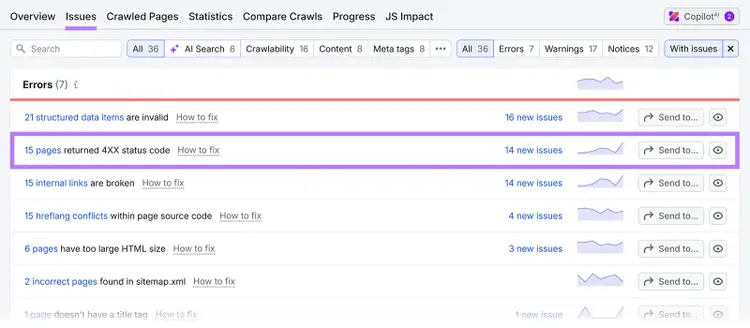
For each "404" page, click "View broken links" to see pages linking to it.
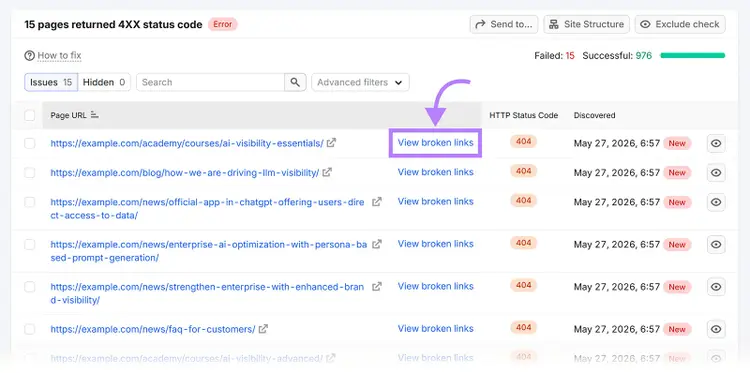
Fix 404 errors by correcting URL typos, updating links to new page locations, or replacing links with relevant substitutes if content no longer exists.
Duplicate content
Duplicate content — identical or very similar content across multiple URLs — confuses search engines and may result in undesired pages being indexed.
Click "Issues" in Site Audit and search for "duplicate." Click the hyperlink in "# pages have duplicate content issues."
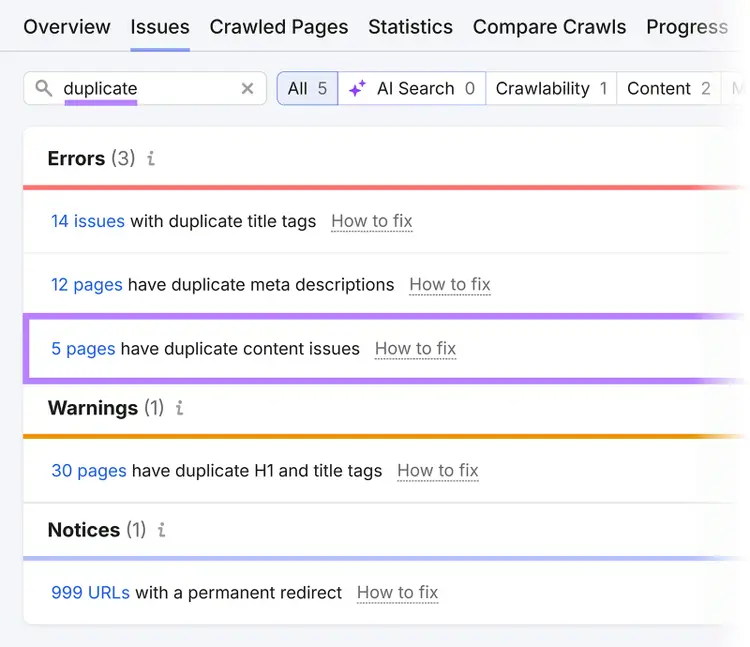
Fix duplicate content issues by:
- Eliminating unneeded duplicates: Consolidate content onto the main page, delete duplicates, and implement 301 redirects to the primary page
- Keeping necessary duplicates: Use canonical tags to indicate your preferred version
Poor site quality
Poor site quality can hurt your chances of being indexed as Google prioritizes crawling and indexing sites it deems high quality.
Here are three ways to make your site appear trustworthy to Google:
Create high-quality content
Creating high-quality content that genuinely helps readers improves your chances of being indexed and shown in search results.
Follow these tips for creating quality content:
- Address user needs: Solve relevant problems and answer key questions with actionable solutions
- Demonstrate expertise: Publish content authored by subject matter experts with real-life examples and first-party data
- Keep content current: Maintain relevance through regular updates that address gaps and outdated information
Build relevant backlinks
Building relevant backlinks from quality websites that are relevant to you provides more ways for Google to discover your pages and also signals authority.
Here are some link building tactics:
- Guest articles: Write for reputable sites in your niche to reach new audiences and potentially gain backlink
- Expert contributor pitching: Identify publications or podcasts that feature competitor voices, then pitch yourself as an expert source. Many publications are happy to link to sources’ websites.
- Content replacement: Find competitor content that's earned links, create a demonstrably better version, and pitch it as the upgrade to those same publications
- Competitive backlink analysis: Find where competitors are earning links and replicate the best opportunities through outreach
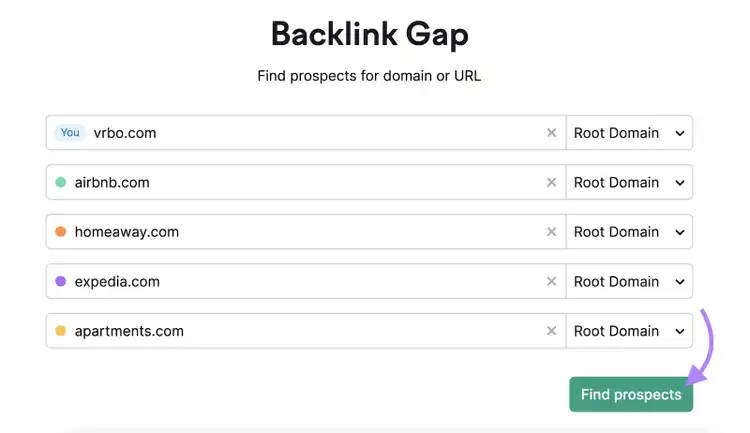
Use Backlink Gap to do a competitor backlink analysis. Just enter your domain and up to four competitors' domains, then click "Find prospects"
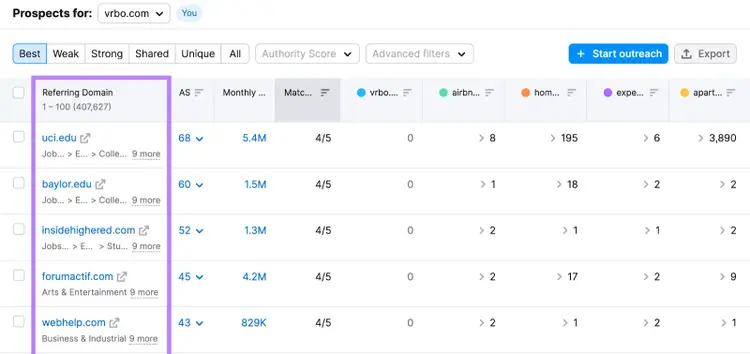
The "Best" tab within Backlink Gap shows websites linking to all competitors but not you. These sites are often worth pitching. There’s a good chance they’ll link to you if they’re already linking to all your rivals.
Prioritize E-E-A-T
Focusing on Experience, Expertise, Authority, and Trustworthiness (E-E-A-T) — the criteria Google's human quality raters use to assess page quality — helps you align with what Google defines as good content.
E-E-A-T is not a Google ranking factor, but following the E-E-A-T framework helps you create good content.
To strengthen your E-E-A-T, aim to:
- Provide transparent author information. Highlight your contributors’ personal experiences and expertise concerning the topics they write about.
- Collaborate with subject matter experts. Include insights from industry experts. Or hire them to review your content for accuracy.
- Support the claims you make. Cite credible sources across all your published content, so readers know the information you provide is reputable.
Monitor your site for indexing issues
Monitor your site for indexing issues by scheduling periodic audits that let you check your site for any issues as soon as they pop up.
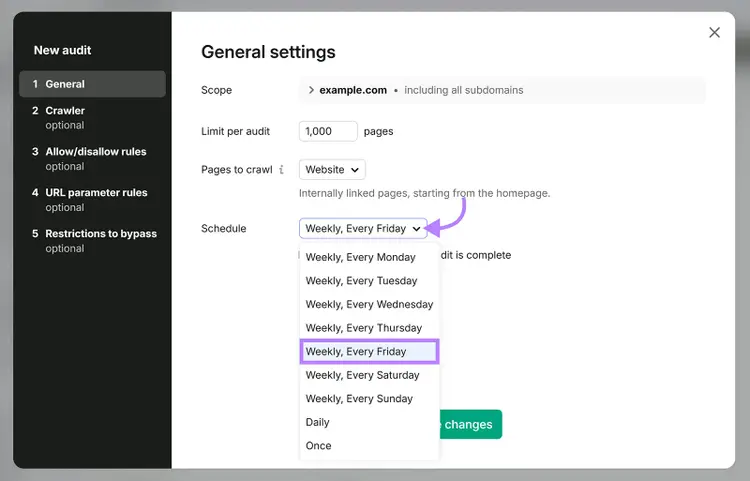
With Site Audit, you can schedule audits weekly or daily, so you’re alerted of new issues right away.
Ready to find and fix indexing issues? Try Site Audit today.
Find and fix indexing issues
with the Site Audit tool

Carlos Silva leads the editorial pipeline for the English blog—coordinating writers, editors, strategy, and building AI workflows that boost content quality and AI visibility. With 10+ years of experience writing and editing across in-house and agency roles, Carlos blends content strategy, SEO, and AI to help marketers stay ahead of an evolving search landscape.
Carlos Silva
Carlos Silva leads the editorial pipeline for the English blog and builds AI workflows that boost content quality and AI visibility. 10+ years writing and editing across in-house and agency roles.

Tells Google to show you more from Semrush in AI, Search, and Discover.