
Google Search Console is a web service that lets you monitor and manage your website's presence in Google Search results.
It also helps you identify potentially impactful website errors. Here’s what you need to know about these errors and how to fix them.
Pro tip
Find and fix Google Search Console errors and much more with the SEO Checker tool.
Find and Fix Website Issues
with the SEO Checker
Understanding Google Search Console Errors
If Googlebot comes across issues when it crawls your site, those issues may be flagged for you as errors in Google Search Console.
These issues are important to review.
Why?
For one, they can negatively impact your site's visibility in search engine results pages (SERPs).
For example, unresolved errors can prevent Google from properly indexing your website. Unindexed pages won’t show up in search results.
Unresolved website errors can also negatively impact user experience. This is bad for visitors. And it’s a key ranking factor for Google, so poor performance in this area can cause Google to rank you lower in search results, too.
Let’s take a look at how to fix Google Search Console errors.
Types of Google Search Console Errors and How to Fix Them
Status Code Errors
Status code errors in Google Search Console relate to the HTTP status codes returned when Googlebot attempts to crawl your webpages.
HTTP status codes are relayed every time a site loads. When a user types in a URL or a bot visits the site, a request is sent to that site’s server. The server responds with an HTTP status code that tells the browser—or bot—more about that page.
The HTTP status codes are three-digit numbers. For example, “200,” “301,” or “404.”
Different status codes convey different information about the success or failure of a request.
For example, the status code “200” signals that everything is good and the page can be accessed as expected.
However, some status codes indicate there were problems accessing the webpage. These show up as errors in Google Search Console. Because they can negatively impact the ability of crawlers and users to access your site.
To see if you have any status code errors, open Google Search Console and click on “Pages” in the left-hand menu.
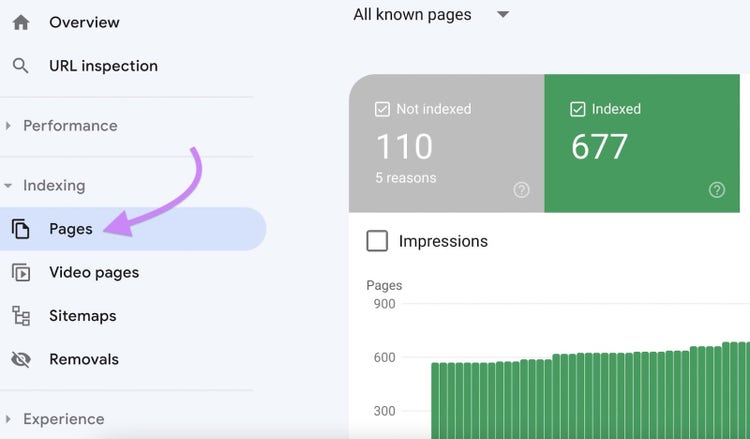
You’ll see a breakdown of the pages on your website according to whether they are “indexed” or “not indexed.”
It’s possible some pages haven’t been indexed due to a status code error.
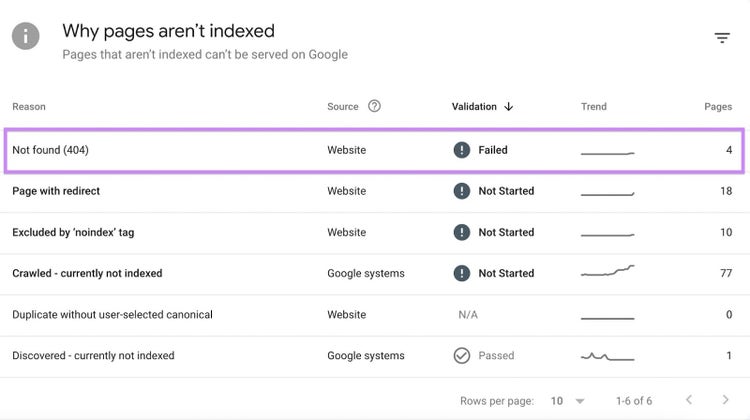
To see if that’s the case, scroll down to the bottom of the report. You’ll see a table with the title “Why pages aren’t indexed.”
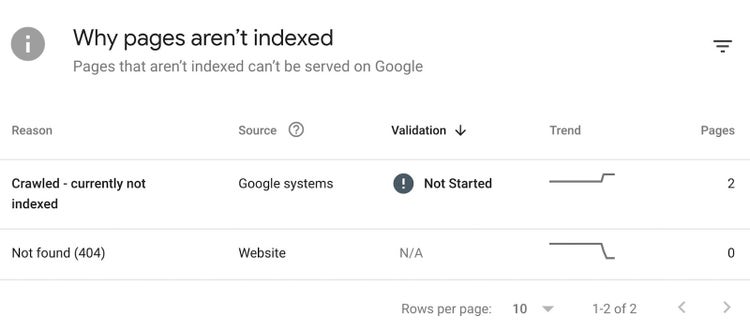
If there are any status errors, you’ll see one of the following under “Reason”:
- Server Error (5xx)
- Not found (404)
- Unauthorized request (401)
- Soft 404
- Redirect error (3xx)
Let’s review what the different status code errors mean and how to fix them.
Server Errors (5xx)
A three-number status code beginning with “5” reflects a server error. This indicates a problem with the server hosting your website.
Here’s what a server error looks like in Google Search Console:
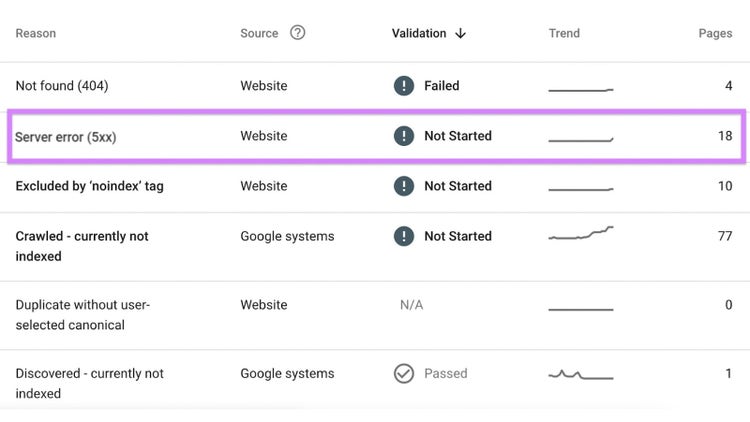
Common causes of a 5xx status include:
- Programming errors: Bugs or coding errors in the server-side scripts (e.g., PHP, Python, Ruby) that power your website
- Server configuration issues: Misconfigurations in the server settings or the web server software (e.g., Apache, Nginx)
- Resource exhaustion: If the server runs out of resources (such as memory or processing power), it may struggle to handle requests, leading to internal server errors
- Database issues: Problems with the database that your website relies on, such as connection issues or database server errors, can trigger a 5xx error
How to Fix a Server Error (5xx) in Google Search Console
- Review recent changes. If the error started occurring after recent updates or changes to your website, consider rolling back those changes to see if the issue resolves.
- Contact your hosting provider. If you're not sure how to resolve the server error or if it's related to the server infrastructure, contact your hosting provider for assistance. They may be able to identify and fix the problem.
- Test server resources. Ensure that your server has sufficient resources (CPU, memory, disk space) to handle the traffic and requests to your website. Consider upgrading your hosting plan if necessary.
Once you've identified and resolved the underlying cause of the 5xx server error, use Google Search Console to request a recrawl of the affected pages.
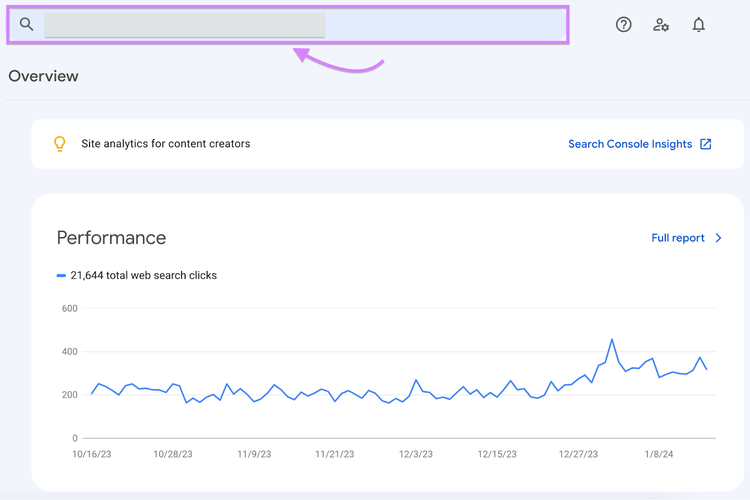
You do this by entering the affected URL into the search box at the top of Google Search Console:
Then click “REQUEST INDEXING”:
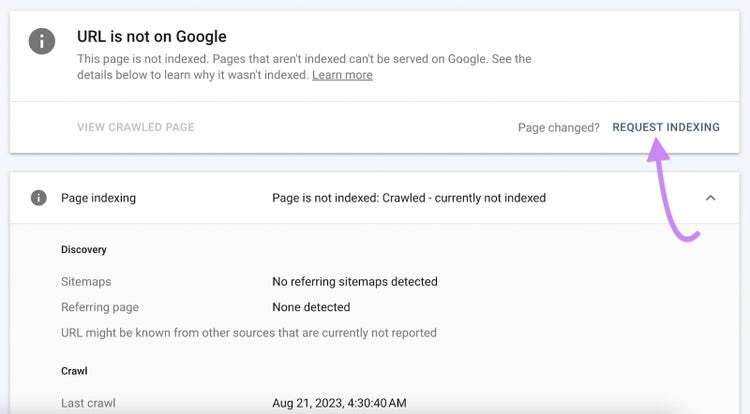
This asks Googlebot to revisit the pages and update its index with the corrected information.
Not Found (404) Errors
The "404 Not Found" error is a standard HTTP response code that’s returned when a server can’t find the content associated with the requested URL.
In the context of Google Search Console, it means Googlebot tried to crawl a page on your site, but the server returned a 404 error because it couldn’t find the page’s content.
Here are some common reasons why a 404 error might occur:
- Page deletion or removal: If you intentionally deleted a page or removed it from your website and Googlebot attempts to crawl that page, the server will return a 404 error
- URL changes without proper redirects: If you've changed the URL structure of your website without implementing proper redirects (e.g. 301 redirects), the old URLs may result in 404 errors
- Typo or mistyped URL: It's possible that there was a typo or a mistake in the URL provided to Googlebot. Ensure the URLs in your sitemap and internal links are correct and lead to existing pages.
How to Find 404 Errors in Google Search Console
Open Google Search Console and click on the “Pages” report.
Scroll down to see “Why pages aren’t indexed.” Here, you’ll be able to see if any pages have a 404 error.
How to Fix a 404 Error in Google Search Console
- Implement 301 redirects. If you've deliberately and permanently moved a page to a new location, use301 redirects to point the old URL to the new one.
- Update internal links. If there are links within your website to deleted pages, update those links to point to valid URLs. You can find these links using Site Audit from Semrush.
- Check external links. If external websites are linking to non-existent pages on your site, consider reaching out to those sites and requesting that they update their links.
- Submit a sitemap. Ensure that your website's sitemap is up to date and accurately reflects the current structure of your site. Then submit the sitemap to Google Search Console.
Unauthorized Request Errors (401)
An error with the HTTP status code "401" in Google Search Console indicates that a request was "unauthorized."
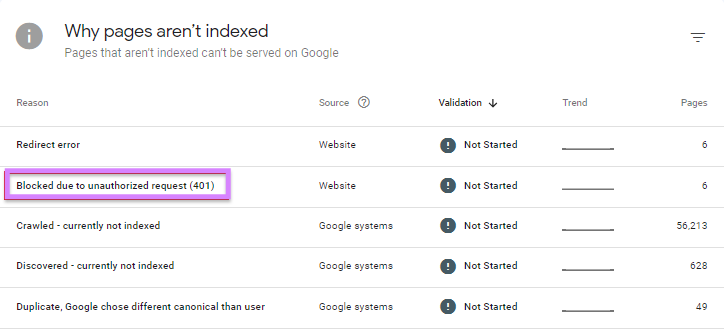
Image Source: Onely
401 errors appear when:
- The page contains password-protected content, meaning Googlebot and other crawlers can’t access the page
- There are IP-blocking or access restrictions preventing Googlebot’s IP addresses from accessing the page
- Crawler-specific configuration issues have accidentally been set up
How to Fix a 401 Unauthorized Error in Google Search Console
- Check authentication settings. If the page requires authentication (for example, you need to log in to view the content), review the authentication settings to make sure they’re correctly configured.
- Test access. Manually test access to the affected pages by attempting to access them through a web browser or using tools like the Fetch as Google feature in Google Search Console. This can help identify any issues with access.
- Review access restrictions. Check for any IP-blocking or access restrictions on your server or website. Ensure that Googlebot's IP addresses are not blocked and the necessary permissions are in place for crawling.
- Verify user agent access. Confirm that your website's configuration allows access to common search engine user agents, including Googlebot. If there are rules limiting access to certain user agents, ensure that they are appropriately configured.
After addressing the unauthorized access issue, use Google Search Console to request a recrawl of the affected pages.
Soft 404 Errors
Soft 404 errors in Google Search Console occur when a page looks like a normal page (returns a 200 status code) but the content or certain signals on the page indicate that it should be treated as if it doesn't exist.
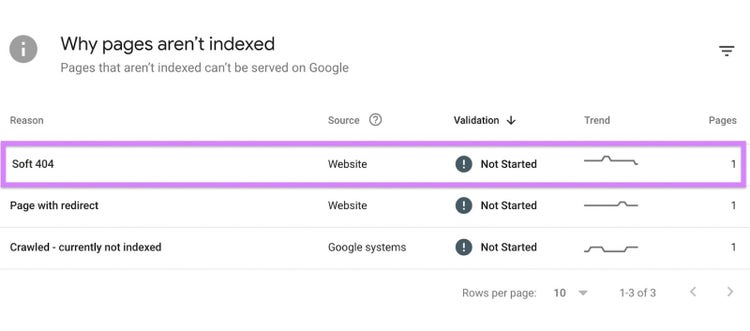
This can be confusing for search engines like Google. And it can impact how your pages are indexed and displayed in search results. Google Search Console flags them as errors.
Common scenarios leading to soft 404 errors include:
- Empty pages: Pages that are empty or contain very little content might trigger soft 404 errors. While the server returns a "200 OK" status code, the lack of content suggests the page isn’t providing meaningful information to users.
- Redirected pages: If a page is redirected to another URL, but the content on the destination URL is thin or not relevant, Google might interpret it as a soft 404
- Custom error pages: If your website has a custom error page showing the user an error message—even though it has a “200” OK” status code—this may trigger soft 404 errors
How to Fix a Soft 404 Error in Google Search Console
- Review page content. Examine the content of the pages flagged as soft 404 errors. Ensure that they provide meaningful information to users. If the content is insufficient, consider improving it or redirecting users to a more relevant page.
- Verify redirects. If a page is being redirected, make sure the destination URL contains relevant content. Avoid redirecting users to pages that don't relate to the content of the original page.
- Check custom error pages. If your website uses custom error pages, ensure that they provide helpful information and are not mistaken for empty or irrelevant content.
Redirect Errors
Redirects send users and search engine crawlers from one URL to another.
For example, if a page no longer exists, you can place a redirect to automatically take visitors to a related page that does exist.
Redirect errors occur when a redirect fails for some reason. These errors can negatively impact how search engines like Google crawl, index, and rank your website.
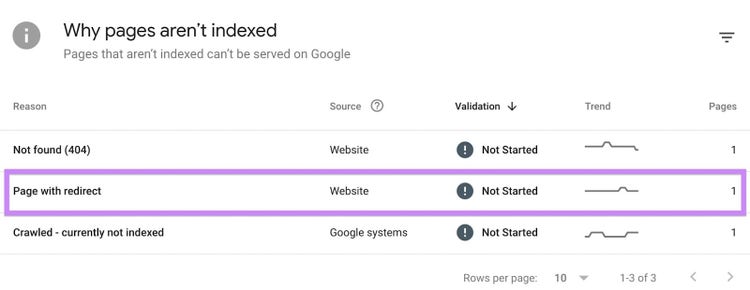
Common redirect errors include:
- Redirect chains: This is when one URL redirects to another, and then that second URL redirects to a third, forming a sequence of redirects. Redirect chains can slow down the loading of pages and negatively impact user experience and search engine crawling efficiency.
- Redirect loops: These happen when the final destination URL redirects back to a previous URL in the chain. This can cause an infinite loop of redirects, preventing the page from loading and leading to crawl errors.
- Incorrect redirects: If a page is redirected to an incorrect or irrelevant URL, it can lead to a redirect error. Redirects should be set up accurately and lead users and search engines to a relevant destination URL.
How to Fix a Redirect Error in Google Search Console
Identify any redirect errors in Google Search Console by visiting the “Pages” report. Scroll down to see “Why pages aren’t indexed.”
- Analyze redirect chains. If redirect chains are identified, review and simplify them. Ideally, a redirect should lead directly to the final destination without unnecessary intermediary steps.
- Fix redirect loops. If redirect loops are detected, identify the source of the loop and correct the redirect configurations to break the loop. Ensure that the final destination URL is correct.
- Check redirect targets. Verify that the URLs to which pages are redirected are accurate and relevant. Incorrect redirects can confuse users and search engines.
- Update internal links. If you've changed URLs and implemented redirects, update internal links on your site to point directly to the new URLs, reducing the need for redirects.
- Use proper redirect status codes. When implementing redirects, use appropriate HTTP status codes. For example, a 301 redirect indicates a permanent move, while a 302 redirect signals a temporary move.
Crawl and Indexation Issues
Crawl and indexation issues happen when Google’s crawlers can’t reach a page they should be able to. Or when something’s stopping them from adding a page to their index.
You can check for these issues in the “Pages” report.
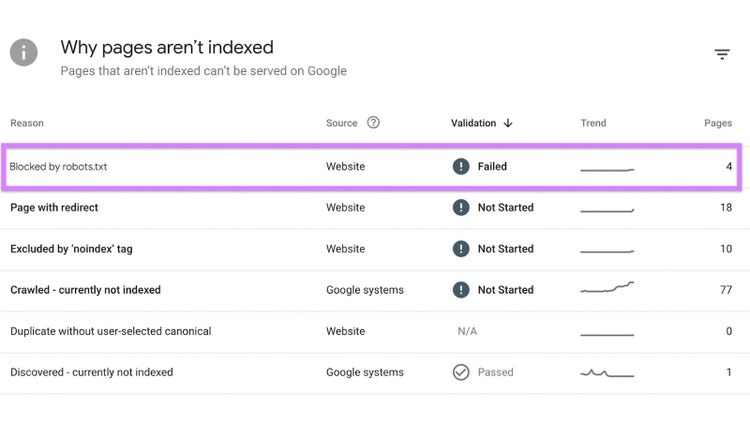
Open the report and scroll down to the table “Why pages aren’t indexed.”
You might encounter the following issues.
Blocked by Robots.txt
If a page is blocked by robots.txt, this might be an issue. But only if you don’t want that page to be blocked. Some pages are blocked intentionally.
Robots.txt is a file that sits on your website and contains instructions for search engine crawlers. It’s usually the first page they visit on your website.
You can include instructions in the robots.txt file to tell search bots not to crawl certain pages. For example, admin pages that aren’t accessible without a login.
You do this using a “disallow” directive.
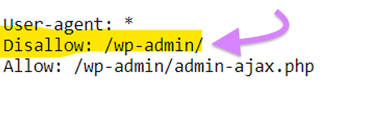
However, it’s possible a page can be blocked by robots.txt by mistake.
In Google Search Console, if you see a page that says “blocked by robots.txt,” but you want Google to crawl that page, you can edit the robots.txt file. Then, use Google Search Console to request a recrawl of the affected pages.
How to Fix Pages Blocked by Robots.txt
Get a free SEO audit for a quick read on your site. To review and fix any issues with your robots.txt file across your full site, use Semrush Site Audit.
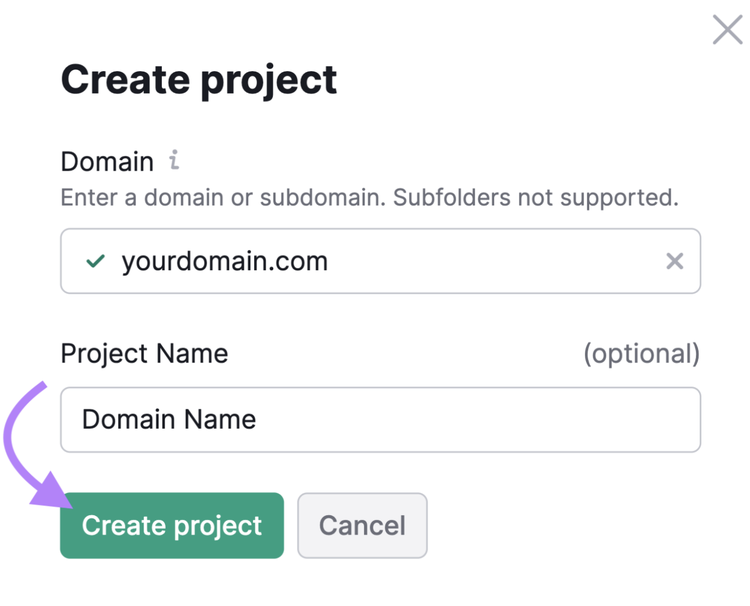
Open the tool and click “+ Create project.”
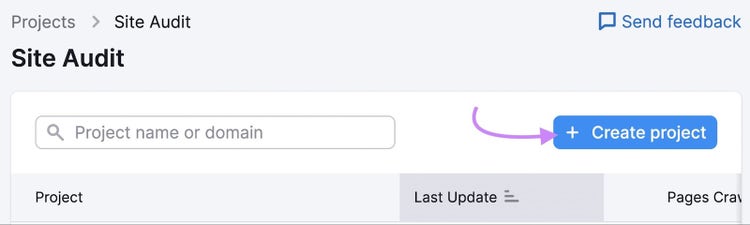
Enter your website domain. If you like, you can also give the project a name.
Click the “Create project” button.
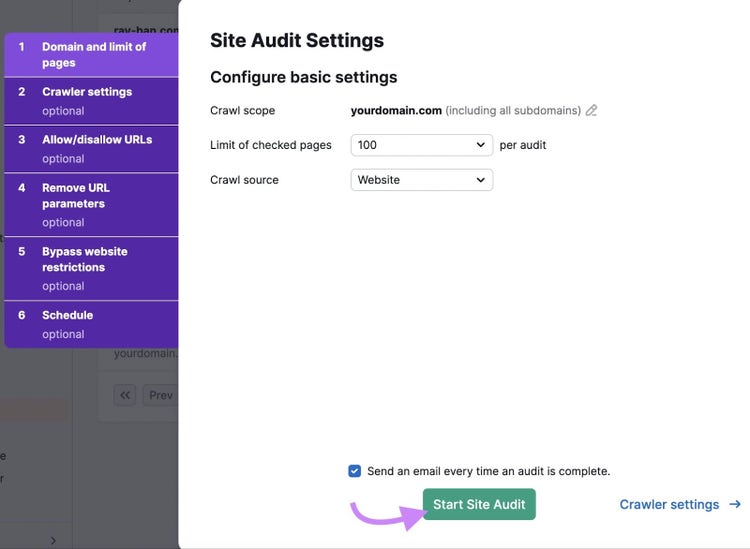
Configure any additional settings you’d like for the site audit. Then click “Start Site Audit.”
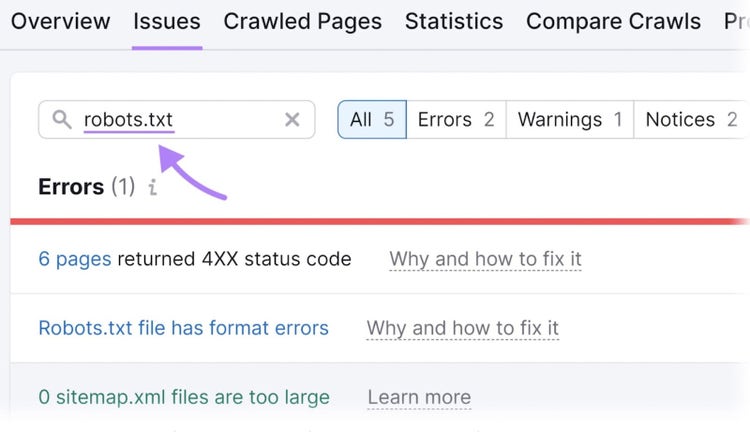
Once the audit is complete, go to the "Issues" tab and search for "robots.txt."
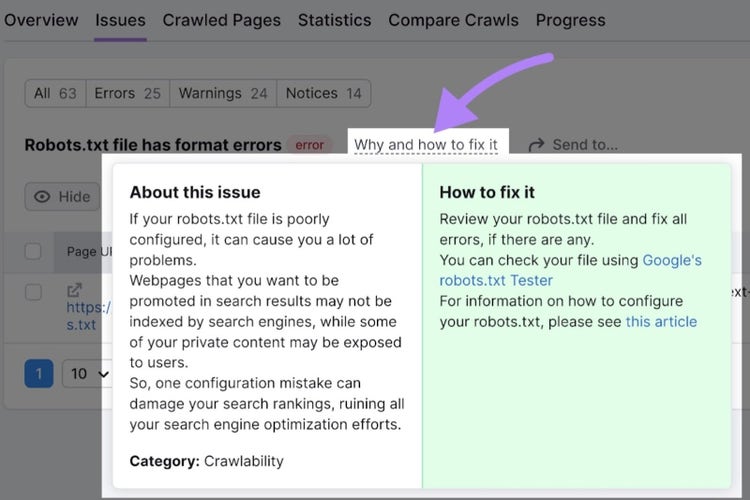
Click on any issues related to your robots.txt file, such as "Robots.txt file has format errors."
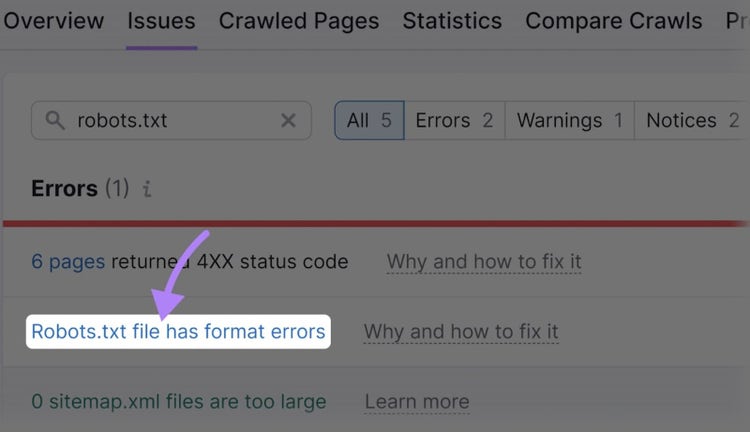
A list of invalid lines in the file will be displayed.
Click on "Why and how to fix it" to get specific instructions on how to resolve the error.
Find and Fix Website Issues
with the SEO Audit Tool
User Experience and Usability Issues
Website issues that cause poor user experiences are troubling for two reasons.
First, you don’t want visitors to your site to have poor experiences. It causes distrust in your brand. And it lowers the chances that person will interact with your content again.
Poor user experiences are also bad because positive user experiences are an important ranking factor for Google Search. Pages with poor user experiences will not do as well in the search results.
Core Web Vitals Issues
Core Web Vitals are a set of user-centered metrics that measure the loading performance, interactivity, and visual stability of a page.
Essentially, Core Web Vitals measure how fast and pleasant a website is to use.
The three main metrics are:
- Largest Contentful Paint (LCP): The time it takes for the largest content element (such as an image or a block of text) to become visible on the user’s screen
- Interaction to Next Paint (INP): How well the webpage responds to user interactions
- Cumulative Layout Shift (CLS): How many times the page shifts around as it loads
Google Search Console flags when you have Core Web Vitals performance issues.
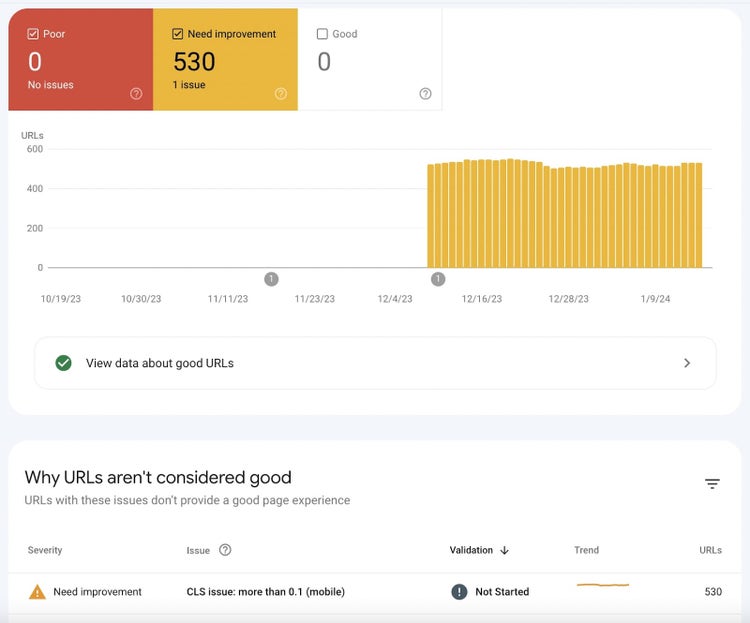
You can identify these issues using the website audit tool. And get tips on how to fix them.
How to Fix Core Web Vitals Issues
Open Site Audit. Either choose an existing project or click “+ Create project.”
Configure the settings and click “Start Site Audit.”
In a few minutes, you’ll see your results.
In the “Overview” report, you’ll see a widget on the right called “Core Web Vitals.” Click “View details.”
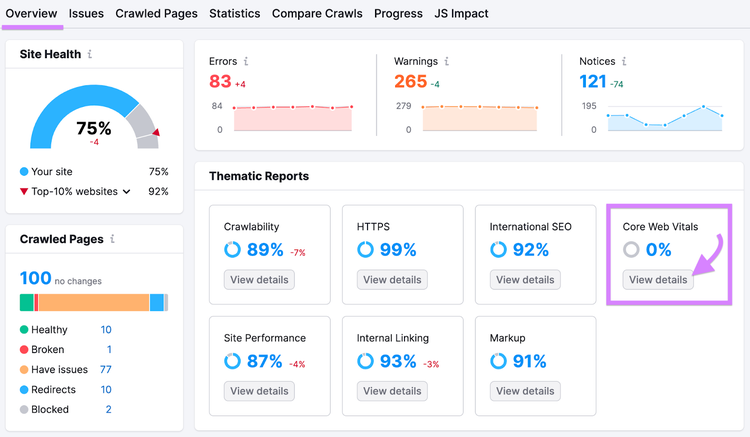
You’ll see your performance against Core Web Vitals metrics for 10 pages on your site.
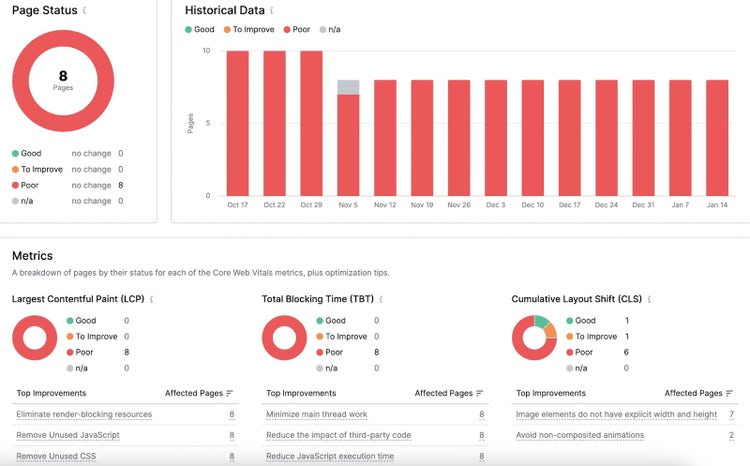
Scroll down to “Metrics” and you can see the performance broken down into the three Core Web Vitals.
Underneath each one, there’s a list titled “Top improvements” with suggestions to improve your performance in that area.
HTTPS Errors in Google Search Console
Google favors sites with an SSL certificate. This is a security certificate that encrypts data sent between a website and a browser.
Once you have an SSL certificate, all pages on your website should begin with “https://.”
Any pages starting instead with “http://” could indicate security issues to search engines. So it’s best to fix them when they appear.
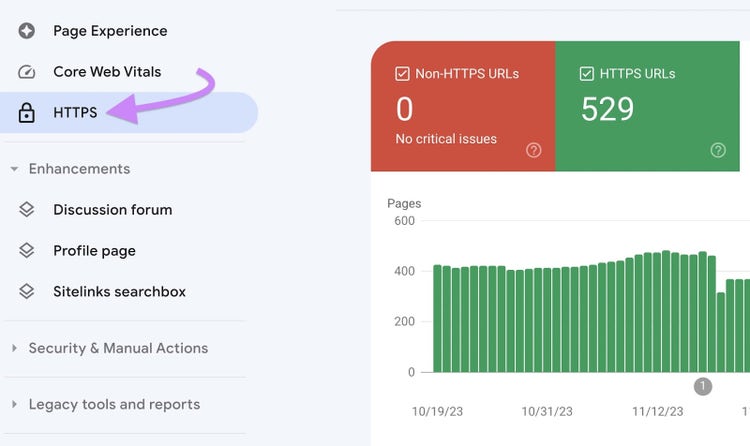
Open Google Search Console and click “HTTPS” in the left-hand menu.
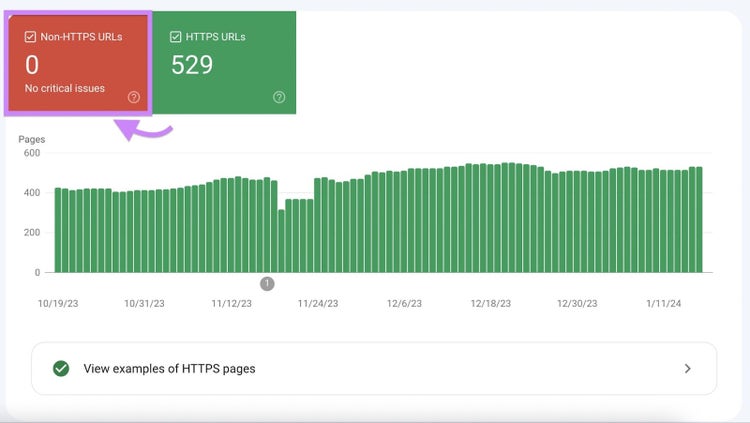
The table will show if you have any non-HTTPS URLs on your site.
How to Fix HTTPS Errors in Google Search Console
If you have HTTPS errors, scroll down on that HTTPS page in Google Search Console. You’ll see a table called “Why pages are not being served over HTTPS.”
Click on the issue row to see which URLs are affected.
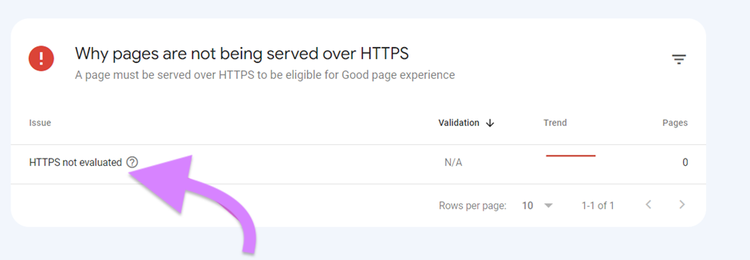
Once you see the list of URLs, you can remove any links to these pages from your website and ask Google Search Console to recrawl your site.
Manual Actions in Google Search Console
Manual actions in Google Search Console refer to penalties imposed on a website by human reviewers who work at Google. When these reviewers identify violations of Google's guidelines, they may take manual actions to penalize the site.
Manual actions are different to algorithmic penalties, which are automatically applied by Google's algorithms.
Common reasons for manual actions include:
- Unnatural linking: If a site is involved in link schemes, has purchased links, or participates in link exchanges that violate Google's guidelines, it may receive a manual action
- Thin or duplicate content: Websites with low-quality or duplicate content may face manual actions for violating content quality guidelines
- Cloaking or sneaky redirects: If a site shows different content to users and search engines or uses deceptive redirects, it may receive a manual action
- Spammy structured markup: Incorrect use of structured data markup (schema.org) to manipulate search results can lead to manual actions
- User-generated spam: Websites that allow users to generate content (comments, forums) may face manual actions if they fail to moderate and control spam effectively
- Hacked content: If a site is compromised and contains harmful or irrelevant content, Google may take manual action to protect users
If a manual action is imposed, you’ll be notified through Google Search Console.
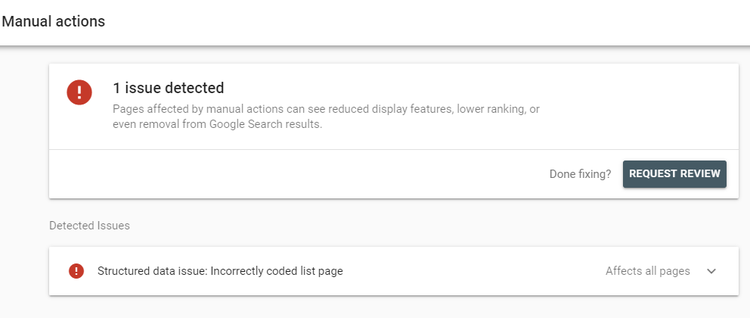
Image Source: Google
The notification will give you details about the issue. As well as guidance on how to fix it and steps for requesting a review after corrections are made.
Once you’ve fixed the issue, enter the issue in Google Search Console and click “Request review.”
If you’ve properly fixed the issue, the team at Google will mark it as resolved and penalties may be lifted.
Security Issues in Google Search Console
When security issues are identified, they can negatively impact your site's search visibility. Plus, Google may label your site as potentially harmful to users.
The Security Issues Report in Google Search Console provides information about potential security threats or issues detected on your website.
Common security issues reported in Google Search Console include:
- Malware infections: Google may detect malware on your site, indicating that it’s been compromised. And there’s malicious software that could harm visitors.
- Hacked content: If your website has been hacked, attackers may inject unwanted content or links. Google will alert you if hacked content is detected.
- Social engineering: Google identifies instances where your site may be involved in social engineering attacks, such as phishing or deceptive practices
Steps to Address Security Issues:
Use Google Search Console to view and fix any security issues.
Open Google Search Console. Navigate to the Security & Manual Actions section on the left-hand side of the screen. Click on “Security issues.”
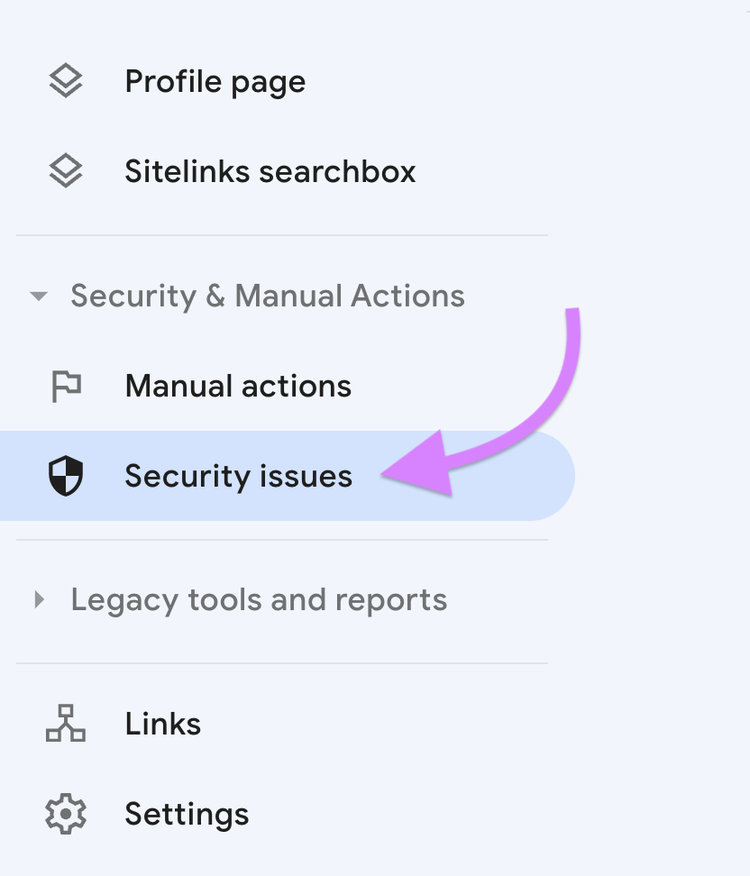
If there are any flagged issues, you’ll see them here.
Google will provide information about the type of security issues detected. As well as recommendations or actions to resolve the problems.
If malware or hacked content is detected, clean and secure your website. Remove any malicious code, update passwords, and implement additional security measures.
After resolving the security issues, submit your site for a review through Google Search Console. Google will assess whether the issues have been adequately addressed.
Preventing Google Search Console Errors
Follow these best practices to stop Google Search Console errors from happening.
- Run regular site audits. Conduct regular audits of your website to identify and address technical issues promptly.
- Keep your XML sitemap up to date. Ensure your website has an XML sitemap that includes all relevant pages. Submit the sitemap to search engines via Google Search Console to facilitate crawling and indexing.
- Optimize your robots.txt file. Use a well-constructed robots.txt file to control which parts of your site should be crawled by search engines. Regularly review and update this file.
- Make sure you have a valid SSL certificate. Ensure your website has a valid SSL certificate, providing a secure connection (HTTPS). Google favors secure sites, and it positively impacts rankings.
- Optimize images. Optimize images for faster loading. Use descriptive file names and include alt text for accessibility and SEO.
- Use a strong URL structure. Keep URLs simple, descriptive, and user-friendly. Avoid using complex URL parameters when possible.
Semrush tools help you stay on top of your website’s technical SEO performance. With them, you can catch issues before they escalate.
Use the website SEO checker to learn about any current issues with your site. And how to fix them.
Plus, you’ll receive automatic emails the moment a potential new issue arises. So you’re always on top of your SEO performance.
Access 55+ Tools
with a Free Semrush Account

Rachel is an experienced copywriter and SEO who’s been working in digital since 2014. She runs her own business, The Ethical Copywriter, working with purpose-led organisations to build brand identity and visibility through content strategy, carefully-crafted copy, and SEO.

Tells Google to show you more from Semrush in AI, Search, and Discover.