Our subject matter experts have reviewed this article to ensure it meets the highest standard for accurate information and guidance. Learn more about our editorial standards and process.
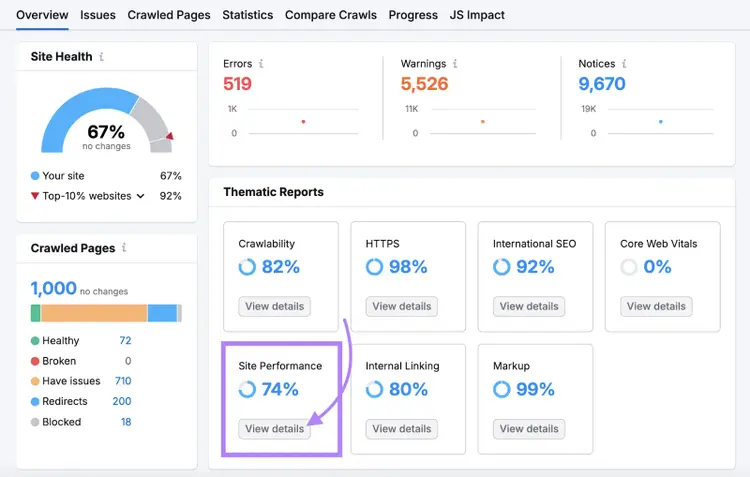
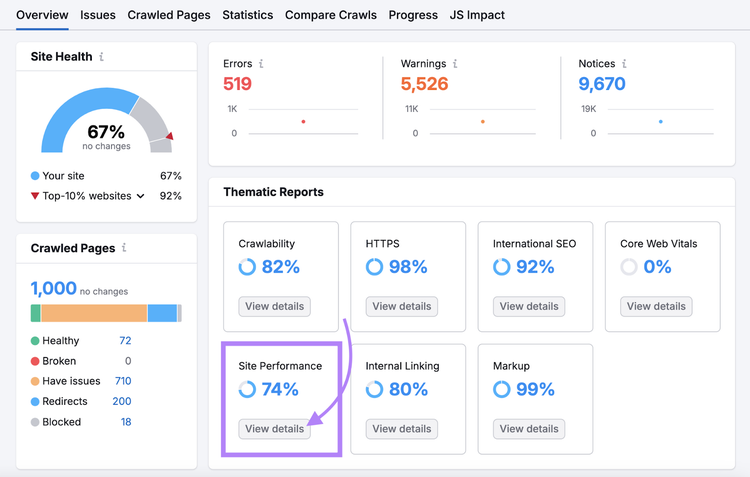
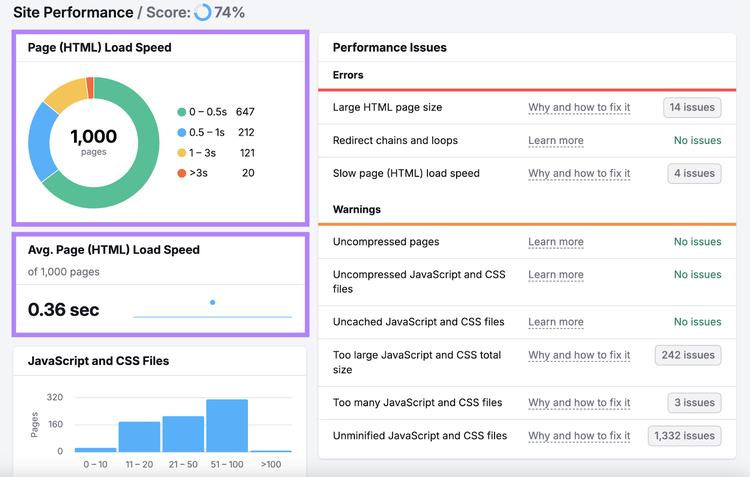
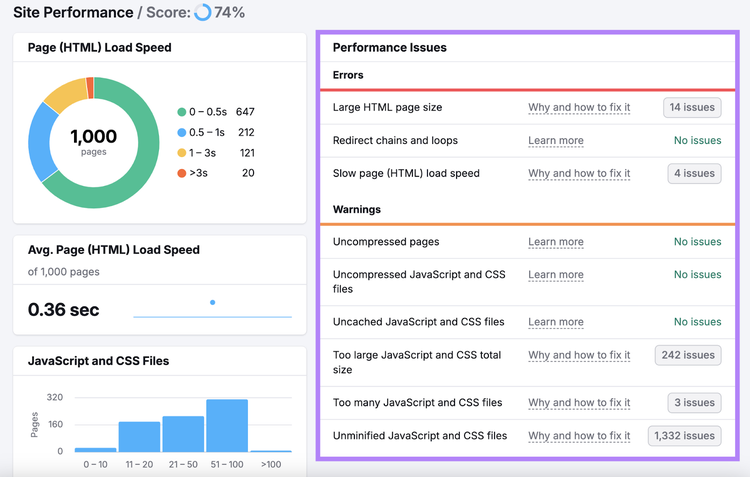
To check your load speed, performance issues, and more, click “View details” under “Site Performance.”
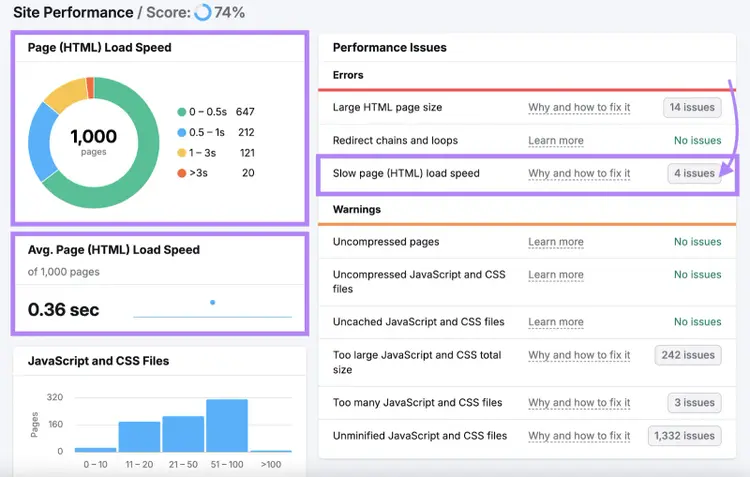
To see how quickly your pages load (in seconds), check “Page (HTML) Load Speed” and “Avg. Page (HTML) Load Speed.”
You’ll also see a list of “Performance Issues.” Fix “Errors” first, then address “Warnings.”
Pro tip
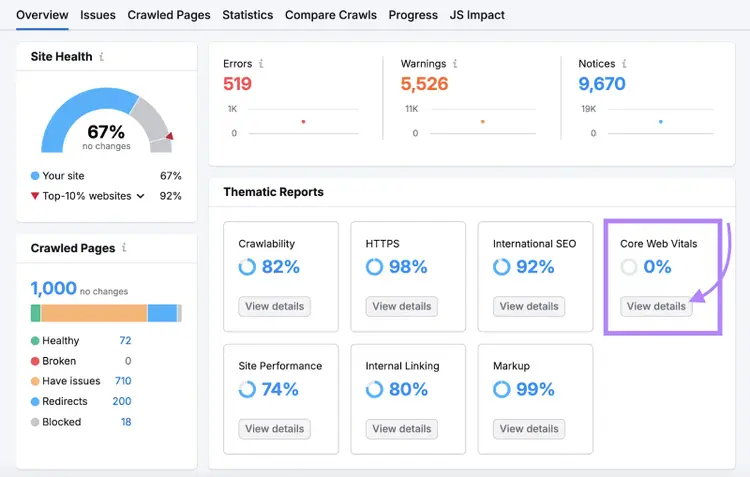
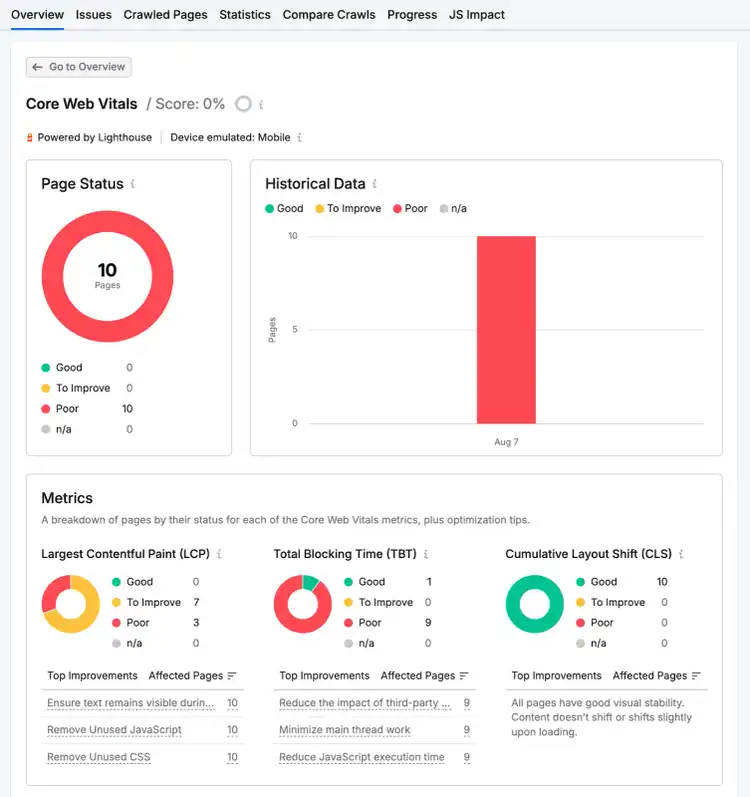
Also explore the “Core Web Vitals” report for additional performance insights. It shows scores per page and suggested improvements. Click “View details” under Core Web Vitals from your main Site Audit dashboard.
It shows your Core Web Vitals score per page (and recommended improvements):
If you don’t use WordPress, you can add caching rules to your .htaccess file. Consult a developer if you are uncertain, as mistakes can cause website issues.
4. Minify JavaScript, CSS, and HTML
Minifying JavaScript, CSS, and HTML reduces file sizes, which can improve your page speed.
Minification removes unnecessary code elements (e.g., line breaks and whitespace), allowing computers to read code faster.
For instance, here’s an example of unminified CSS code:
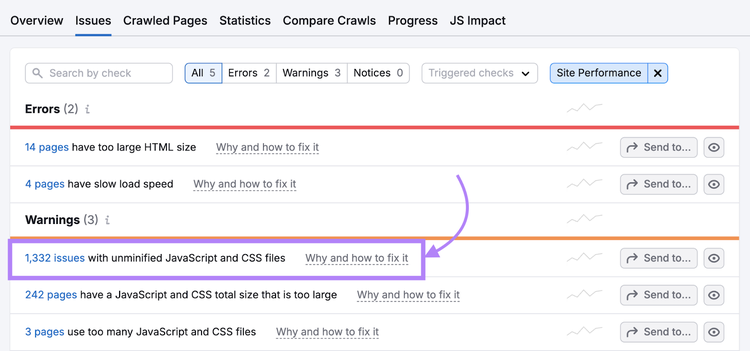
Use Site Audit, which flags pages with unminified JavaScript and CSS.
To find which pages need minification, click “Issues” in your Site Audit report. Then click on the relevant issue to get a full list of affected pages.
A CDN is a system of servers distributed around the world.
CDNs bring your site “closer” to users by loading a cached version of your site from a server closer to the user’s physical location.
For example, if you cache your site on a CDN, a user in Australia will receive your site from a local server, rather than from a server in Los Angeles.
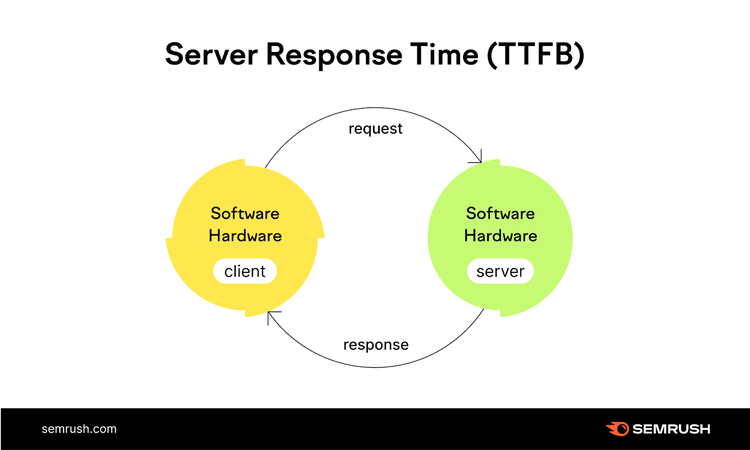
Improve your server response time to reduce load speeds.
When a user requests a page, the browser makes a request. The server receives the request and fetches the requested files. Slow server response times cause slow page load speeds.
How do you improve your site’s server response time?
Consider upgrading your hosting plan to a faster option. For example a virtual private server (VPS) is faster than shared hosting.
Here are some other things you can try:
Optimize your server’s application logic and configuration
Index database tables or upgrade your database system
Add more random-access memory (RAM) and processing power
Consult your hosting provider or a developer for help implementing these steps.
7. Reduce Redirects
Reducing redirects removes extra loading steps, improving page speeds.
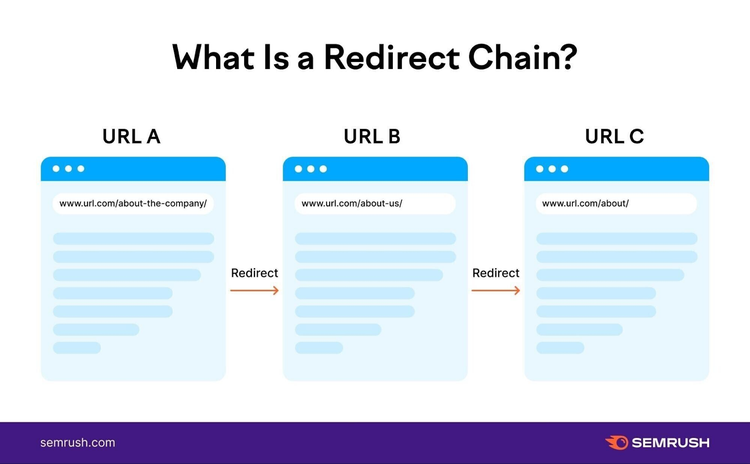
A redirect occurs when a user clicks on one URL but is automatically sent to a different URL. Such as an updated version of a blog post.
Redirects are useful for SEO and user experience.
Redirecting web traffic from an old or outdated page to a relevant new page preserves search performance. And avoids broken pages and 404 error responses.
However, sometimes redirect chains occur (when a page redirects the user several times).
Each redirect adds an extra step to the page loading process, which slows down the page speed. Which means removing unnecessary redirects can boost your page speed.
Use Site Audit tool to find unnecessary redirects.
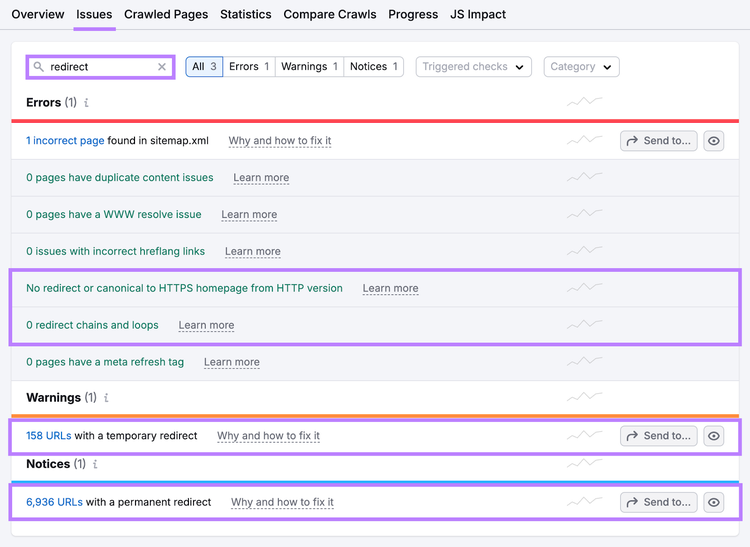
Open the “Issues” tab and type “redirect” in the search bar.
You’ll see a list of “Errors,” “Warnings,” and “Notices” related to redirects. Including:
Redirect chains and loops
Temporary redirects
Permanent redirects
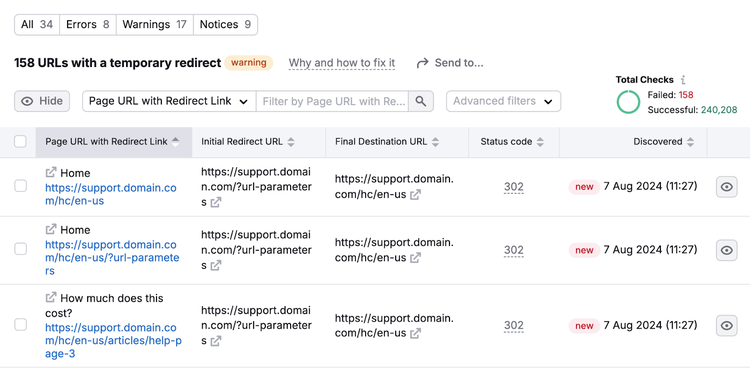
Review all identified redirect chains, loops, and unnecessary redirects. Click on the link within each issue to see a list of affected pages.
The report will show each page’s redirect type and number of redirects:
Remove extra redirects by redirecting the original URL directly to the final URL.
HTTP requests happen when a web browser sends a “request” to a website’s server for more information.
When a user visits a page, the server receives a request from the browser. It responds with a file containing text, images, or multimedia. The user can’t view the file until the request finishes.
If the file doesn’t include all the information needed to view the page, the browser sends another request. Each additional request slows page speed and makes the user wait longer to see the entire page.
Reduce or speed up HTTP requests to improve your page speed.
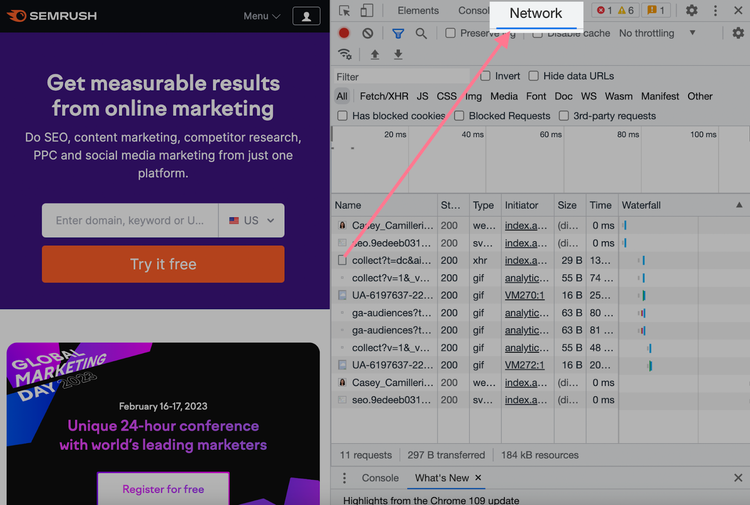
To view a page’s number of HTTP requests, use Google Chrome. Open your page in Chrome, right-click anywhere on the page, and choose “Inspect.”
A Chrome DevTools window will open. Click on the “Network” tab.
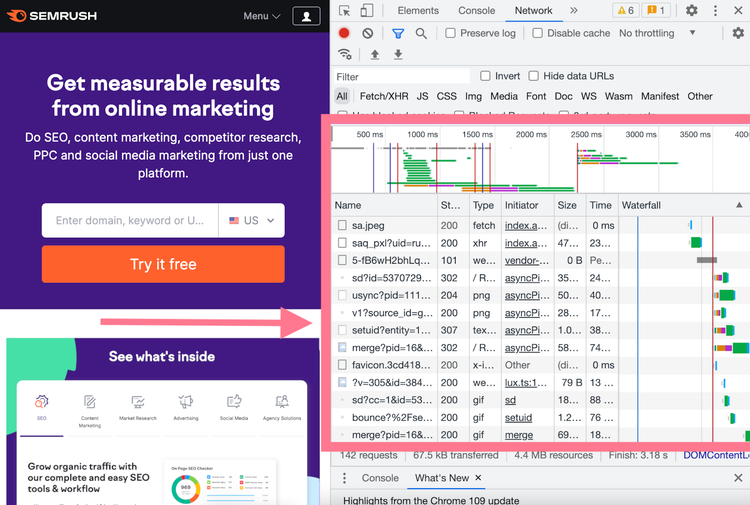
Reload the page to see all the HTTP requests (including requests for images, plugins, JavaScript or CSS files). As well as the file size and the time it takes to load each file.
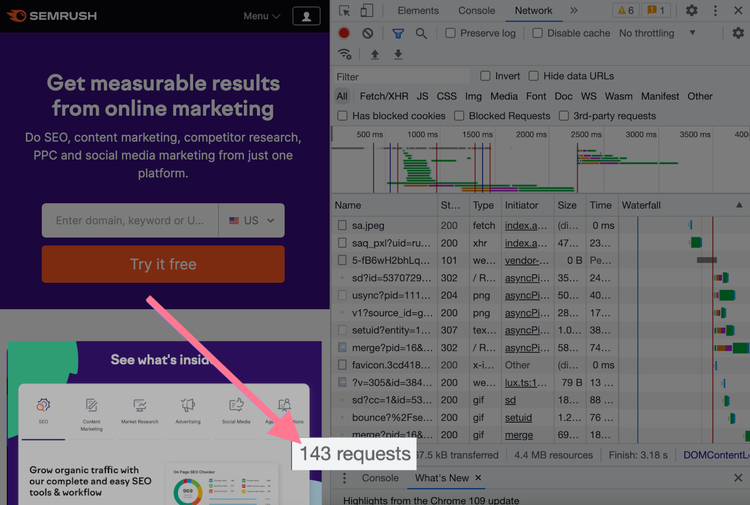
You’ll also see a total request count in the bottom-left corner.
Lowering the number of HTTP requests should improve page speed.
There’s no specific number to aim for, but as a frame of reference, the median number of HTTP requests is 76 for desktop and 70 for mobile.
Optimize Your Technical SEO
Page speed is a key part of technical SEO. It impacts both search rankings and user experience.
To assess your site’s technical health, including page speed, use the SEO Audit tool. It provides a detailed analysis and recommends steps to improve performance.
Start optimizing your site today with a free site audit. And take the first step toward higher rankings and happier users.
Marilyn Wilkinson is an accomplished SEO and digital marketing expert with ten years of experience. She has created content and run campaigns for some of the world’s largest brands and many fast-growing tech startups.
Subscribe to learn more about Technical SEO
Subscribe
By clicking “Subscribe” you agree to Semrush Privacy Policy and consent to Semrush using your contact data for newsletter purposes
Share
Tells Google to show you more from Semrush in AI, Search, and Discover.