
11 Google Ads best practices to maximize return on ad spend
Google Ads puts your business in front of people who are already looking for what you sell — through Search ads, Shopping listings, YouTube videos, display banners, and more.
But there's also a newer reason to consider Google Ads: AI Overviews. Google's AI-generated summaries push organic results even further down the page and often lead to zero clicks for organic results. But paid ads still appear at the top of the search results, and sometimes even before AI Overviews.
This guide covers the Google Ads best practices that help you get the most from every ad format — from account setup and campaign structure to bidding strategy and ad creative.
The Google Ads best practices to maximize return on ad spend are:
- Set clear goals and budget parameters. Define your campaign objectives, target audience, and acceptable cost per acquisition before you spend a dollar. Without these guardrails, you have no baseline to optimize against.
- Install conversion tracking. Set up Google's tracking tag so you can see which ads are driving purchases, form fills, and other valuable actions — and give automated bidding strategies the data they need to work
- Organize your Google Ads account. Structure campaigns by goal or product line, keep ad groups tightly themed, and use consistent naming conventions for easier optimization
- Choose the right campaign type. Search, Display, Shopping, Performance Max, and other campaign types serve different goals. Matching your campaign type to your objective puts your ads in front of the right people.
- Analyze the competition. Review competitors' keywords, ad copy, and landing pages to identify gaps and opportunities in your own strategy
- Improve your ad copy. Write multiple distinct headlines and descriptions so Google can test combinations. Specific, keyword-relevant copy with a clear CTA consistently outperforms generic messaging.
- Optimize your landing pages. Deliver on whatever your ad promises — same offer, same language, single clear CTA. Page speed and mobile responsiveness also directly affect your Quality Score.
- Maintain a negative keyword list. Excluding irrelevant search terms prevents budget from leaking on clicks that will never convert. Review your Search Terms report regularly to catch new ones.
- Use ad assets. Sitelinks, callouts, and seller ratings add extra information to your ads and take up more space in search results, typically increasing click-through rates and lowering cost per click.
- Choose the right bidding strategy. Manual bidding gives you granular control, whereas automated strategies like Target CPA or Target ROAS let Google's machine learning optimize bids in real time.
- Test location targeting and ad scheduling. Limiting ads to specific locations or high-converting time windows focuses your budget where it's most likely to pay off.
1. Set clear goals and budget parameters
Setting clear goals and budget parameters before launch prevents wasted spend and gives you a baseline to measure performance against. Cover these areas:
- Campaign type: Match your goal to the right Google Ads campaign types. For example, search campaigns capture visitors who search specific keywords so you can reach an audience that is likely to buy.
- Budget: During campaign setup, Google Ads provides campaign estimates based on your targeting and budget input. Adjust your budget and watch how the estimates change. Then cross-reference with your acceptable cost per acquisition (the most you can spend to acquire a customer while staying profitable) to land on a budget that gets you the results you're after.
- Audience: Define who you're targeting before you build anything — demographics, location, device, language, and intent stage (researching vs. ready to buy). The tighter your parameters, the more efficient your spend.
- KPIs: Set measurable targets before launch so you know how well your campaign is performing
2. Install conversion tracking
Installing Google Ads conversion tracking helps you get a better understanding of your return on ad spend (ROAS) and lets you further optimize your campaigns.
Note
Many businesses generate conversions both online and offline. We’ll show you how to set up conversion tracking for online conversions, but Google Ads also lets you track offline conversions.
Here’s how to set up online conversion tracking:
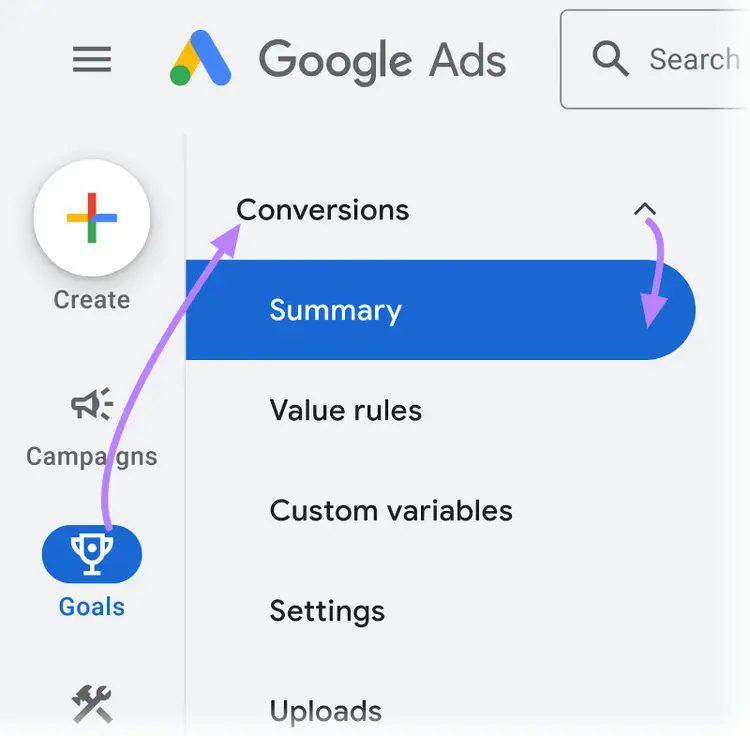
First, you need to create a conversion action (e.g., a purchase, form submission, or phone call). From your Google Ads account, go to “Goals” > “Conversions” > “Summary.”
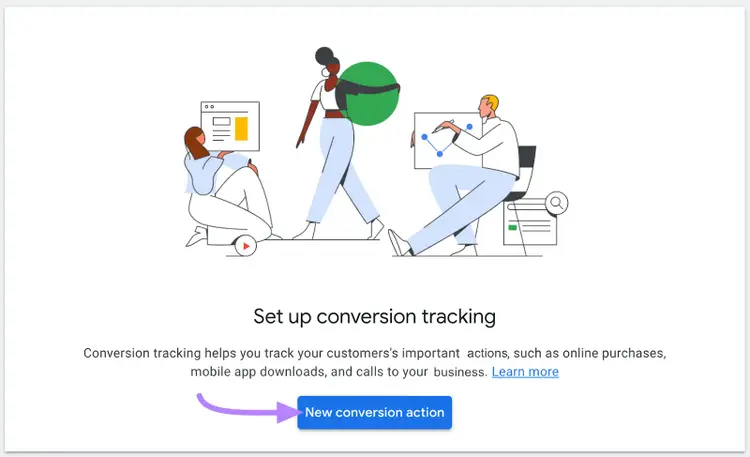
Click the blue “New conversion action” button in the middle of the screen.
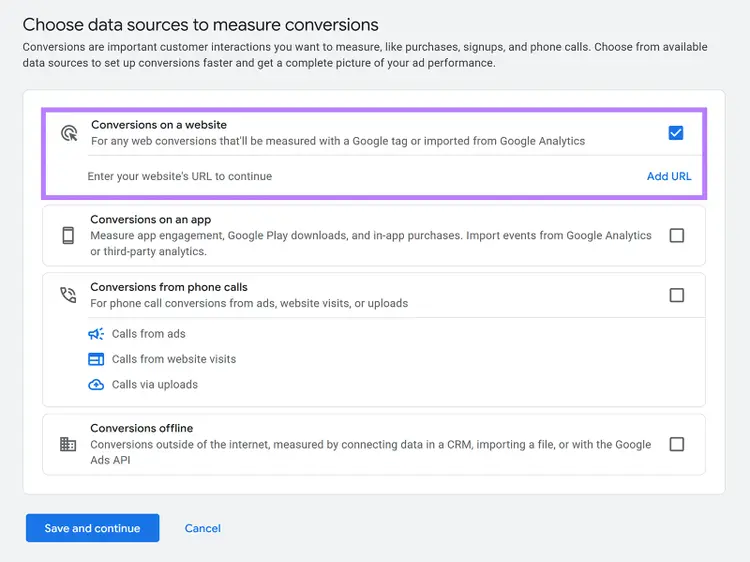
On the next screen, select the “Conversions on a website” option.
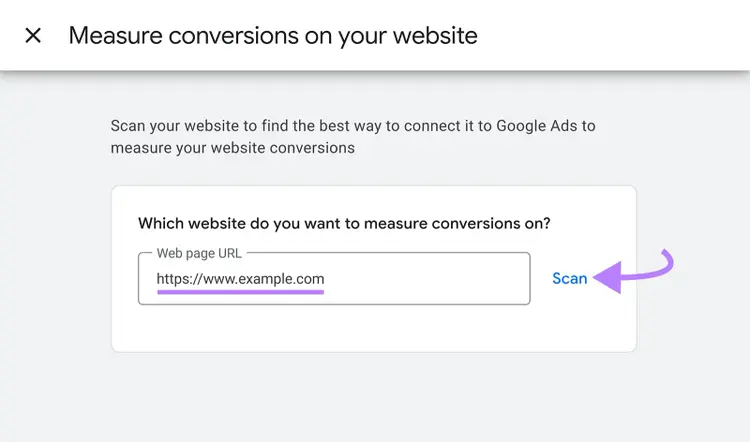
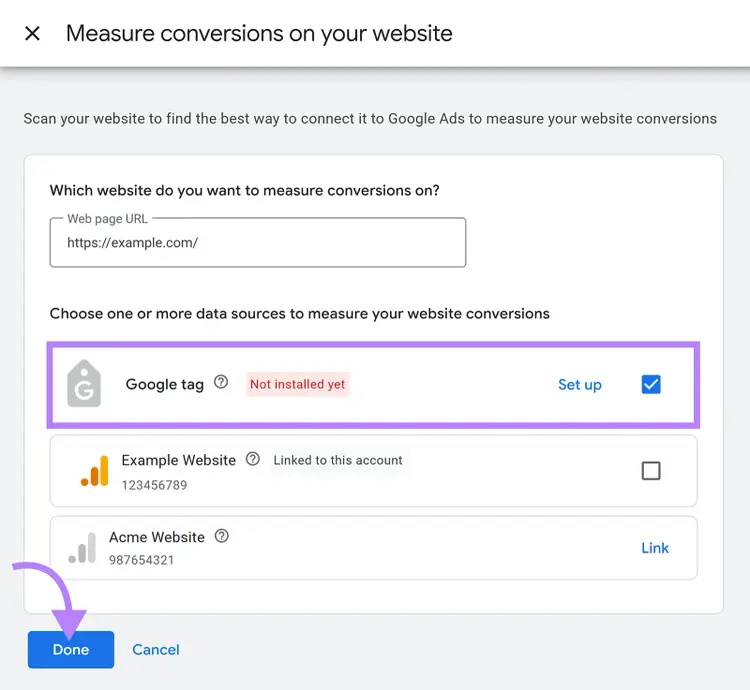
Enter your website’s URL and click “Scan.”
Next, select “Google tag” and click “Done.”
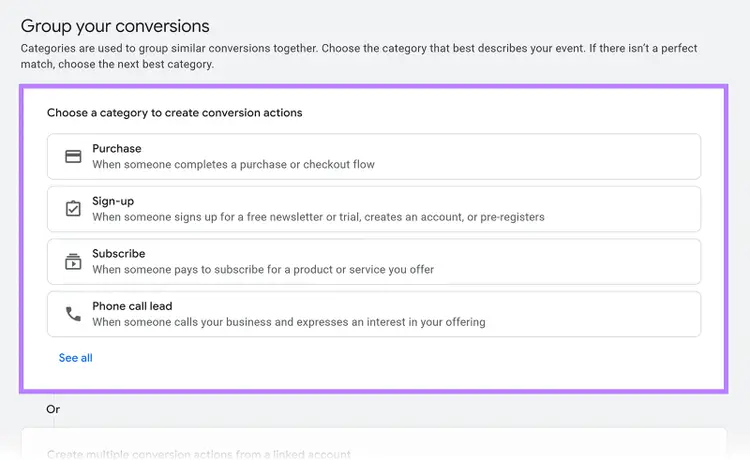
Next, select the categories that best describe your conversion.
Here, you’ll need to enter some additional details and customize a few settings for your chosen category:
- Goal and action optimization: The goal category for your conversion action (e.g., purchase, add to cart, subscribe, submit lead form, etc.)
- Conversion name: A descriptive name for your conversion action
- Value: The value of the conversion action. You can use the same value for each conversion or set up dynamic conversion values.
- Count: How many conversions Google Ads should track per click or interaction
- Click-through conversion window: Visitors will sometimes convert several days after interacting with your ad. Here, you can select the maximum number of days that can pass between an interaction and a conversion for Google Ads to associate the conversion with your ad. Note that the best number to use here will depend on your specific business and industry.
- Engaged-view conversion window: How many days after a user interacts with your video ad should their conversion be attributed to the ad?
- View-through conversion window: Visitors can also see your ad but not interact with it (called an impression), and then convert later. This is known as a view-through conversion. Here, you can set the maximum number of days that can pass between a user viewing your ad and their conversion for it to count as a view-through conversion.
- Attribution: The attribution model you’d like Google Ads to use for conversion tracking. The two available options include data-driven and last-click attribution.
Then, click “Done” at the bottom of this window. Finally, click on “Save and continue” on the next screen.
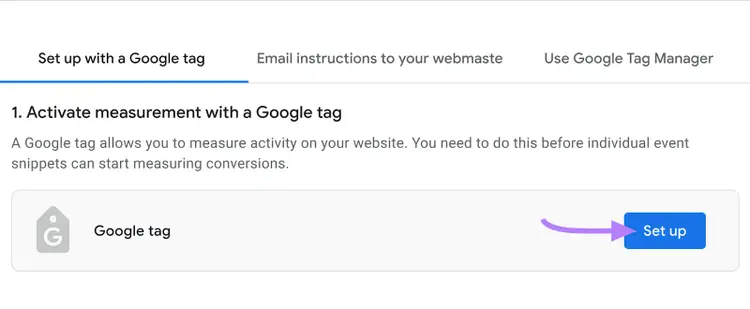
You’ll then need to add a Google tag so you can start measuring conversions.
To do this, click “Set up” on the next screen.
You’ll then get a snippet of code that you’ll need to add to your website. (You may also get an option to use a Google tag detected on your website, meaning you won’t need to make changes to your site’s code.)
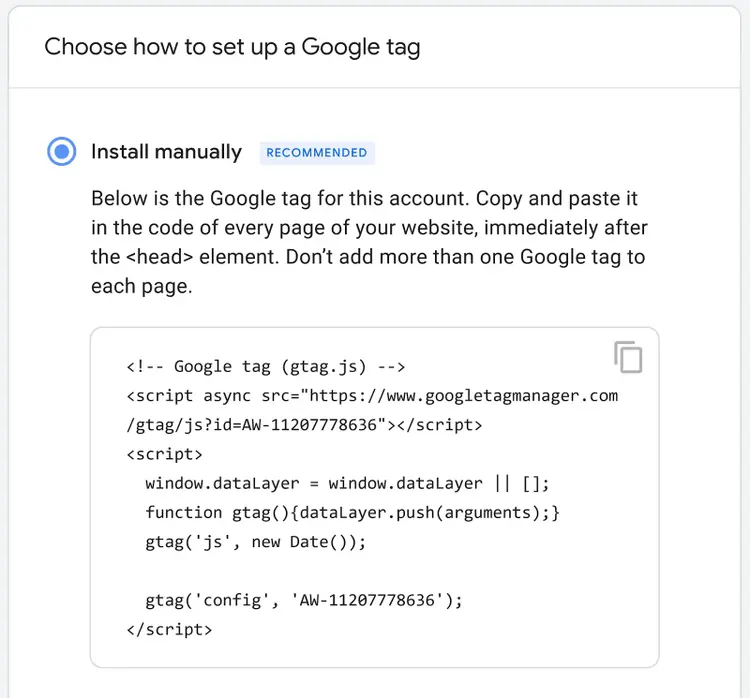
Once you add the code to your website, go back and click the “Test installation” button.
If Google Ads detects the code on your website, you’ve successfully set up conversion tracking.
Troubleshooting common tracking issues
Even with careful setup, conversion tracking problems can occur. Watch for these common issues:
- Tag conflicts: Multiple tracking tags (Google Ads, Google Analytics, Facebook Pixel) can sometimes interfere with each other. Use Google Tag Manager to manage all your tags in one place and prevent conflicts.
- Cross-domain tracking: If your checkout process happens on a different domain (like a third-party payment processor), you need to set up cross-domain tracking. Otherwise, conversions won't be attributed to your ads.
- Conversion delays: Some conversions don't happen immediately. For example, a lead might submit a form but not be marked as "qualified" until a sales rep reviews it days later. Use the Google Ads API to import offline conversions with the original click ID.
- Duplicate conversions: If you have both Google Ads and Google Analytics tracking the same conversion, you might be double-counting. Ensure you're only importing conversions from one source.
- Missing conversions: If the "Test installation" feature shows your tag is working but you're not seeing conversions in your reports, check that your conversion action is set to "Include in 'Conversions'" in the settings.
3. Organize your Google Ads account
Organizing your Google Ads account lets you manage and optimize your ad campaigns efficiently.
Follow these guidelines when structuring your account:
- Campaigns: Organize your campaigns by business goals, product or service lines, or location. Add a descriptive name for all your campaigns and use a consistent naming structure.
- Ad groups: Create ad groups based on themes (e.g., specific keywords, audience segments, intent, or promotions). Try not to go over 10 ad groups per campaign to keep things tidy.
- Ads: Use at least three ads per ad group so you can test out different variations of ad copy
Structuring your account using the tips above will allow you to review your Google Ads performance at a glance. It will also help you find specific ad groups and ads quickly so you can modify them for improved performance.
4. Choose the right campaign type
Choosing the right campaign type determines where your ads appear and who sees them. And selecting an appropriate campaign helps you reach the right audience.
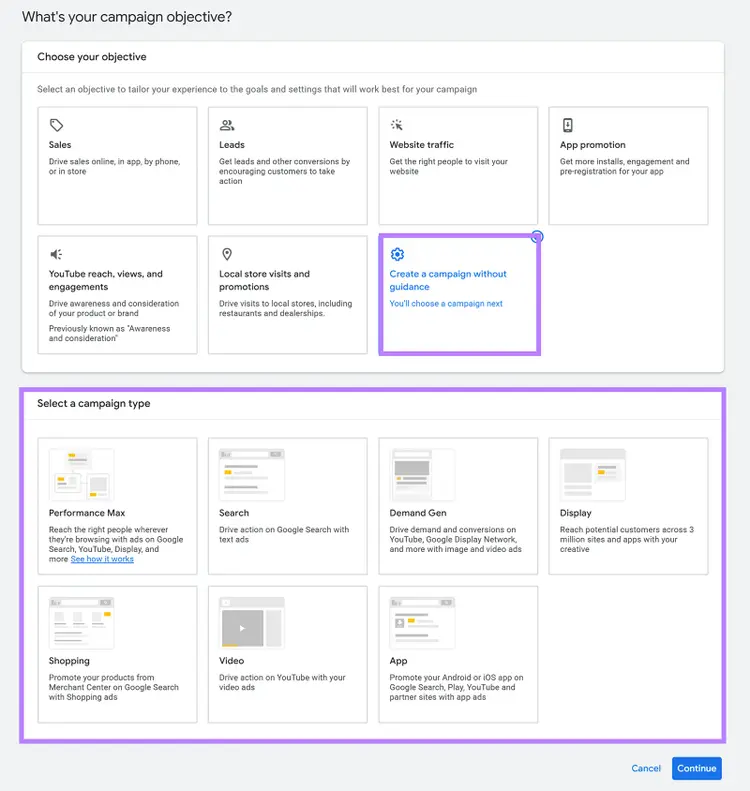
There are seven campaign types:
- Search: Text ads that appear in Google Search results when someone searches a relevant keyword. Best for capturing high-intent buyers who are actively looking for what you sell.
- Display: Image and banner ads that appear across millions of websites and apps on Google's Display Network. Best for retargeting visitors who didn't convert or building awareness with a cold audience.
- Shopping: Product listing ads that pull directly from your product feed and show your image, title, and price in search results. Built for e-commerce.
- Video: Ads that run on YouTube and Google's video partner network. Best when your product or offer benefits from demonstration.
- Performance Max: A single campaign that runs across all Google channels simultaneously (Search, Display, YouTube, Gmail, and Maps), with Google's AI deciding where and when to show your ads to drive conversions. Requires strong creative assets and conversion tracking to work effectively.
- App: Campaigns that promote mobile apps across Search, the Play Store, YouTube, and Display, with Google automating targeting and bidding
- Demand Gen: Campaigns that use image and video ads to drive demand and conversions across YouTube, Google Display Network, and more
Google's preset objectives (sales, leads, website traffic, etc.) are useful guardrails for beginners, but they limit your bidding options and hide certain settings. If you know what you're doing (or want full control from the start), skip the objective and choose your campaign type directly.
5. Analyze the competition
Analyzing your competitors’ ads and landing pages can give you inspiration for your own ad campaigns. It can also help you understand what kind of ads work best for your target audience.
Here’s how to do a quick analysis of your competitors’ Google Ads:
Identify competitors
The first step is to identify your main Google Ads competitors.
Start by listing all your known competitors — you can probably name five to 10 competitors yourself. Then, type in a few of your main keywords into Google and check out the ad sections to see which companies are advertising there.
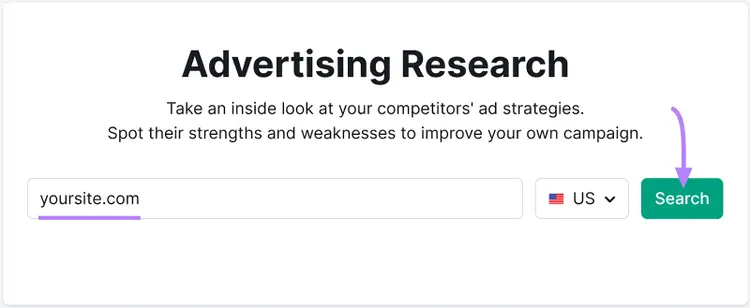
You can use Semrush’s Advertising Research tool to find and learn more about your Google Ads competitors. Simply type in your domain and click “Search.”
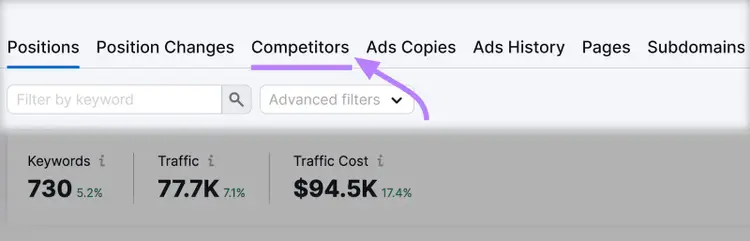
Then, click on the “Competitors” tab on the next screen.
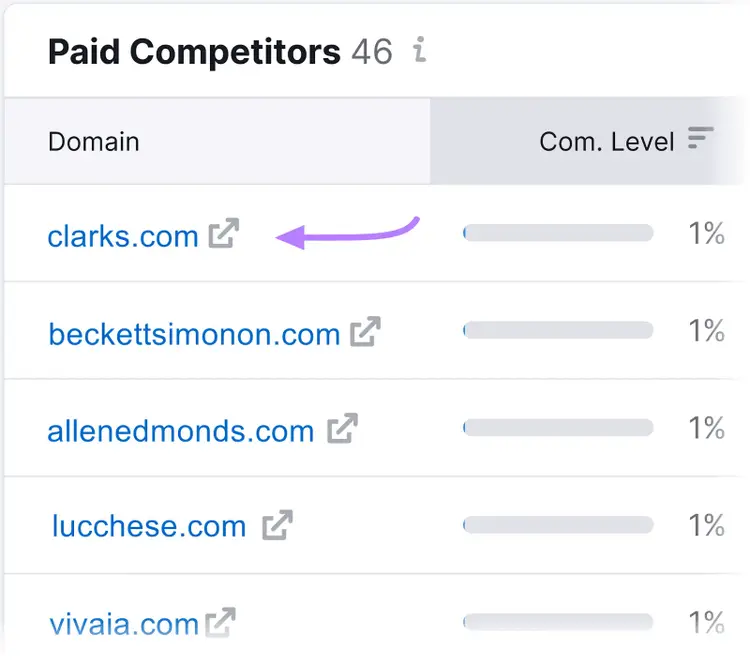
Scroll down to the “Paid Competitors” section. Here, you’ll be able to see:
- The websites you’re competing with for Google Ads placements
- How much they’re spending on paid ads
- What kind of traffic they generate from paid advertising
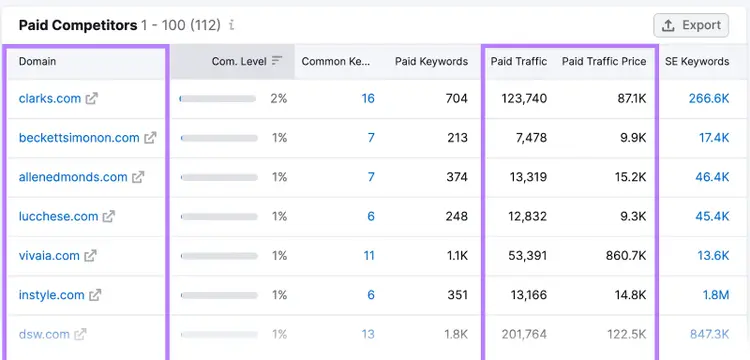
Stay on this page. We’ll use it in the next step.
Find out which keywords your competitors are bidding on
Finding out which keywords your competitors are bidding on helps you identify which keywords are likely resulting in profitable ad campaigns.
The Advertising Research tool can also show you exactly which keywords your competition is bidding on. From the “Paid Competitors” section, click on the domain name of a competitor.
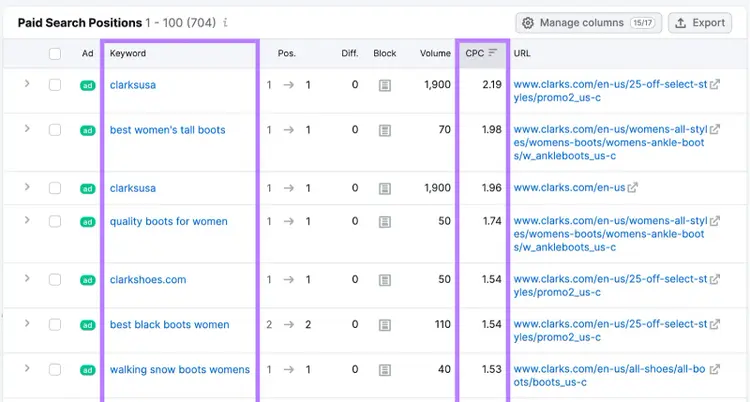
Next, scroll down to the “Paid Search Positions” section (staying on the “Positions” tab).
Here, you’ll be able to see all the keywords they’re bidding on and the average cost per click (CPC) for each keyword.
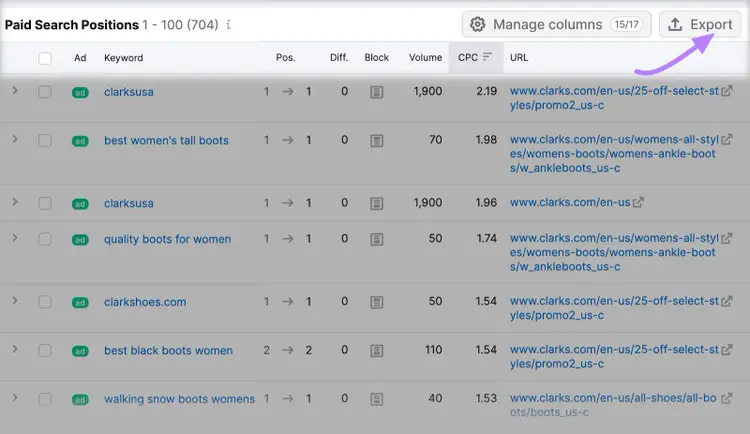
From here, you can export all the keywords by clicking the “Export” button.
Review ad copy and landing pages
Review rival ad copy and landing pages to see how you can improve your own ads and landing pages.
The Advertising Research tool can help here as well. After clicking on a competing domain from the “Paid Competitors section,” go to the “Ads Copies” tab.
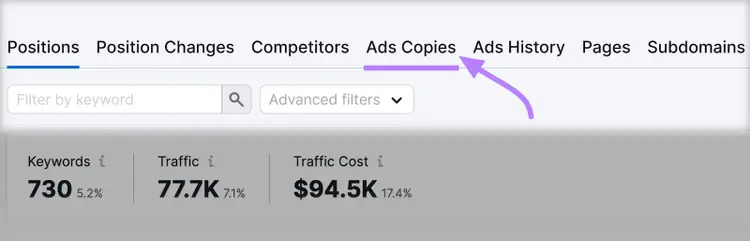
Here, you’ll be able to see the ad copy that a specific competitor uses for their ads. It’ll also show you the number of keywords that trigger those ads in search results.
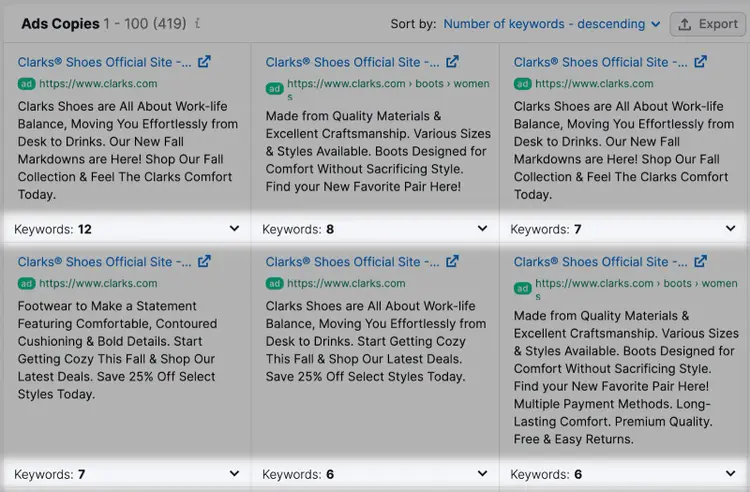
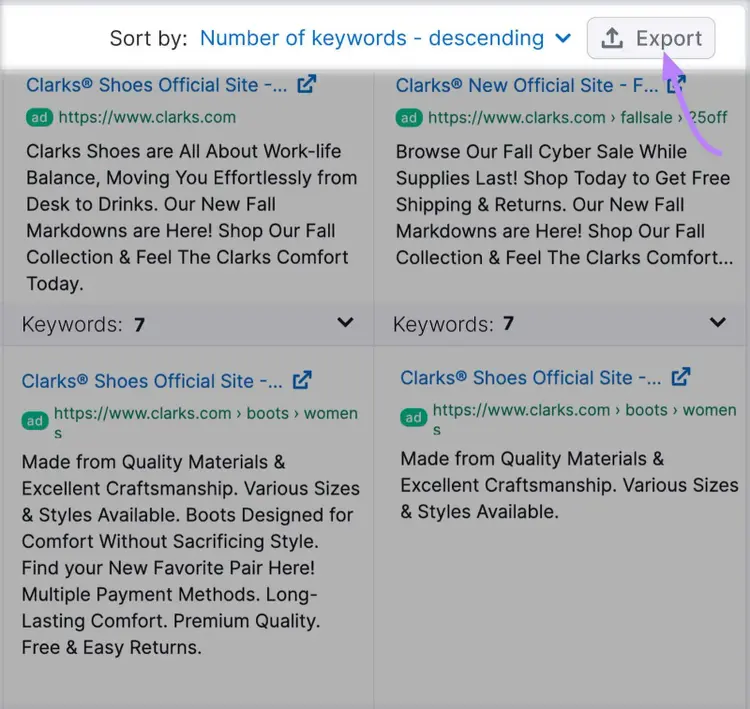
You can also export the copy for all their ads by clicking the “Export” button.
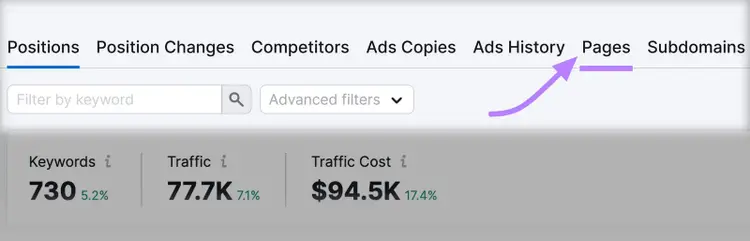
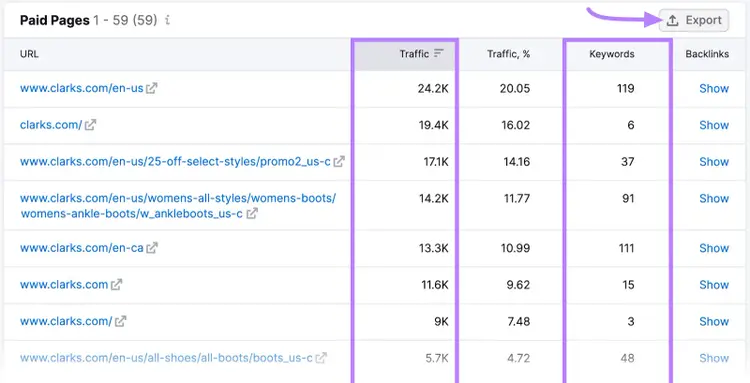
If you’d like to take a look at the landing pages for the ads, simply click on the “Pages” tab.
Here, you’ll see a list of all the landing pages they use for their ads. Along with estimated traffic, the number of keywords each one ranks for in paid search results, and more.
You can then examine these one by one or export them as a list of URLs.
6. Improve your ad copy
Improving your ad copy can have a huge impact on how your ads will perform.
Craft multiple headlines + descriptions
Crafting multiple headlines and descriptions helps you build responsive search ads (RSAs) — ads that use machine learning to test different combinations of your headlines and descriptions, automatically showing the best-performing variations.
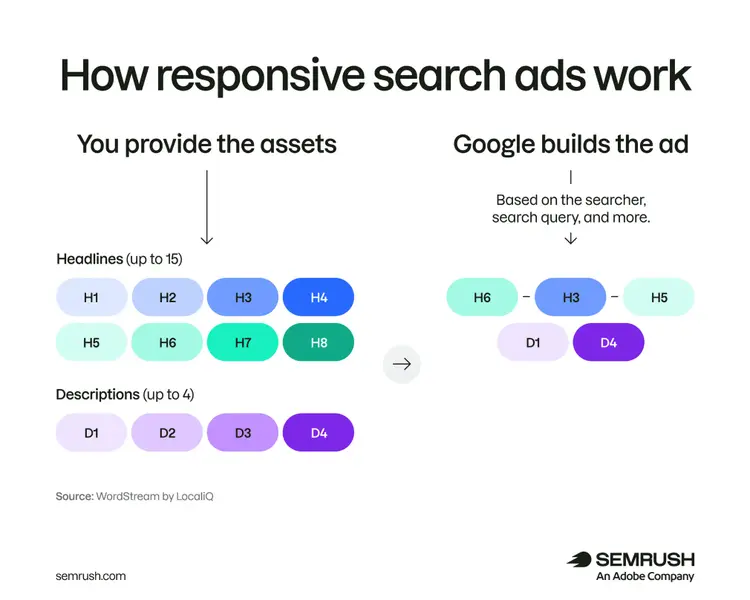
To get the most from RSAs, you need to provide Google with multiple headlines and descriptions:
- Create 10-15 unique headlines. Google allows up to 15 headlines in an RSA. Use all available slots to give the algorithm maximum flexibility. Each headline can be up to 30 characters.
- Write several unique descriptions. Google allows up to four descriptions of 90 characters each. Use all four slots with distinct messaging.
Even though RSAs automatically test combinations, you should still create multiple RSAs per ad group to test different strategic approaches. For example, you might create two RSAs per ad group where one focuses on price and value and the other focuses on quality and features.
This allows you to test which overall messaging strategy resonates best with your audience, while each RSA internally optimizes its own combinations.
Tip
You can pin specific headlines or descriptions to fixed positions in your RSA, which is useful for legal disclaimers, brand names, or time-sensitive offers that must always appear. Use it sparingly, though. The more you pin, the less room the algorithm has to find winning combinations.
Be specific
Match your copy to exactly what your audience is interested in.
For example, let’s say you run an online clothing store. You want to create an ad targeting women looking to buy summer dresses.
In this case, you want your ad copy to focus on summer dresses specifically. Don’t use generic copy that says you sell a variety of women’s clothing or mention other types of products you also sell (e.g., accessories).
Specificity helps show shoppers that you sell exactly what they’re looking for, making it more likely that they will engage with your ad.
Include keywords
Including keywords in your search ad copy makes your ads seem relevant and can increase the chances of getting clicks.
Like the Upwork ad below, which is clearly targeting those looking to hire freelancers:

Make sure not to overdo it, though. Adding one to two keywords to the ad copy should be more than enough.
The goal here is to show prospective customers that your ad is relevant. Don’t stuff keywords into your copy in an unnatural way.
Add a clear call to action
Adding a call to action (CTA) to your ad copy entices users to interact with your ad and perform an action.
Your CTA should tell searchers what you’d like them to do after seeing your ad (like make a purchase, start a free trial, or book a consultation).
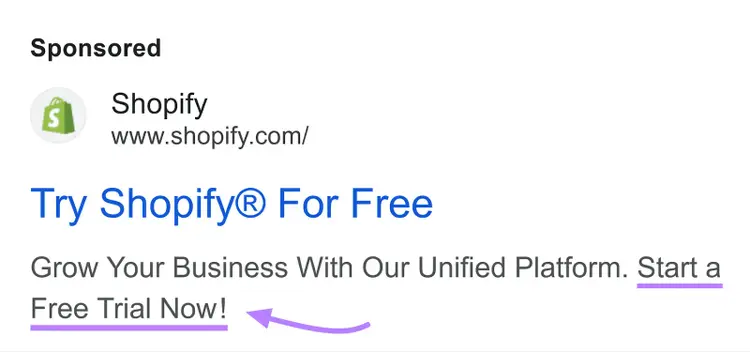
Here are a few examples of CTAs you can use in your ad copy:
- Buy now
- Sign up
- Call now
- Learn more
- Get a quote
Make sure your ad copy is error-free
You need to make sure your ad is error-free. Spelling and grammar errors can seem spammy to searchers and make them feel uneasy about clicking.
7. Optimize your landing pages
Optimizing your landing pages can improve conversions and increase your ad’s Quality Score (a metric that measures the quality and relevance of your Google ads and landing pages). Higher quality scores often lead to better ad placement and lower CPCs.
Here are a few tips you can use to optimize your landing pages for conversions:
Match your landing pages to your ads
Matching your landing pages to your ads helps visitors continue their journey.
If you promise something in your ad (like a discount), deliver on that promise on the landing page.Otherwise, you’ll get people clicking on your ads, but they’ll likely never convert.
Focus your CTAs on a single goal
Focusing your CTAs on a single goal (like buying a product or booking a consultation) makes it easier to convert users.
Imagine seeing multiple CTAs on a page, with one asking you to buy a product, another one asking you to sign up for a newsletter, and a third one requesting that you call to get in touch.
You’d be confused. You wouldn’t know where to focus your attention.
So, first decide on the main thing you’d like visitors to do (e.g., make a purchase or book a call). Then, make sure all your CTAs are focused on pushing visitors toward that goal.
Here’s a good example, showing the consistency of CTAs as you scroll down the landing page:

Use trust signals
Using trust signals (like reviews) makes people feel more comfortable and nudges them to convert.
Here are a few types of trust signals you can consider adding to your landing page:
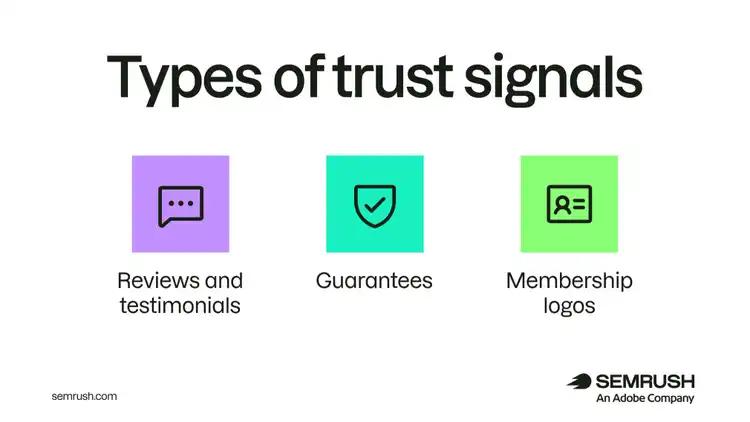
- Reviews and testimonials: Seeing satisfied customers post about how happy they are with your company can make visitors feel much more confident about making a purchase
- Guarantees: Offering a satisfaction or money-back guarantee can also help make visitors feel at ease when entering their personal or payment details on your landing page
- Membership logos: Is your company a member of a reputable organization, such as the Better Business Bureau (BBB)? Try displaying the organization’s logo on your landing page to signal to visitors that your company can be trusted.
Improve page speed
Improving page speed reduces the chance of users leaving without engaging with your content (known as a bounce).
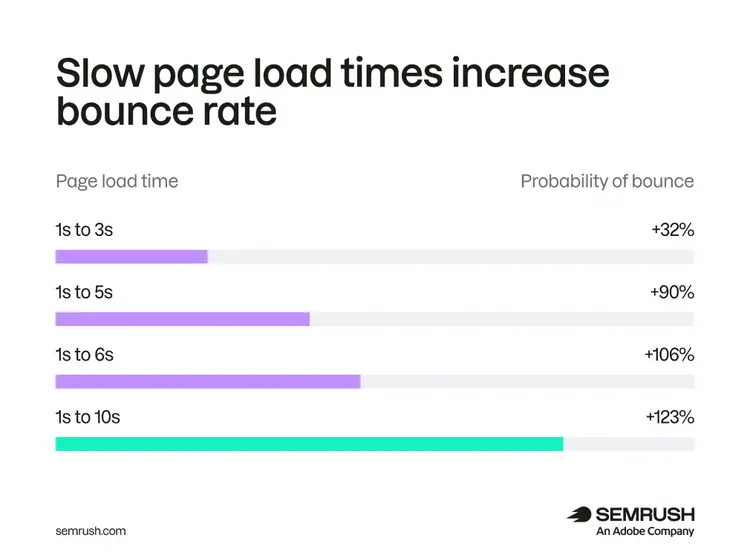
If you want your landing pages to convert, you need to make sure they load fast.
Here are a few things you can do to speed up your landing pages:
- Upgrade your web hosting: Are you still using shared hosting? Upgrade to dedicated server hosting or use a better hosting provider to help speed up your website.
- Use a CDN: With a content delivery network (CDN), your website content is served to visitors from the servers that are physically closest to them. This can result in significant increases in page load speed.
- Compress images: Images can be slow to load, especially if they have a high resolution (and high file size). Use a web-friendly image format like WebP to get images to load faster, and you can compress your JPEG and PNG images with tools like Image Compressor or Kraken.
- Minify JavaScript and CSS files: JavaScript and CSS files can be bloated with comments, line breaks, and unnecessary spaces. Use a tool like Minifier to optimize your JavaScript and CSS files.
- Remove any unnecessary scripts: Check if you have any unnecessary scripts running on your website (e.g., an unused tracking code snippet). Remove any scripts you don’t absolutely need so that they don’t slow down your website.
- Improve your site’s Core Web Vitals: Google uses three speed metrics — Largest Contentful Paint. First Input Delay, and Cumulative Layout Shift — to determine how user friendly your site’s pages are. UseGoogle PageSpeed Insights to see your scores and get specific fixes.
Further reading: What Is Page Speed & How to Improve It
Prioritize responsive design
Prioritizing responsive design means that every user has a great experience on your site whether they use a phone, tablet, or desktop device.
Rather than building separate experiences for each device, a truly responsive page adapts its layout, typography, and interactions to whatever screen it's viewed on:
- Fluid layouts and flexible grids: Build pages that reflow naturally across screen sizes rather than snapping between fixed breakpoints. Elements should scale proportionally so nothing looks crowded on a small screen or stretched on a large one.
- Readable text at every size: Headlines, CTAs, and supporting copy should all remain legible without pinching, zooming, or squinting
- Touch-friendly interactive elements: Place primary CTAs where they're easy to find — center-bottom on mobile, above the fold on desktop. And make sure they’re easy to tap on small screens. Use adequate spacing between clickable elements prevents accidental taps.
- Streamlined forms across devices: Reduce form fields to the minimum necessary regardless of device
- Click-to-call for phone-driven conversions: If your business relies on phone inquiries, make phone numbers tappable on mobile and clearly visible on desktop
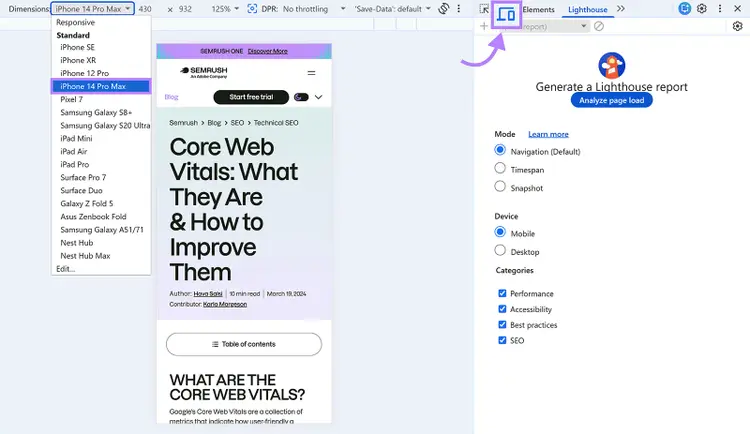
Test your landing pages for responsiveness using Chrome DevTools’ built-in device toolbar.
8. Maintain a negative keyword list
Maintaining a negative keyword list prevents your ads from showing for irrelevant searches, which can improve your ads’ click-through rates and reduce your overall advertising costs.
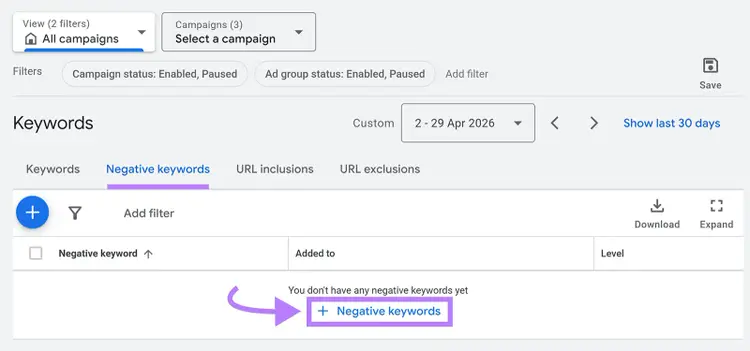
To add negative keywords, go to “Campaigns” > “Audiences, keywords, and content” > “Keywords.” Then click on the “Negative keywords” tab.
From here, click the “+ Negative keywords” button.
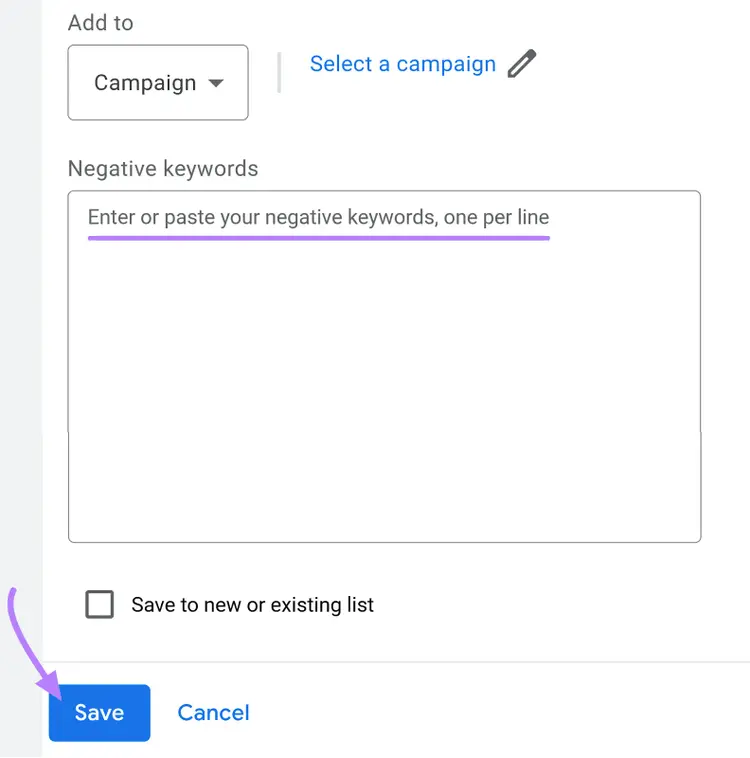
Choose whether you want the negative keywords to apply to an entire campaign or just a single ad group. And then enter or paste your negative keywords.
Click the “Save” button at the bottom once you’ve added all the keywords.
Not sure which keywords to exclude? Check out the “Search terms” report by going to “Campaigns” > “Insights and reports” > “Search terms.”
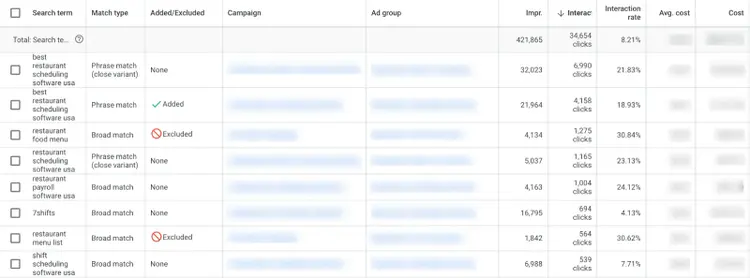
Here, you’ll want to look for two types of keywords:
- Any keywords that aren’t relevant to your business
- Relevant keywords with a lot of clicks but no conversions
Take note of any keywords that fit into the above categories and add them to your negative keyword list to reduce wasted ad spend.
Apart from adding negative keywords to individual campaigns and ad groups, you can also create an account-level negative keyword list that will apply across all your campaigns.
Here’s how:
From your Google Ads dashboard, go to “Admin” > “Account settings” > “Negative keywords.”
Click the “+” button.
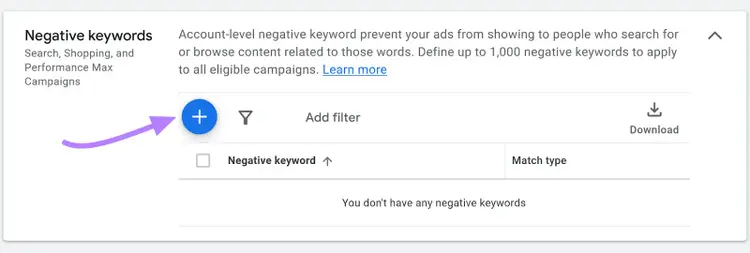
Add your negative keywords and click “Save.”
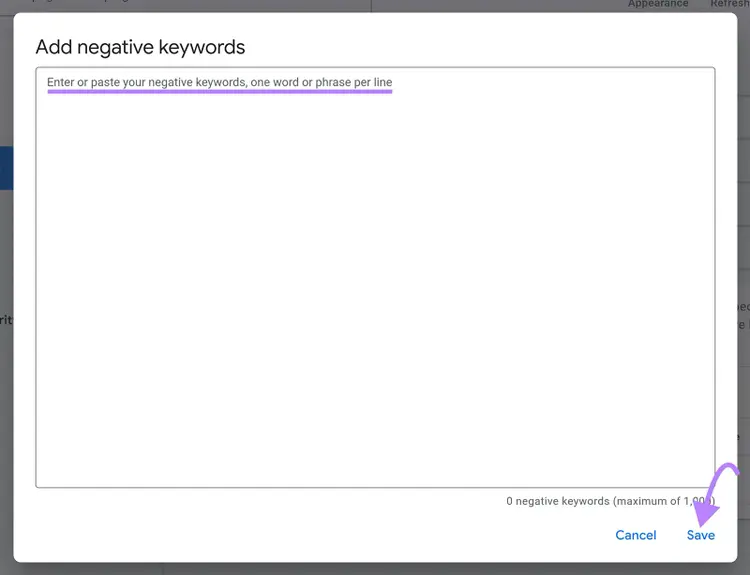
9. Use ad assets
Ad assets (formerly known as ad extensions) add extra information to your ads and take up more visual real estate in search results, increasing click-through rates and lowering cost per click.
Most assets are available for Search campaigns. Some, like location and call assets, also apply to Display and Performance Max campaigns.
Consider taking advantage of these types of Google Ads assets:
Location
The location asset lets you list your business’ address on a separate line in search results. It looks like this:
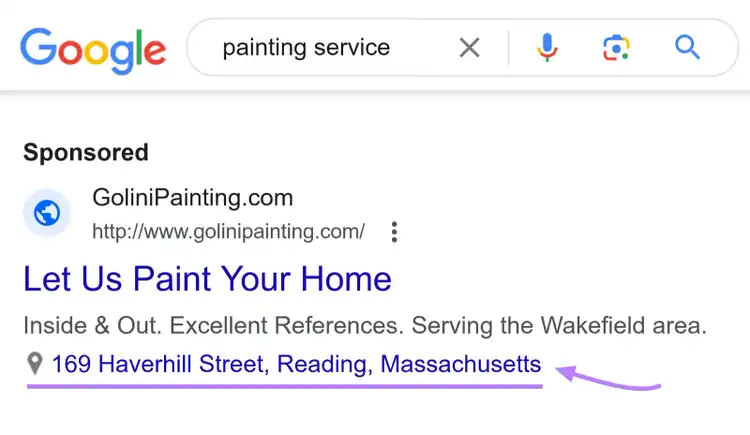
Users can simply click on the address and get directions on how to reach it.
Sitelinks
The sitelink asset lets you specify other pages you’d like to direct users to apart from your main landing page.
They may appear one below another or side by side.
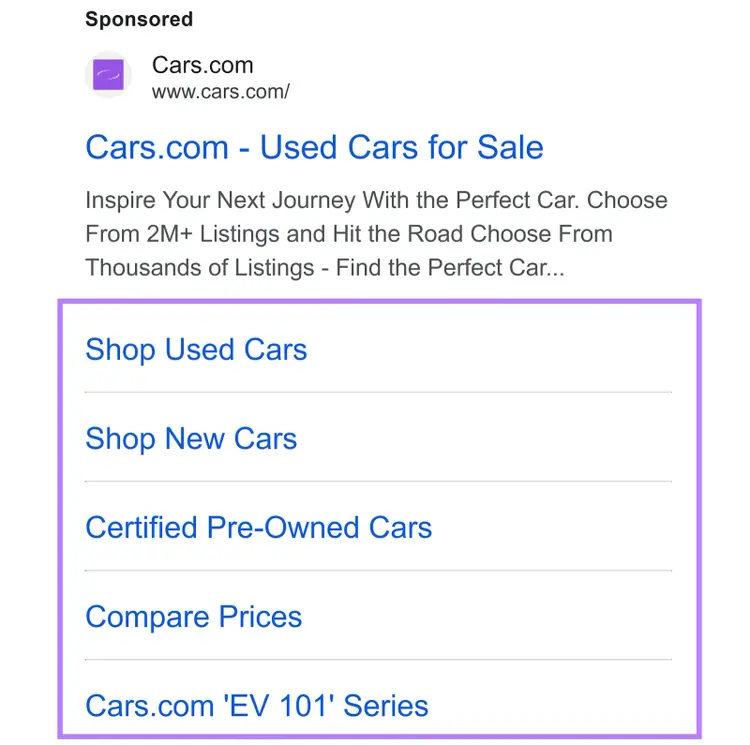
You can use this as an opportunity to link to category pages, an FAQ page, pages with reviews or testimonials, or any other page you’d like potential customers to see.
Seller ratings
With the seller ratings asset, you get the option to display a rating for your business based on reviews Google gathers from various online sources.
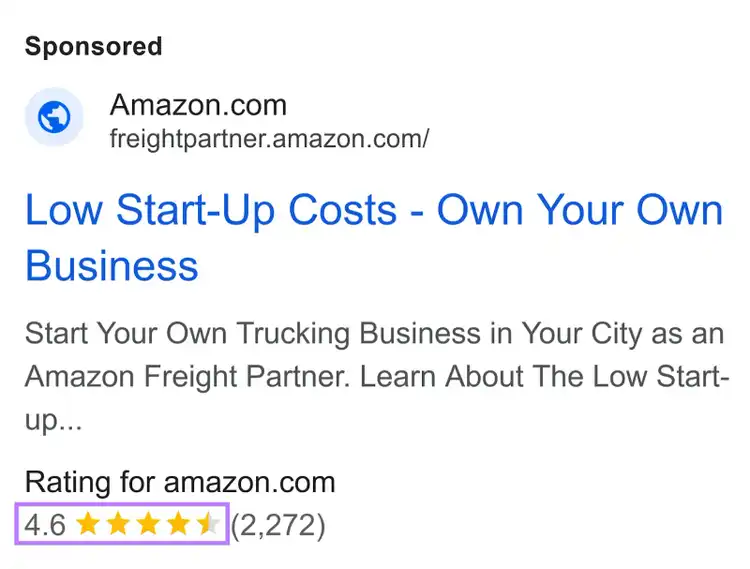
This can be a great way to show visitors that your business is trustworthy.
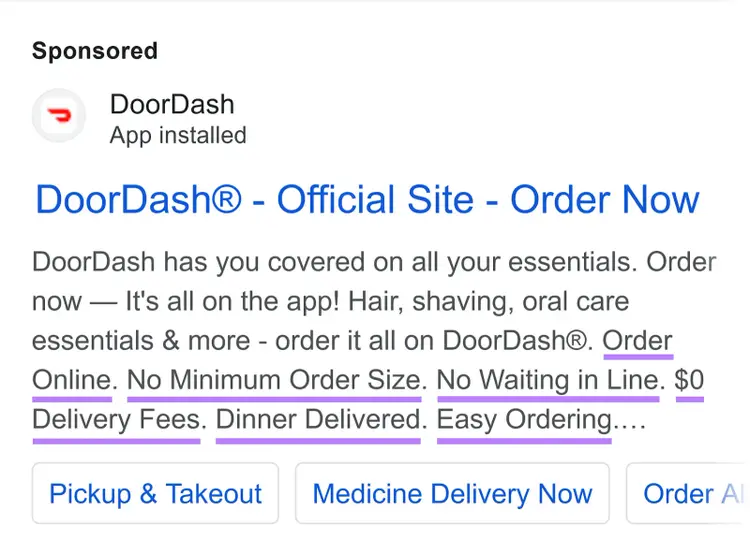
Callouts
You can use the callout asset to highlight important information, such as your best-selling products, a free shipping offer, or your unique selling point (USP).
Added after your description text, these are a useful way to add important information you couldn’t fit within the description character limit.
Here’s what an ad with a callout asset looks like:
Calls
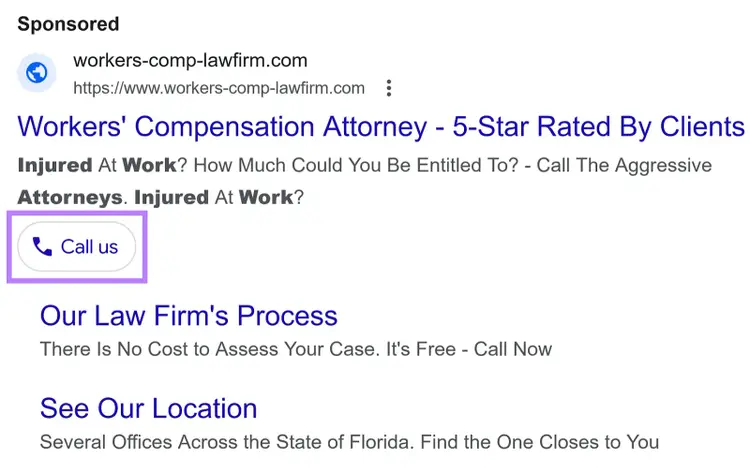
If your business relies on customers making a phone call to book an appointment or ask for a quote, you can use the calls asset to make it easy for them to get in touch with you.
This way, potential customers will be able to call your business directly from the ad:
10. Choose the right bidding strategy
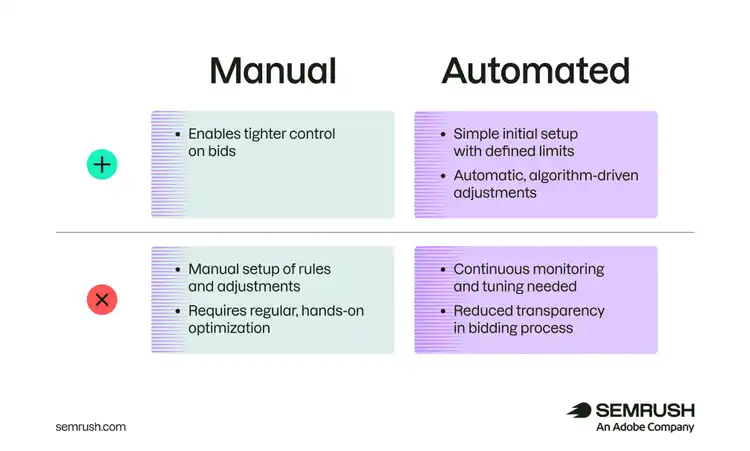
Choosing the right bidding strategy (manual or automated) helps manage ad spend.
Manual bidding gives you direct control over how much you're willing to pay for a click, impression, or view. It's a good fit when you have specific bid targets in mind, want to manage bids at the individual keyword level, or don't yet have enough conversion data for automated strategies.
Automated bidding uses Google's machine learning to adjust bids in real time based on the likelihood of your desired outcome. There are several automated strategies, and the right one depends on your goal:
- Maximize clicks: Drives as much traffic as possible within your budget
- Target impression share: Optimizes for ad visibility and brand awareness
- Maximize conversions/target CPA: Focuses on driving conversions (like purchases or signups) at your target cost per acquisition
- Target ROAS: Optimizes for conversion value relative to ad spend, useful when different conversions have different values
11. Test location targeting and ad scheduling
Location targeting and ad scheduling let you control who sees your ads and when, reducing wasted spend and focusing your budget on the audiences most likely to convert.
Location targeting
Google gives you the option to target specific locations with your ads. If you use location targeting, your ads will only be shown to people in locations you specify.
This can be useful for a number of situations:
- If you own a physical business, such as a hardware store, you may want to only advertise to people in your area
- Ecommerce businesses that only ship to specific locations might want to avoid advertising to users in other locations to reduce ad spend
- If you sell any type of high-end or luxury products or services, you might want to focus on advertising to people in more affluent areas
To set up location targeting for a campaign, go to “Campaigns” > “Audiences, keywords, and content.” Click “Locations.”
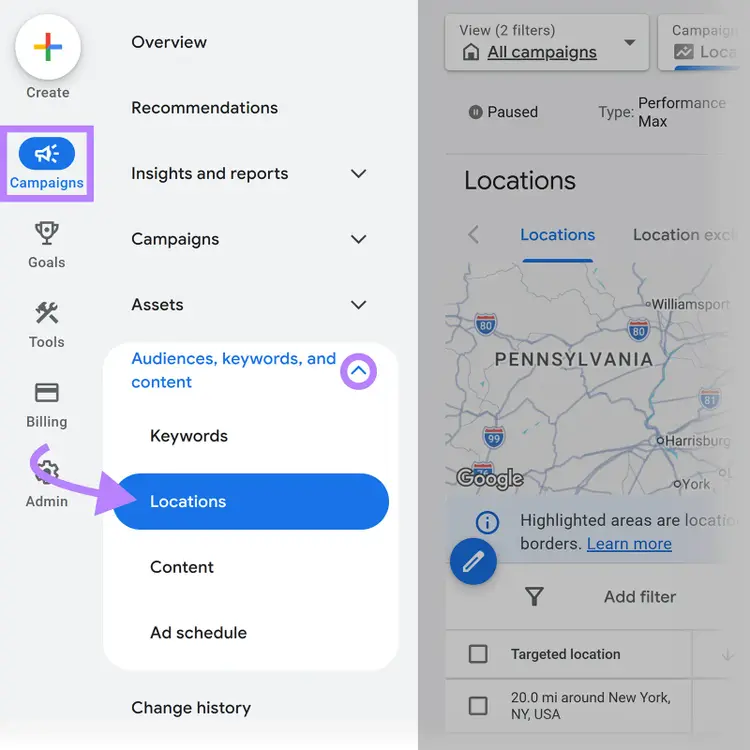
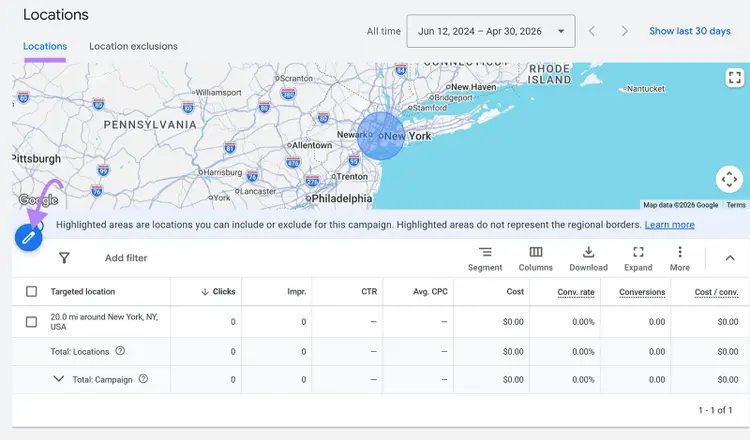
Click the pencil icon in the “Locations” tab.
Then edit or set a location on the next page.
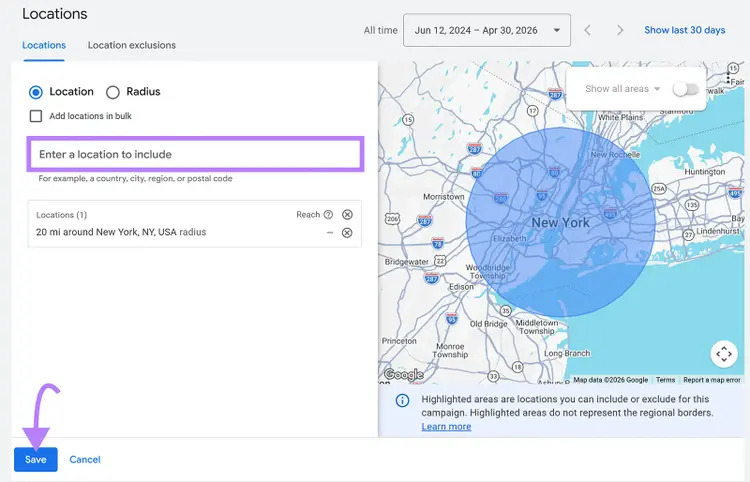
That’s it. Your ads will now be shown only to people in the locations you specified.
Ad scheduling
With Google Ads, you have the option to schedule ads to only run on specific days or during certain times of the day or set bid adjustments to increase or decrease for specific days and times.
Ad scheduling isn’t necessarily useful for every type of business. As a rule of thumb, if you see that your cost per conversion is relatively even across different days of the week or times of the day, there may be no need for you to use ad scheduling.
But if your business experiences peak times or days where you usually experience spikes in clicks or conversions, you should consider ad scheduling.
For example, imagine you operate a kayak rental business. You notice that the number of ad clicks and bookings usually increases on Thursdays and Fridays (perhaps because people are looking to rent a kayak for the weekend).
In this case, it would be wise to set up an ad schedule to have your ads run on Thursdays and Fridays only, since these days are when your click-through rate and conversion rate are the highest.
Or you could set up bid adjustments to increase your bids during those two days of the week.
Here’s how to set up ad scheduling in Google Ads:
Head to “Campaigns” > “Audiences, keywords, and content.” Click “Ad schedule.”
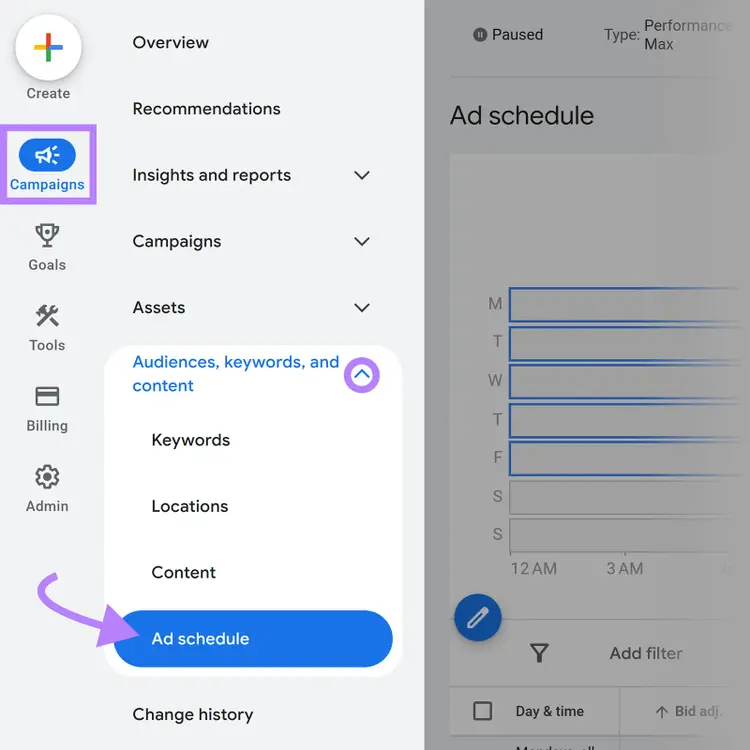
Click the pencil icon or “+ Edit ad schedule.”
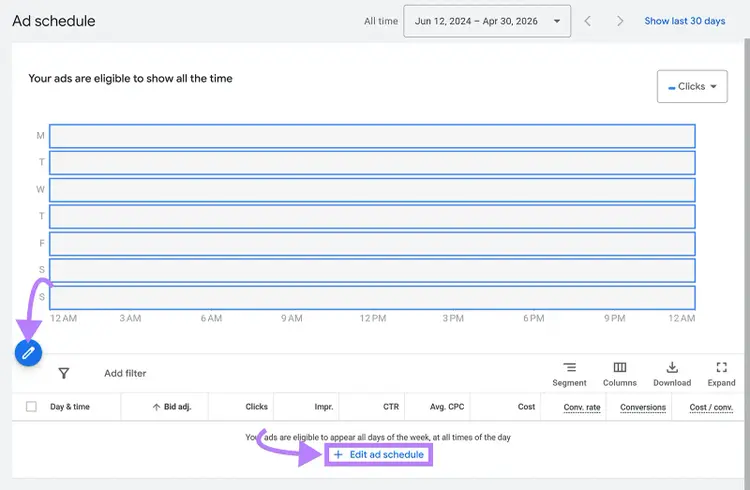
You’ll then be able to customize your ad schedule.
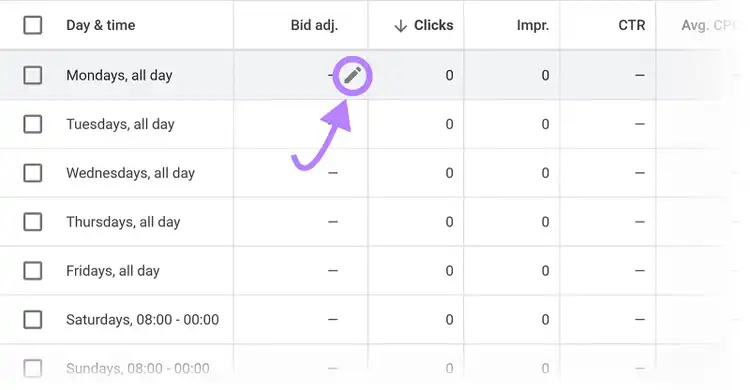
And you can edit your bid adjustment by scrolling down to the ad schedule table.
Click the bid adjustment value in the “Bid adj.” column and click the pencil icon.
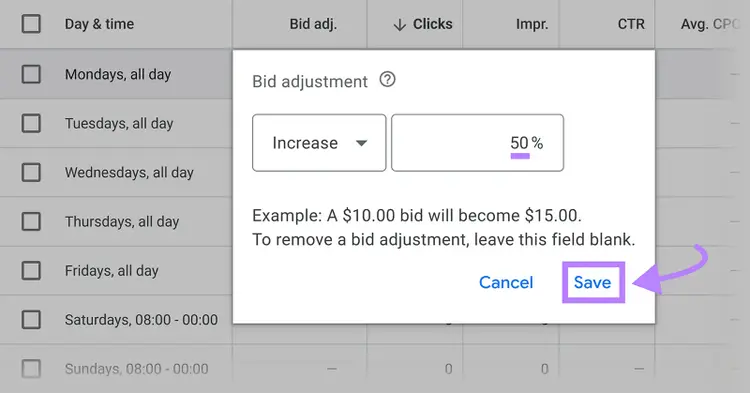
Enter a value for the percentage of your bid adjustment and click “Save.”
Maximize your return on ad spend with these Google Ads best practices
Whichever Google Ad formats you run, the best practices in this guide apply: Know your goal before you spend, give the algorithm clean data to work with, and test continuously.
You can also use Semrush’s tools to make things easier:
- Advertising Research can help you find out which keywords your competitors are bidding on and show you the ad copy and landing pages they’re using for their campaigns
- Keyword Tool shows you keyword metrics like CPC and level of competition
- PPC Keyword Tool makes it easy to plan and organize your Google Ads campaigns
You can access each of these tools and more with a free trial.
Claim Your Free 7-Day Trial
and Explore Our Digital Marketing Tools

Alex is a managing editor with 10+ years of experience leading content and SEO teams across SaaS, tech, ecommerce, and digital publishing. He specializes in building editorial systems that balance human judgment with AI-assisted workflows, helping teams produce original, high-impact content as search and discovery evolve. His work spans SEO strategy, content quality frameworks, and adapting content operations for AI-driven search.
Alex Lindley
Alex is a managing editor with 10+ years of experience leading content and SEO teams. He focuses on building AI-aware editorial systems that help teams produce original, high-impact content as search evolves.

Tells Google to show you more from Semrush in AI, Search, and Discover.