
If you've ever Googled a brand or public figure and seen a box of facts pop up in the search results—that's a knowledge panel.
In this guide, we’ll take a closer look at knowledge panels, why they matter for your brand, and how to improve your chances of getting one.
What Is a Google Knowledge Panel?
A Google knowledge panel is an information box that appears in the search results when someone searches for an entity—like a person, organization, place, or thing—that Google has information about in its informational database.
A knowledge panel typically includes:
- The entity's name
- A brief description
- Images
- Key facts (e.g., founding date of a business, location, domain name, etc.)
- Social media profiles
- Other related entities
You may have already seen Google knowledge panels before in search engine results pages (SERPs). They look like this:
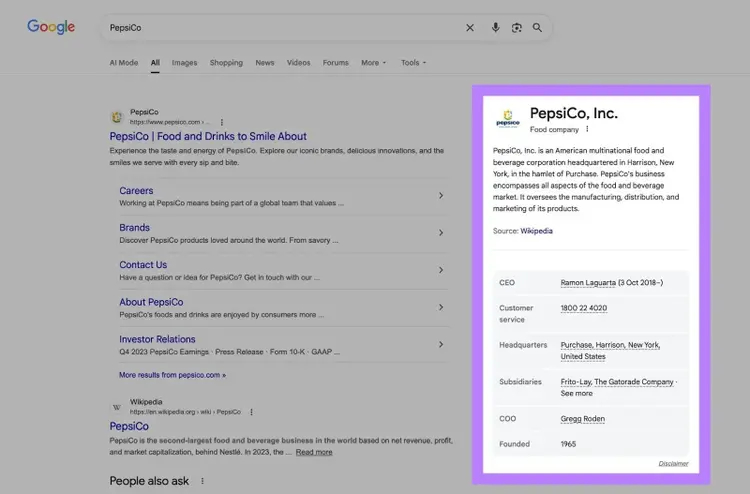
We’ll do a deep dive into how Google generates knowledge panels shortly, but know that you can’t directly force them into existence or fully control what they show.
Knowledge Panels vs. Local Packs vs. Google Business Profiles
Let's clear up some confusion people have about the differences between knowledge panels, local packs, and Google Business Profiles, which are all SERP features (special search results):
- Knowledge panels appear for entities like public figures, organizations, and places
- Local packs show up for location-based searches like "coffee shop near me" and display multiple nearby businesses
- Google Business Profiles (GBP) are the individual business listings that appear in local packs, on the right side of the search results, and on Google Maps. These are specifically for local businesses.
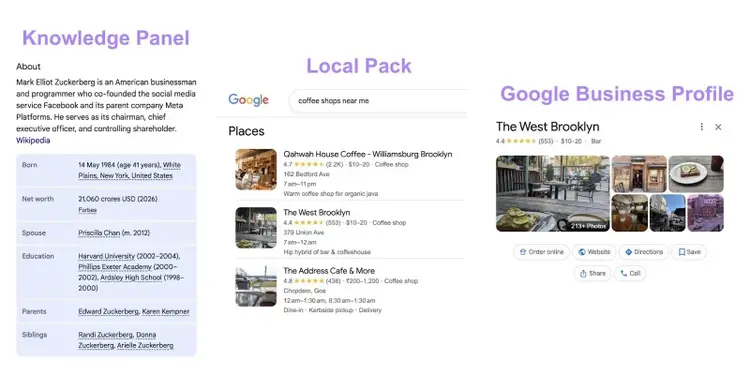
Don’t confuse knowledge panels with local packs and Google Business Profiles. While they can sometimes appear for the same brand, they’re powered by different systems and require very different optimization strategies.
Why Are Knowledge Panels Important?
Knowledge panels help businesses take up more real estate on Google's search results page and boost credibility in the eyes of users.
To see just how much space they take up, I ran a quick experiment: I searched for 10 well-known brands and recorded where their knowledge panels appeared and how much of the visible SERP they took up.
Here are the results, as recorded on the desktop search results:
In most cases, knowledge panels took up a significant portion of the right side of the results page. That's prime SERP real estate you're not paying any money for.
But visibility isn't the only benefit. Having a knowledge panel for your business signals to searchers that you're established, legitimate, and trustworthy.
There's also a user experience benefit. Knowledge panels remove friction for users. Instead of clicking through multiple results, users can quickly find concrete information about your brand without having to verify the facts or find additional context.
This is especially helpful on mobile, where screen space is limited and users want answers quickly. So in many cases, the knowledge panel satisfies the search intent better than a traditional blue-link result would.
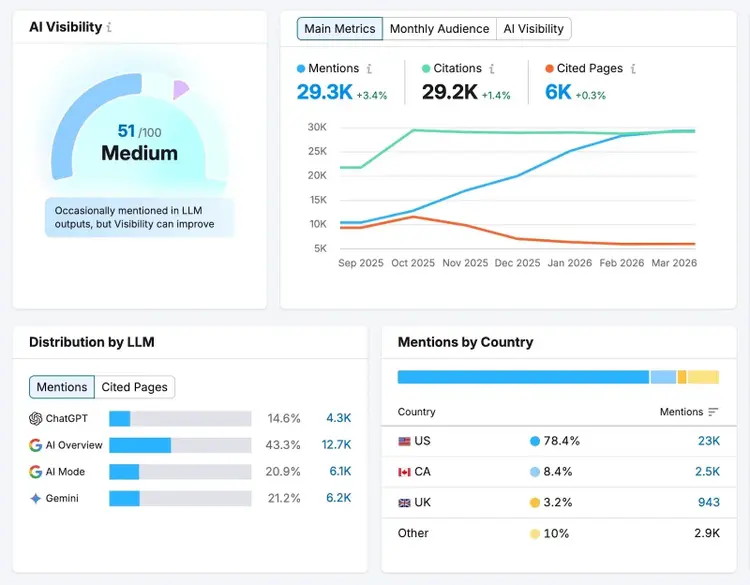
Plus, it’s also likely that having a knowledge panel could lead to increased brand mentions in AI Overviews and AI Mode—search experiences that use generative AI to answer users’ questions.
It’s reasonable to assume this because Gemini (Google’s AI Model), which powers both AI Overviews and AI Mode, is trained on a Google database that’s also used to generate knowledge panels. If your business is a recognized entity in that database, it may get prioritized in AI answers.
Curious to see how your brand is performing in AI Overviews and AI Mode? Use Semrush’s AI Visibility Toolkit to track your visibility and brand mentions in these new AI search results.
How Does Google Generate Knowledge Panels?
Knowledge panels are automatically generated and powered by information from Google’s Knowledge Graph (a massive database of entities with verified facts, attributes, and relationships).
Google has built its Knowledge Graph database by pulling information from across the web. The primary sources include:
- Wikipedia and Wikidata (core sources for entity definitions and structured facts)
- Official websites (first-party information about the entity)
- Social media profiles (identity confirmation and connecting an entity to its official online presence)
- Other authoritative sources, such as news articles, industry directories, databases, and other trusted sites (fact verification and corroboration)
When someone searches for an entity in Google, it decides whether to show a knowledge panel. And there’s a systematic process that Google follows:
- Identify the entity in the search query: Google identifies whether the search query references a specific entity in its Knowledge Graph
- Decide whether a knowledge panel is appropriate: Google evaluates its confidence in the entity and whether showing a panel would be useful for the searcher
- Select a knowledge panel template that matches the entity type: Once Google determines the entity warrants a knowledge panel, it selects the appropriate template based on the entity type (for example, a person, business, or place)
- Fill in placeholders in the knowledge panel template: Google populates the template with relevant facts, images, and attributes
- Deliver search results and the knowledge panel in SERPs: Finally, Google displays the knowledge panel alongside the search results
Note that as Google’s understanding of an entity evolves, the knowledge panel may change, update, or disappear entirely.
How to Get a Knowledge Panel for Your Brand
There’s no guarantee that optimizing for a knowledge panel will get you one, but you can significantly improve your chances by helping Google clearly understand, verify, and trust your entity.
Polish the About Page On Your Website
Use your website's about page to introduce your entity and establish foundational facts since this page is often the place Google looks to understand who you are and what you do.
Review your about page to make sure it:
- Clearly states who you are and what your entity represents. For example, “Acme Corp is a B2B SaaS company that provides project management software to small- and medium-sized businesses.”
- Mentions key factual information like founding date, location, company size, and primary products or services
- Links to your official social media profiles to help Google connect your entity to your broader online presence
- Mention notable achievements, awards, or milestones that demonstrate your entity's credibility and notability in your field
Use Organization Schema Markup on Your Site
Organization schema markup can help Google accurately identify and understand your entity by providing structured, machine-readable data about your business.
Here's an example of Organization schema markup that you can adapt for your website:
<script type="application/ld+json">{"@context": "https://schema.org","@type": "Organization","name": "Acme Corp","url": "https://www.acmecorp.com","logo": "https://www.acmecorp.com/logo.png","description": "Acme Corp is a B2B SaaS company that provides project management software to small and medium-sized businesses.","foundingDate": "2015-03-15","address": {"@type": "PostalAddress","streetAddress": "123 Main Street","addressLocality": "Austin","addressRegion": "TX","postalCode": "78701","addressCountry": "US"},"contactPoint": {"@type": "ContactPoint","telephone": "+1-512-555-0100","contactType": "customer service","email": "contact@acmecorp.com"},"sameAs": ["https://www.linkedin.com/company/acmecorp","https://twitter.com/acmecorp","https://www.facebook.com/acmecorp","https://en.wikipedia.org/wiki/Acme_Corp","https://www.wikidata.org/wiki/Q12345678"]}</script>
Replace the example information with your actual entity details in the fields for the following properties:
- name: Your official entity name
- url: Your website's homepage
- logo: A link to your official logo image
- description: A brief summary of what your entity does
- foundingDate: When your organization was established (in YYYY-MM-DD format)
- address: Your physical location (if applicable)
- contactPoint: Phone number and email
- sameAs: URLs that represent the same entity across the web (social profiles, Wikipedia, Wikidata, etc.)
Add Organization schema to your website's homepage in the <head> section or just before the closing </body> tag. After implementing it, validate your markup using Google's Rich Results Test to make sure there are no errors.
Get a Wikipedia Page (If Possible)
Google heavily relies on Wikipedia to build its Knowledge Graph, so you're significantly increasing your chances of getting a knowledge panel if you’re able to get a Wikipedia page about your brand.
However, Wikipedia has strict notability guidelines. You can't just create a page about your business—you need to demonstrate notability through significant coverage in reliable, independent sources like major news publications.
A few things to keep in mind:
- Don't create your own Wikipedia page. It will likely get flagged and deleted for conflict of interest.
- Don’t pay to have a Wikipedia page created for you. It violates Wikipedia's guidelines and can result in the page being deleted.
- A Wikipedia page is usually a byproduct of becoming genuinely notable in your industry. So start investing in different marketing tactics that could earn you widespread recognition.
Sergei Bezdorozhev, International Blogs Lead at Semrush, who has had experience working with Wikipedia-driven entity signals, shares his take:
“Earning a Wikipedia page takes time, especially if you’re a new business. So stop obsessing over it and focus on doing work that makes people want to write about you. When you’ve genuinely made an impact in your space, the Wikipedia page will follow. Be patient, build your reputation, and play the long game.”
If getting a Wikipedia page isn’t feasible for you right now, don’t worry—there’s one more path to entity recognition.
Create and Maintain a Wikidata Entry
Wikidata is a publicly editable knowledge database that Google uses to strengthen its understanding of entities—and unlike Wikipedia, it has less strict notability requirements, making it more accessible for most brands.
To create a Wikidata entry:
- Go to Wikidata.org and create an account
- Click "Create a new item" in the left sidebar
- Add your entity's name, include a brief description, and click “Create”
- Add statements about your entity by filling in property-value pairs—for example, "official website: yoursite.com" or "industry: software"
- Add references for claims you make (link to your official website, news articles, or other verifiable sources)
The more complete and well-referenced your Wikidata entry is, the more useful it becomes as a source for Google's Knowledge Graph.
Once you've created your Wikidata entry, submit it and keep it updated.
Build a Strong and Consistent Presence Across the Web
The more places your entity appears with consistent information, the stronger the signal that you're a legitimate, trustworthy entity worth including in the Knowledge Graph.
Focus on:
- Getting mentioned in reputable publications: Press coverage in industry publications, news sites, and authoritative blogs helps Google verify that you're notable. Check out our digital PR guide to learn how to earn media coverage and build relationships with journalists.
- Getting listings in industry-specific directories and databases: Think Crunchbase for startups, IMDb for entertainment, Bloomberg for public companies, or industry-specific directories relevant to your field. These listings provide Google with additional verification points and structured data about your entity.
- Building a social media presence: Maintain active, verified profiles on major platforms like LinkedIn, X, Facebook, and Instagram. This helps Google verify your entity and surface links to your profiles directly in your knowledge panel.
- Earning quality backlinks from authoritative websites: Links from trusted sources help Google discover information about your entity. Check out our link building guide to learn effective strategies for earning backlinks.
- Creating a Google Business Profile (GBP): If you’re a business with a physical location, set up a Google Business Profile to reinforce your entity’s legitimacy and provide Google with verified business information. Check out our guide to GBP to get started with setup and optimization.
How to Claim an Existing Google Knowledge Panel
You can claim your knowledge panel by getting verified through Google as an authorized representative of the entity.
Start by searching for your entity on Google. Once you see the knowledge panel, find the three-dot icon at the top and select “Claim this knowledge panel” from the drop-down.
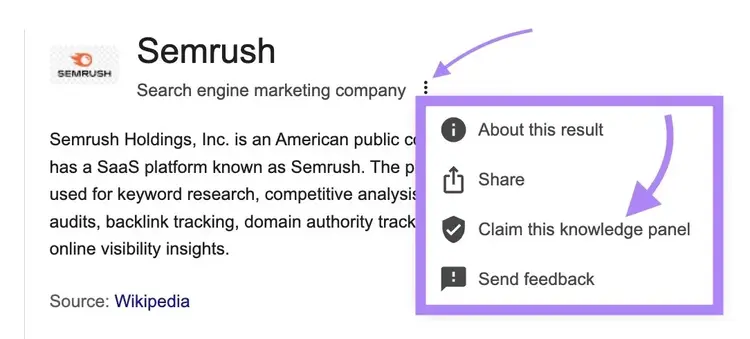
If this knowledge panel is already claimed, you’ll get a message saying someone else is already managing it and to contact them.
If the knowledge panel is not claimed by anyone, you can start the process by clicking on “Get Verified.”
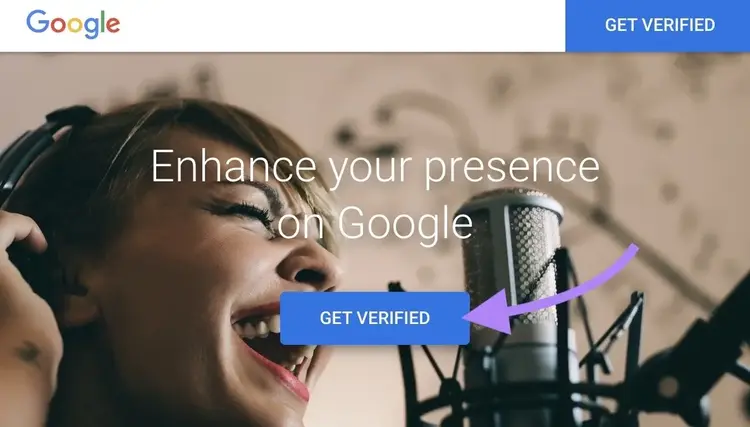
A form will appear on the screen, and you can start filling out the details (e.g., corporate email address, documentation proving you’re part of the company, social profiles, and other verification details). All of this is important to confirm your identity and relationship with the entity.
Once you've filled out all the required fields, click "Submit."
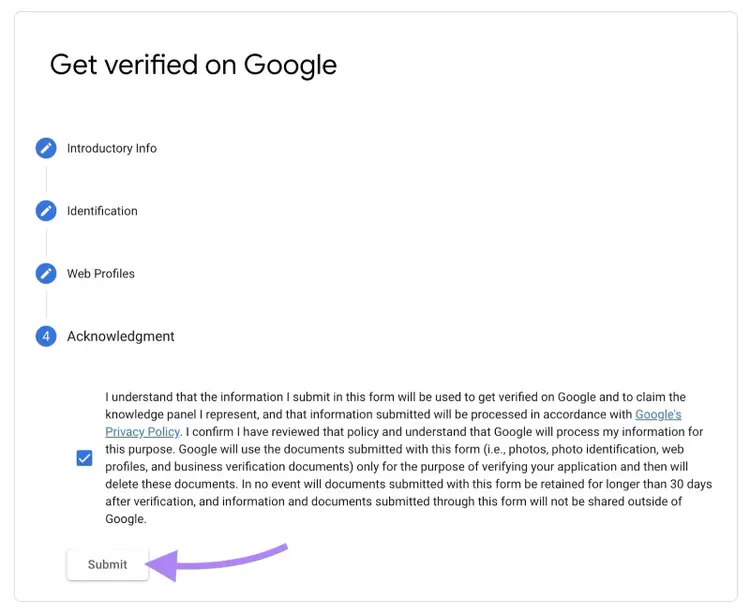
After you submit the form, wait for Google to review your application. This typically takes anywhere from a few days to a couple of weeks.
You'll receive an email confirmation once Google has reviewed your request. If approved, you'll be able to suggest edits to your knowledge panel going forward. If rejected, the email will explain what additional information Google needs from you.
How to Suggest Edits to Your Knowledge Panel
You can suggest edits to your knowledge panel by claiming it as a verified representative of the entity and submitting edit requests directly through Google Search.
First, make sure you're signed in to the Google account you used during verification. Without this, the "Suggest edits" option won't show up. Then search for your entity on Google to pull up the panel.
At the top of the knowledge panel, click "Suggest edits."
Don't see this option? Your "Web & App Activity" setting might be turned off. Here's how to fix that:
- Click your profile icon and select "Manage your Google Account"
- Navigate to "My Activity" and find the "Web & App Activity" setting
- Turn it on, then search for your knowledge panel again—the button should now appear
Once you click this button, Google gives you two options: flag a specific piece of information for correction, or send general feedback about the panel as a whole.
To correct something specific, click the flag icon next to that piece of information. A new window will pop up asking you to select what your feedback is about and describe the issue in detail.
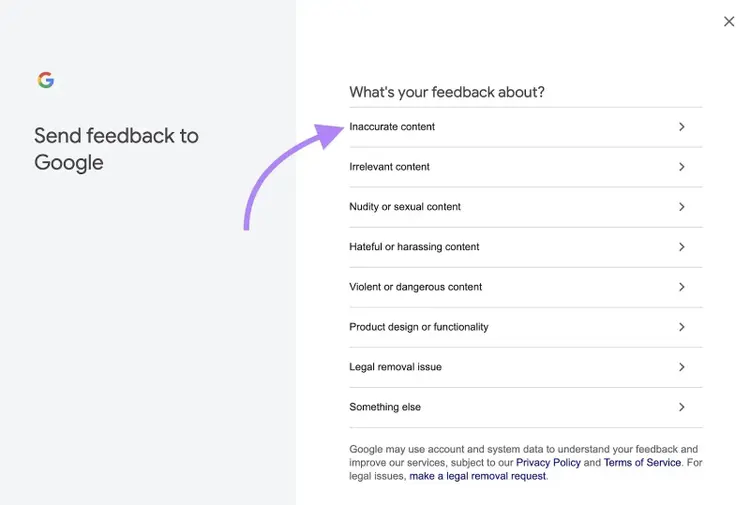
Click "Submit" when you're ready to submit your request.
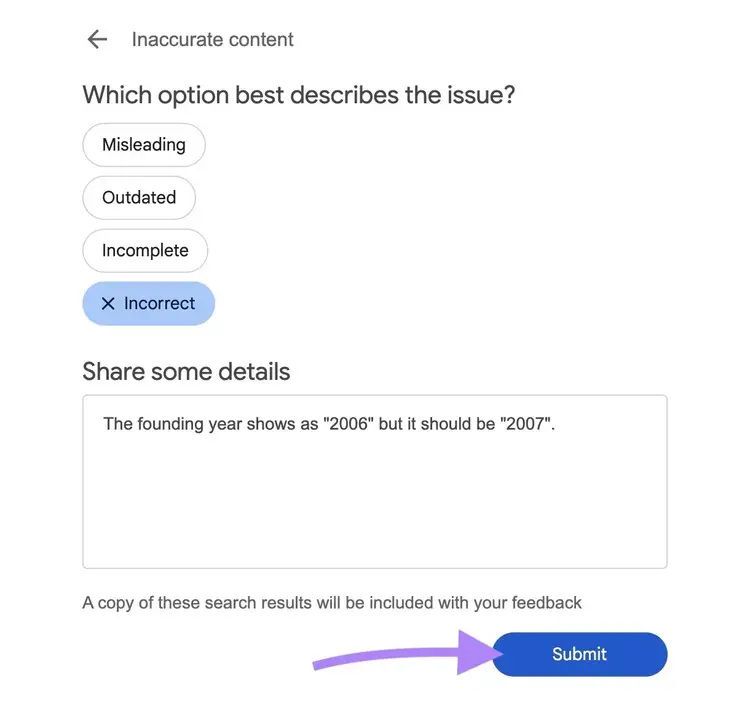
Google will review your request and decide whether to update your knowledge panel. This process can take anywhere from a few days to several weeks, and there's no guarantee your request will be approved.
Keep in mind: Anyone can suggest edits to a knowledge panel by clicking the three dots and selecting "Send feedback" from the drop-down, but verified representatives typically have their requests prioritized and reviewed more quickly.
Track Your Knowledge Panel And Other SERP Features
Google doesn't create knowledge panels immediately, so you may need to wait weeks or even months after implementing the tactics in this guide for Google to recognize you as an entity and generate a panel (if it determines your entity is eligible and useful to show).
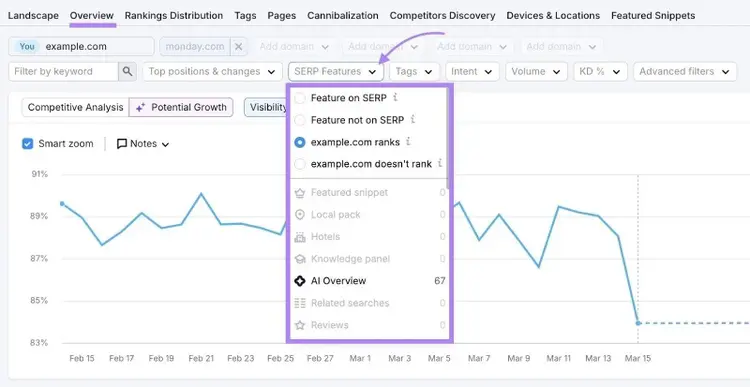
Keep searching for your exact brand name every once in a while to check if you've earned a knowledge panel. You can also use Semrush's Position Tracking tool to keep tabs on all the SERP features appearing for your keywords.
Set up a project in the tool. Once done, go to the "Overview" report and add a “SERP features” filter to show only keywords where your domain owns a specific SERP feature (like AI Overviews, knowledge panel, etc.).
Sign up for a free Semrush account to try numerous tools like Position Tracking today.
Create Your Free Semrush Account
and Explore Our SEO Tools

Tushar has been involved in SEO for the past six years, specializing in content strategy and technical SEO. He gained his experience in agencies, where he worked on various ecommerce and B2B clients. On the Semrush blog, he writes about SEO and marketing based on experience drawn from his client work, focusing on sharing practical and effective strategies. His goal is to turn Semrush blog into the ultimate destination for learning SEO and web marketing.
Tushar Pol
Tushar is an SEO expert with over six years of experience in content strategy and technical SEO. Having worked with various ecommerce and B2B clients at agencies, he now writes for the Semrush blog, sharing practical and effective SEO strategies.

Tells Google to show you more from Semrush in AI, Search, and Discover.