
HTML Link Tags Explained (+ All Attributes and Values)
HTML <link> tags help define relationships between resources on your website.
In this post, we’ll explore what HTML link tags are, how to use them, and common mistakes to avoid when adding them to your site or webpage.
What Is an HTML Link Tag?
The HTML <link> tag is an HTML tag (a piece of code) that establishes connections between the document you’re on and its external resources (files or other assets).
You should place HTML link tags in an HTML document’s <head> section. Like this:
<!DOCTYPE html><html lang="en"><head> <link rel="stylesheet" type="text/css" href="styles.css"></head><body> <!-- The content of your webpage goes here --></body></html>
Browsers that currently support HTML link tags include:
- Chrome
- Edge
- Safari
- Opera
- Firefox
Browsers that don’t support HTML link tags might not render them properly. Meaning they might ignore the tag altogether and display nothing at all.
7 Uses of the HTML Link Tag
Let’s look at a few common examples of link tags in HTML.
Tip
Semrush’s Site Audit tool makes it easy to identify errors related to HTML link tags. Just go to the “Issues” tab and use the search bar to look for problems related to the use cases below.
Find and Fix HTML Link Tag Issues
with the Site Audit Tool
1. Link an External Style Sheet
An external style sheet is a file with Cascading Style Sheets (CSS) code. This code defines the styles and layout of a webpage—like background color.
For a style sheet to work, you must link it to the page you’d like to style. Otherwise, the browser won’t know about it and won’t display as you’ve intended.
Here’s how you can use the HTML link tag to link to the style sheet:
<!DOCTYPE html><html lang="en"><head> <link rel="stylesheet" type="text/css" href="styles.css"></head><body> <!-- The content of your webpage goes here --></body></html>
2. Display a Favicon
A favicon is a small icon displayed in the browser’s tab or bookmark.
Here’s one:
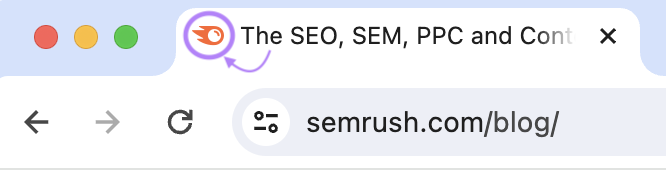
Use the HTML link tag like in the example below to display your favicon across various browsers:
<!DOCTYPE html><html lang="en"><head> <link rel="icon" href="favicon.png"></head><body> <!-- The content of your webpage goes here --></body></html>
3. Set a Canonical URL
A canonical URL indicates the primary version of a webpage when duplicate content exists across the site. And tells search engines which page to prioritize and rank in organic (unpaid) search results.
To specify a canonical page, use the HTML link tag like this:
<!DOCTYPE html><html lang="en"><head> <link rel="canonical" href="https://www.example.com/canonical-page"></head><body> <!-- The content of your webpage goes here --></body></html>
4. Set the Language of a Page
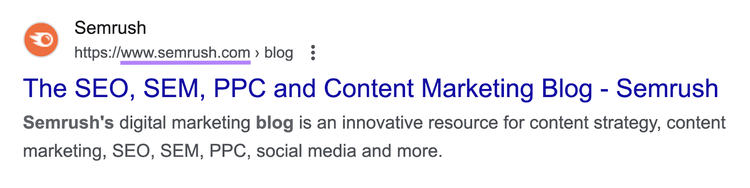
The hreflang attribute specifies the language and (optionally) intended region of a document. Which is useful if you have content in different languages.
Why?
Because with the hreflang attribute, search engines can display the most relevant search results to users in different countries.
For example, if you Google “semrush blog” in the United States, you’ll see this result:
But if you’re in Spain, you’ll see this:
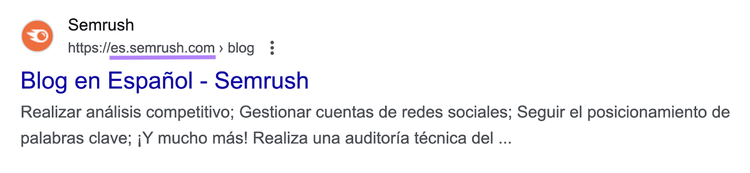
You can define pages for different countries and languages using the HTML link tag as shown below (this one has alternate Spanish and French versions):
<!DOCTYPE html><html lang="en"><head> <link rel="alternate" hreflang="en" href="https://example.com/page"> <link rel="alternate" hreflang="es" href="https://example.com/es/page"> <link rel="alternate" hreflang="fr" href="https://example.com/fr/page"></head><body> <!-- The content of your webpage goes here --></body></html>
5. Preload Specific Resources
Preloading instructs browsers to request and store a resource in its cache right when (or soon after) the page starts loading. Which can improve a website’s performance, speed, and user experience.
A common preload request is for fonts. And you can set a font to preload with an HTML link tag like this:
<!DOCTYPE html><html lang="en"><head> <!-- Preload fonts --> <link rel="preload" as="font" type="font/woff2" href="your-font.woff2"> <!-- Link to the external style sheet using the font --> <link rel="stylesheet" type="text/css" href="styles.css"></head><body> <!-- The content of your webpage goes here --></body></html>
You can set resources to preload on a page-by-page basis.
6. Connect Your RSS Feed
A Really Simple Syndication (RSS) feed is a way for websites to share content and updates.
And users can subscribe to different websites through RSS feed readers like this one:
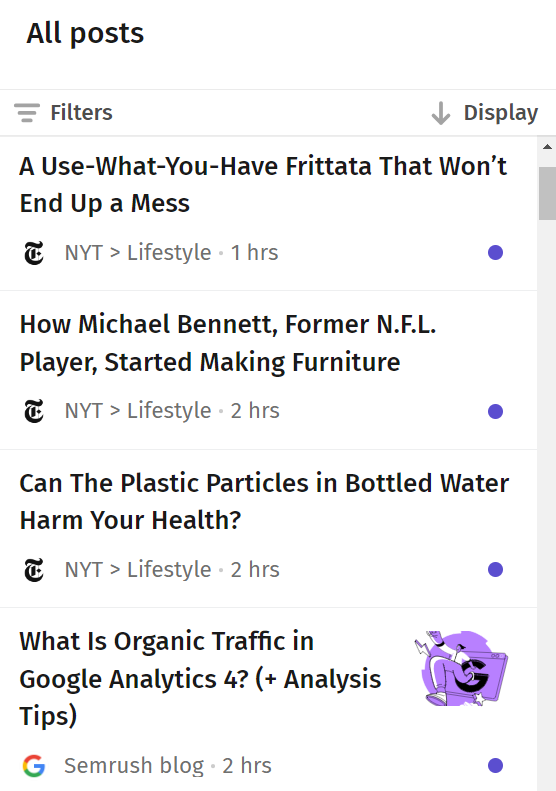
This lets them see when sites publish new content.
Use the HTML link tag to link to your RSS feed so a user can subscribe to your feed.
<!DOCTYPE html><html lang="en"><head> <link rel="alternate" type="application/rss+xml" title="RSS Feed" href="rss-feed.xml"></head><body> <!-- The content of your webpage goes here --></body></html>
7. Link to External Fonts
HTML link tags let you link to external fonts (like those in Google Fonts) to use on your site.
Here’s the code to use:
<!DOCTYPE html><html lang="en"><head> <!-- Link to an external font from Google Fonts --> <link rel="stylesheet" href="https://fonts.googleapis.com/css?family=Open+Sans"></head><body> <!-- The content of your webpage goes here --></body></html>
Additional HTML Link Tag Attributes and Values
Link tag attributes provide additional information and go between the opening and closing tag.
And values indicate the specific content assigned to an attribute.
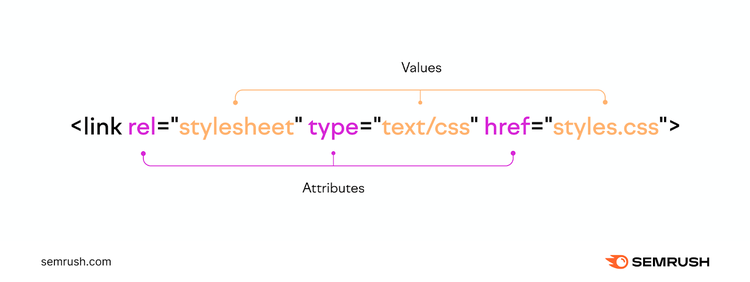
Both attributes and their values guide the HTML link tag in performing its designated tasks. In other words, they tell it how to behave.
Here are current HTML link tag attributes and their common values:
audio
document
embed
fetch
font
image
object
script
style
track
video
worker
anonymous
use-credentials
high
low
auto
Height x width
or
Percent of viewport width (vw)
all
screen
speech
aspect-ratio
color
color-index
grid
height
monochrome
orientation
resolution
scan
width
no-referrer
no-referrer-when-downgrade
origin
origin-when-cross-origin
unsafe-url
alternate
author
canonical
dns-prefetch
help
icon
license
next
pingback
preconnect
prefetch
preload
prerender
prev
search
stylesheet
Various media types like:
text/css
text/javascript
image/svg+xml
Common Mistakes to Avoid When Implementing Link Tags
Here are mistakes people frequently make when adding the <link> tag to their site. By avoiding them, you can ensure that your link tags work well and that browsers can read them.
Adding the Tag to Page’s Body Section
The HTML link tag belongs in the <head> section of your HTML document.
Why?
Because according to semantic HTML, the <head> section of an HTML document is where metadata should go. (Metadata is information that describes data. And HTML link tags are considered metadata elements.)
An HTML link tag may not work as expected if you add it to the <body>.
For instance, placing your style sheet HTML link tag in the <body> section could cause a delay in loading the style of that web page.
You can check where your link tag is by viewing your page’s source code. Right-click on the page in the browser and select “View Page Source.”
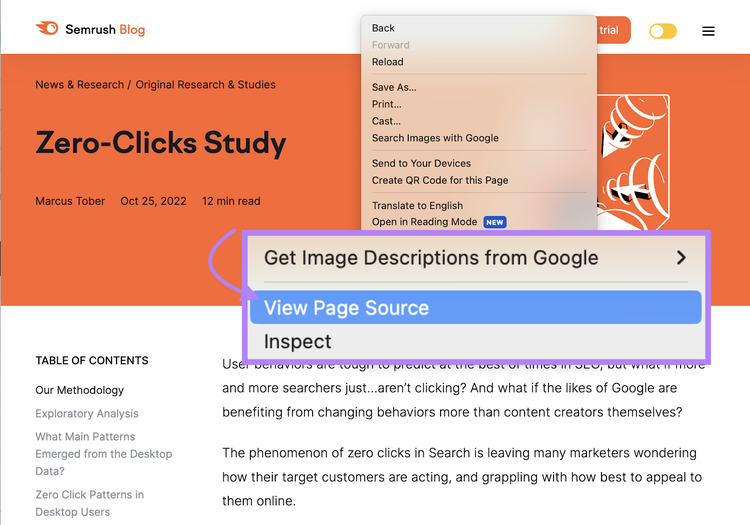
Then, press Ctrl+F (Command+F on Mac) and search <head>.
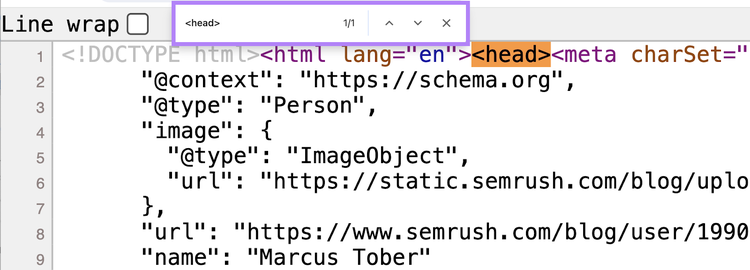
(You can also search </head> to find where the <head> section ends.)
Look through the code to ensure the link tags in your HTML are within the <head> and </head> tags. If they aren’t, either move them or reach out to your web developer for help.
Using Incorrect Attributes or Values
You can only use specific values associated with each attribute. And some attributes can only work with other attributes.
For example, if you use “rel=preload” in your link tag, you must also use the as attribute.
Refer to our list of HTML link tag attributes and their values above to ensure you’re using the right ones.
Incorporating Deprecated Attributes
Deprecated—meaning outdated—attributes may not work. Because modern browsers typically phase out support for them.
Organizations like the World Wide Web Consortium (W3C) may decide to deprecate attributes for various reasons. Like changing technology.
For example, the rev attribute was previously used to show the reverse relationship between the current document and the linked document. For example:
<link rev="made" href="related-document.html">
This HTML link tag indicated that the linked document (related-document.html) was made by the current document.
But because the rev attribute only accounts for reverse relationships, the W3C deprecated it. It now advises people to use the rel attribute instead, which is more flexible.
Here’s how you’d rework the example above using the current rel attribute:
<link rel="author" href="related-document.html">
Other deprecated attributes for the HTML link tag include:
- charset: Defines the encoding of the linked resource
- methods: Provides information about the functions or actions that could be performed on a linked object
- target: Specifies whether the linked document should load in a window or frame
Check your code for any of these attributes. And replace them with something more suitable if needed.
Check for HTML Link Tag Issues on Your Site
Use a diagnostic tool like Semrush’s Site Audit to track technical issues on your site. Including ones that arise from mistakes within your HTML link tags.
Here’s how.
Open Site Audit. Enter your domain URL and click “Start Audit.”
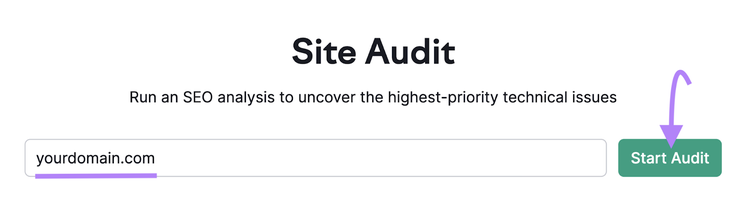
This opens a menu where you can configure all your settings.
Pro tip
Use our Site Audit configuration guide to help you tailor your audit to your website’s needs.
Next, click “Start Site Audit.”
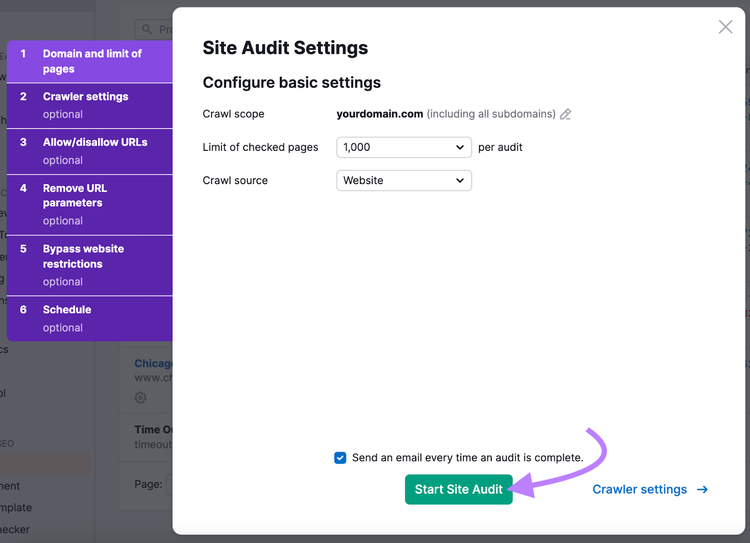
Once your audit is complete, you’ll receive a detailed report of what you need to improve.
Click on the “Issues” tab.
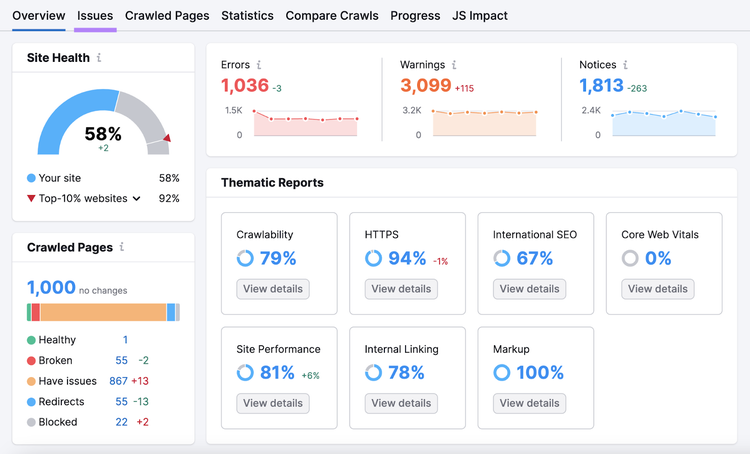
This displays a list of technical issues with your site.
For example, pages with duplicate content—which would benefit from an HTML link tag with a canonical attribute.
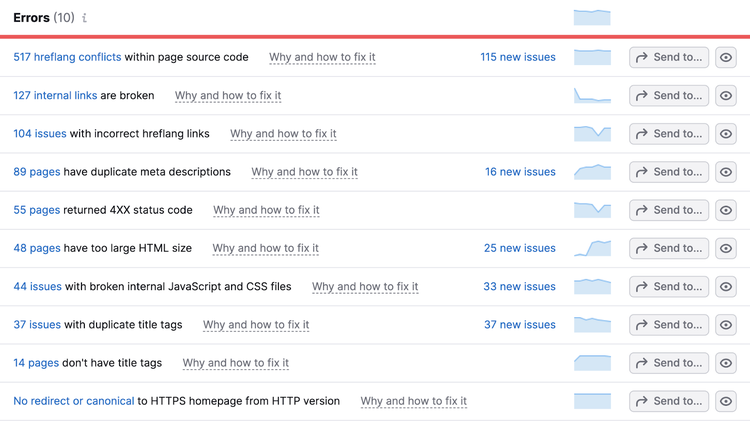
Site Audit also spots hreflang errors, canonical tag errors, and slow pages. (Slow pages might benefit from using the fetchpriority attribute within your HTML link tag.)
You can click “Why and how to fix it” next to each issue to better understand and address the problem.
Cleaning up these issues helps you create a great user experience on your site. And optimize your pages so search engines can easily crawl, index, and rank them in search results.
Try Site Audit for free.
Find and Fix HTML Link Tag Issues
with the Site Audit Tool

Dana holds a Bachelor of Business Administration with a major in Marketing and specializes in content writing, copywriting, and SEO strategy. She has over 10+ years of experience helping established organizations within their marketing departments and currently partners with B2B providers to develop content strategies and craft persuasive copy that delights and converts.

Tells Google to show you more from Semrush in AI, Search, and Discover.