
Keyword cannibalization: How to find, fix, and prevent it
Expert reviewed
Our subject matter experts have reviewed this article to ensure it meets the highest standard for accurate information and guidance. Learn more about our editorial standards and process.
Keyword cannibalization is a common problem that can affect your search engine rankings and visibility in AI systems.
It happens when pages on your own site compete against each other — and it's more common than most site owners realize.
Today, we’ll help you understand what keyword cannibalization is, how to identify cannibalized keywords, and how to fix cannibalization to keep it from hurting your site’s performance in search engines and LLMs.
What is keyword cannibalization?
Keyword cannibalization occurs when multiple pages on a site target the same keyword(s) and harm each other's search visibility.
Search engines might pick just one of the pages to rank. And if your preferred page doesn’t rank, it could miss out on backlinks (links from other sites), which would weaken its authority.
Keyword cannibalization might also affect AI search. Since ChatGPT cites 1.26 pages per domain in a response, overlapping or highly similar pages may compete for selection. That makes it more important to clearly differentiate content to ensure the most relevant page is easily retrieved.
However, having multiple pages rank for the same keyword doesn’t always result in cannibalization.
Multiple pages often rank for broad topic categories, like how Figma has multiple pages for the term “ui/ux design.”
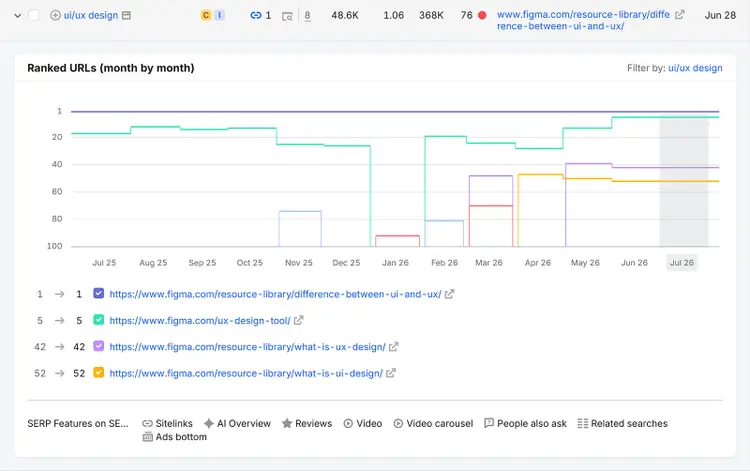
Also, in the case of keywords that contain your brand name, it's common to secure multiple high rankings for the same keyword. So you don't usually have to worry about keyword cannibalization with most branded keywords, as long as you're serving the user's search intent with every page.
How to find cannibalized keywords
Find cannibalized keywords by looking for pages on your site that target the same keywords using these four methods:
Use Semrush's Position Tracking tool
Semrush’s Position Tracking tool monitors your Google rankings to identify potential cases of keyword cannibalization.
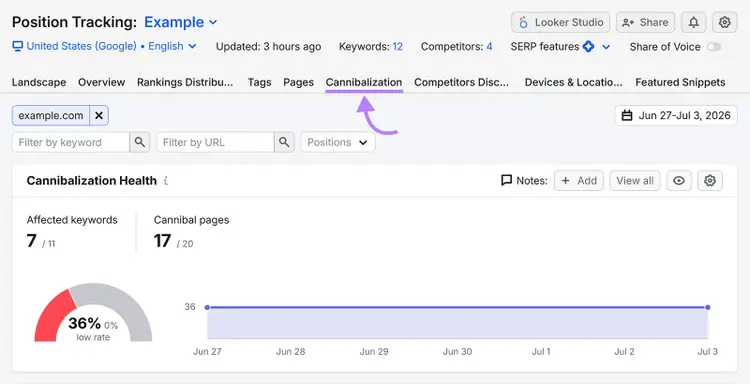
To get started, configure the Position Tracking tool for your site. Once configured, head to the "Cannibalization" tab to see the number of:
- Affected keywords: Keywords that have more than one page ranking in the top 100 results
- Cannibal pages: URLs that share a keyword ranking with at least one additional URL
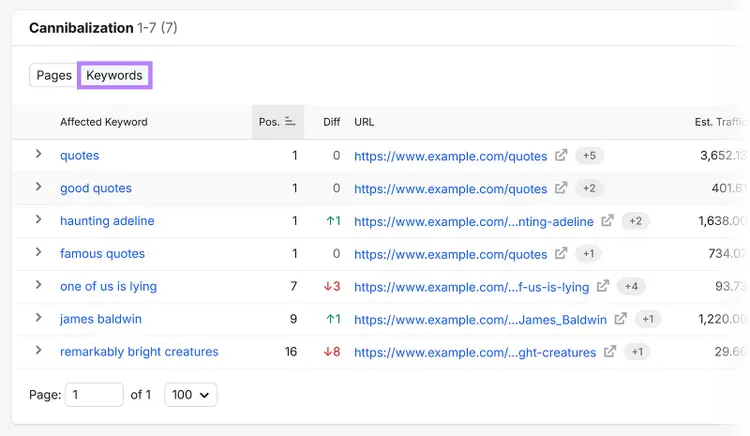
Scroll down to the "Cannibalization" section. We recommend looking at the "Keywords" breakdown.
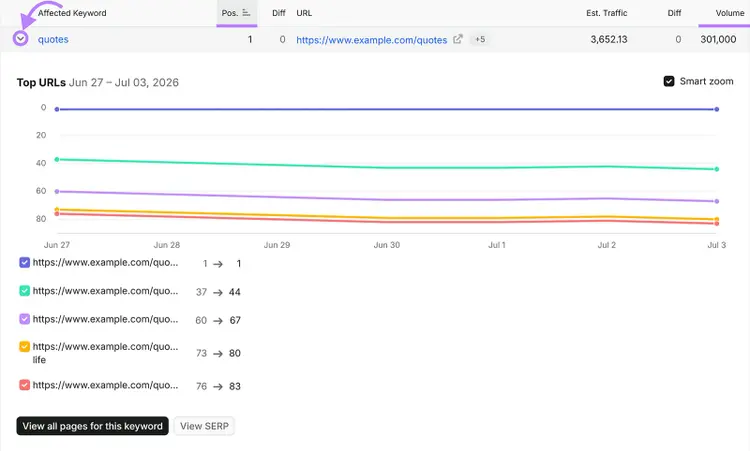
Use the arrow to expand any result. You'll see ranking URLs and associated data, such as:
- Pos.: The URL's ranking for the keyword
- Volume: The average number of monthly searches for the keyword
Position Tracking tracks up to 5,000 keywords depending on your plan. Use Semrush Enterprise SEO’s Cannibalization Report (which we’ll go over next) if you need to track over 5,000 keywords.
Use Semrush Enterprise SEO’s Cannibalization Report
The Cannibalization Report in Semrush Enterprise SEO monitors your rankings to identify potential cases of keyword cannibalization for up to 25,000 keywords.
To access this report, head to "Search Performance" > "Special Reports" > "Cannibalization Report."
You’ll see stats like how many cannibalized keywords you have, along with which URLs have the highest ranking right now.
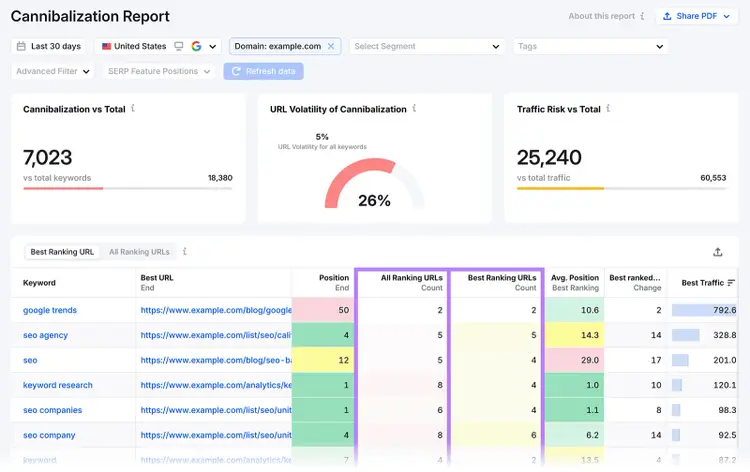
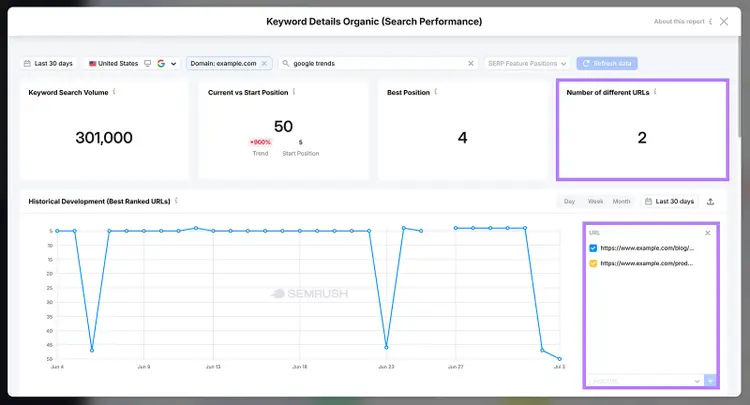
Click any keyword to open a detailed report showing the different URLs competing for it.
Use Google Search Console
Google Search Console (GSC) is a free tool that can help you identify keyword cannibalization issues.
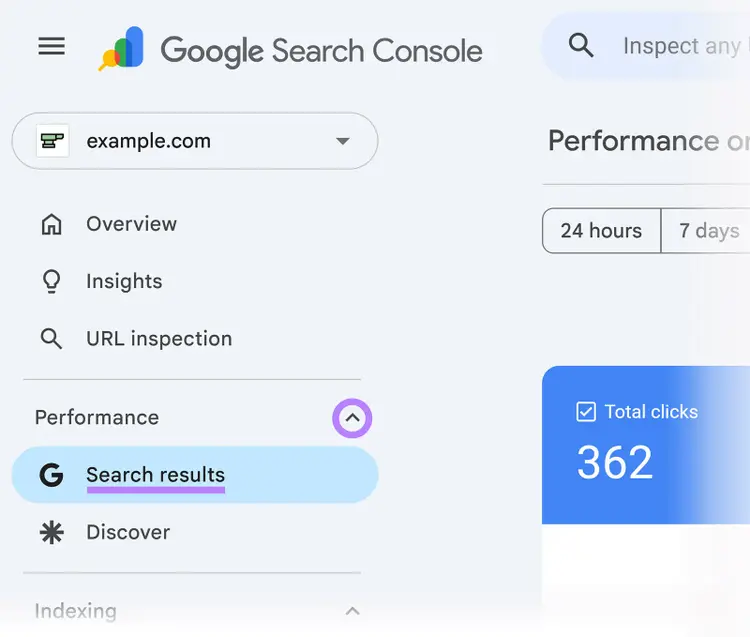
Head into your site’s GSC property (our GSC guide shows you how to set up a property if you don’t have one). Click "Search results" in the "Performance" menu.
Scroll down to see a list of search queries your site has earned impressions and clicks from.
Click a keyword you want to check. This will apply a "Query:" filter (a filter that includes or excludes specific words).
Pro tip
To apply a custom query filter, scroll up to the top and click "+ Add filter" then "Query" and enter your settings. You can use this option to check multiple related keywords at once.
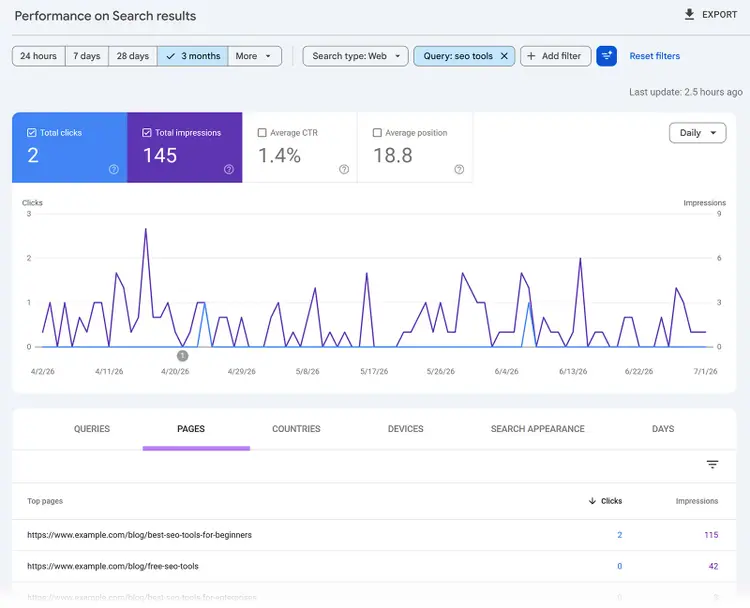
If more than one URL earns clicks and impressions, this could be a sign of keyword cannibalization.
Manually analyze the pages to see whether they have overlapping search intent and record which ones you need to fix.
Search your site
Search your site via Google’s "site:[domain]" search operator to find overlapping pages manually.
The "site:[domain]" search operator filters for results from your domain. Use it in combination with a keyword to find related pages. Like this:
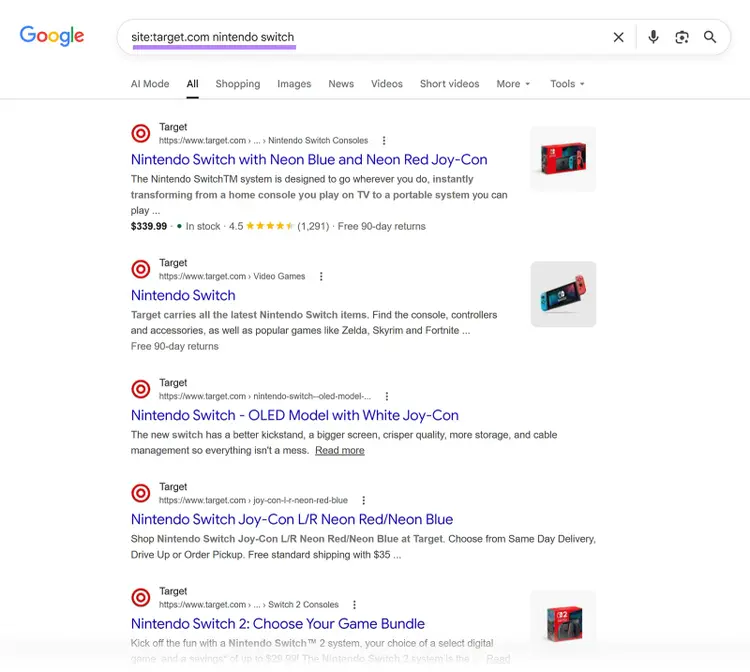
Analyze the results. Do any pages cater to the same search intent? If so, you have a potential keyword cannibalization issue to address.
How to fix keyword cannibalization
To fix keyword cannibalization, designate one preferred page for each affected keyword and use one of five techniques to signal that preference.
The best technique depends on your circumstances:
Implement redirects
Redirects that send users and search systems to a different URL than the one requested eliminate internal competition.
Plus, redirects consolidate a page’s search engine ranking power in one place.
Redirects are useful when you have multiple pages that target the same keyword and satisfy the same search intent, but you only need one of them. For example, multiple blog posts covering the same topic or near-identical FAQ pages.
To get started, analyze your overlapping URLs and choose your preferred page. This should be the URL with the strongest SEO and AI search potential, which you can determine by reviewing these metrics:
- Backlinks: Use Semrush's Backlinks tool to review each page's backlinks. You ideally want your main page to have a large number of relevant and authoritative backlinks.
- Rankings: Check each page’s ranking with Google Search Console. It’s best if you can keep the page with the highest ranking.
- Traffic: Use Google Analytics to view traffic trends for every affected page. Preserving the page with the most traffic may be best, but keep in mind that AI tools don’t necessarily drive much traffic to your website.
Next, draft an updated version of your preferred page. Add valuable information from the cannibalized pages that you don’t want to lose, check that all facts are accurate and up-to-date, and ensure the page has strong on-page SEO.
You're then ready to do the following:
- Publish the new version of your preferred page on the preferred URL
- Implement 301 redirects (permanent redirects) from the duplicate pages to the preferred page to direct users and search systems to the preferred page. (301 redirect implementation depends on your content management system or website platform. Reach out to a developer if you need help).
- Identify and update any internal links to redirected pages, so they point to your preferred page
- Remove the redirected URLs from your sitemap
Use canonical tags
Canonical tags identify the main version of a page, so you can keep identical or near-identical pages without hurting your site’s performance.
Here’s a practical example: Say an ecommerce site sells a blue t-shirt that's accessible through several URLs with different parameters because of filtering and sorting options.
Canonical tags also work if you need similar but dedicated pay-per-click (PPC) landing pages. Or when the same content is accessible through multiple URLs (e.g., a product page for socks that users can access through "/accessories/socks/" and "/footwear/socks/").
To identify a canonical page, add a canonical tag (shown below) to all versions of the page (including the primary page) in the <head> section.
<link rel="canonical" href="https://www.website.com/preferred-page/" />
Follow these tips when adding canonical tags to your pages:
- Use absolute URLs (e.g., https://www.website.com/preferred-page/). Google recommends using absolute URLs as relative paths have a greater chance of pointing to the wrong domain (especially in staging or subdomain environments)
- Point to an indexable page. The canonical target must return a 200 status code (a status code that indicates your webpage works) and must not have a noindex directive. Pointing a canonical at a noindexed page sends contradictory signals.
- Avoid canonical chains. If Page A canonicalizes to Page B, and Page B canonicalizes to Page C, those directions can be misinterpreted or ignored. Always point directly to the preferred URL.
Differentiate each page
Differentiating each page helps search engines and AI systems tell them apart.
Let's say you have a "/laptops/" category page that references gaming laptops and a "/laptops/gaming/" subcategory page that also references gaming laptops.
Systems may rank or cite the "/laptops/" page higher for the keyword "gaming laptops.” In this case, you’d want to differentiate each page, so search and AI systems can recognize “/laptops/gaming/” as the most relevant page for queries related to laptops appropriate for gaming.
Differentiate the URLs by making sure each page is highly relevant to its topic, rather than covering the same topic from multiple angles.
Some tips:
- Build internal links. Link to your cannibal pages from relevant pages using relevant anchor text (a link’s text).
- Avoid overlapping content across pages. Ensure each page covers unique angles, examples, or use cases instead of repeating the same information.
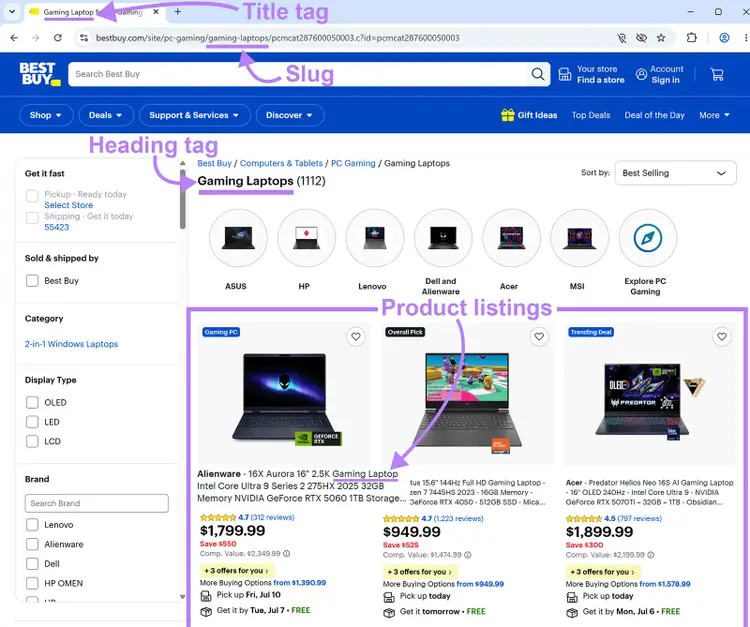
- Optimize each page for its target keyword. Include your keyword naturally in places like the title tag, URL slug, headers, meta description, and body copy.
For example, Best Buy has a gaming laptop category page that mentions "gaming laptops" in places like the URL, H1 tag, product listings, and more.
Use Noindex tags
Using Noindex tags (HTML that instructs search engines not to index a page) on cannibal pages excludes them from search results and can stop them from competing with your preferred page.
Noindex tags appear in a page’s <head> section and look like this:
<meta name="robots" content="noindex" />
There’s no ranking signal consolidation with noindex tags, so you should only use noindex as a last resort to solving cannibalization issues. For example, on blog tag pages that have thin content, no backlinks, and little traffic.
How to prevent keyword cannibalization
The most reliable way to prevent keyword cannibalization is to map keywords and prompts to URLs before you publish. That way, every page has a unique angle and you can catch overlaps before they go live.
Start by creating a keyword map (a simple document like a spreadsheet that assigns a primary keyword or topic to a preferred canonical URL). Before publishing new content, check whether another page already covers that topic. If a page already exists, optimize the existing page rather than creating a new one.
Then, monitor cannibalized keywords using Semrush Enterprise SEO’s Cannibalization Report or the Position Tracking tool. The right option depends on your organization’s needs.
Boost your SEO & AI performance
with Semrush Enterprise

Carlos Silva leads the editorial pipeline for the English blog—coordinating writers, editors, strategy, and building AI workflows that boost content quality and AI visibility. With 10+ years of experience writing and editing across in-house and agency roles, Carlos blends content strategy, SEO, and AI to help marketers stay ahead of an evolving search landscape.
Carlos Silva
Carlos Silva leads the editorial pipeline for the English blog and builds AI workflows that boost content quality and AI visibility. 10+ years writing and editing across in-house and agency roles.

Tells Google to show you more from Semrush in AI, Search, and Discover.