
Setting up an HTML redirect to another page is easy.
In fact, you can do it in just a few minutes (even if you're not a technical expert).
In this guide, we’ll walk you through exactly how to set up redirects using HTML step by step. Plus, we'll share some alternative redirect methods that are even better.
Before we dive in, let's cover the basics.
What Is an HTML Redirect?
An HTML redirect is a way to automatically send visitors from one URL to another using a simple HTML tag (called meta refresh), which you can add to the <head> section of your HTML.
Here’s a quick example of what that tag might look like:
<meta http-equiv="refresh" content="0; URL=https://example.com/new-page" />
In this example, the browser will refresh the existing page immediately and redirect the user to the new URL (https://example.com/new-page).
You might use an HTML redirect (also called a meta redirect) when:
- Migrating pages: You've moved a page to a new URL and want to automatically forward visitors to the new location
- Merging content: You want to combine multiple pages into one to prevent those pages from competing with each other and to consolidate traffic
- Running temporary campaigns: You're running a temporary promotional page that displays a countdown (like "Sale starts in 5 minutes!") and needs to automatically redirect users to a different page when the timer reaches zero
- Running A/B tests: You want to split test different versions of a page by randomly redirecting a portion of your traffic to a variant page
- Managing user flow: You're creating a simple splash page (an introductory screen) or interstitial that should automatically forward visitors to the main content after a few seconds
HTML redirects can be handy if you don’t have access to your server settings. However, they're not as good as server-side redirects, which offer better performance (faster load times) and more control over the redirect process, including the ability to handle different types of HTTP status codes.
That said, if you need a quick fix to reroute visitors without modifying server configurations, an HTML redirect can be just what you need.
How to Redirect a Page to Another Page in HTML
Simply paste the below code into the <head> section of the page you want to redirect and replace the “content” and the “URL” values.
<meta http-equiv="refresh" content="0; URL=https://example.com/new-page"/>
Here’s an overview of the main components:
- http-equiv=“refresh” tells the browser to redirect the page
- content=“0; specifies how many seconds to wait before redirecting. Setting this to "0" creates an instant redirect, while any other number (like "5") creates a delayed redirect that waits the designated number of seconds before sending users to the new page.
- URL=“URL=https://www.yoururl.com/newpage” tells the browser which URL to send users to
Just make sure you’re careful when choosing between an instant and a delayed redirect.
Google interprets instant redirects as permanent (meaning you don’t plan to use the redirected page again) and delayed redirects as temporary.
HTML Redirect Best Practices
When implementing an HTML redirect to a new page, follow these best practices:
- Avoid redirect chains. Never redirect to a page that’s already been redirected. These chains not only frustrate users, but also harm your SEO. Instead, always redirect to the final destination page.
- Redirect to relevant pages. Send users to pages that match their likely intent. For example, if a product page is temporarily unavailable, redirect to a similar product page rather than an unrelated category page. To help users continue their journeys naturally and reduce your bounce rates.
- Give context. Since HTML redirects require the original page to load first, add a brief message telling users why they’re being redirected like "This collection has been updated. Taking you to our latest designs." This context helps users understand what's happening and reduces confusion.
- Include backup links. Older browsers might not support meta refresh tags, so it’s a good idea to display a fallback link with a message like "If you’re not redirected automatically, click here." This ensures everyone can reach their destination, even if the automatic redirect fails.
- Set appropriate timing. If you’re using delayed redirects, make sure they’re timed sensibly to avoid losing users before the redirect happens. A five-second delay works well for most situations.
Why to Avoid HTML Redirects When Possible
Although HTML redirects can be convenient, there are a few reasons to avoid them if you can:
- Poor user experience: HTML redirects require the browser to first load the original page, process the meta refresh tag, and then load the destination page. This double-loading makes your site feel sluggish and can frustrate visitors.
- SEO implications: Search engines need to process both pages, which leads to slower crawling of your site. Plus, HTML redirects pass along less link equity from the original page compared to other types of redirects.
- Inconsistent browser support: Some older browsers might handle meta refresh tags differently or even ignore them. This inconsistency can lead to unpredictable behavior for your visitors.
- Security concerns: Meta refresh redirects are easier for malicious actors to manipulate compared to server-side redirects. They're commonly used in phishing attacks, which is why some browsers flag pages with meta refreshes as potentially suspicious.
Better Alternatives to HTML Redirects
Instead of implementing redirects with HTML, consider using more reliable alternatives like server-side 301 and 302 redirects.
301 and 302 redirects are faster than HTML redirects, are less likely to hurt your SEO performance, and have less impact on the user experience.
Here's what each redirect means and when to use them:
301 Redirects
301 redirects are permanent redirects that tell search engines a page has moved forever.
Use these redirects when:
- You've permanently moved a page to a new URL
- You're moving to a new domain
- You're consolidating multiple pages into one page
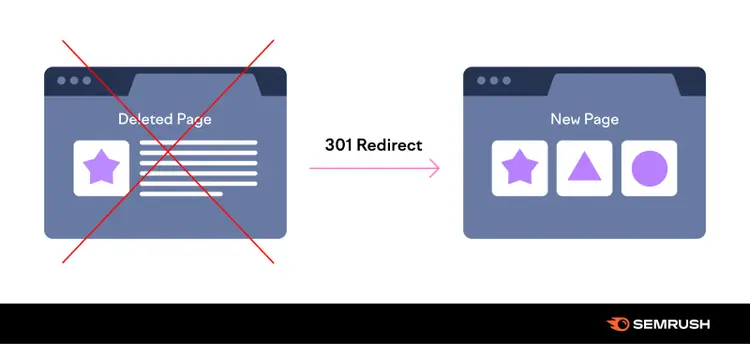
With a 301 redirect, you’re telling search engines the old page no longer exists.
With this method, you pass on much of the link equity from the old page to the new page. And search engines know to update the old link with the new one in the search results.
302 Redirects
302 redirects are temporary redirects that tell search engines a page has moved for the short term.
Use 302 redirects when:
- You're A/B testing different page versions
- You're doing temporary maintenance on a page
- You need to redirect users based on their locations or devices
- You're running a short-term promotion or campaign
Because 302 redirects are only temporary, search engines may not update search results with the new link.
This means you need to keep track of your 302 redirects and remove them when you no longer need them.
Easily Audit Your Redirects
If your site has redirects, you’ll want a fuss-free way to audit them and make sure they’re working as intended.
You can use a spreadsheet for tracking, but spreadsheets can be tedious to manage.
Plus, if you forget to add a redirect to your sheet, you might forget about it (and forget to remove it if needed).
An easier way is to use Semrush’s Site Audit tool.
To start, enter your domain name and click “Start Audit.”
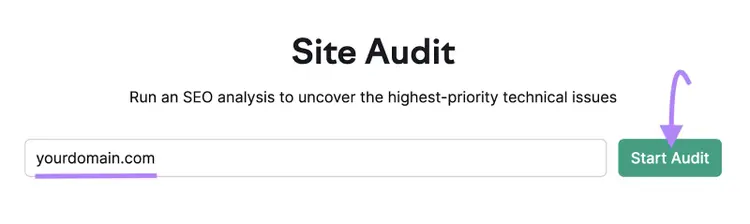
The tool will prompt you to set up a project and configure your audit settings. After that, the tool will automatically start auditing your website.
Once the audit is complete, you’ll see an overview report like this.
Then, click the number beside “Redirects.”
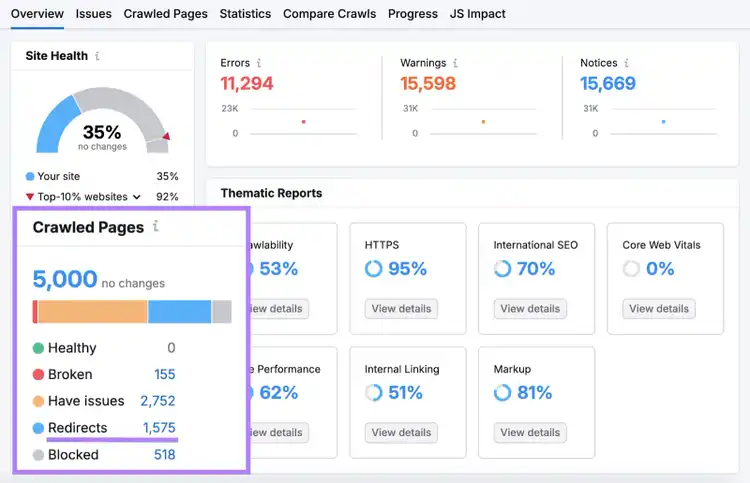
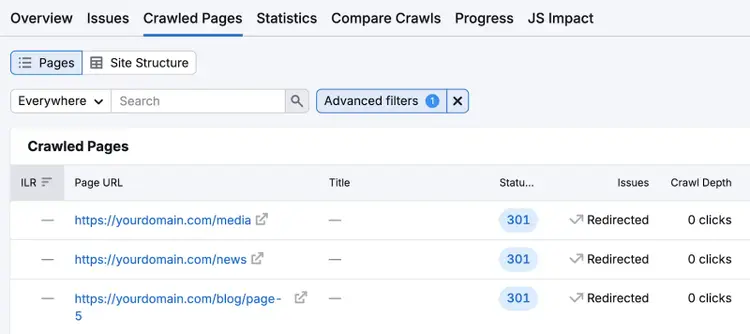
Here, you’ll see a list of the redirects on your site, so you can make sure each page has the right type of redirect.
Site Audit also helps you spot redirect chains.
Here’s how:
Under the "Issues" tab, search for "redirect chain" and click on the number of redirect chains and loops found.
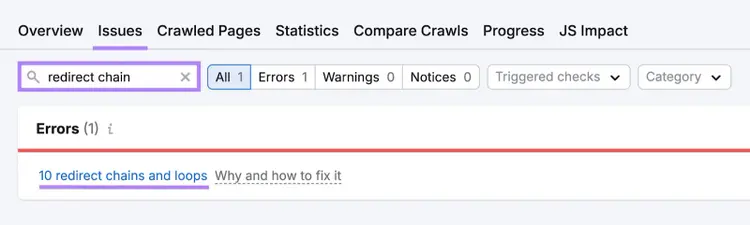
Use this report to identify—and then fix—pages with multiple redirects to give users a better experience on your site.
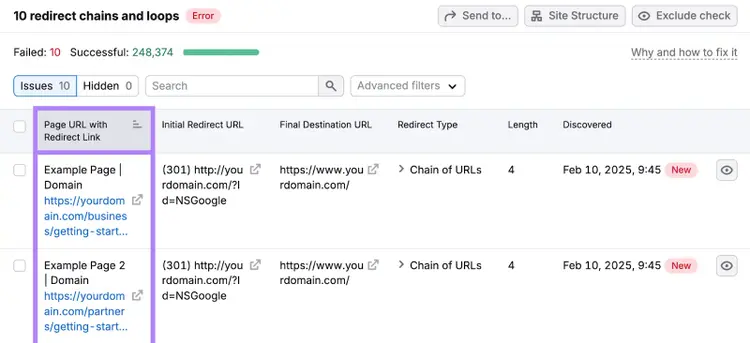
When you use Site Audit, you can be confident that users always end up where they’re supposed to.
Manage Your Redirects
with the Site Audit Tool

Tushar has been involved in SEO for the past six years, specializing in content strategy and technical SEO. He gained his experience in agencies, where he worked on various ecommerce and B2B clients. On the Semrush blog, he writes about SEO and marketing based on experience drawn from his client work, focusing on sharing practical and effective strategies. His goal is to turn Semrush blog into the ultimate destination for learning SEO and web marketing.
Tushar Pol
Tushar is an SEO expert with over six years of experience in content strategy and technical SEO. Having worked with various ecommerce and B2B clients at agencies, he now writes for the Semrush blog, sharing practical and effective SEO strategies.

Tells Google to show you more from Semrush in AI, Search, and Discover.