What Are Sitelink Extensions in Google Ads? (+ Tips for Success)
Expert reviewed
Our subject matter experts have reviewed this article to ensure it meets the highest standard for accurate information and guidance. Learn more about our editorial standards and process.
In this guide, we’ll explain what sitelink extensions are and how to make the most of them in your Google advertising strategy.
What Are Sitelink Extensions?
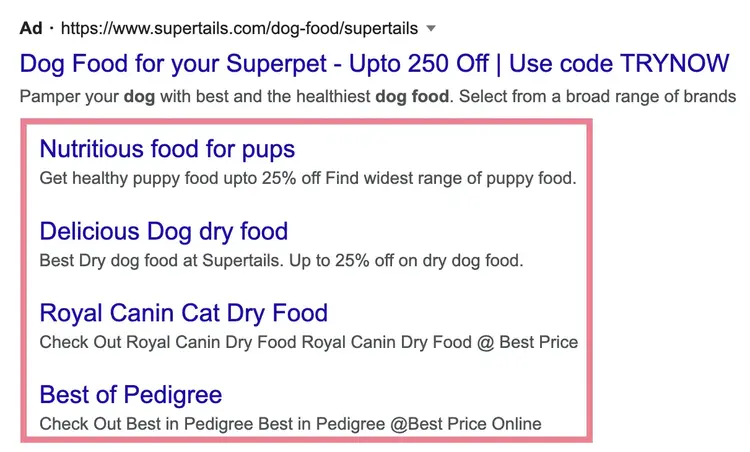
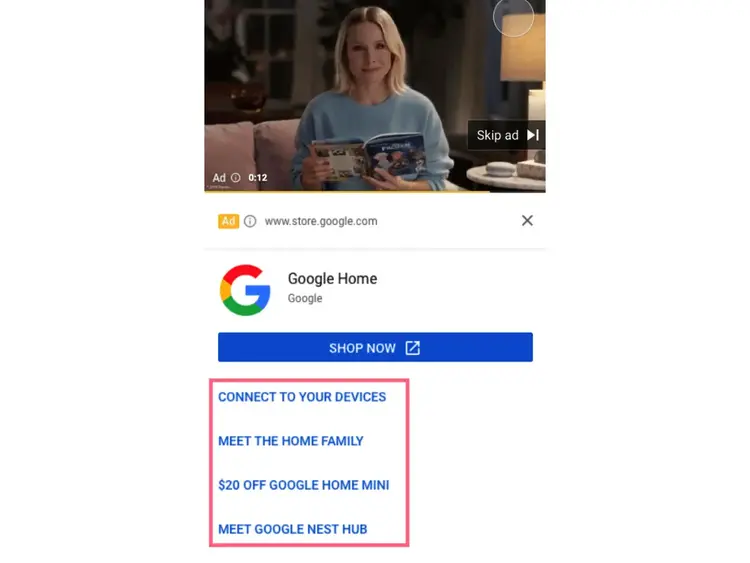
Sitelink extensions (or sitelink assets) are extra links that appear in search or video ads run through Google Ads. They allow users to access more pages on the advertiser’s site.
For example:
Sitelink extensions are optional for advertisers. But they don’t always appear, even if the advertiser wants them to.
Note
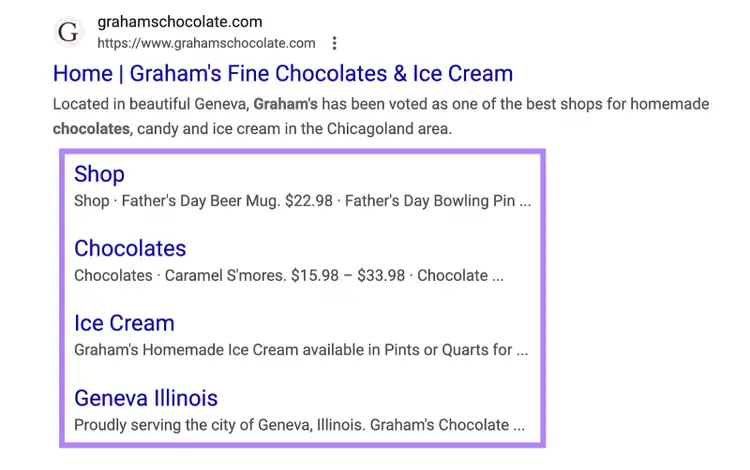
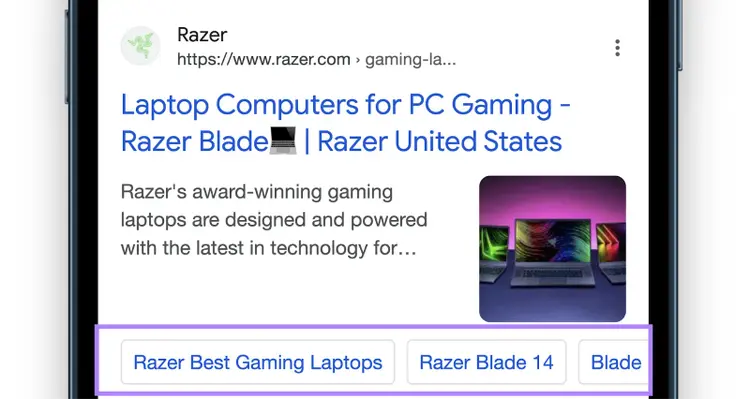
Sitelink extensions are sometimes called site links for short. But in Google, site links can also appear in organic (unpaid) search results. Like this:
Types of Sitelink Extensions (+ Sitelink Examples)
Sitelink extensions can appear in Search and Video campaigns.
Google may display them differently each time, depending on the ad’s context and settings.
Let’s explore the different types (including sitelink examples):
Search Campaign Sitelinks
Sitelink extensions can appear in Search campaigns—sponsored results on Google search engine results pages (SERPs).
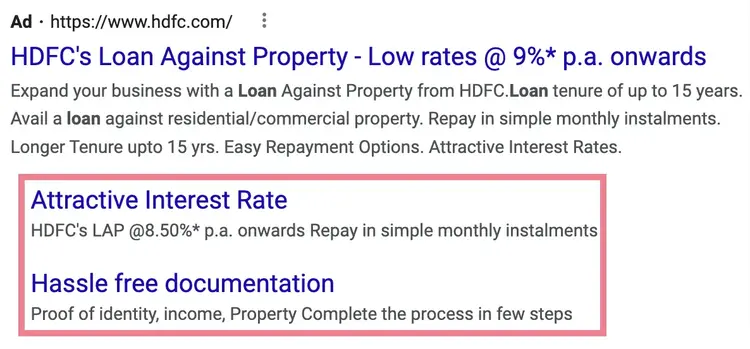
On desktop devices, ads feature two to six sitelinks.
They can appear in one or two columns, with descriptions:
Or side by side, like this:
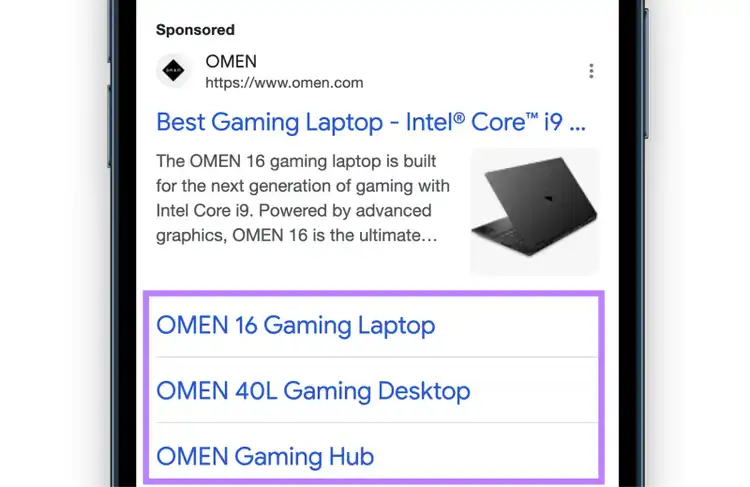
On mobile devices, ads feature one to eight sitelinks.
They may appear in a vertical list:
Or side by side in a carousel users can swipe through:
Sitelink extensions are also compatible with AdSense for Search (Google results that appear on third-party websites).
What Are the Benefits of Using Sitelink Extensions?
Sitelink extensions can improve your ads’ click-through rate (CTR). Because they help capture users’ attention and give them more options to choose from.
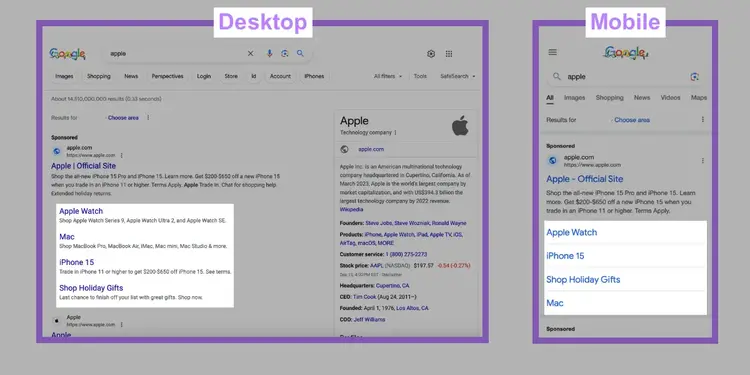
Typically, sitelinks take up lots of space above the fold (in the section of the search results page that appears before scrolling). Both on desktop and mobile:
Plus, users who click sitelinks may be more likely to convert (take a desired action). Because they get to the page they’re interested in more quickly.
This can lead to a reduced cost per action (CPA) and a higher return on ad spend (ROAS).
It’s also important to note that you can:
Add sitelinks for free—you just have to pay for any extra results they generate, as per your payment model (most ads work on a pay-per-click (PPC) basis)
Get detailed analytics data to see how your sitelinks perform
Easily update the text and URLs for your sitelinks
Specify when and where your sitelinks can show
But enabling sitelinks doesn’t guarantee that they’ll appear in your ads.
To maximize your chances, you’ll need to follow these best practices:
Best Practices for Sitelink Extensions
These sitelink extension best practices will help you create multi-link ads that boost clicks and conversions:
Choose Sitelink Destinations Carefully
Google will only display your sitelinks if it thinks they’ll help users and improve ad performance. So, you need to choose the most relevant pages for every ad type.
Sitelinks tend to show when search intent (the purpose behind the user’s query) is vague or mixed. Because they give users more options to choose from.
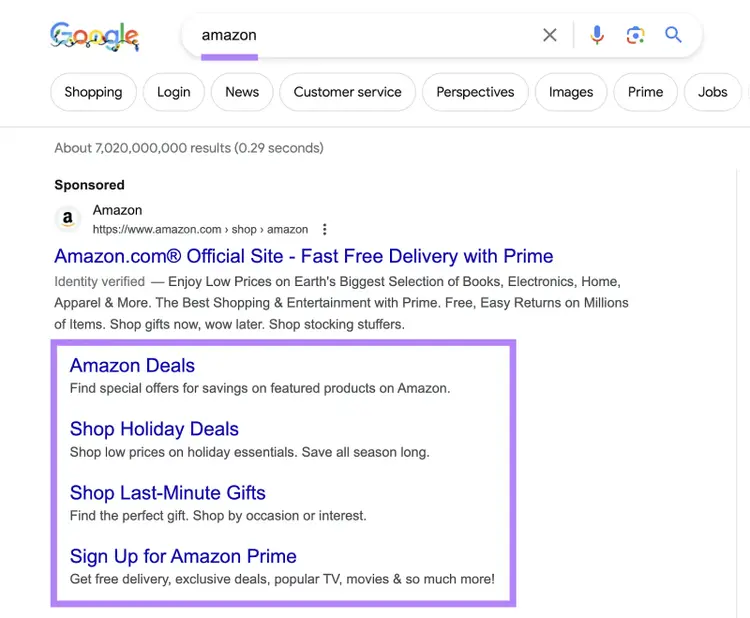
For example, they commonly show when you search a brand name:
Whatever your ad type, consider two factors when choosing sitelink destinations:
What the user is likely to be interested in
What pages you want to advertise
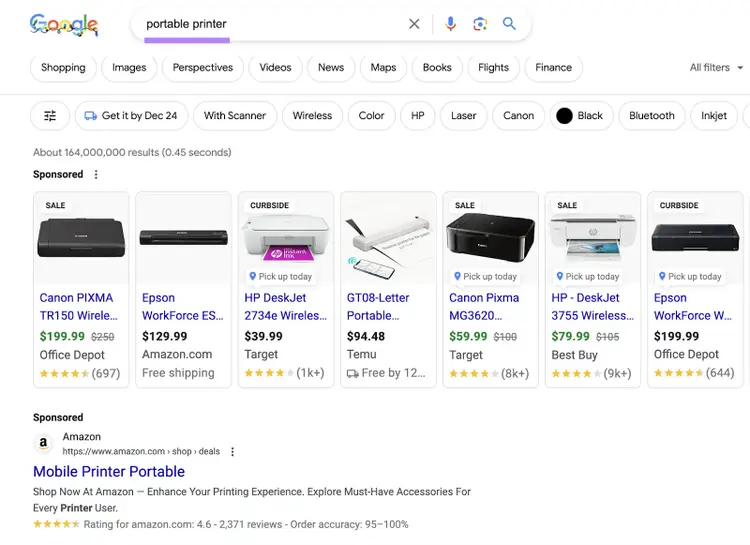
Say you’re advertising your portable printers category when people search “portable printers.”
Let’s explore some of the sitelink options:
Portable printer product pages are relevant to the user and could help you generate more conversions. It makes sense to include sitelinks to your best-selling models.
A portable printer buying guide might be interesting to the searcher, but is it worth paying for clicks to this page? You’ll need to weigh up the potential benefits and costs.
Your entire printer category isn’t useful to the searcher, as they’ve already expressed an interest in a specific type of product. This sitelink is unlikely to show or generate clicks.
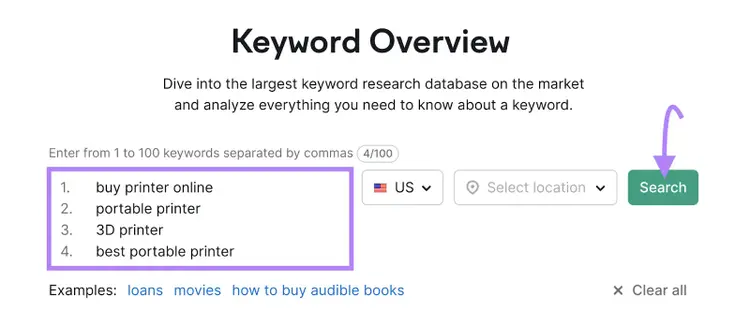
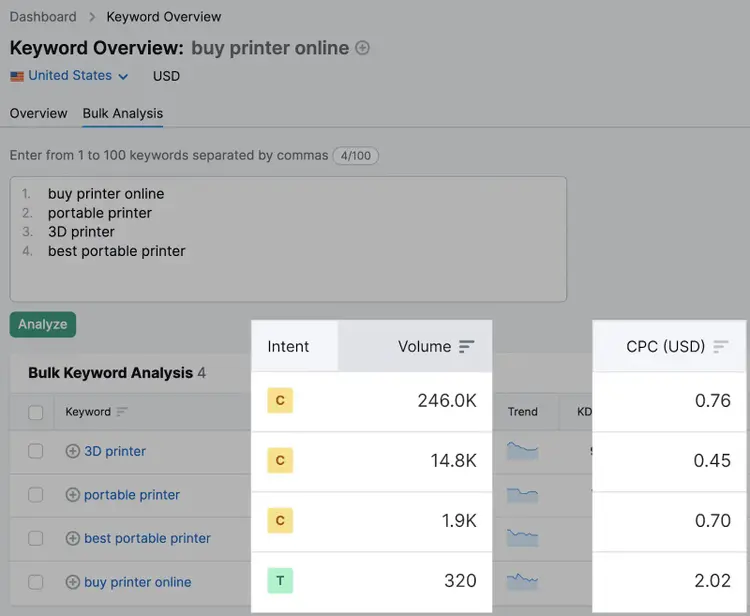
To get a better understanding of search intent, use Semrush Keyword Overview tool.
Enter your target keyword, choose your location, and hit "Search."
Sitelink text is the text the hyperlink’s attached to. And there’s a limit of 25 characters in most languages. (For double-width languages like Chinese, Japanese, and Korean, it’s 12 characters.)
Go past the limits, and Google will truncate your text. Which might clip important information and harm your CTR.
Add Sitelink Descriptions
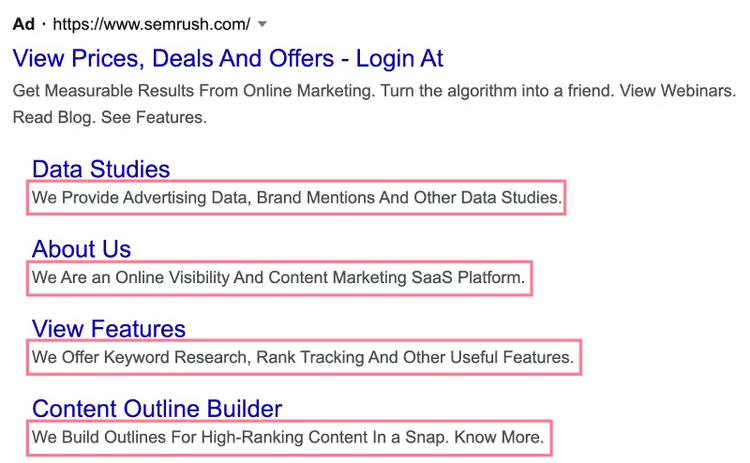
Sitelink descriptions are page summaries which may appear under each sitelink:
Adding descriptions to sitelinks doesn’t reduce the number of links you can show. So always add them for each sitelink for your ads.
Help users understand what they’ll find on each page—and why they should click through.
Enable Dynamic Sitelinks
When you enable dynamic sitelinks, Google can automatically add sitelinks and descriptions to your ads. With the aim of improving your ad performance.
They look just like manual sitelinks. And there’s no extra setup required.
Plus, you can easily remove any dynamic sitelinks you don’t like.
How to Enable Sitelinks in Google Ads
Once you have planned what your sitelinks will look like and refined your sitelink strategy, it’s time to create sitelink extensions in your Google Ads account.
You can add or remove sitelinks at any time once your ad is live.
Here’s how to set up sitelinks in Google Ads, step by step:
Need help getting started with the platform? Check out our Google Ads guide.
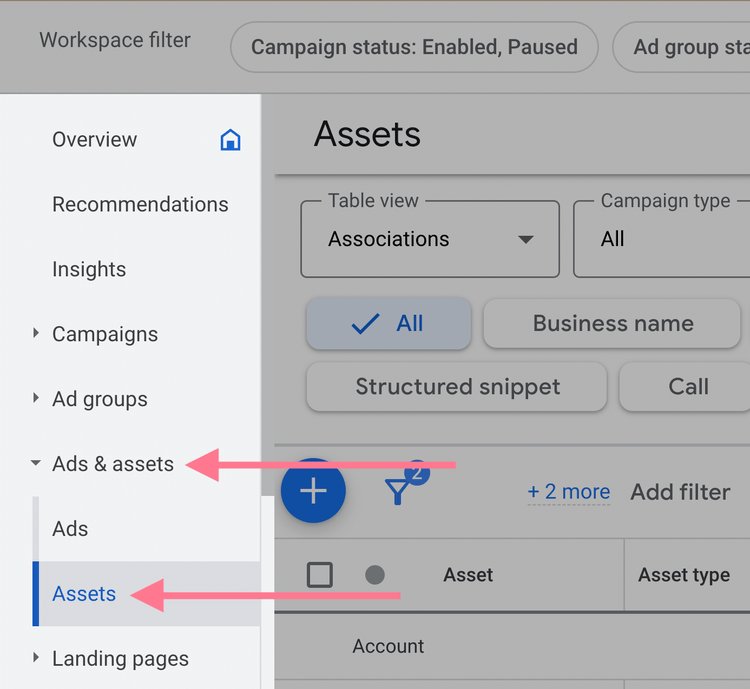
2. Select “Ads & assets” > “Assets” in the sidebar menu on the left.
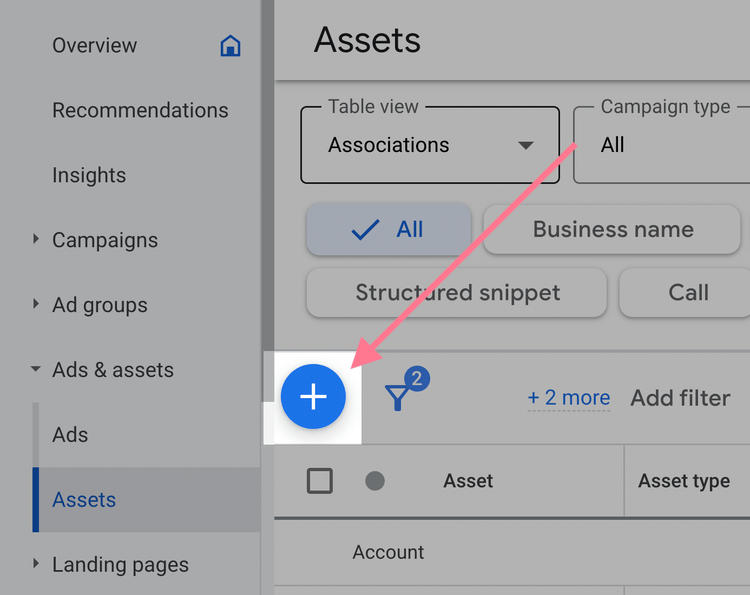
3. Click the blue plus (“+”) icon.
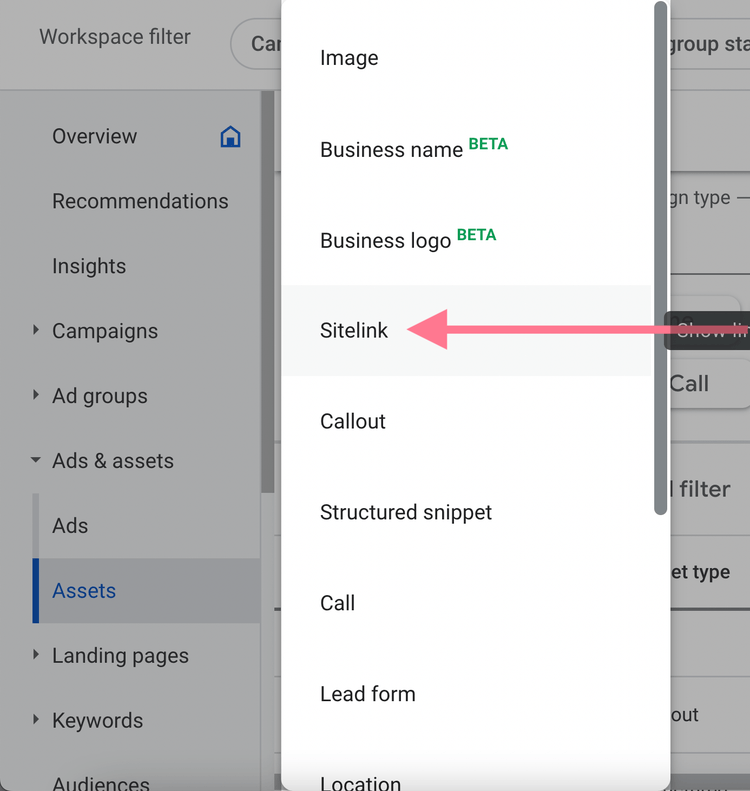
4. Select “Sitelink” in the drop-down menu that appears.
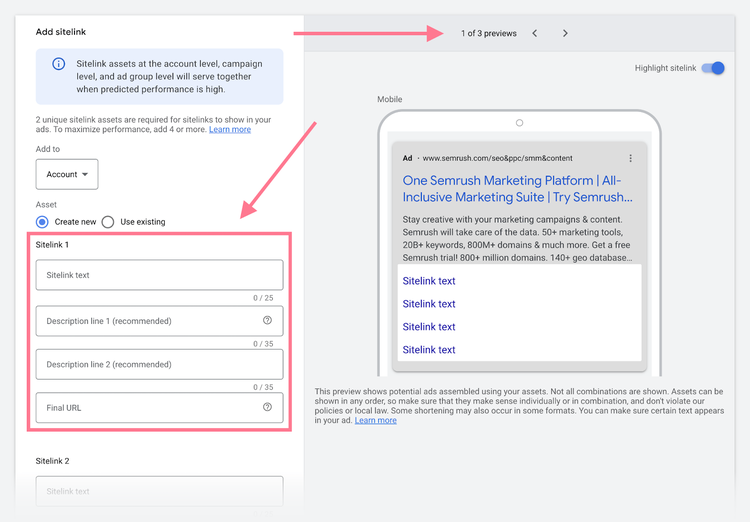
5. Create your sitelinks by filling out the forms on the left side of the page. The preview on the right shows what your ads will look like with sitelinks.
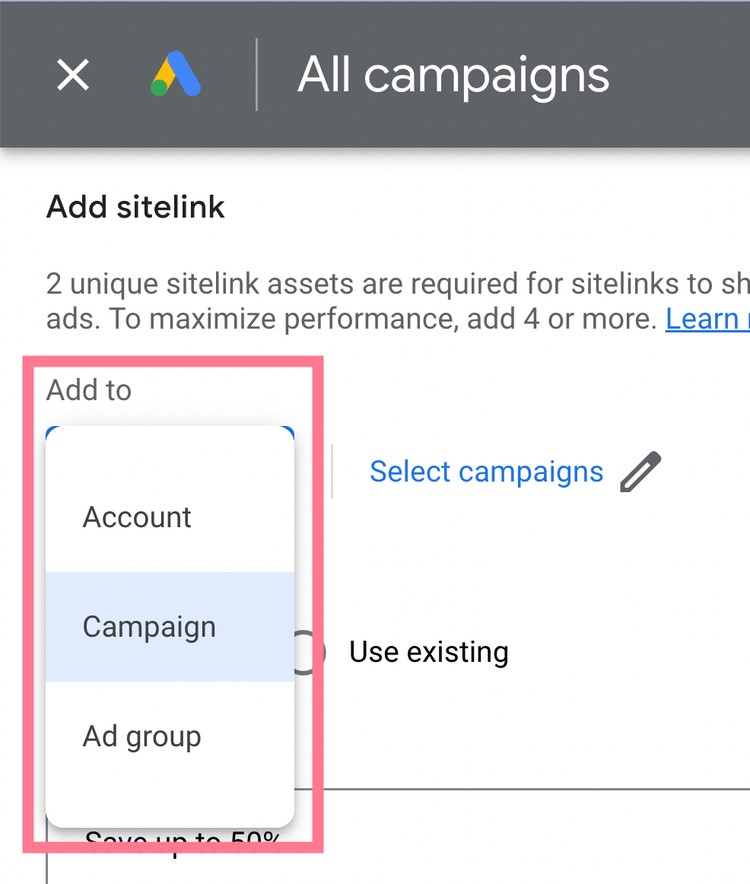
6. Click the “Add to” button above the forms. Then, select whether to display your sitelinks at the account, campaign, or ad group level.
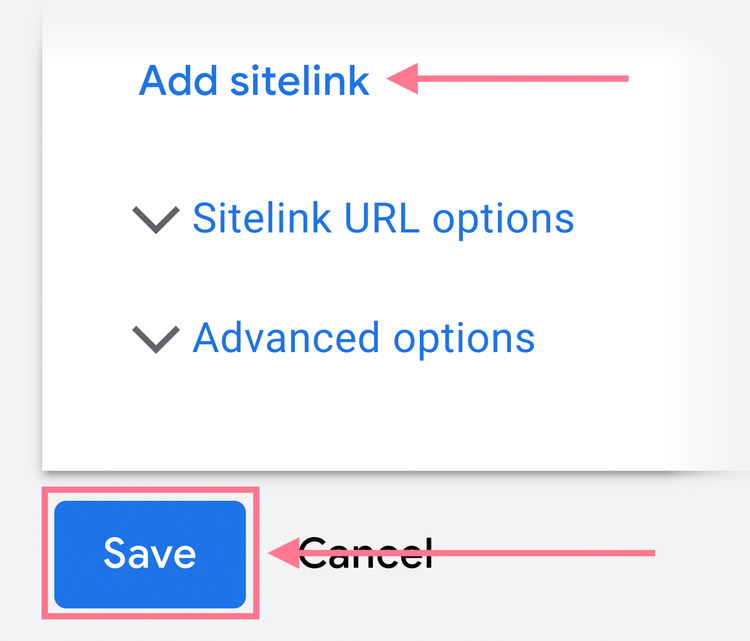
7. You can create more sitelinks by scrolling down and clicking “Add sitelink” below the form.
8. Click “Save” when you’re happy with the sitelinks you’ve created.
When sitelinks are live on your ads, monitor them regularly.
Keep an eye on how your sitelinks are performing so you can make tweaks to get the best results possible.
Why Aren’t My Google Ads Showing Sitelinks?
If you’ve set up sitelink extensions but they aren’t showing in your ads, it’s likely down to one or more of these reasons:
Reason
Recommended Action
Incorrect setup
Sign into Google Ads and check that the necessary fields are completed properly
Sitelinks aren’t relevant enough
Conduct SERP analysis to better understand search intent; then try to choose more useful sitelinks
Your ad’s position or Ad Rank is too low
Optimize your PPC ads to improve their Quality Score
Google doesn’t believe sitelinks will improve ad performance
Rachel is a Senior Content Writer with 12+ years‘ experience in content marketing and SEO. In a previous role as Head of Content at a digital marketing agency, Rachel developed and executed search-driven content strategies for a diverse range of clients, including global ecommerce brands and local B2B companies. She later transitioned to an in-house role at an SaaS startup, where she focused on scaling content operations and driving organic growth.
Subscribe to learn more about Paid Advertising
Subscribe
By clicking “Subscribe” you agree to Semrush Privacy Policy and consent to Semrush using your contact data for newsletter purposes
Rachel Handley
Rachel is a Senior Content Writer with 12+ years‘ experience in content marketing and SEO. She has worked agency-side, developing and executing content strategies for a wide range of brands, and in-house, driving organic growth for a SaaS startup.
Share
Tells Google to show you more from Semrush in AI, Search, and Discover.