Search engine optimization is a long-term approach. But you can take steps to speed up your progress.
Here are 10 quick SEO tips that can rapidly improve performance:
1. Add Descriptive Internal Links
Internal links point from one page on your site to another.
They help readers and search engines discover more of your content. And let you distribute link equity—or link “juice”—throughout your site’s pages.
That can give your pages an SEO boost.
So, include links to lower-authority pages (pages with low traffic and few quality backlinks) on higher-authority pages (pages with solid traffic and plenty of backlinks).
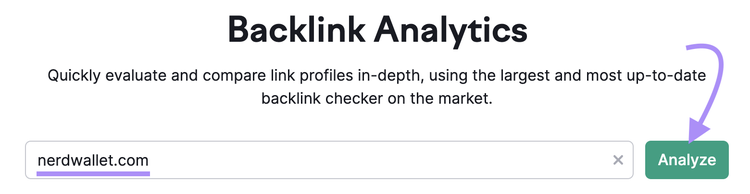
To find your most authoritative pages, use Semrush Backlink Checker.
Enter your domain and click “Analyze.”
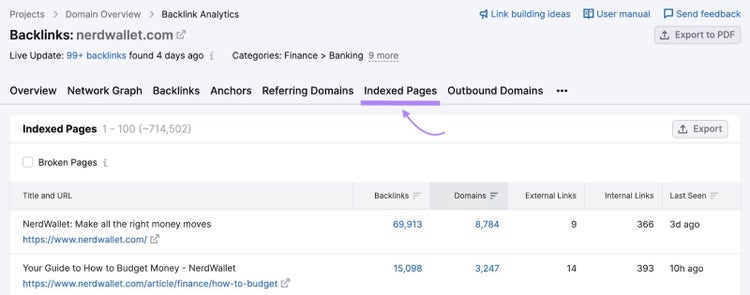
Click “Indexed Pages.”
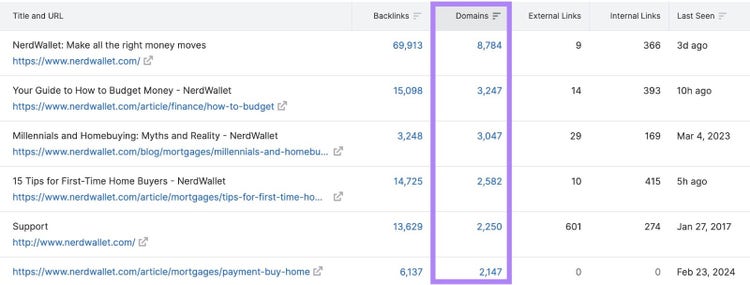
Sort by “Domains” (the default) to find pages with the highest number of referring domains, meaning websites that link to yours.
When you have a lot of high-quality domains linking to your content, this tells Google that those pages are the most authoritative.
Add internal links on those pages to distribute their link equity to more of your content.
Pro tip
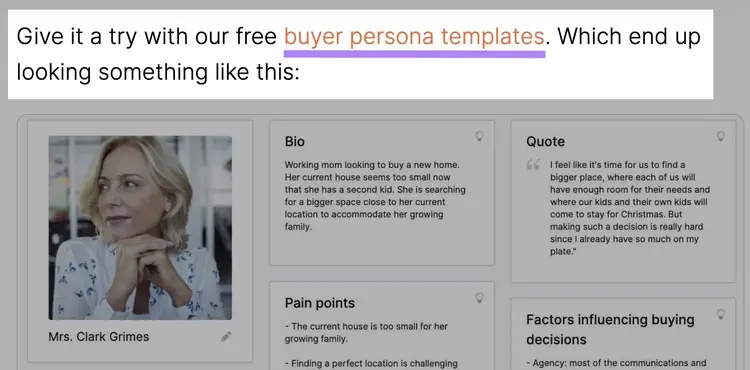
Use descriptive anchor text—the clickable part of your internal link—and avoid phrases like “click here.” Descriptive anchor text helps search engines (and readers) understand what the linked page is about. For example, the anchor text below tells us that the linked page is about buyer persona templates:
They can give Google and users an impression of what your page is about. And how relevant it is to users’ search queries.
Title tags are also important because they tell readers what your content is about. And help them decide whether to click on your site. So, title tags can impact your organic (unpaid) traffic.
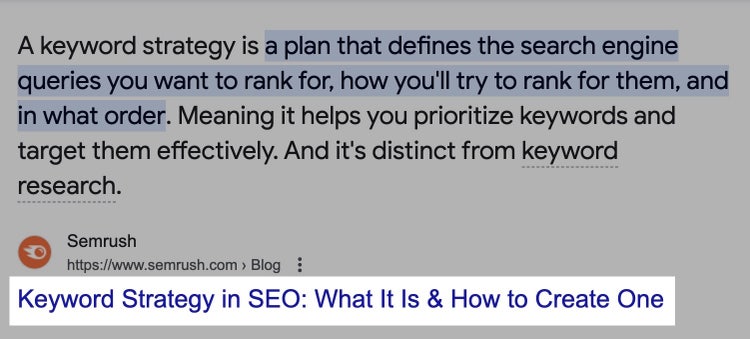
Here’s what a title tag can look like when it is displayed on a Google SERP:
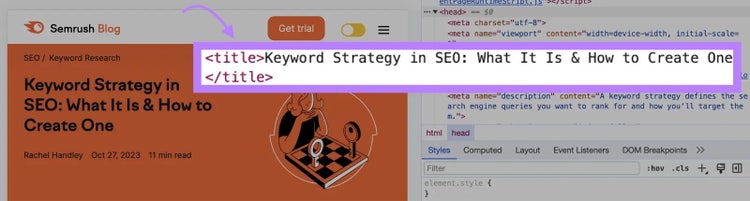
And here’s what a title tag can look like in your site’s HTML code:
A title tag that satisfies search engines and users is:
Relevant: It accurately describes what’s on the page and meets search intent
Appealing: It’s written to capture reader attention
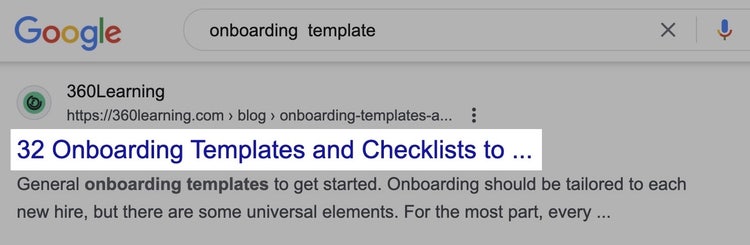
An appropriate length: It’s between 50 to 60 characters to avoid getting cut off (truncated). Like this:
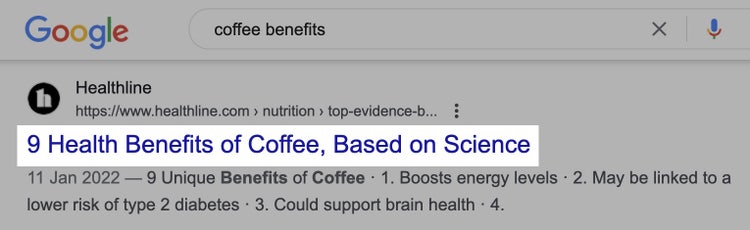
Using these guidelines, here’s an example of a good title tag:
Review your title tags in your content management system (CMS).
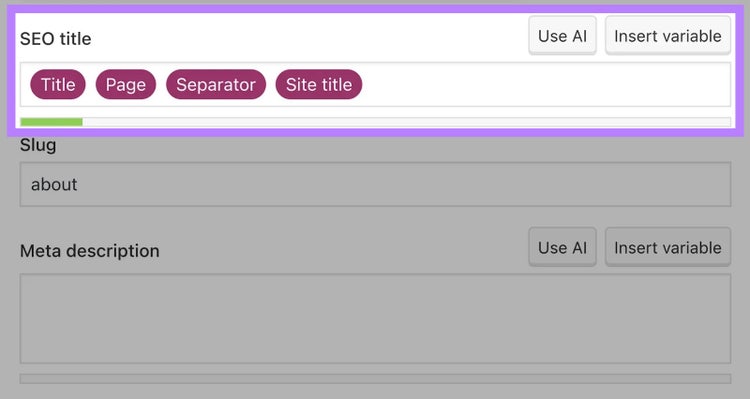
Most CMSs have built-in functionality or plugins to let you easily update your title tags. Yoast is a good example of a WordPress plugin that lets you easily adjust title tags:
Rewrite any title tags that don’t hit the previous bullet points.
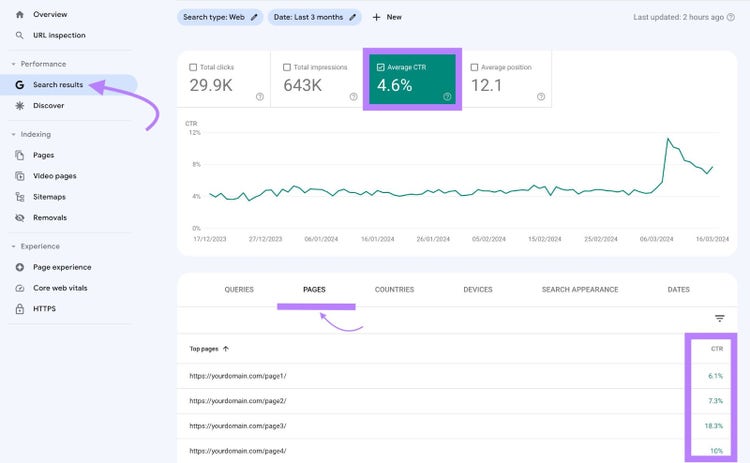
Then, click “Performance.” Select “Average CTR” and click “Pages.” (Click “Total clicks” and “Total impressions” to turn them off.) Now, you can review the CTR of your pages.
If your CTR increases after rewriting your title tags, you’re on the right track.
But if it decreases, make a list of new title tag variations. Think about where you might be missing the mark—does it match search intent? Include your primary keyword? Stand out on the SERP?
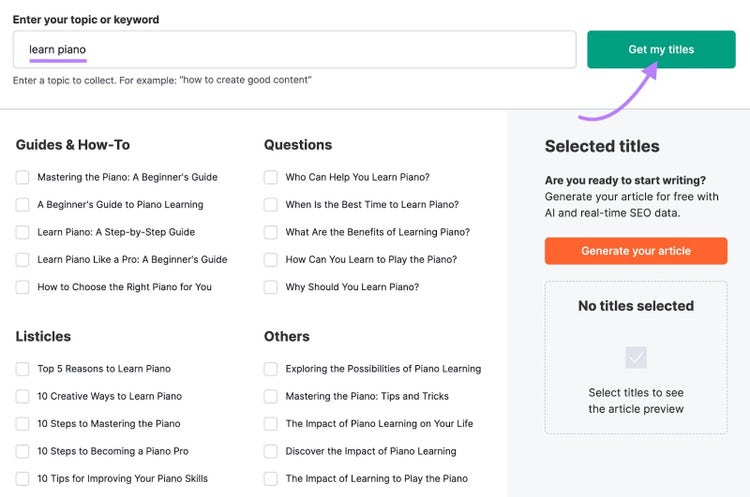
If you’re stuck, head over to our free AI Title Generator. Just enter your keyword or topic, click “Get my titles,” and pick your favorite.
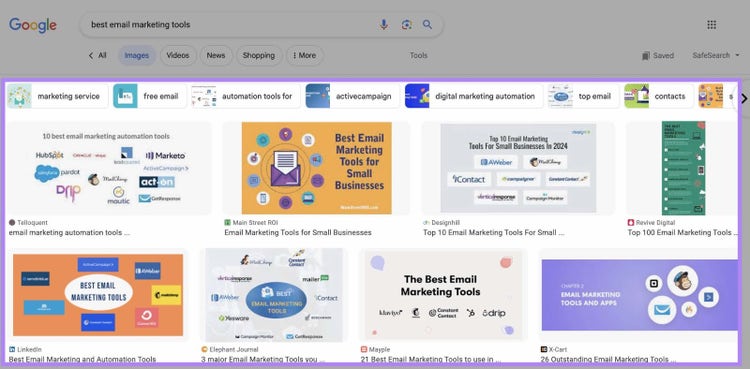
Image SEO is the process of optimizing pictures on your site to help them rank in Google Images:
This offers you another source of traffic besides clicks on the regular Google results.
Prime your pictures for search by:
Compressing your pictures with a tool like TinyPNG. Compression gives you a smaller file size, often without affecting picture quality. (Smaller image sizes also improve page speed, which is a ranking factor.
Writing descriptive alt text. Alt text describes what a picture shows. It helps search engines understand the picture content, so they know what keywords to associate it with. And it makes your website more accessible to people with visual impairments. Include relevant keywords and try to describe each picture in 125 characters or fewer.
Using keyword-rich file names. Instead of naming your picture 12345.jpg, succinctly describe it and include relevant keywords. Like red-cotton-tshirt.jpg.
Then, track your image performance in GSC.
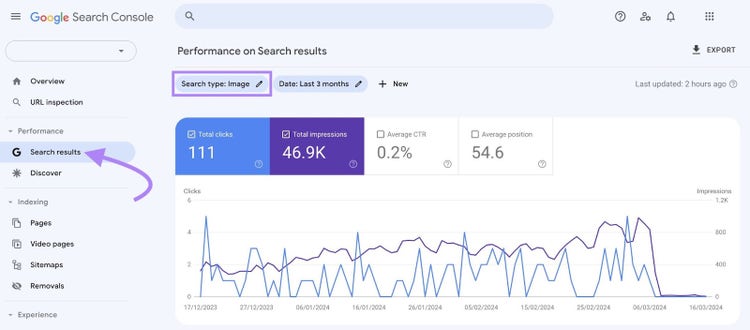
Head to “Search results” and change the “Search type” to “Image.”
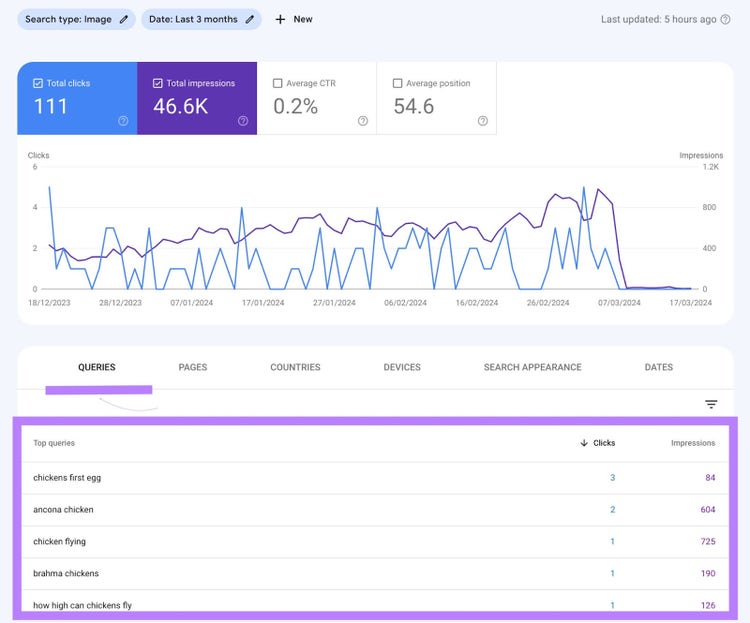
If your pictures are ranking on Google Images, you should see an increase in “Total Impressions.” And possibly “Total Clicks” (if people are clicking on them).
Scroll down to “Top queries” to see which keywords your pictures rank for.
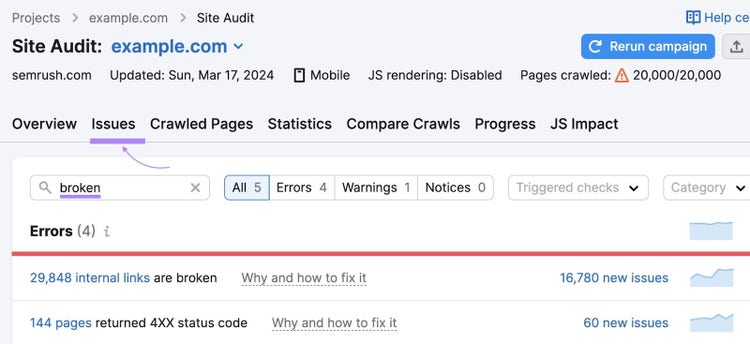
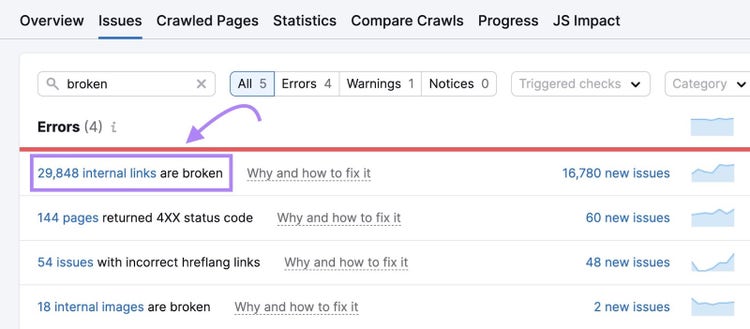
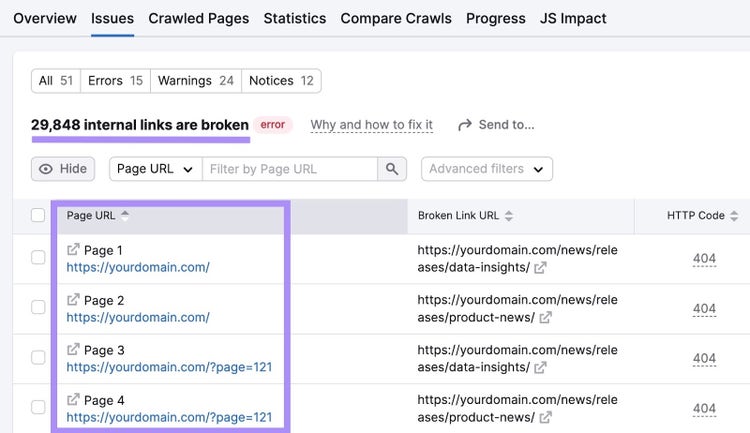
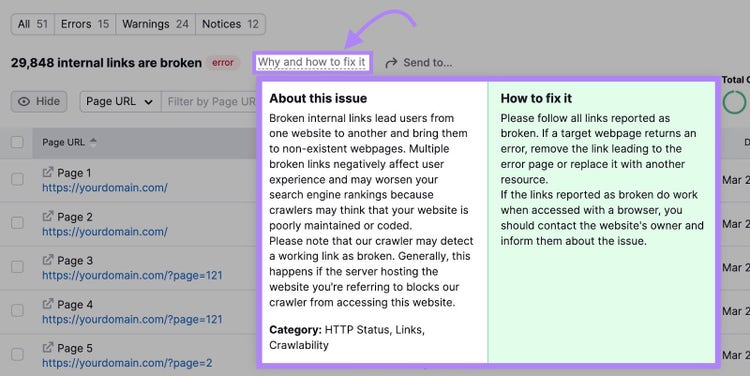
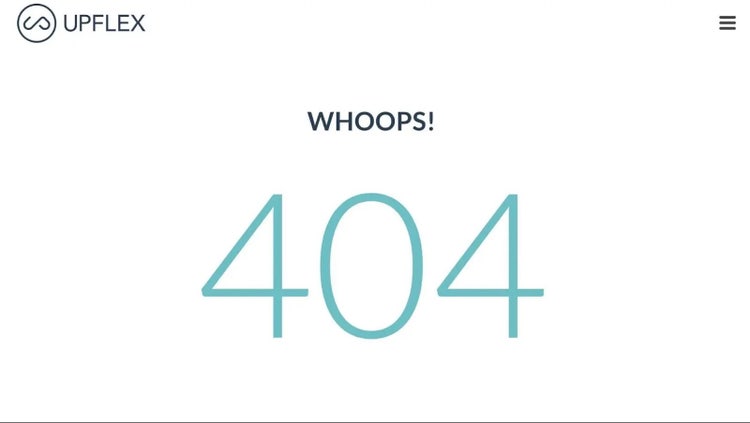
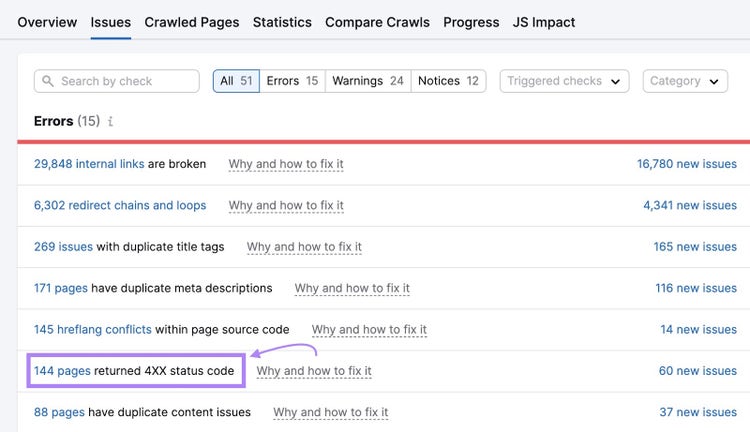
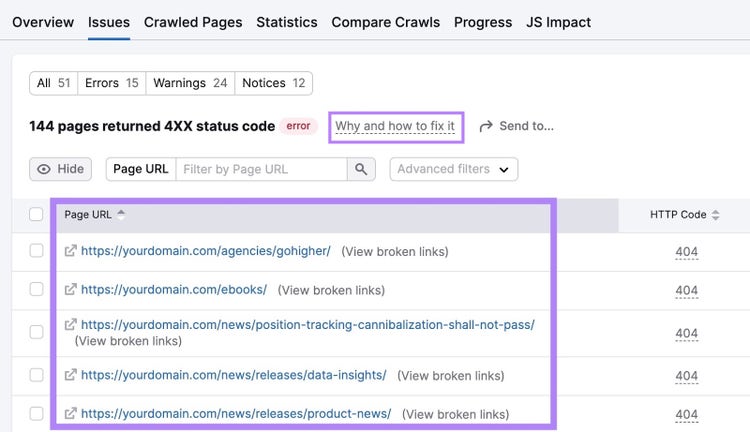
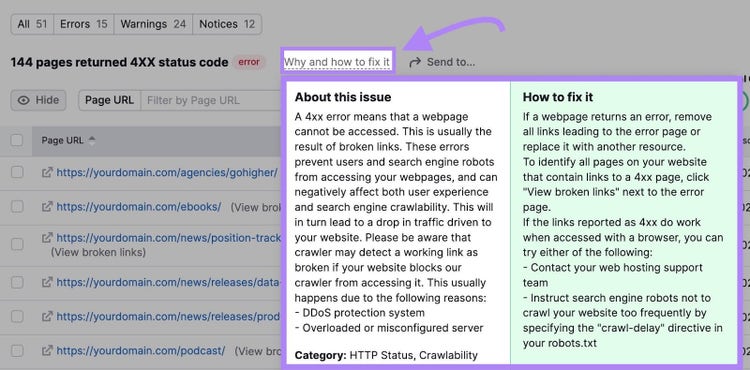
A broken link is an internal or external link that doesn’t work.
Broken links hurt your site by:
Signaling to Google that your site isn’t maintained or updated: Google wants to rank helpful, up-to-date content in search results. So, if you have too many broken links, your rankings can take a hit.
Preventing search engines from crawling your site. If search engines can’t crawl your site through internal links, they may not be able to index and rank your content
Wasting internal linking authority. Since links pass authority from page to page, you could miss out on ranking boosts if your links break
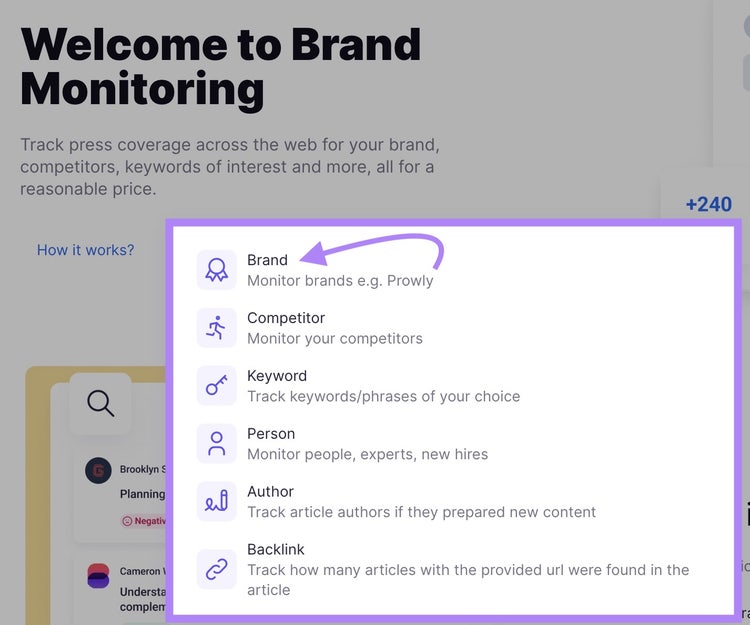
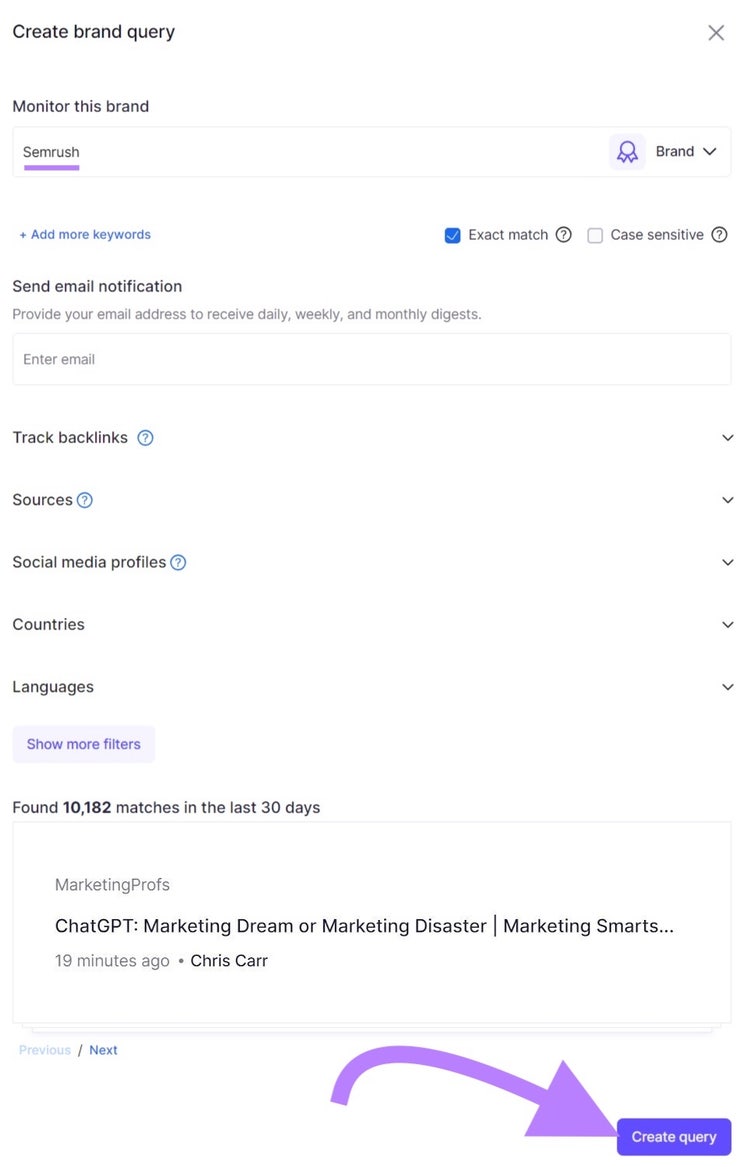
Enter your brand name. And specifics like certain countries or languages you want to monitor.
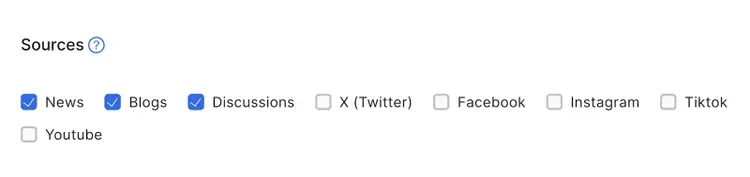
Note
Under “Sources,”deselect social media sites. Since we just want to view websites that mention you but don’t link to you.
Then, click “Create query.”
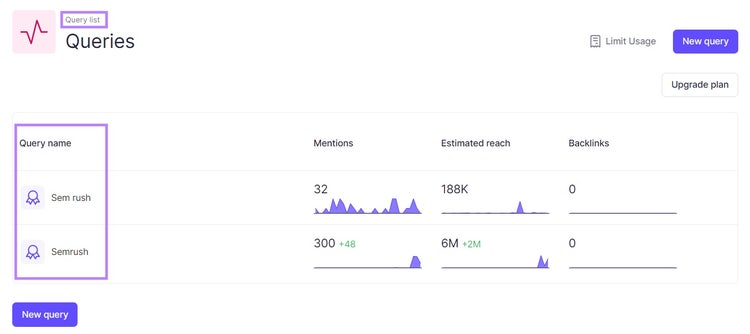
And create new queries for each brand-related keyword you want to monitor by clicking “New query.”
When you’re done, click on “Query list” to view them all.
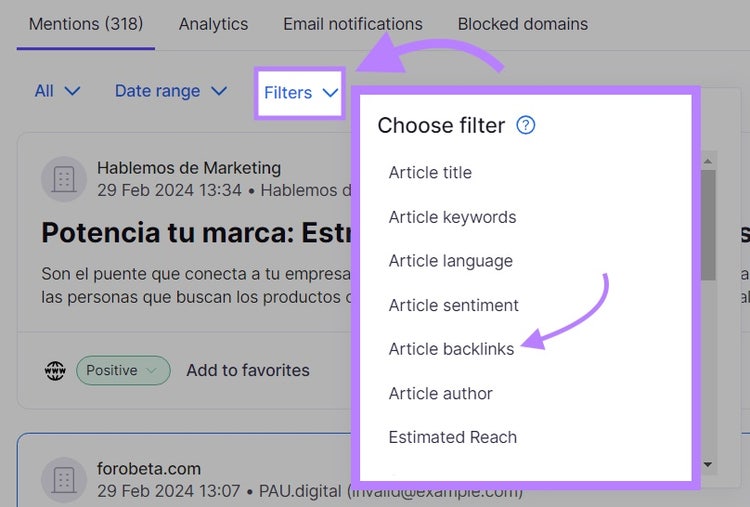
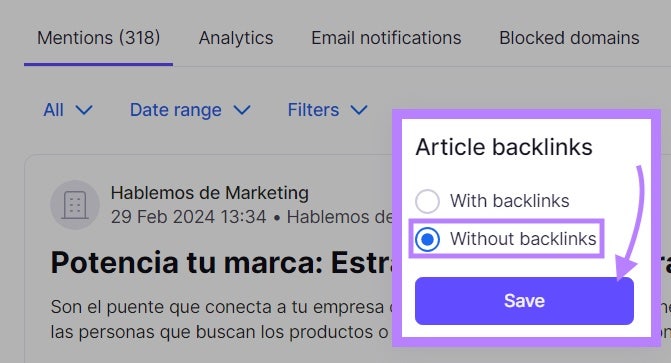
Pick a query and then click “Filters” and “Article backlinks.”
Select “Without backlinks” and click “Save.”
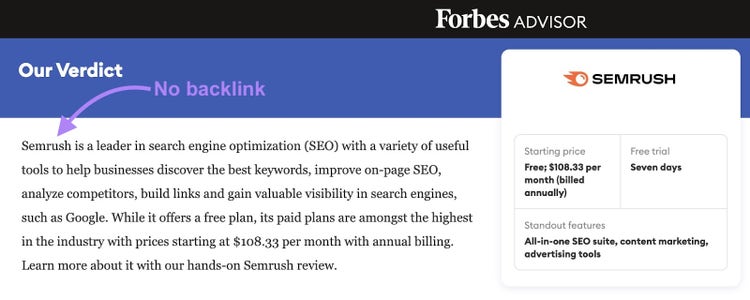
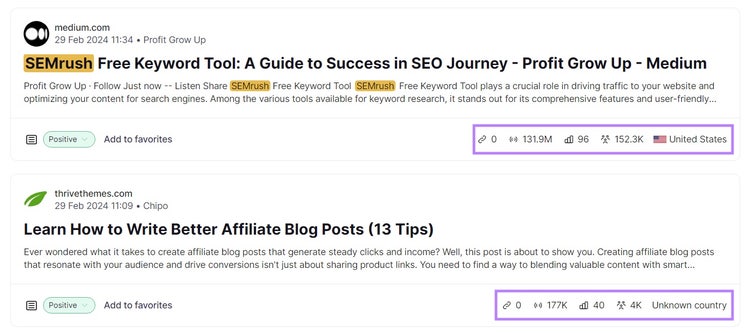
Now, you can see websites that mention your brand but don’t link to you.
Pay attention to the site’s Authority Score (AS)—a Semrush authority metric calculated via the site’s quality and SEO performance, among other factors—and the estimated reach of the page.
Prioritize reaching out to websites with the highest AS and audience reach on your list. Getting a backlink from them will give you a stronger backlink profile than getting a link from a smaller or less credible site.
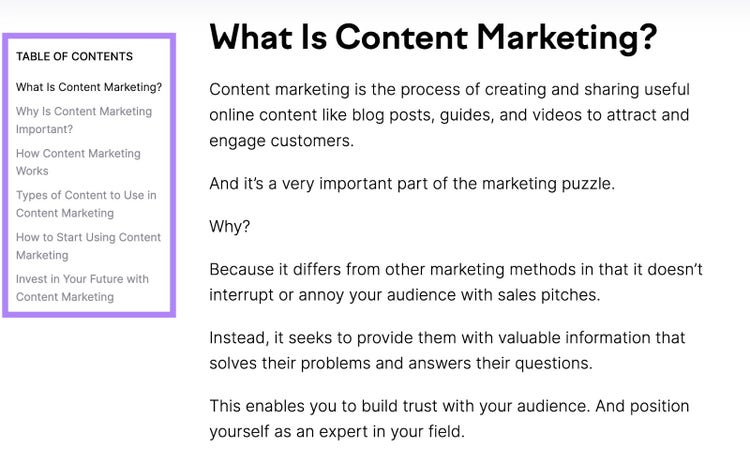
While having a table of contents (ToC) isn't a ranking factor, those separately linked sections can help you rank for different keywords. And get more traffic
For example, our ToC below has headings like “What Is Content Marketing” and “Why Is Content Marketing Important?”
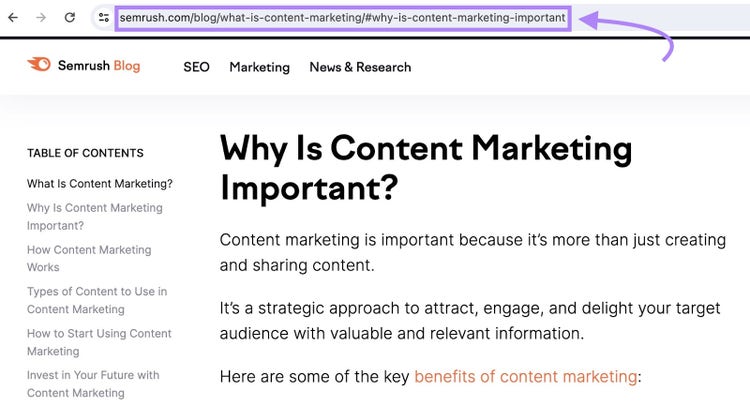
Each heading has a jump link with a unique URL that takes readers to that specific section. Like this:
So, in the above example, Google might rank that section for “why is content marketing important?”
Apps and plugins can help you automatically add an optimized ToC to your website. Like this WordPress plugin.
If you need something more customized, reach out to a developer.
Then, track your table of contents’ performance in GSC.
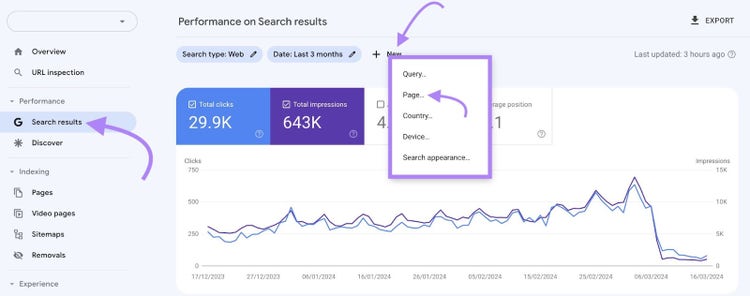
Click “Search results” and “+ New.” Select “Page” from the drop-down.
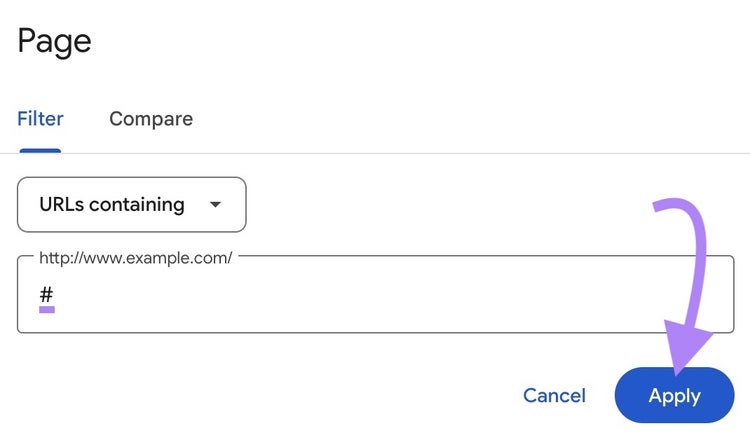
Enter a hash and click “Apply.”
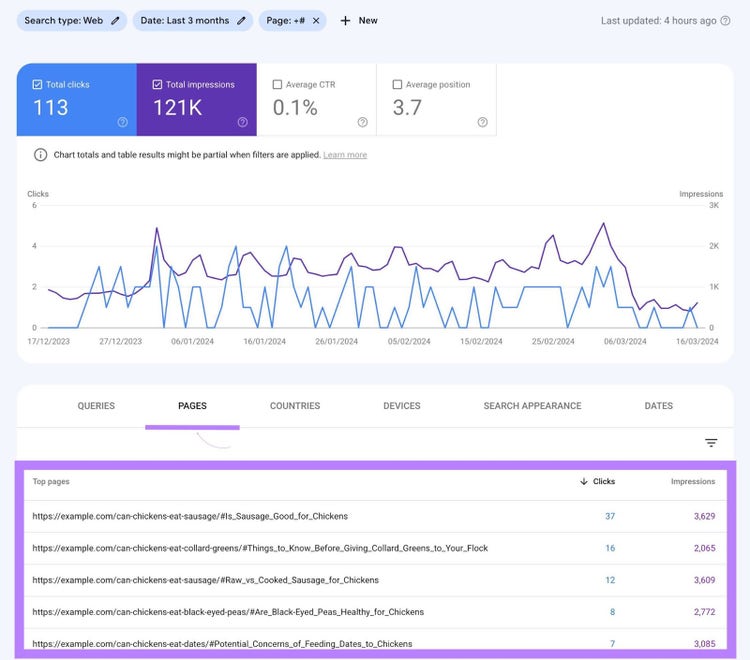
This displays the URLs of your ToC links. See how many clicks and impressions each item gets. Along with CTRs and positions in the search results.
9. Optimize for Featured Snippets
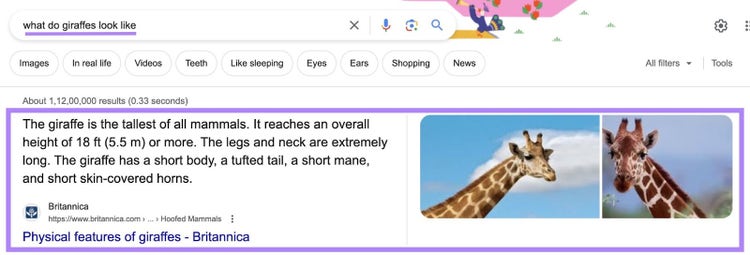
Featured snippets are webpage excerpts that Google displays at the top of the SERP.
Because they show up at the top of the SERP, ranking for featured snippets can increase clicks to your site.
Use Position Tracking to find content you already rank highly for but aren't ranking for the featured snippet.
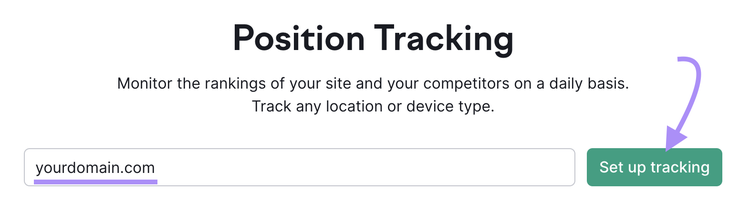
Enter your domain and click “Set up tracking.” (If you’ve already created a Position Tracking project, click the project’s name or click “Create new project.”)
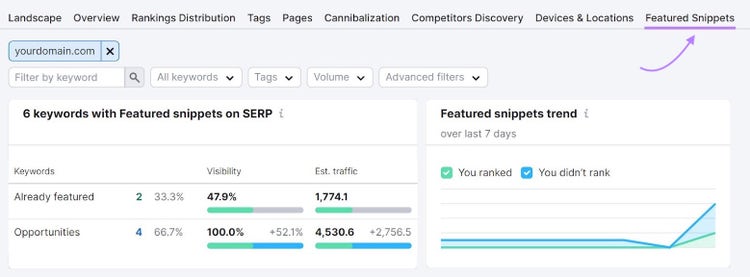
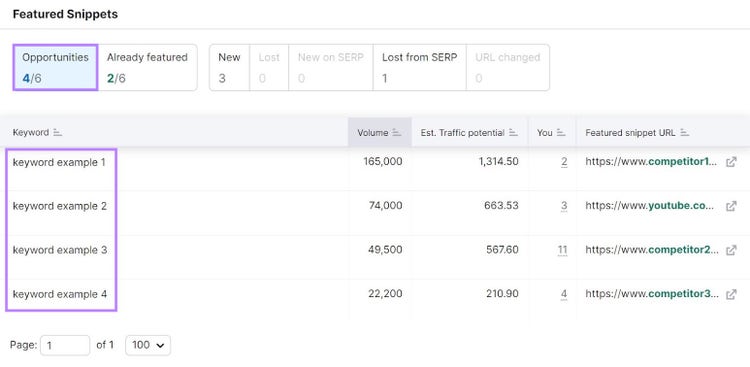
Click “Opportunities” to see where you can target featured snippet spots.
Look at the “You” column. And focus on trying to get featured snippets where you already rank in the top 10.
Read our guide on featured snippets to learn how to optimize your content for different types of snippets. Optimizing for a featured snippet usually involves a quick tweak of your existing content.
Continue to come back to this report and note which opportunities move to the “Already featured” tab. Meaning, you successfully landed the featured snippet.
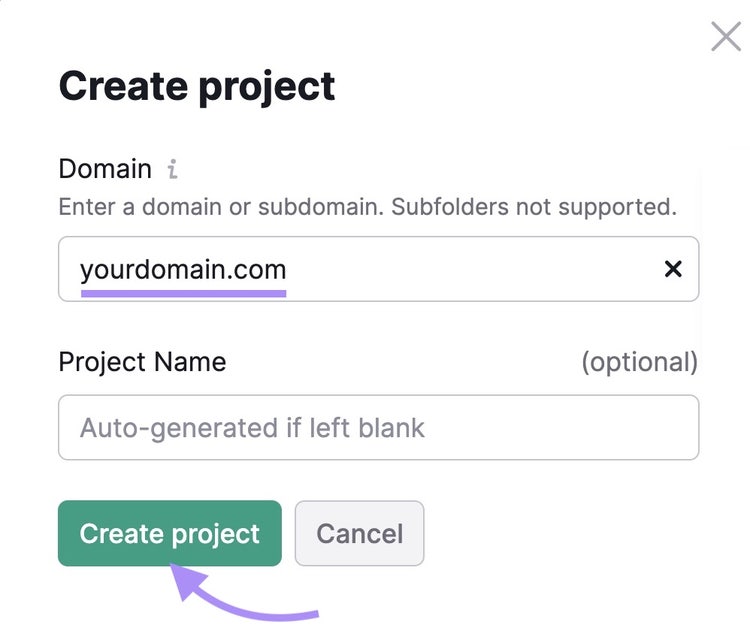
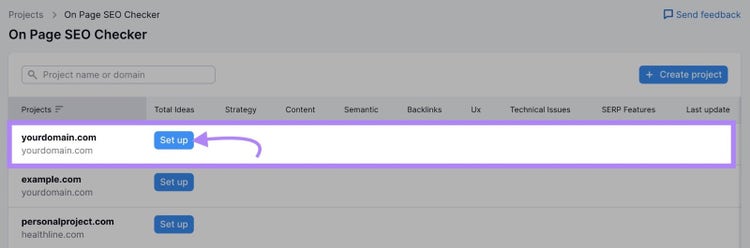
Enter your domain and give your project a name (optional). Click “Create project.”
Locate your new project in the list below and click “Set up.”
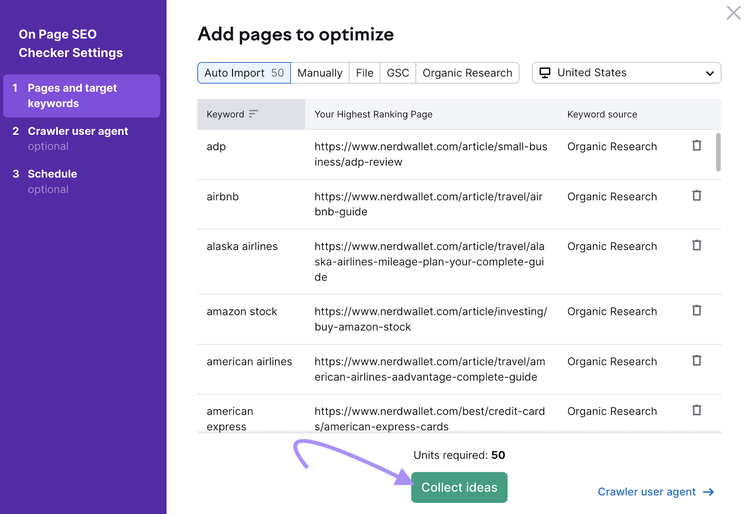
Configure the On Page SEO Checker settings with items like the keywords you want each page to rank for. Our configuration guide will help if you get stuck.
When you’re done, click “Collect ideas.”
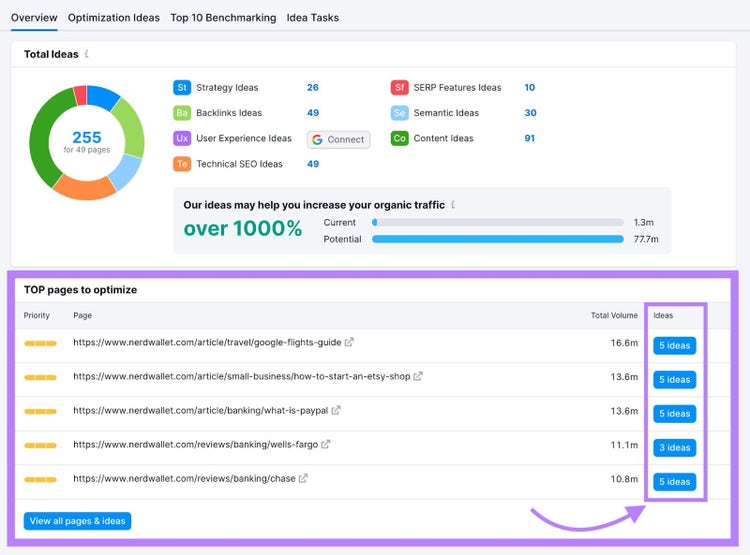
The tool will analyze your site and give you a list of top pages to optimize. Click the blue “# ideas” button to see your personalized recommendations.
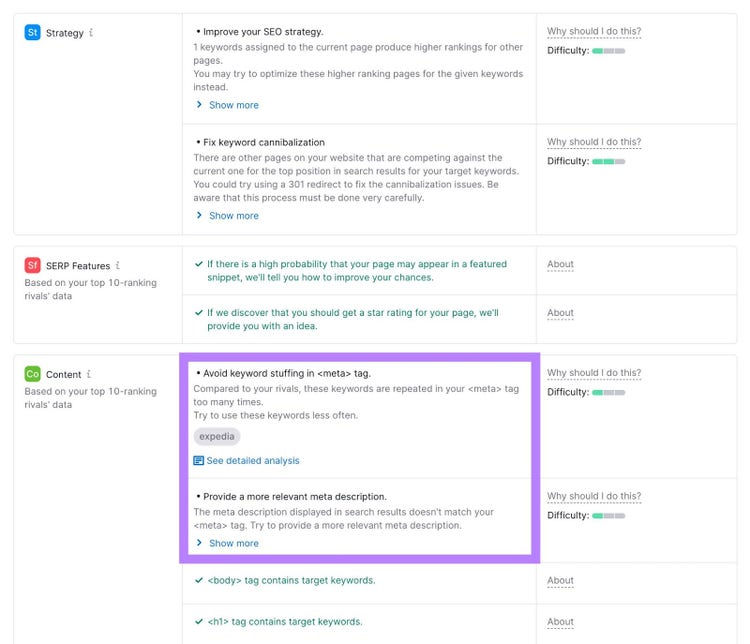
Apply the “Content” recommendations for each page.
These quick SEO tips can help you improve your rankings and get more traffic.
But remember that SEO is a long-term approach.
For a sustainable SEO strategy with lasting results, use Semrush to help you continually monitor your rankings, spot areas to revamp content, and more.
Dana holds a Bachelor of Business Administration with a major in Marketing and specializes in content writing, copywriting, and SEO strategy. She has over 10+ years of experience helping established organizations within their marketing departments and currently partners with B2B providers to develop content strategies and craft persuasive copy that delights and converts.
Subscribe to learn more about General SEO
Subscribe
By clicking “Subscribe” you agree to Semrush Privacy Policy and consent to Semrush using your contact data for newsletter purposes
Share
Tells Google to show you more from Semrush in AI, Search, and Discover.