
What Is Google Maps SEO?
Google Maps SEO is the process of optimizing your business's listing in Google Maps to improve its rankings in local search results.
When people enter a search query for a specified locale, Google often displays a map along with a list of relevant businesses. Google will also do this if it believes the search intent is local.
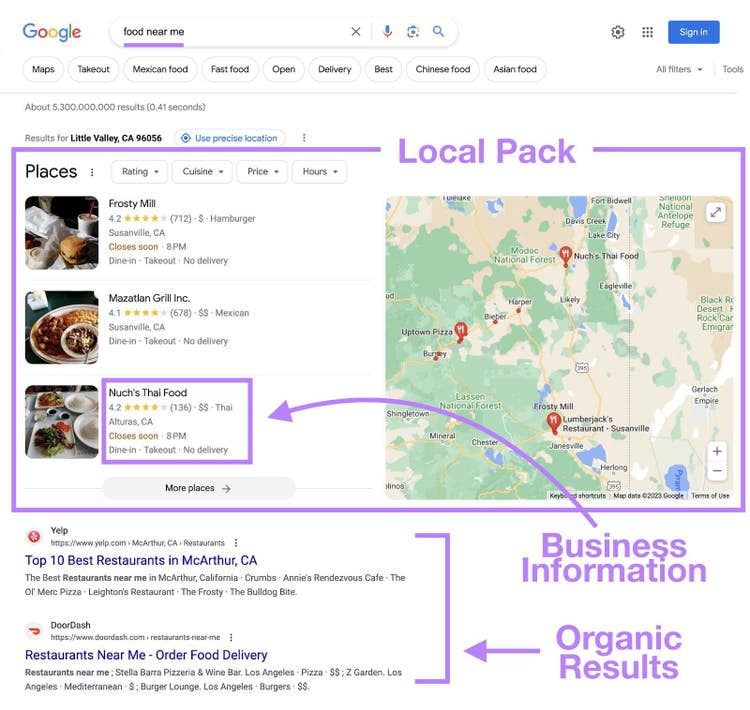
For example, the query “food near me” returns results as a local pack with three business listings and a map.
Why Is SEO for Google Maps Important?
Ranking in Google Maps is important if your business relies on local customers.
- Improves local search rankings: One factor Google bases its local results on is how well your Google Business Profile (GBP)—formerly called Google My Business—matches what someone is searching for. Filling out and optimizing your profile can increase your business's local search visibility.
- Increases website traffic: Appearing in Google Maps can drive more traffic to your site. People are 70% more likely to visit a business with a GBP.
- Builds trust: A Google Maps listing can build trust and credibility with searchers. People are 2.7 times more likely to consider your business reputable if they see your GBP on Google Maps.
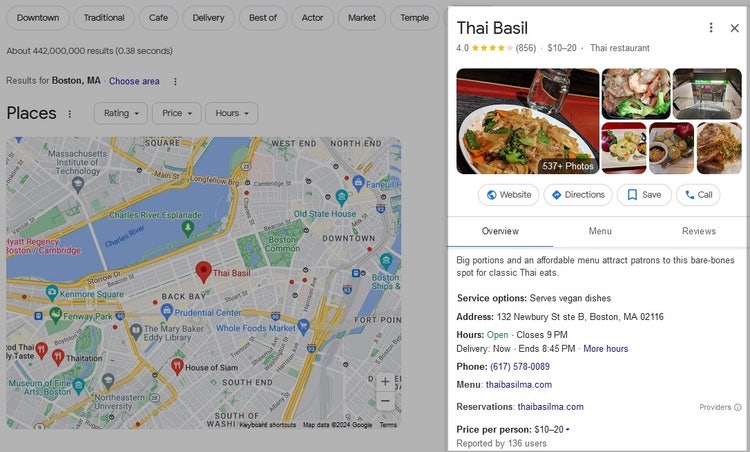
- Showcases key business information: A GBP allows you to display important information. Such as your business address, website, phone number, and other details. These help potential customers understand what you do, when you’re open, and what kind of reviews you get.
Here’s an example of a Google Business Profile with key business information:
What Factors Affect Local Rankings?
Google's local search results are determined by three main factors: relevance, distance, and prominence.
Relevance
Relevance refers to how well your business listing matches the user’s search intent. Google wants to show listings that are most relevant to what the user is looking for.
Complete your GBP with detailed information about your business, products, and services.
For example, a landscaping business could update the following:
- Hours: Specify operating hours, including special hours for holidays
- Business category: Choose the most relevant category (in this case, “Landscaper”)
- Description: Write an engaging description of your services and unique selling points
- Services: List all services, such as lawn care, garden design, etc.
- Image and videos: Upload images of equipment, before-and-after shots, and the team at work. Add videos showcasing your services and tours of completed projects.
Distance
Distance refers to how far your business is from the location indicated in a search.
For example, assume you own a Thai restaurant in Boston. When a person searches "Thai in Boston," Google calculates the distance between the user's location. And your business's physical location.
There isn’t much you can do about this factor. Only change your listing's location if you move the business.
Prominence
Prominence refers to how well-known your business is. Google considers factors such as ratings, number of reviews, and online business information.
For example, Thai Basil ranks first in the local pack for "Thai in Boston.”
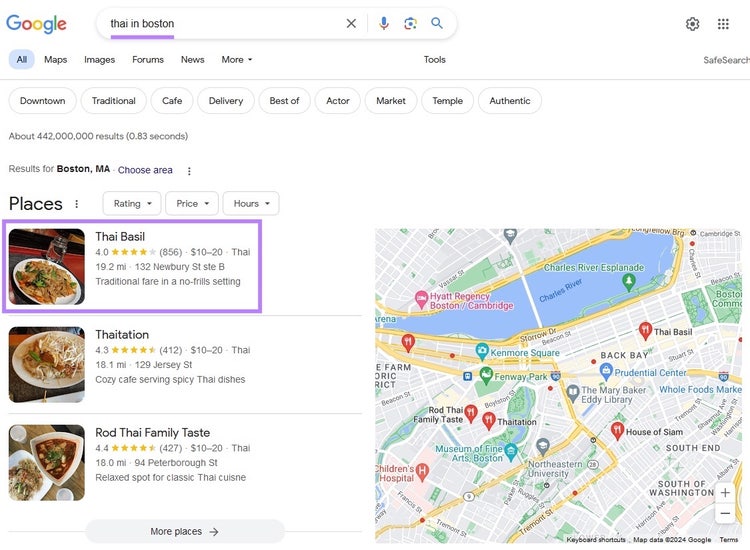
The restaurant has over 800 reviews, which is more than twice the number of reviews than the second listing. And a 4.0 average rating. Google clearly sees it as well-known.
If you open a competing Thai restaurant in the same area, you likely won’t rank in the local pack until you’ve reached a similar level of prominence.
Here are a few things you can do to improve your local prominence:
- Fill out your GBP completely. Including name, address, and phone number (NAP), operating hours, amenities, service and product offerings, and more.
- Encourage customers to leave Google reviews
- Follow on-page SEO best practices for your site
- Create helpful, localized content on your site
- Get NAP citations on social media profiles and business directories
- Earn backlinks by reaching out to other local businesses, contacting local newspapers, and supporting/sponsoring local events
11 Tips for Ranking Higher in Google Maps
Ranking higher in Google Maps improves your business's search visibility. And can help you attract more local customers.
1. Add or Claim Your Business on Google Maps
To improve your Google Map SEO, create your GBP. Or claim the unverified profile Google created.
Search Google for your business name to see if a profile exists. If it does, you’ll see it on the right-hand side of the search engine results page (SERP).
In the profile, you can update important information about your business, including your:
- Name
- Address
- Phone number
- Operating hours
- And more
You can also upload images and schedule posts.
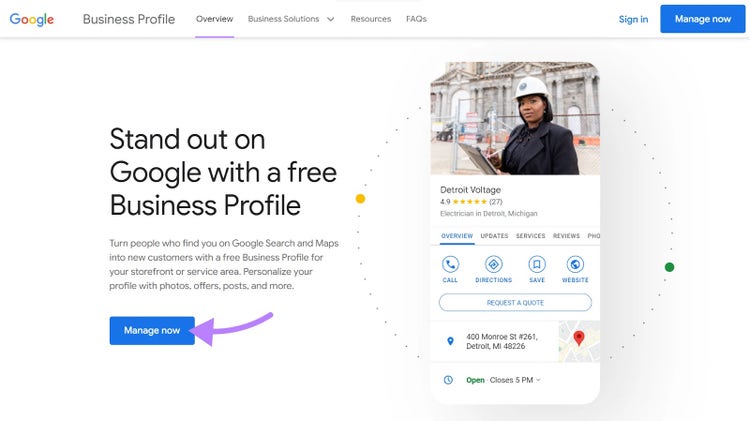
To start the process, go to the GBP page and click “Manage now.”
Further reading: How to Add Your Business to Google
2. Optimize Your Google Business Profile
Once you’ve completed the claiming process, it’s time to optimize your GBP.
While you can do this directly in your profile, our Listing Management tool makes the process faster and easier.
Add your business information to the tool. And it will automatically update your GBP and many other directory listings at the same time. Including Bing, Facebook, Yelp, Alexa, and more.
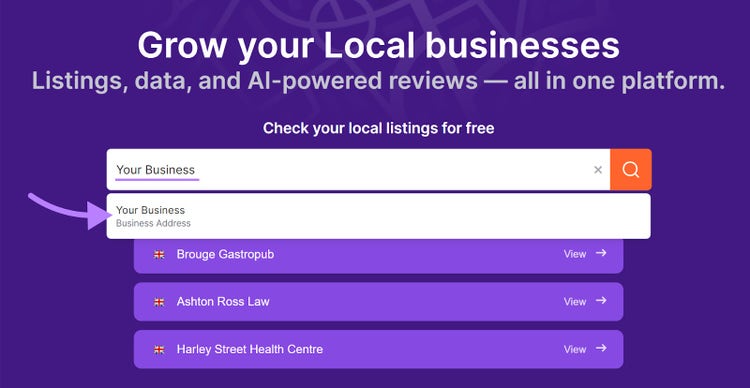
To start, open Listing Management and enter your business name. Once you've found your business, click on it.
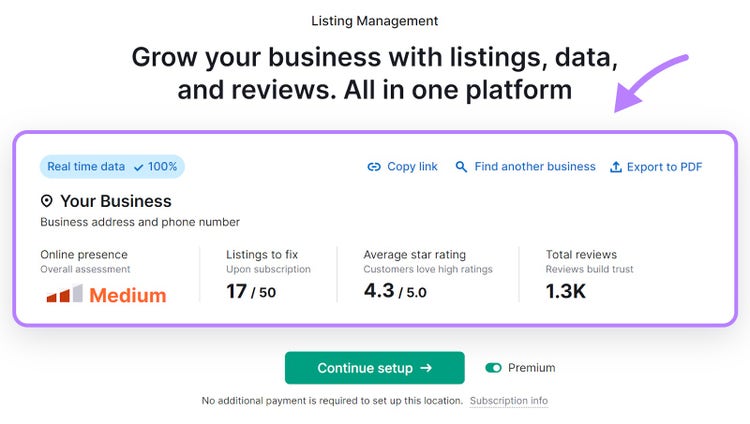
Next, you'll see some data about your listings across all directories—not just Google Maps.
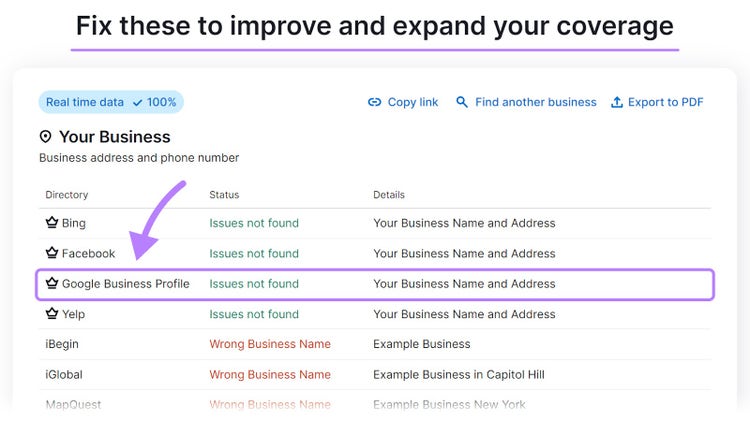
Scroll to the section called "Fix these to improve and expand your coverage." You’ll see “Google Business Profile” listed in the directory column if there are any issues.
Click the "Continue setup" button. This includes connecting your GBP to Listing Management.
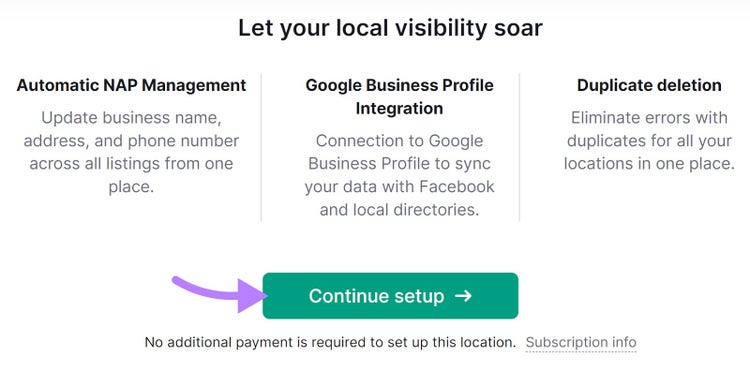
When you’ve finished the configuration, you'll arrive at the dashboard to manage your GBP.
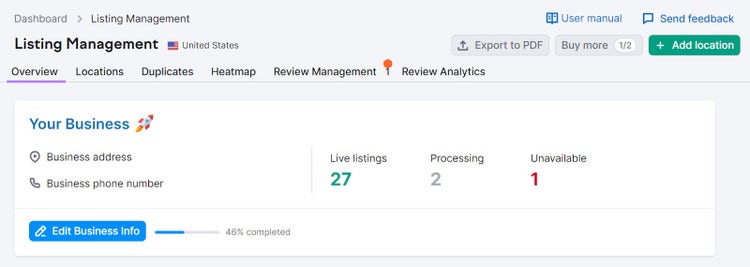
Update and optimize your profile by doing the following:
- Enter accurate business information: This includes your address, phone number, website, operating hours, and parking
- Choose a primary business category: Choose the category that fits your business best
- Write a business description: Write a compelling business description that highlights why customers should choose you
- Upload images and videos: Showcase your products, services, and the interior and exterior of your business
- Use the Posts feature: Share updates, promotions, events, and other relevant information about your business
Increase Your Google Maps Visibility
with the Listing Management Tool
3. Post Content to Your Profile
Use the Posts feature in GBP to keep your profile fresh. And attract more customers.
For example, here’s how a local bookstore could leverage the content feature:
- Promote new arrivals: Share posts about new book releases, bestsellers, and staff picks
- Announce events: Post details about upcoming events such as book signings, author talks, and reading groups
- Highlight promotions: Announce upcoming sales, discounts, and special offers
- Share seasonal recommendations: Suggest book recommendations centered around current seasons and holidays
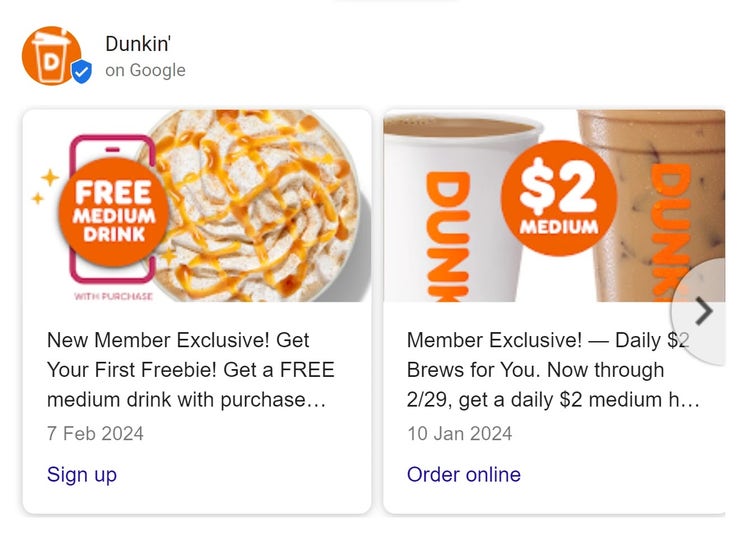
As another example, Dunkin’ uses posts to highlight deals for customers:
4. Manage and Respond to Reviews
Managing and responding to negative and positive reviews on your GBP helps you maintain your online reputation.
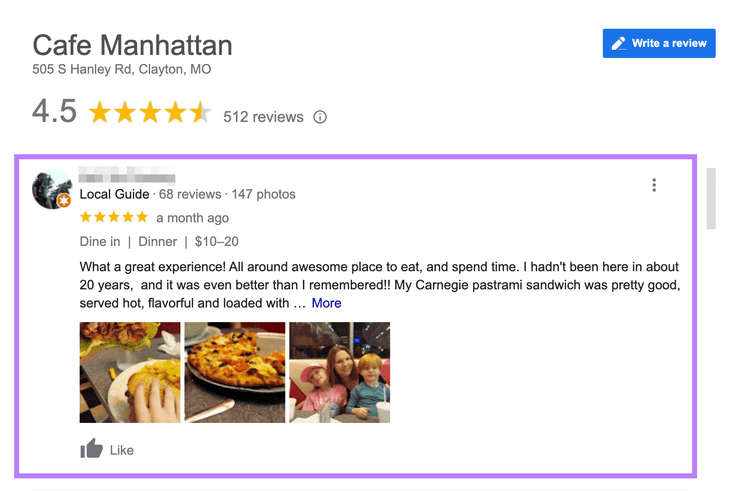
Here’s an example of what a review looks like on your profile:
Best practices for managing and responding to Google reviews include:
- Monitor regularly: Set up notifications so you're alerted whenever a new review is posted. Regular monitoring allows you to respond promptly. And address any issues that arise.
- Respond to everything: Respond to all reviews, good or bad. Thank customers for positive feedback. And address any issues raised in negative reviews.
- Be professional: Use a professional tone when responding. Be courteous to the reviewer’s praises or concerns.
- Personalize: Show you value the reviewer’s feedback by using their name if provided. And referencing details from their review.
- Be concise: Keep your responses clear and concise. Avoid writing lengthy responses that may be overwhelming for readers.
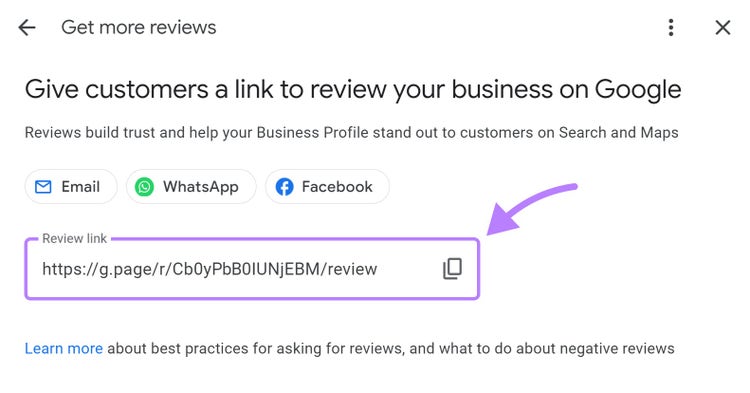
Since reviews are a Google Maps ranking factor, it’s important to get more of them. Encourage your satisfied customers to leave reviews by asking them in person. Or including a link in your emails or on receipts.
Find the link that will take people directly to your Google Maps listing in your GBP dashboard.
Click “Ask for reviews.”
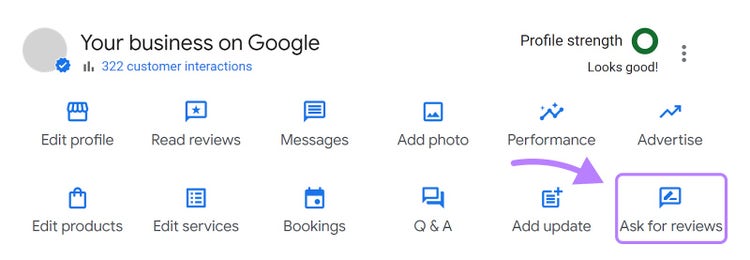
A box will appear with a unique link just for your listing. Copy it and share it with your customers.
Pro tip
Use our Review Management tool to respond to reviews on multiple review sites in one place. Boost your response time with our AI-powered reviews. And analyze your competitors’ reviews to see how you compare.
5. Optimize Your Site for Local Search
Optimizing your website for local search is essential for attracting customers in your area.
- Use local keywords: Include your city or neighborhood in your content, meta tags, and headings as part of your Google Maps SEO strategy. This helps Google see your business as relevant to local searches.
- Create location pages: Create a dedicated page for each location, even if you only have one. Tailor the content to the location, such as address, phone number, business hours, and customer testimonials.
- Optimize meta tags: Use local keywords in title tags and meta descriptions to help improve your site's search visibility
- Optimize for mobile devices: Many people search locally on their phones, so your site needs to use a responsive design to display properly on mobile devices
- Include your NAP on all pages: Add your business name, address, and phone number in the footer of your site so it appears on all pages. It’s also helpful for visitors to see the NAP in the body of key pages like home and contact.
- Create local content: Publish content that’s relevant to your local audience. Write about local events, news, and updates about your business.
- Ensure good findability and crawlability: Link your most important pages in your site’s main navigation so both local customers and search bots can easily find them
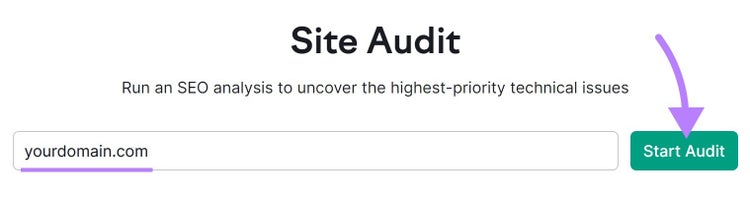
Try a free website audit to get a quick scan for your site's health. To identify issues affecting your crawlability and address problems preventing your site from ranking for local searches, use Semrush Site Audit.
Open the tool, enter your domain, and click “Start Audit.”
Note
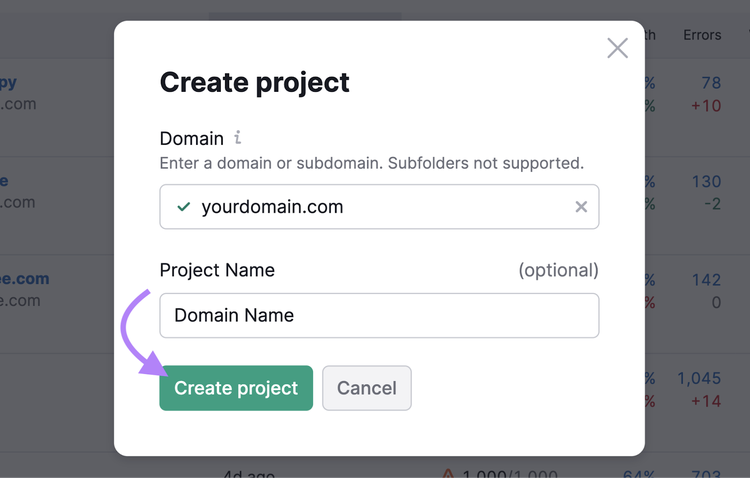
If you already have an existing Semrush project, select it or click the “+ Create project” button to add a new domain.
Enter a project name (optional). Then, click “Create project.”
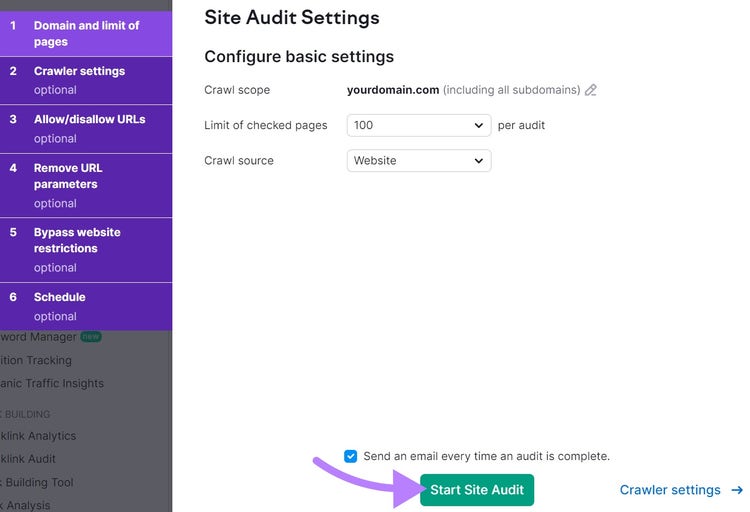
To set up your audit, choose how many pages you want to check.
For example, you can audit up to 100 pages per month with a free account. And up to 20,000 with a Semrush Pro or Guru subscription.
Next, select a crawl source. “Website” is the default.
Then, click the “Start Site Audit” button.
When the audit is finished, you’ll see an overview of your site’s health.
To see issues with crawling and indexing, click “View details” in the box labeled “Crawlability.”
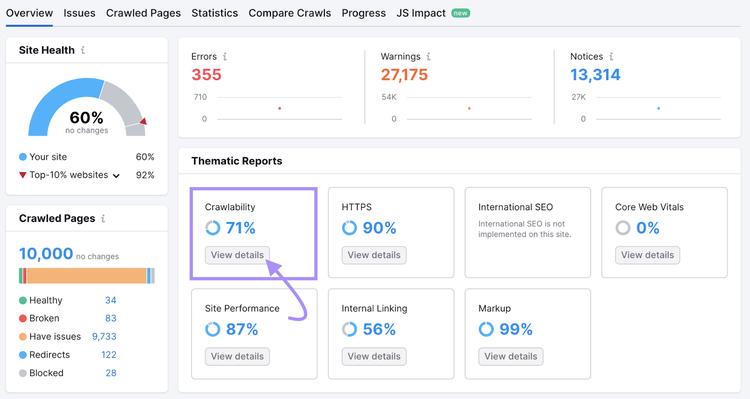
Now, you’ll see a report of issues affecting crawlability and indexability. Like 5xx errors. Or slow pages.
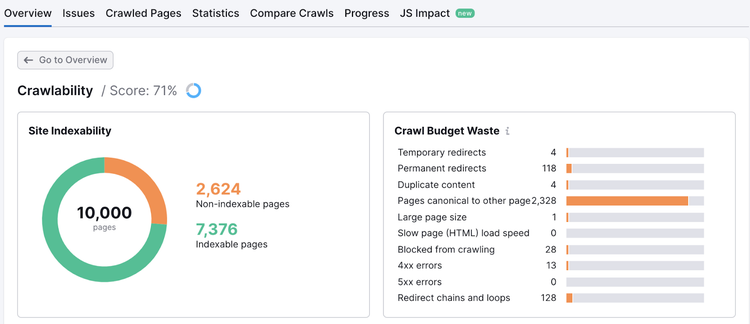
Clicking on the orange horizontal bars next to each issue will show you the pages that need attention. Fix these issues to optimize your site for local search.
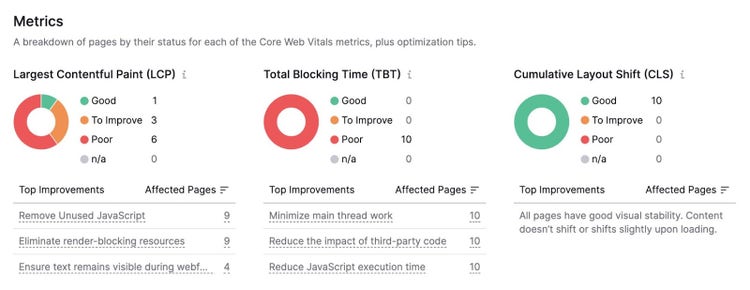
Core Web Vitals metrics, which measure load time, interactivity, and visual stability, are also important to monitor.
Check your site’s performance by clicking “View details” in the box labeled “Core Web Vitals.”
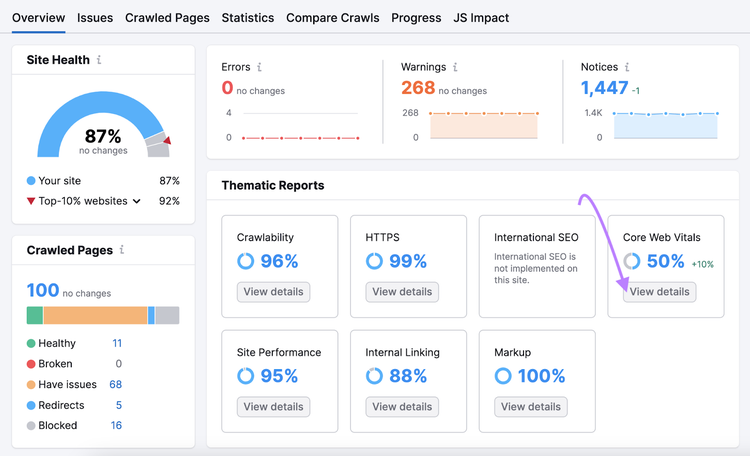
This tells you the status of your pages and provides historical data.
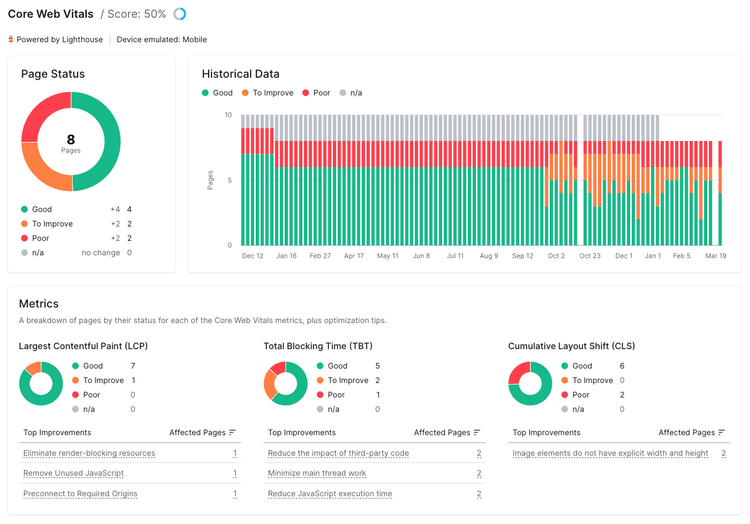
The “Metrics” section is where you’ll see various performance scores. And recommendations to improve them. Like eliminating render-blocking resources. And reducing the impact of third-party code.
Find and Fix SEO Issues
with the Site Audit Tool
6. Ensure Your NAP Is Consistent Across Listings
Since Google may use your NAP citations to verify your business information, ensure consistency across the web.
If you aren’t using a tool like Listing Management, you’ll need to do this manually across platforms.
If you haven’t already, create an account on all relevant directories. Then, check that your name, address, and phone number are correct across platforms.
Examples include:
- GBP
- Bing Places
- Yelp
- Apple Maps
- Local chamber of commerce
If you’re using Listing Management, you’ll only need to update your NAP and business information once. It then automatically updates or adds it to all available listings on your behalf.
Further reading: 9 Local Business Listing Management Tools to Boost Foot Traffic
7. Build Relevant Local Backlinks
Backlinks are links on other websites that point back to yours.
A Semrush study confirmed that the more relevant sites that link to you, the more likely your site is to rank higher overall.
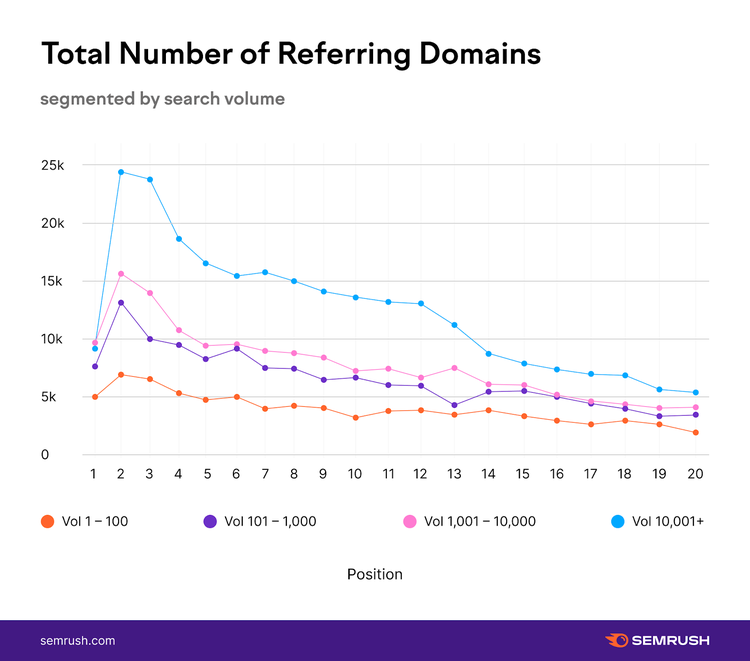
Backlinks are important for SEO because Google treats them similarly to votes of confidence. In general, the more backlinks your site has, the more Google sees it as trustworthy.
That’s why it’s essential to add link building to your Google Maps SEO strategy.
- Submit to directories: Submit your business to local online directories. Such as Yelp and local chamber of commerce sites.
- Reach out locally: Provide local news websites with announcements and stories
- Build relationships: Connect with local bloggers in your industry
- Sponsor events: Sponsor local events and ask for a backlink on their site
- Partner up: Cross-promote other local businesses on your sites
- Create local content: Tailor content to your local audience, such as local guides, infographics, or videos
- Publish press releases: Write and distribute press releases about newsworthy events or milestones related to your business
Use the Semrush Backlink Audit tool to track and analyze backlinks to your site.
When the audit is done, you’ll see an overview dashboard that looks like this:
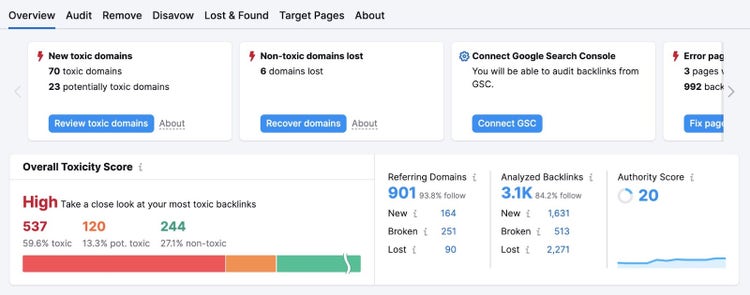
Within the tool, you can:
- See your overall backlink health
- Discover toxic links that could be harmful to your site
- Get insights about your backlinks and how to remain healthy
- Contact site owners to ask them to remove links
- Build a disavow list to ask Google to disregard links to your site
Review Your Backlink Profile
with the Backlink Audit Tool
8. Add Local Business Schema
Schema is a type of structured data you can use to give Google additional context about your business. You place the data in the HTML source of your homepage.
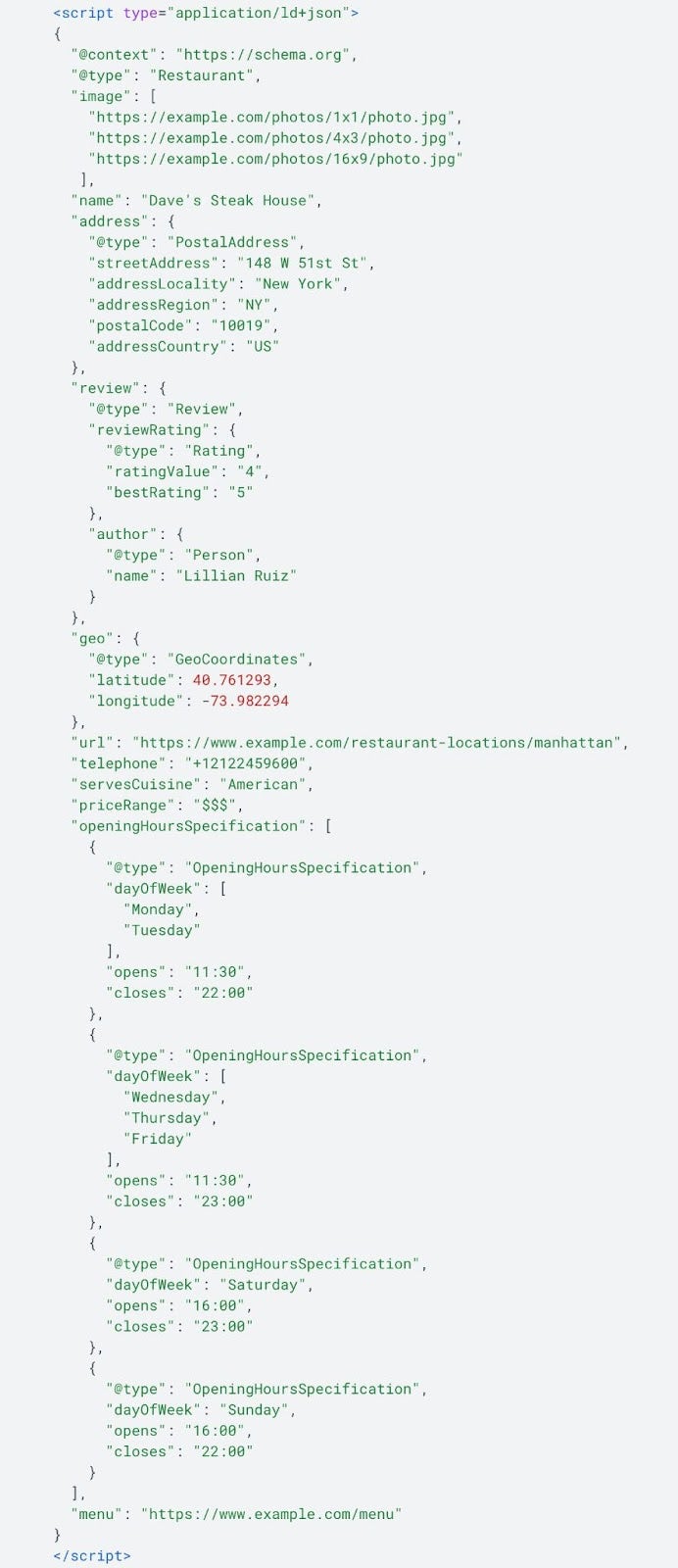
LocalBusiness Schema allows you to mark up helpful business information. Like your NAP, website, and opening hours. Your business may then appear more prominently or with rich snippets in search results.
Pro tip
Take our free technical SEO course to learn more about schema, mobile optimization, crawling and indexation, and more.
9. Target Long-Tail Keywords
Long-tail keywords are highly specific phrases that tend to have lower search volume. Compared to shorter, broader keywords (also known as “head terms”).
For example, “landscaper” is a head term. And “landscaper that plants fescue grass” is a long-tail keyword.
Long-tail keywords also tend to have higher conversion rates because searchers are more likely to be interested in a specific product or service.
Targeting long-tail keywords is beneficial for map SEO for several reasons:
- Less competitive: It may be easier to rank for long-tail keywords if you target a specific geographic area.
- More specific: Since they’re more specific, they tend to attract people who are further along in the buying process
- Highly targeted: They can help you target local customers more effectively by including location-specific words in the phrase. This can help you attract customers looking for businesses like yours in their area.
Find long-tail, relevant keywords to target by using our Keyword Magic Tool.
Enter a head term to start. Then, select the country your business operates in, and click “Search.”
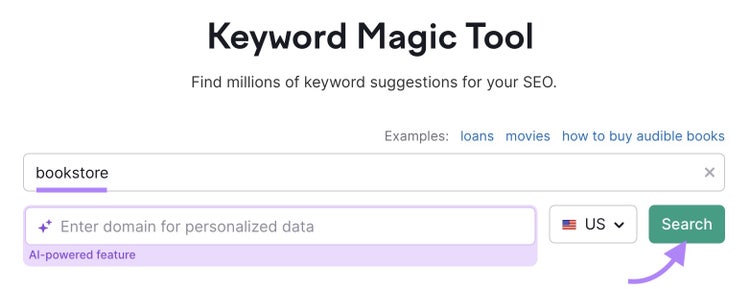
You’ll then see an overview of related keywords. And different ways to filter and narrow your focus.
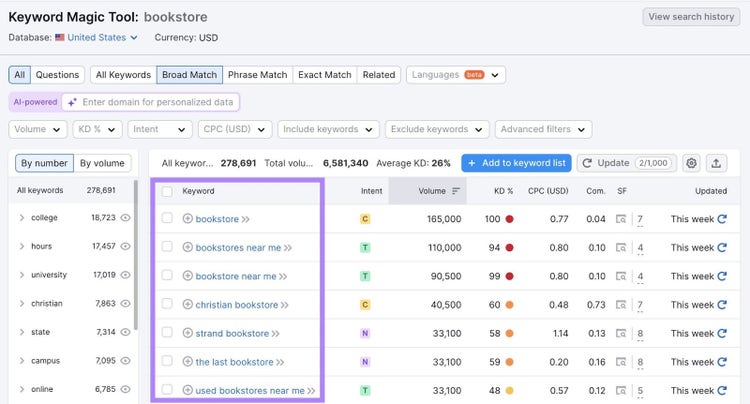
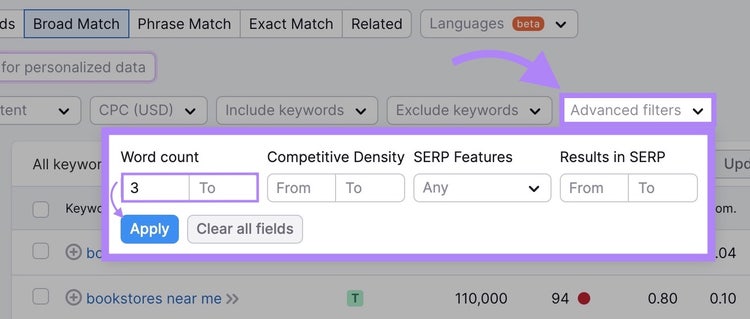
To filter for long-tail keywords, click the “Advanced filters” drop-down.
Enter “3” as the minimum number of words and leave the maximum empty. Three words isn’t a rule, but it’s a good starting point for finding highly specific keywords.
Click “Apply.”
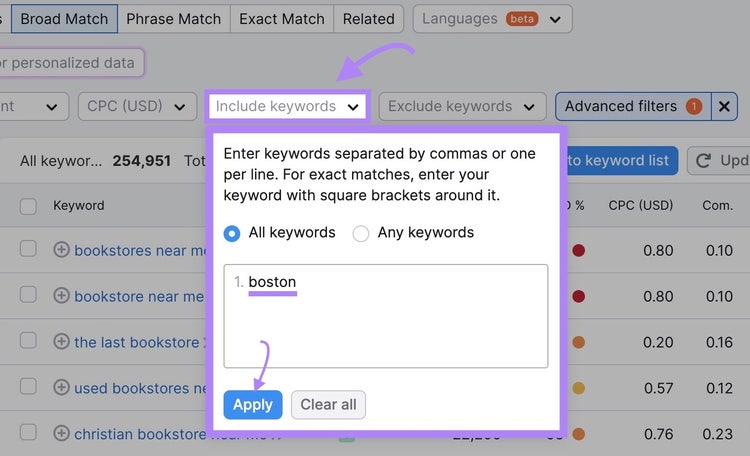
Then, click the “Include keywords” drop-down to filter those long-tail keywords to only include your geographic area.
Enter the city, state, neighborhood, and any other local indicator in the box. Click “Apply.”
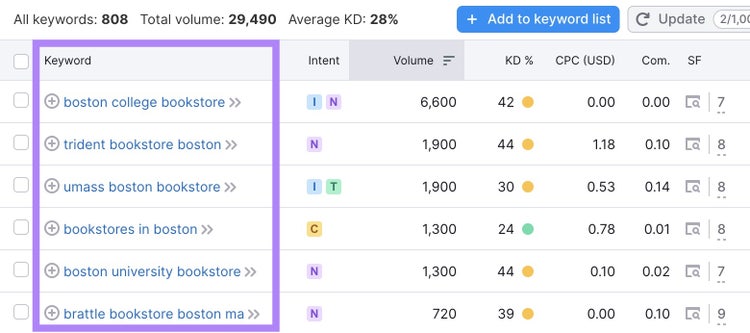
You’ll now see a list of local, long-tail keywords to consider targeting for your business.
To narrow your focus even further, you may decide to filter by other variables. Like keyword difficulty and intent.
10. Embed Google Maps on Your Site
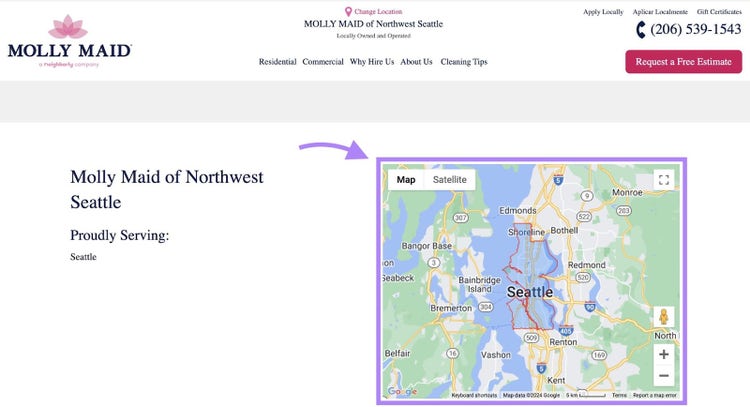
Embedding a Google Map on your site—such as your location or contact page—can help people find your business and improve the user experience.
It can also help Google understand the geographical context of your business.
As an example, Molly Maid embeds a Google Map on their Northwest Seattle location page to show what area they serve:
Pro tip
To embed a Google Map on your site, follow the steps to gathering the HTML in Google’s guide. View the steps under “Share a map or location with others,” and place the HTML in the source of your site.
11. Use Paid Ads to Boost Engagement
Google Local Services Ads help your business attract customers. And collect leads via bookings and phone calls.
These ads appear at the top of the Google SERP. They can display your business name, ratings, number of reviews, opening hours, and more.
A few best practices for creating these ads include:
- Fill out your profile: Fully complete your profile with accurate information and relevant business categories
- Set a realistic budget: Align your budget with your business goals. Adjust based on your ads’ performance.
- Define your service areas: Ensure your ads only reach people in the areas you serve
- Share visuals: Include images and videos to attract attention and showcase your services
- Use ad scheduling: Schedule your ads to run only during the hours when you believe your target audience is likely searching
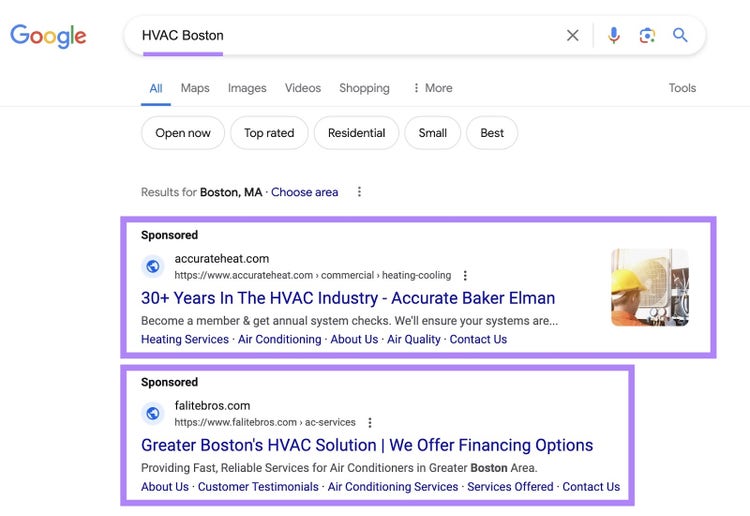
For example, these paid ads appear when searching “HVAC Boston”:
Further reading: Google Local Services Ads: What They Are & How to Set Them Up
Create an Effective Google Maps SEO Strategy
Google Maps can be a competitive space for local businesses, so it’s essential to have the right SEO tools on hand.
With Semrush’s suite of tools, you’ll have access to a variety of tools and features that can help you optimize your website for local search.
Manage your GBP, research local keywords, monitor your site’s health, and more—all in one place. Get started today.
Elevate Your Google Maps SEO Strategy
with a Semrush Subscription

Sydney has been creating content for over 10 years. She has been a writer, content manager and coordinator, editor, and strategist. At Semrush, she’s a blog editor who makes sure each article is as accurate, optimized, and helpful as possible.

Tells Google to show you more from Semrush in AI, Search, and Discover.